Get it for my Mac (75 MB)
 macOS Mojave
10.14.6
macOS Mojave
10.14.6
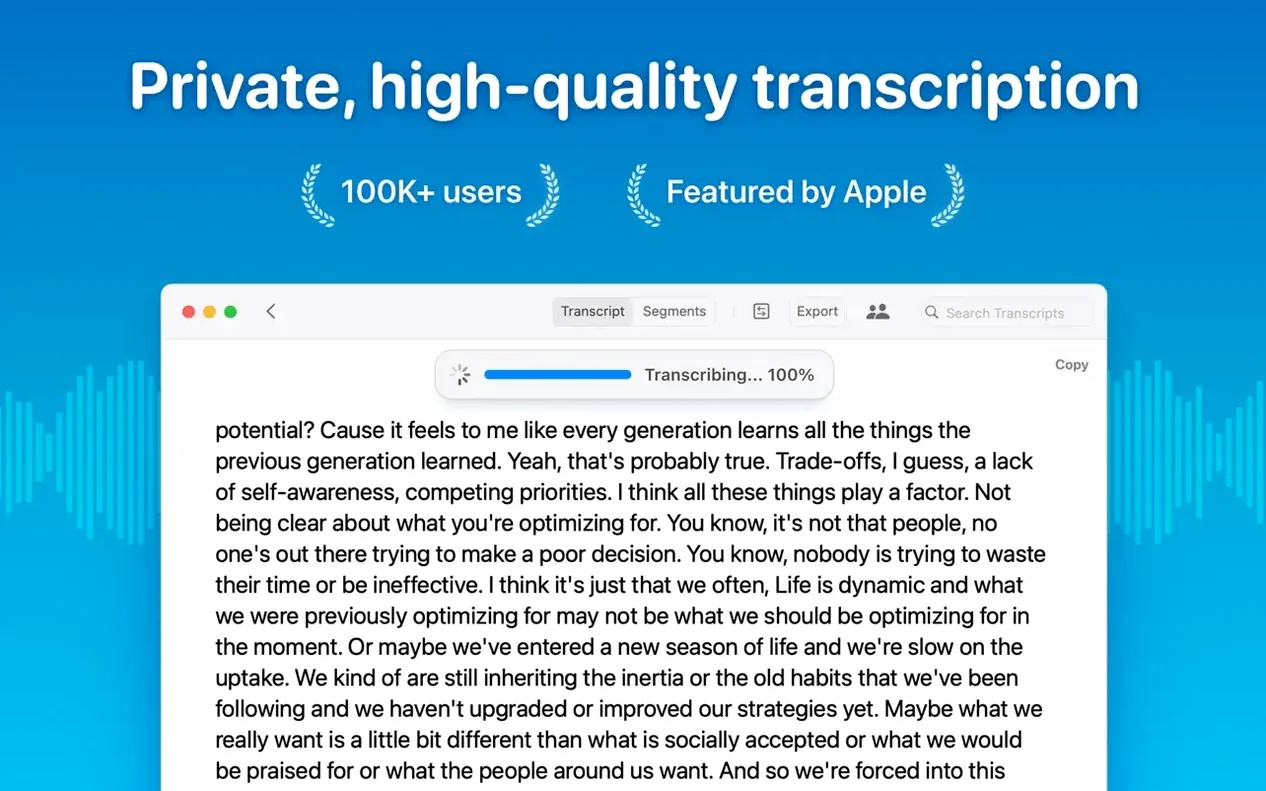
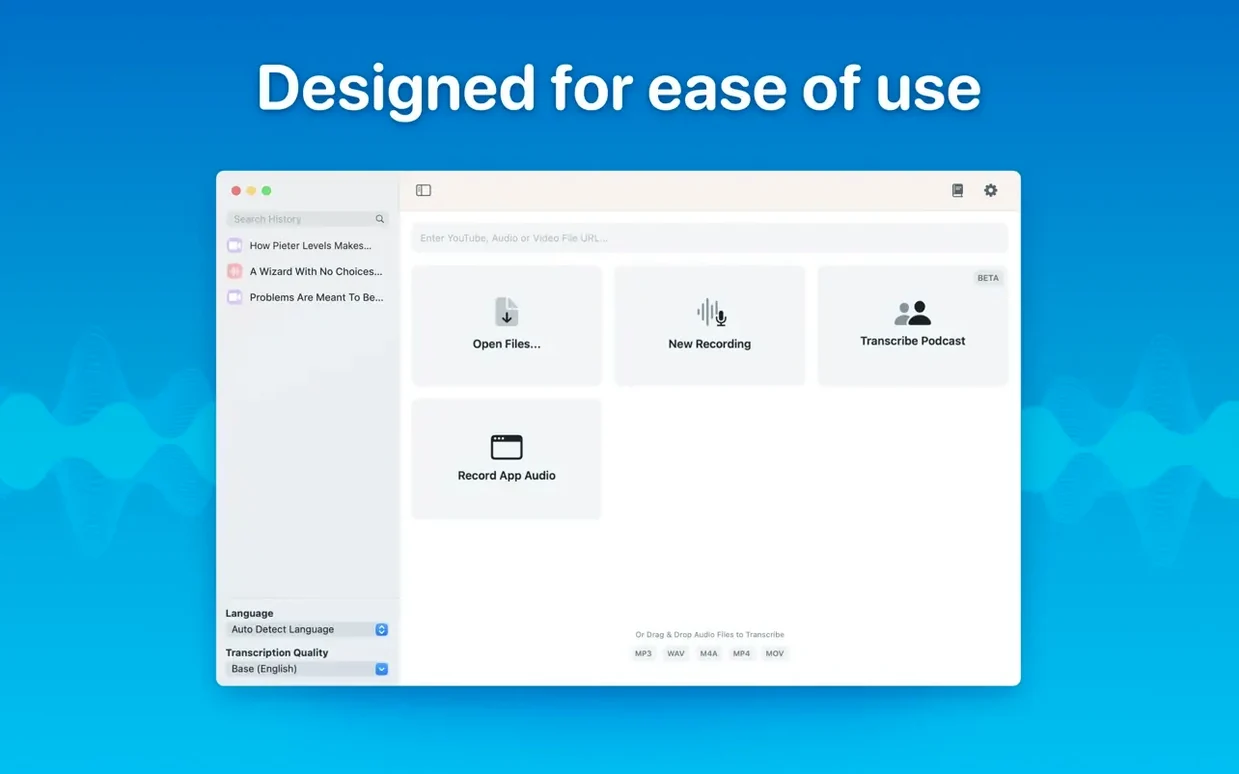
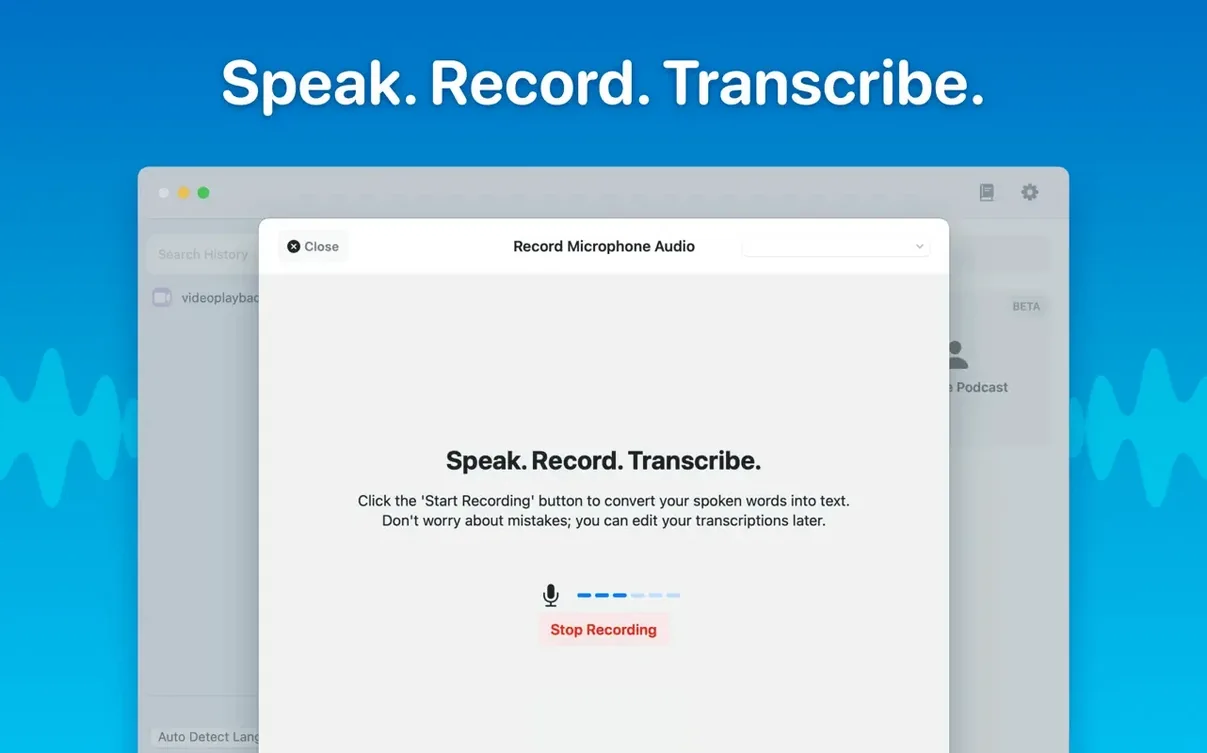
Version 15.2 tightens the focus for people who transcribe regularly and need the deeper controls.
A few things trip up new users more often than they should. The first is forgetting to check the model size before starting a long file. If you drop a two-hour meeting onto the Large-V3 model on an older Intel Mac, it will take a while — not a problem, just a surprise if you were expecting instant results. Stick to Tiny or Base for quick drafts and save the bigger models for final passes.
Another common one: dragging in a video file that contains multiple audio tracks and wondering why the transcript seems to skip sections. MacWhisper handles the primary audio track by default, so if your source has a separate commentary track or a second language, you might need to extract the right stream first. Not a bug, just something to keep in mind with complex exports.
People also occasionally hit the language detection limit. Automatic detection works well for clear speech in a single language, but if your recording switches between English and French mid-sentence, it can get confused. Manually selecting the dominant language before you start usually gives cleaner results.
Journalists and researchers who record interviews every week will find the batch export and speaker separation genuinely useful. Instead of transcribing one file, editing it, then doing the next, you can queue up a week’s worth of recordings, export them all as Word docs, and work through them at your desk.
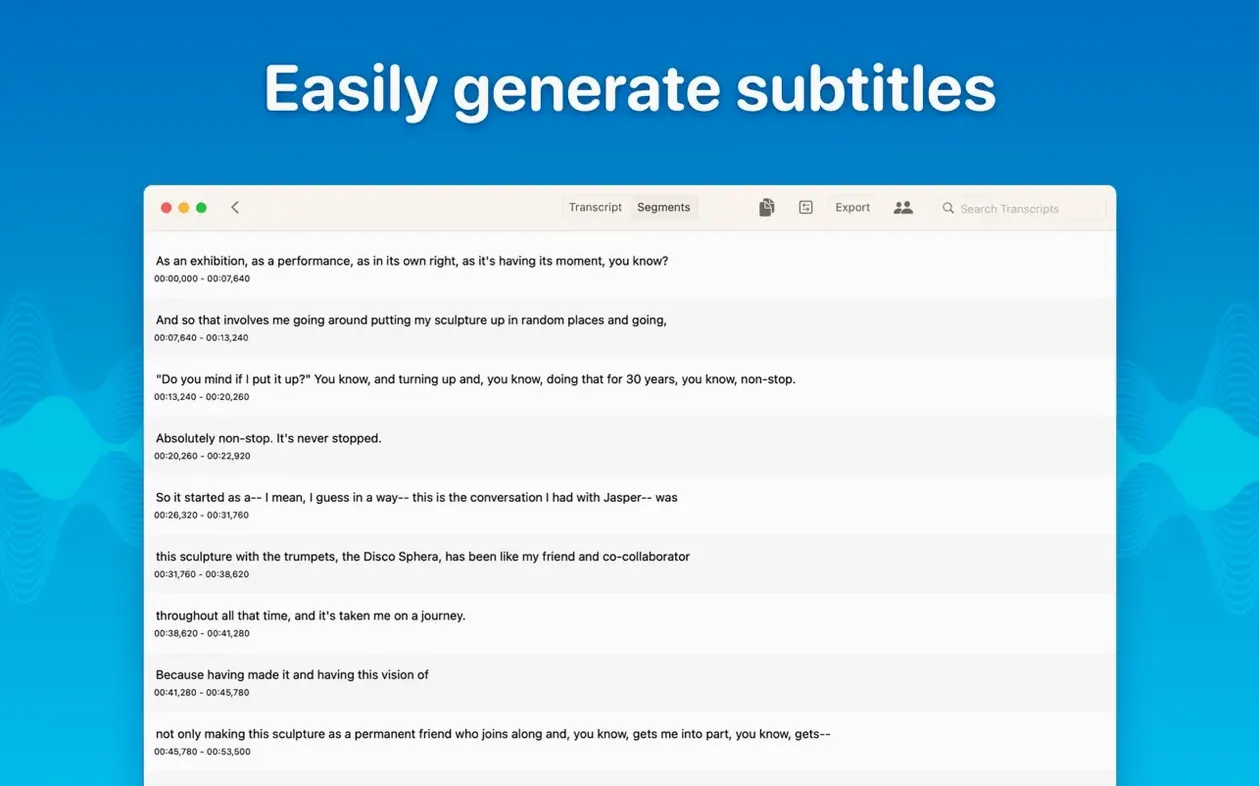
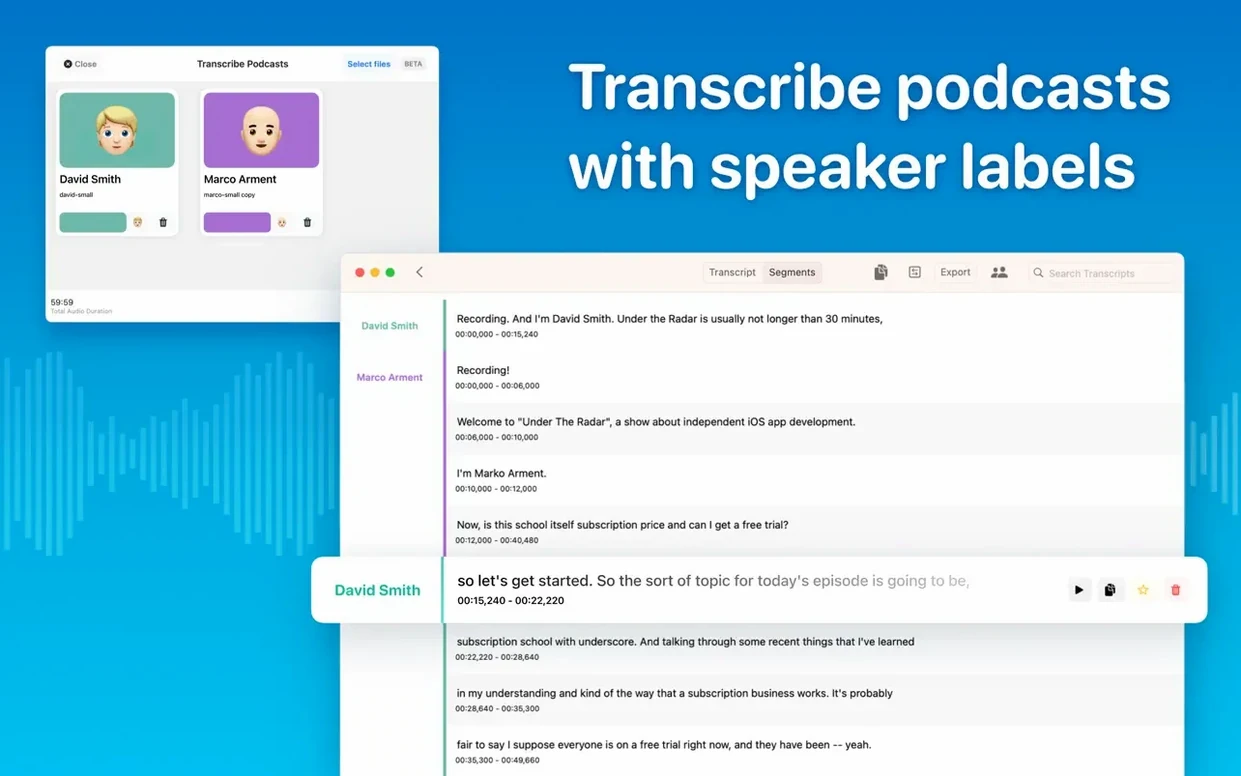
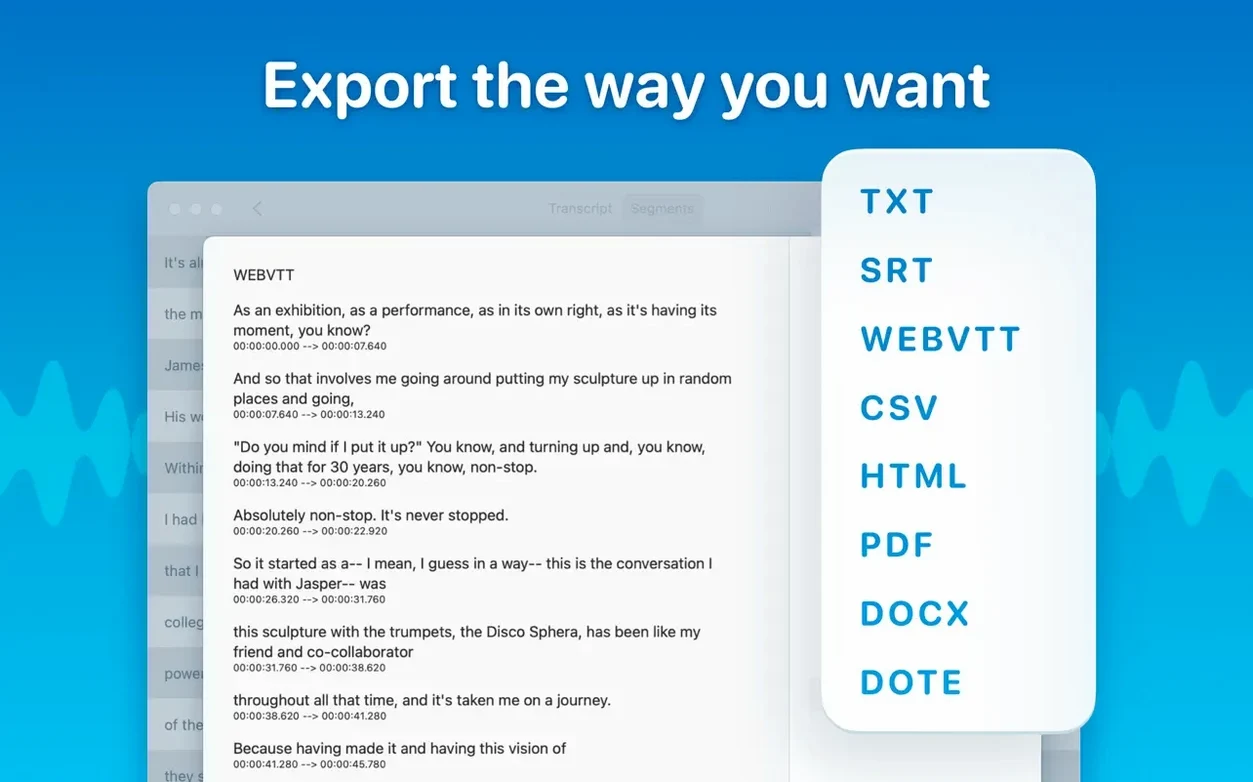
Podcast editors are another obvious fit. Speaker separation means you can see who spoke when without manually tagging each voice, and the SRT and VTT exports are ready to drop straight into your editing software or captioning platform. The real-time meeting transcript feature also helps if you produce a live podcast that you want to publish with text support.
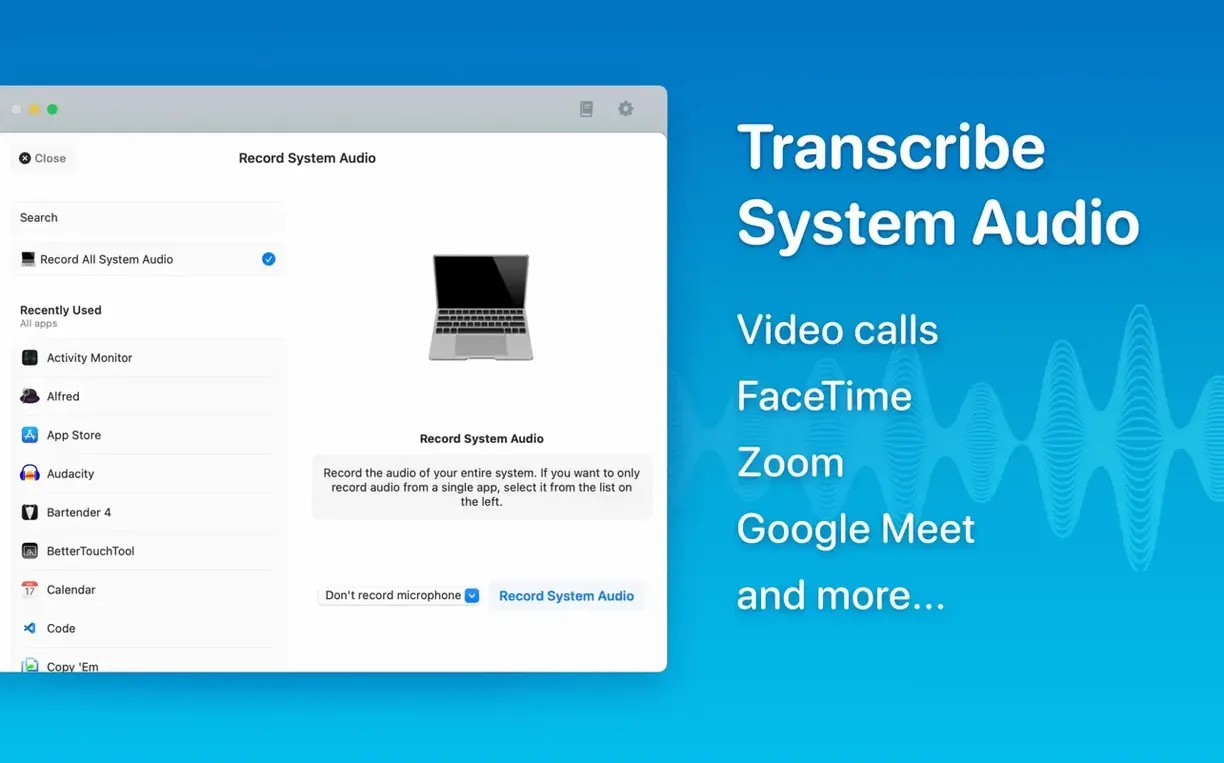
Students transcribing lectures will appreciate the on-device privacy — your notes never touch a server — and the ability to organise transcripts into folders by module or term. If you record system audio, you can capture online seminars or streaming lectures without extra hardware.
The most common one is not selecting a model before starting a transcription. If you drag a file in and hit go without checking, MacWhisper uses whatever model was last selected, which might be the wrong size for the job. Get into the habit of picking the model first — it saves time and avoids reruns.
Another mistake: ignoring the language selector. Automatic detection is good, but if your recording has strong accents or background noise, setting the language manually often improves accuracy. It takes two seconds and can save you a lot of editing later.
Beginners also tend to export everything as plain text first, then realise they need timestamps or speaker labels. The app lets you export with those included from the start, so check the export options before you hit save. A little planning upfront avoids re-exporting the same file three times.
MacWhisper 15.2 requires macOS 14 or later and runs on both Apple Silicon and Intel 64-bit Macs. No activation is needed — you download, drag to Applications, and launch. The app itself is lightweight; the heavy lifting comes from the Whisper models, which you download within the app. Larger models take more disk space and more processing time, but that’s the trade-off for higher accuracy.
On the version 15.2.1 update, the app now checks your Mac model requirements before download and hides empty local model categories if your hardware can’t run them. That means less clutter in the model list and fewer confusing options. The Qwen provider icon has also been cleaned up, and a crash on macOS 15 when opening the Live Captions language menu has been fixed.
MacWhisper Pro crack isn’t needed because the app transcribes audio locally for privacy-conscious users. Similarly, macwhisper pro torrent or macwhisper cracked are terms that come up, but the standard version covers all the key features out of the box.
It supports mp3, wav, m4a, mp4, mov, ogg, and opus files, plus drag-and-drop transcription from Finder.
No. Transcription runs locally using Whisper models on your Mac, so audio data never leaves the device.
Sign in or create your account to leave a comment.
No notes from photographers yet. If you have used this on a real folder, say which camera and which Mac.