Get it for my Mac (9 MB)
 MacFamilyTree
11.3.4
MacFamilyTree
11.3.4
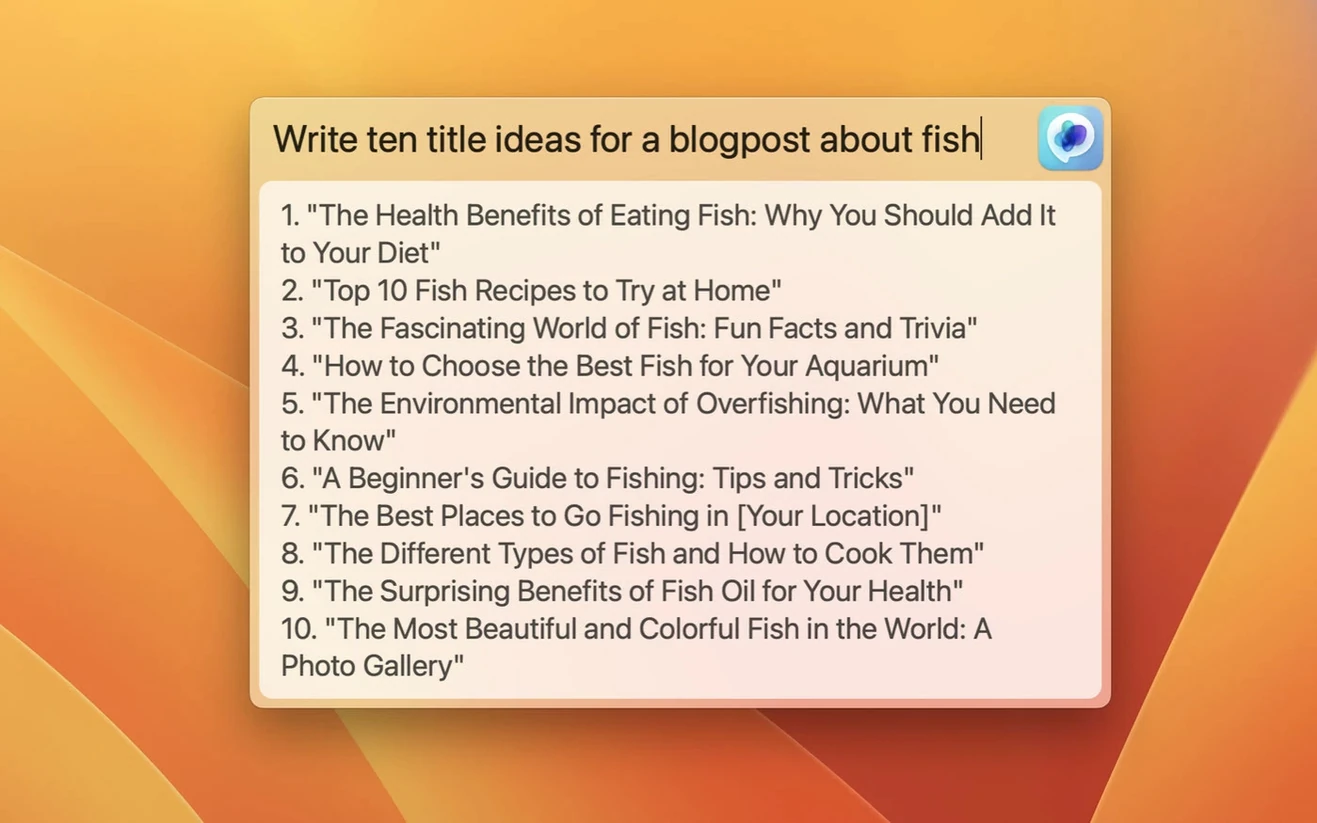
MacGPT works on any Mac running macOS Monterey 12 or macOS Ventura. It uses newer APIs, so older systems are out. Both Intel and Apple Silicon Macs are fine — no architecture restrictions.
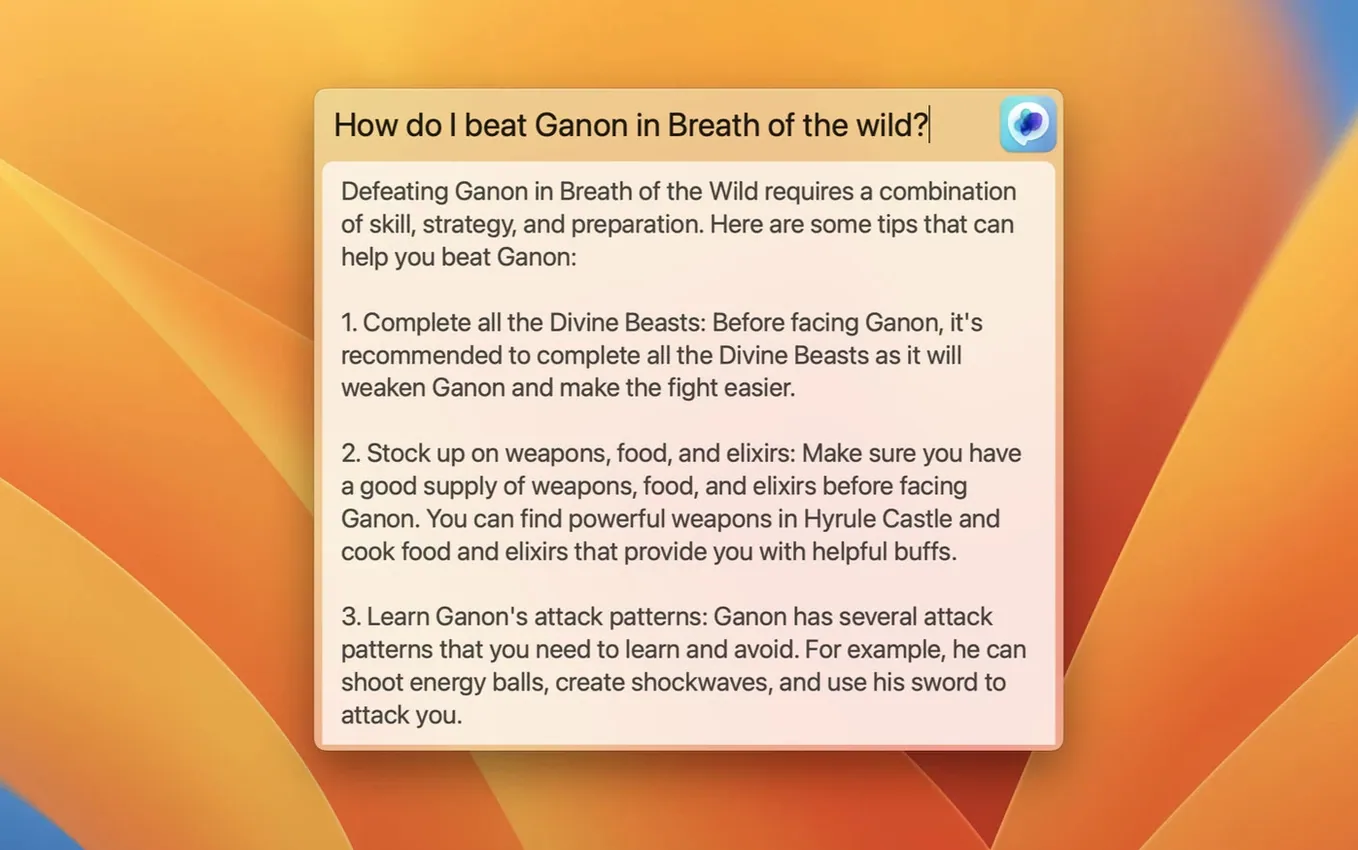
MacGPT has a few touches that don’t make the headlines but save time once you notice them. The Global feature, for example, isn’t just a floating text field — it stays centred and out of your way, so you can type a question or command without moving your current window or losing your place in a document. It feels like a quick aside rather than a full app switch.
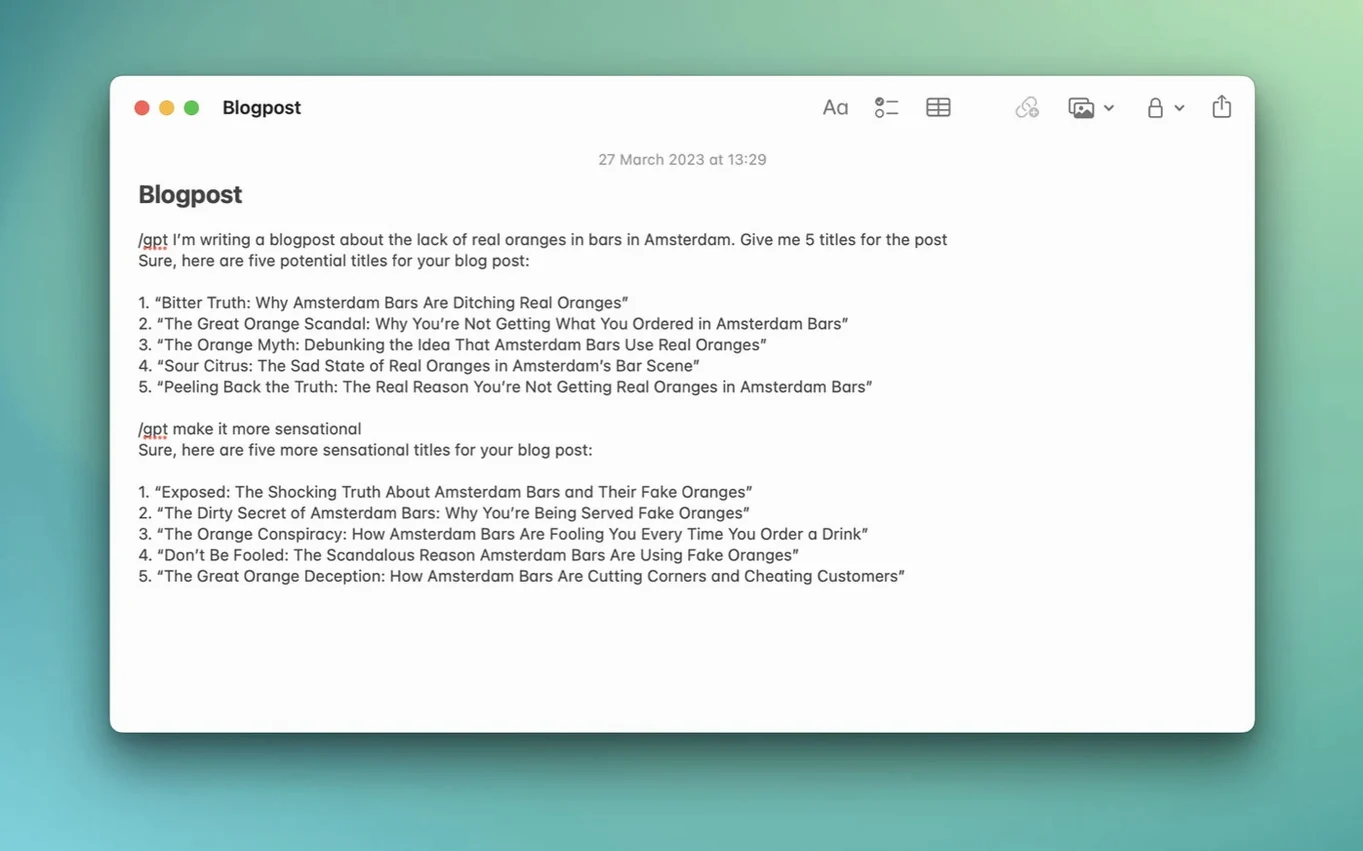
The Inline feature works inside text fields across the system. If you’re composing an email in Mail or writing in Notes, you can trigger MacGPT to help without pasting or jumping contexts. It’s a small thing, but it keeps your hands on the keyboard and your flow going.
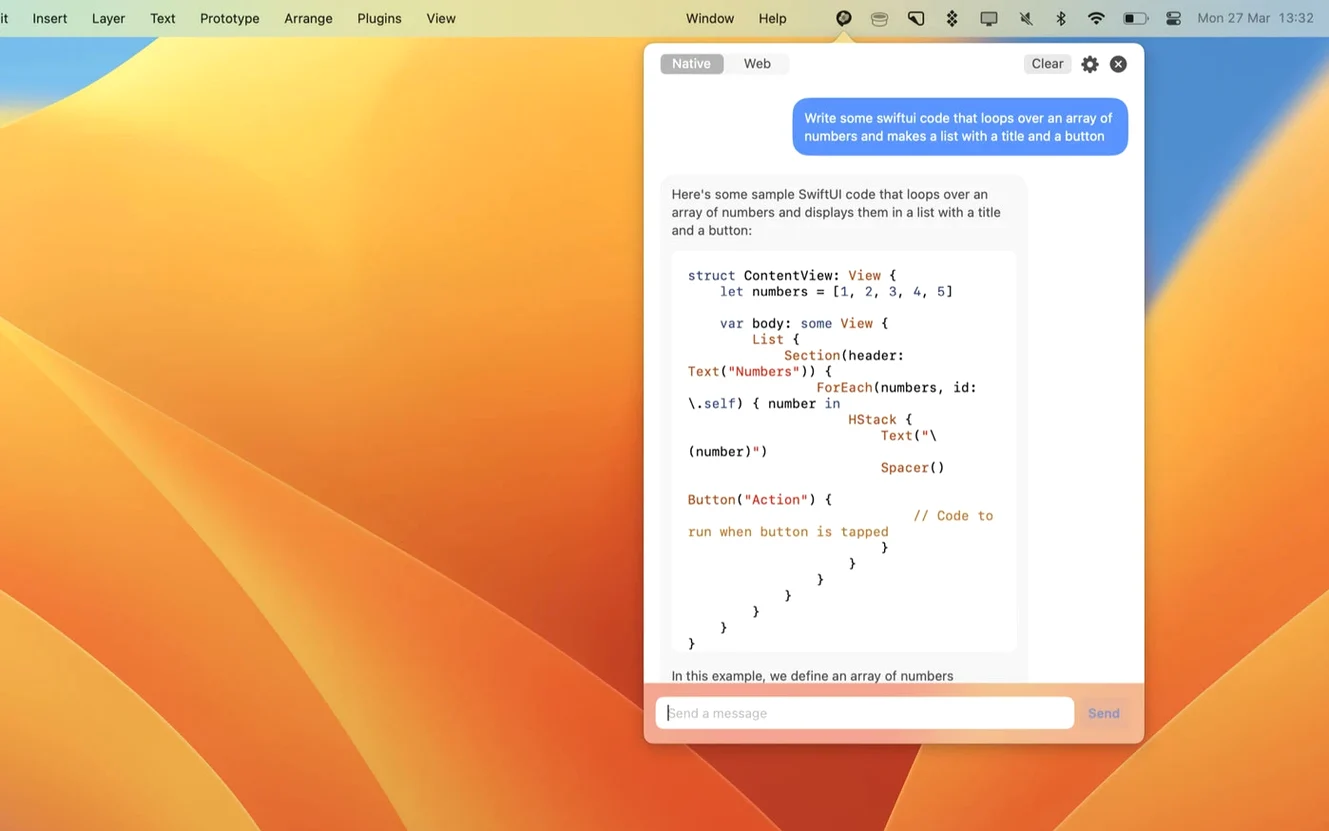
Another detail: the menu bar icon itself. A single click opens ChatGPT, and the keyboard shortcut you assign in settings means you never need to reach for the mouse or trackpad. The app remembers your preference between web mode and API mode, so once you set it up, it just works the way you left it.
Error messages are clearer in this version. If your API key isn’t set up correctly or your account needs attention, the app tells you what’s wrong instead of leaving you guessing. That sounds minor, but when you’re mid-task, a helpful message is a genuine time-saver.
Imagine you’re polishing a draft in your text editor. You want ChatGPT to suggest a better opening line. With MacGPT, you press your keyboard shortcut — the Global text field appears centred on screen. You paste the draft’s first paragraph and ask for a punchier alternative. ChatGPT’s response appears in the same field. You copy the best option and paste it back into your editor. The whole thing takes seconds, and you never leave your writing app.
Next, you need a quick summary for the post’s meta description. You trigger MacGPT again, this time using the Inline feature inside a text field in your CMS. You type your request, and the answer appears right there. You copy it into the meta field. No browser tab, no extra window, no disruption.
Finally, you want to check the tone. You open the full ChatGPT web interface from the menu bar — one click — and paste the whole draft. You ask for a tone check and get feedback. The web interface is there when you need it, but the menu bar shortcuts handle the quick tasks.
I start my day by checking email and planning tasks. Before I open anything, I press the keyboard shortcut I set in MacGPT’s settings. The Global field appears. I type “list five productive ways to start a Tuesday” and get ideas in seconds. I jot one down in Notes and carry on.
Later, I’m in Slack, drafting a message to a colleague. I want to make the request clearer. I highlight the text, trigger the Inline feature, and ask “make this more concise.” The revised version appears in the same field. I tweak it slightly and send it. No copying between apps, no context switch.
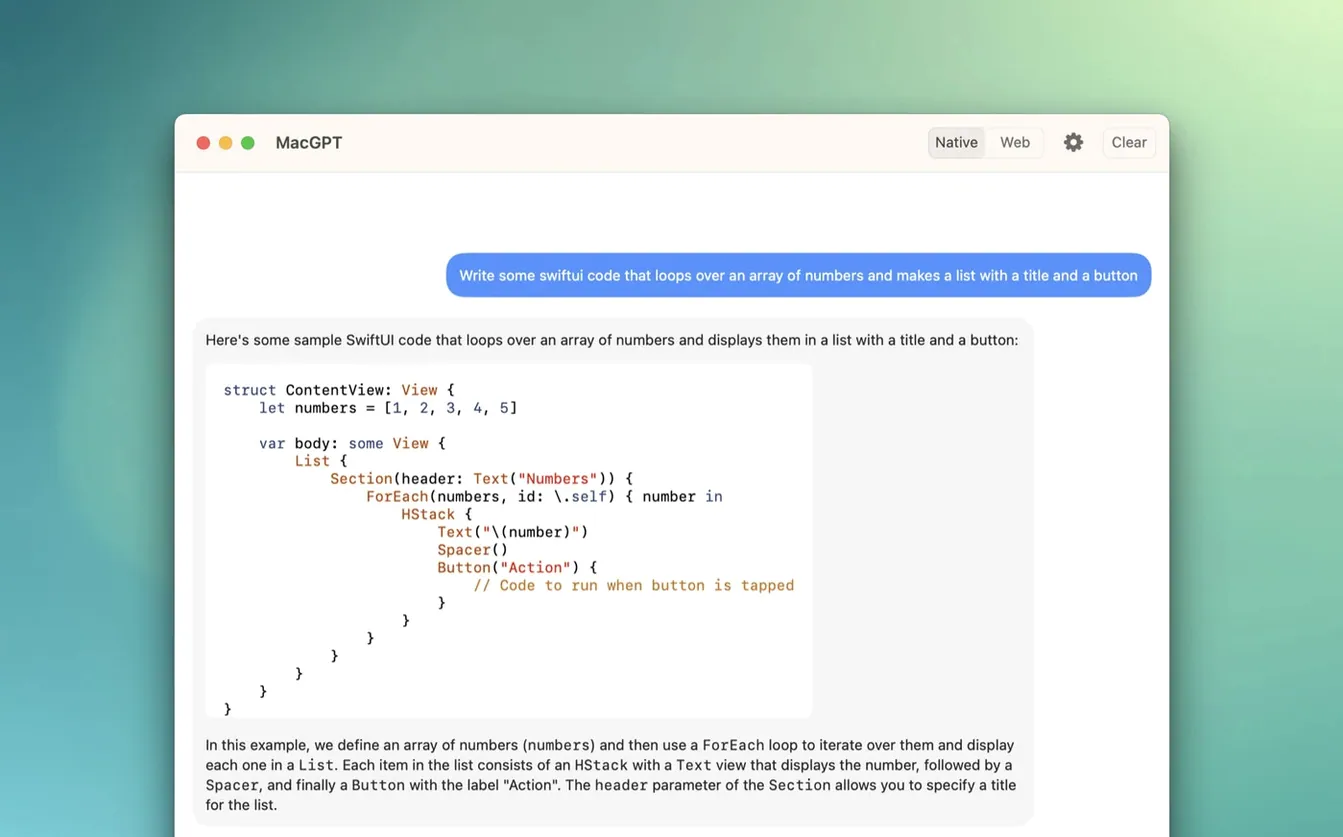
Mid-afternoon, I’m researching a topic. I click the menu bar icon to open the full ChatGPT web interface. It loads in my default browser, logged into my OpenAI account. I have a longer conversation there, pasting links and asking follow-ups. When I’m done, I close the tab. The menu bar icon is still there for the next quick question.
In the evening, I’m planning next week’s tasks. I open the Global field again and ask for a weekly outline based on my priorities. I copy the result into a document. The session flows naturally — quick prompts in the Global or Inline fields, longer chats in the browser, all without opening a dedicated app or navigating away from what I’m doing.
Do I need a paid OpenAI account? MacGPT works with both a free OpenAI account and a paid API key. If you use the web mode, you log in with your regular ChatGPT credentials — free tier is fine. If you want to use the API key for direct interaction, you’ll need a paid OpenAI API account with credits. The app gives you clearer error messages if the key isn’t set up right, which helps avoid frustration.
Does it work on older macOS versions? The app uses newer APIs, so it won’t run on macOS 11 Big Sur or earlier. Both Intel and Apple Silicon Macs are supported, so no worries about architecture.
Is it a standalone client or a wrapper? MacGPT loads the ChatGPT web interface in a browser. It’s not a full desktop client that runs ChatGPT offline or independently. The convenience is in the menu bar access and the Global and Inline features, not in being a separate app. For quick interactions, that’s enough. For long sessions, the browser view is there.
Can I use it without an internet connection? No. ChatGPT is the underlying service, so you need an internet connection for any interaction. The app itself is a native macOS app, but it communicates with OpenAI’s servers.
Is there a keyboard shortcut? Yes. You can assign one in the settings. It’s not set by default, but once you choose one, the Global field opens instantly. That’s the main way to keep your hands on the keyboard.
No, the app only supports macOS Monterey and Ventura because it relies on newer APIs.
Yes, you sign in using your OpenAI account credentials or set up an OpenAI API key.
Yes, you can assign a keyboard shortcut from the app’s settings.
Sign in or create your account to leave a comment.
No notes from photographers yet. If you have used this on a real folder, say which camera and which Mac.