Get it for my Mac (124 MB)
 Serato DJ Pro
5.0.0
Serato DJ Pro
5.0.0

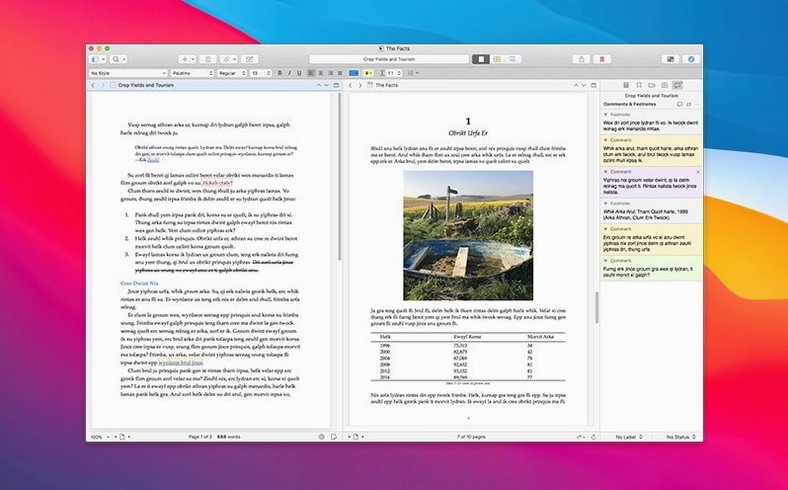
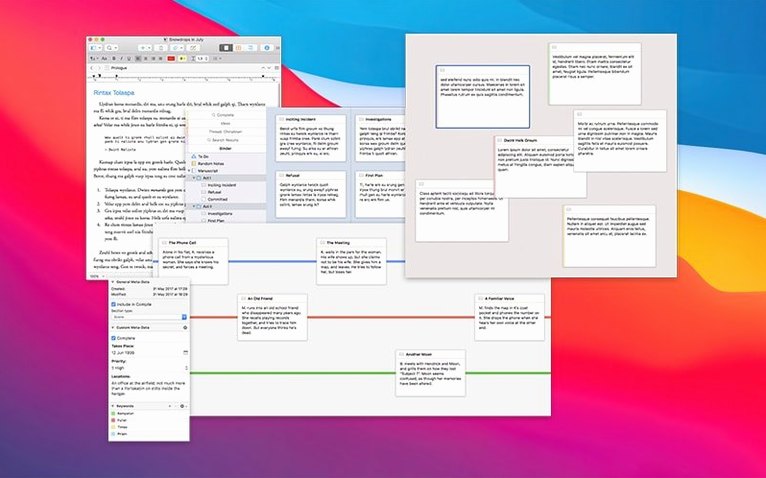
Scrivener 3.5.2 runs on any Mac from macOS 10.13 High Sierra onwards, whether it is an Intel machine or Apple Silicon. That covers a lot of hardware, so chances are it will work on yours without a fuss.
If you are used to Ulysses, you know it keeps everything in a library with a clean, minimal editor and syncs across devices via iCloud. Scrivener takes a different approach: each project is a self-contained folder on your disk, so you are not tied to a proprietary library. That makes it easier to back up, move between machines or keep archived. Ulysses also leans into Markdown, while Scrivener gives you a full word processor with rich text, images and inline notes — more like a writer's workshop than a typewriter.
Another common alternative is iA Writer. It is focused on distraction-free typing and Markdown export, and it handles long documents through a file browser rather than a binder. iA Writer is great for getting words down, but it does not offer Scrivener's corkboard, outlining tools or the ability to store research inside the same project. For a project that mixes notes, PDFs, images and audio alongside the manuscript, Scrivener keeps everything in one place instead of forcing you to juggle Finder windows.
Then there is Pages, which comes free with every Mac. Pages handles book-length manuscripts if you are disciplined about section breaks and styles, but it has no project-level organisation. You cannot drag a chapter folder to reorder the whole book, take snapshots of individual scenes or compile a manuscript into different formats from one source. Scrivener is built for that kind of structural work; Pages is not.
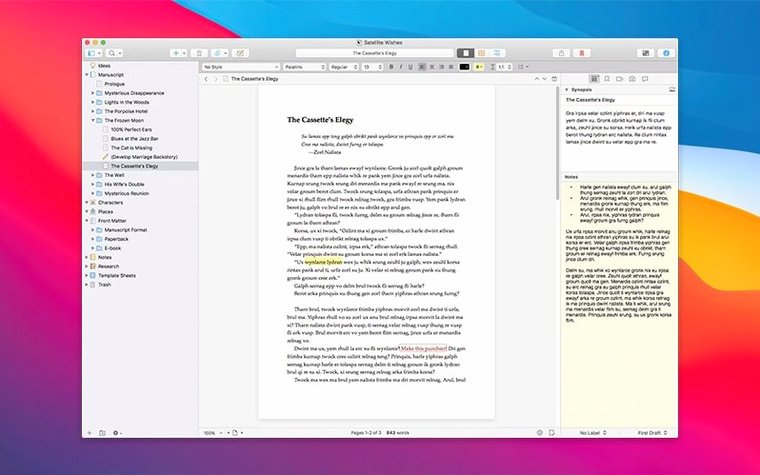
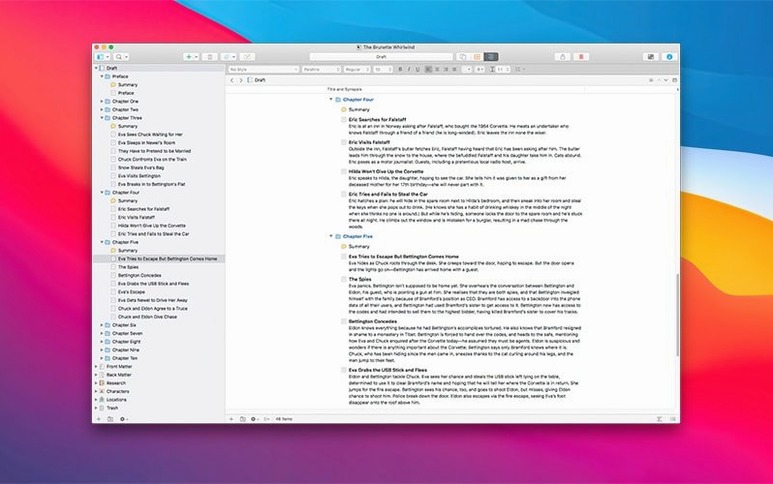
Let me walk you through how a session might go for someone writing a non-fiction book. You open Scrivener and see the binder on the left, the editor in the middle and the inspector on the right. The binder lists every folder and document in your project — chapters, scenes, research notes, character sketches.
You start by reviewing the chapter you wrote yesterday. You click the folder in the binder, and the editor shows the whole chapter as a single scrollable document. You read through, make small edits, then decide the second section should move earlier. In the binder, you drag that section to a new position, and the entire chapter reorders itself. No cutting, no pasting, no reformatting.
Next, you open the Research folder to look at a PDF you saved from a journal article. The PDF opens in the editor pane, so you can read it without leaving Scrivener. You find a quote you want to use, copy it and paste it into a note document in the same folder. Later, you can drag that note into the manuscript when you are ready.
You take a snapshot of the current chapter before making big changes — that way, if you decide the rewrite does not work, you can roll back to the snapshot. Then you write for an hour, using the full-screen composition mode to block out distractions. When you finish, you close the project, and Scrivener saves everything automatically.
Start with a template. Scrivener includes project templates for novels, non-fiction, screenplays and more. Pick one that matches your project type, and it will set up the binder structure and formatting for you. You can always adjust later.
Use the Research folder from day one. Drop everything related to your project in there — web clippings, interview notes, reference images, even audio recordings. Having it all inside the project means you never waste time hunting through your Downloads folder or browser bookmarks.
Take snapshots before you edit anything you care about. It takes two clicks and saves you the pain of undoing a week's worth of changes. You can also take snapshots of selected text, not just entire documents.
Learn the compile feature early. Compile is how you export your project into a single document — a Word file, a PDF, an ebook or a manuscript format. Even if you are not ready to export, opening the compile dialogue lets you see how your project structure maps to chapters and sections. It helps you catch organisation problems before they become headaches.
Do not try to learn every feature at once. Scrivener is deep. Focus on the binder, the editor and snapshots for your first week. The rest can wait.
Scrivener plays well with the rest of your Mac. You can drag files from Finder straight into the Research folder — PDFs, images, Word documents, even audio files. They open in Scrivener's editor without needing to switch applications.
For final formatting and layout, you might export to Pages or Word using the compile function. Scrivener does not try to be a page layout tool; it gets your text organised, then hands it off to software that handles typesetting.
If you use Markdown, Scrivener can export to MultiMarkdown, which then works with tools like Pandoc for conversion to epub, HTML or LaTeX. That is a common workflow for academic writers who need specific citation formatting.
On the macOS side, Scrivener supports Dark Mode, full-screen mode and split view. You can run it side by side with a browser or a reference app using Split View or a third-party window manager. Automatic saving means you never lose work if your Mac shuts down unexpectedly.
Scrivener 3 helps writers organize complex projects, though the current version is 3.5.2, not a scrivener 3 torrent. It is a stable bug-fix build that runs on both Intel and Apple Silicon Macs, and it integrates with the macOS ecosystem as you would expect from a mature Mac app.
Sign in or create your account to leave a comment.
No notes from photographers yet. If you have used this on a real folder, say which camera and which Mac.