 Get it for my Mac (28 MB)






 Things
3.24.2

- Version
- 3.2.2
- Developer
- Catforce Studio
- Interface in
- English, German
- Licence on file
- K'ed by TNT team
- macOS it runs on
- macOS 10.15 or later
- Chip support
- Apple Silicon, Intel 64-bit
In the edit
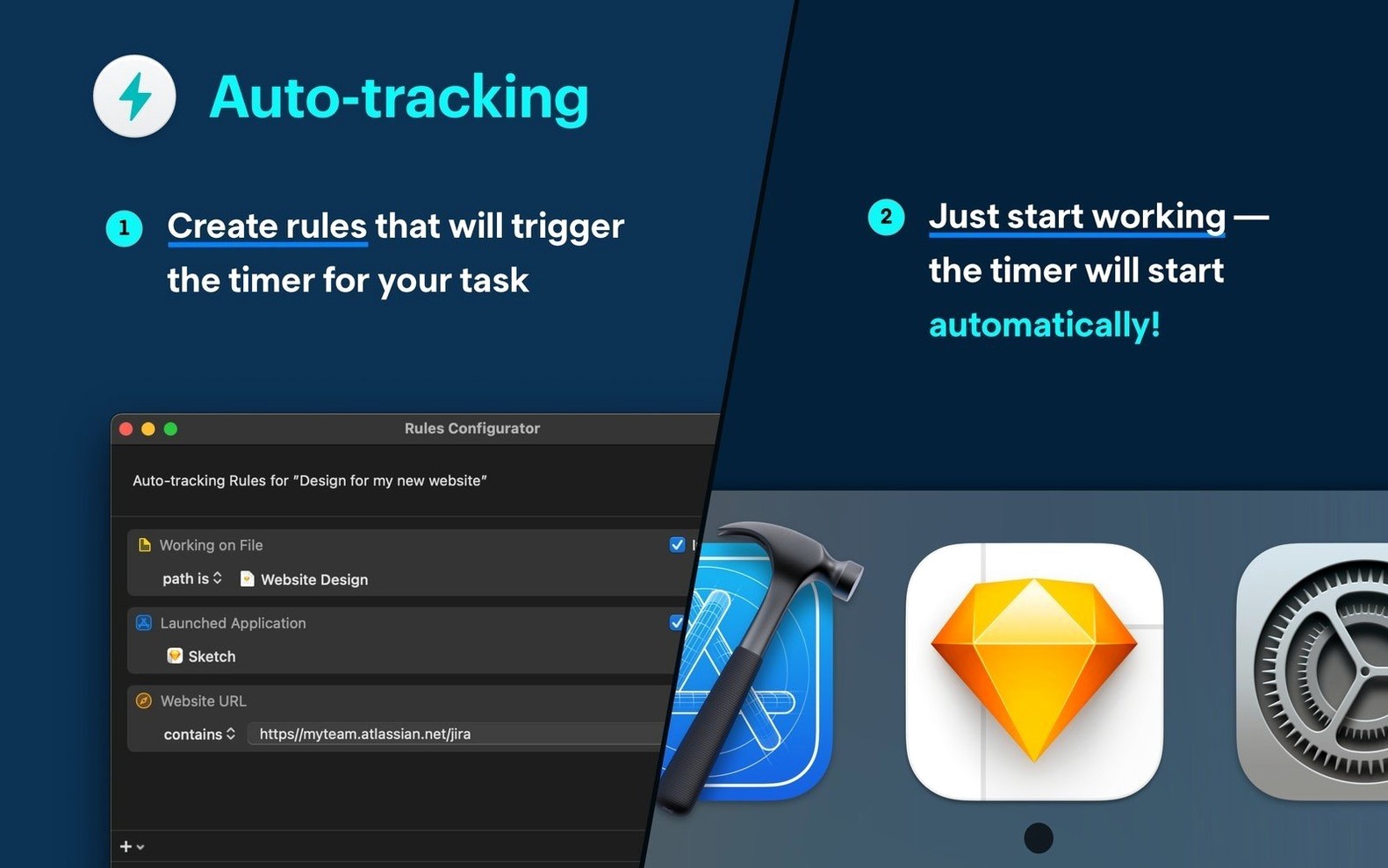
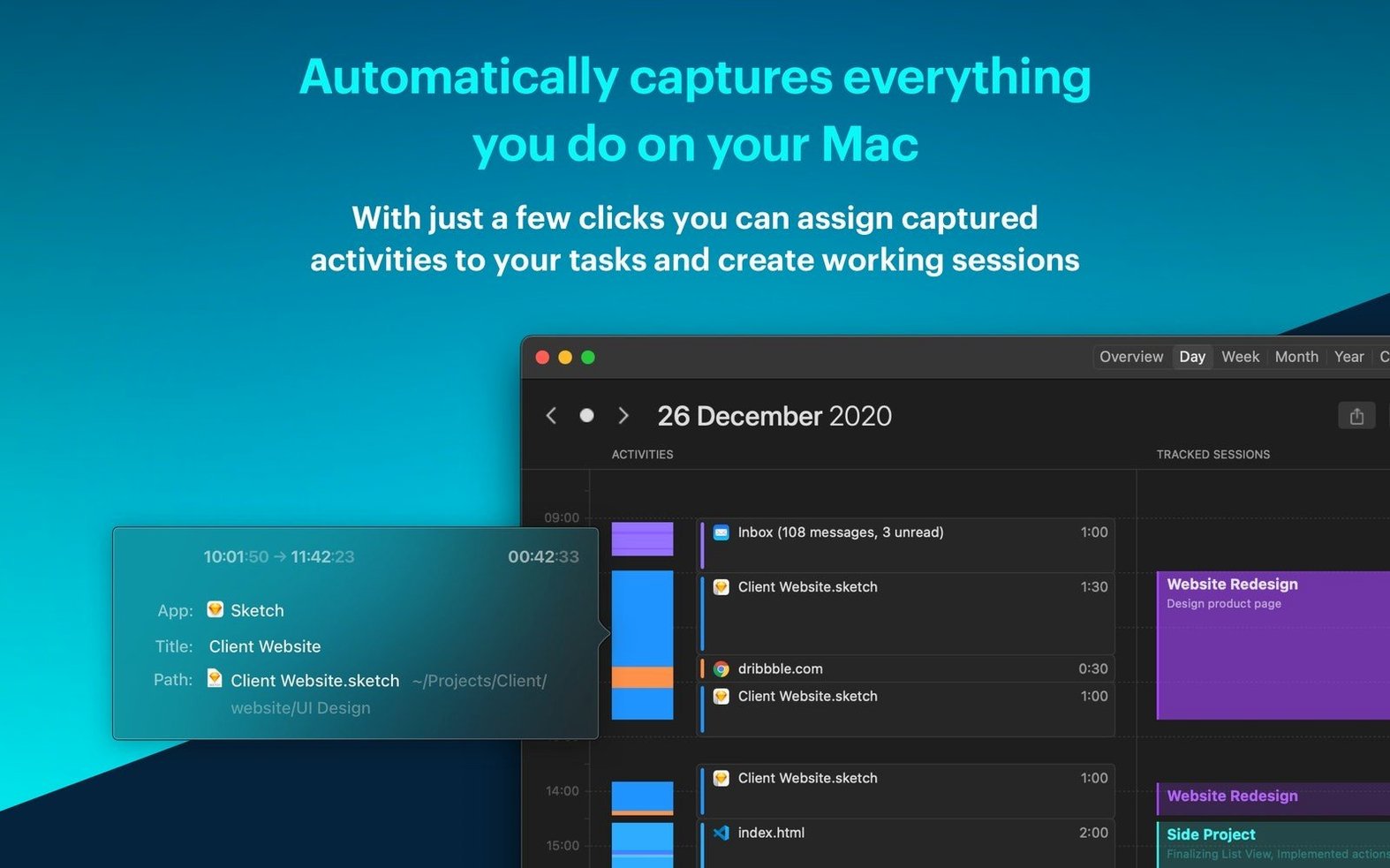
If you already use a timer app to log billable hours, you know the friction of starting and stopping it for every task. Timemator aims to remove that step. It watches which apps and files you use and builds a timeline of your work, so you can assign time to projects after the fact rather than during the flow.
How does the auto-tracking work?
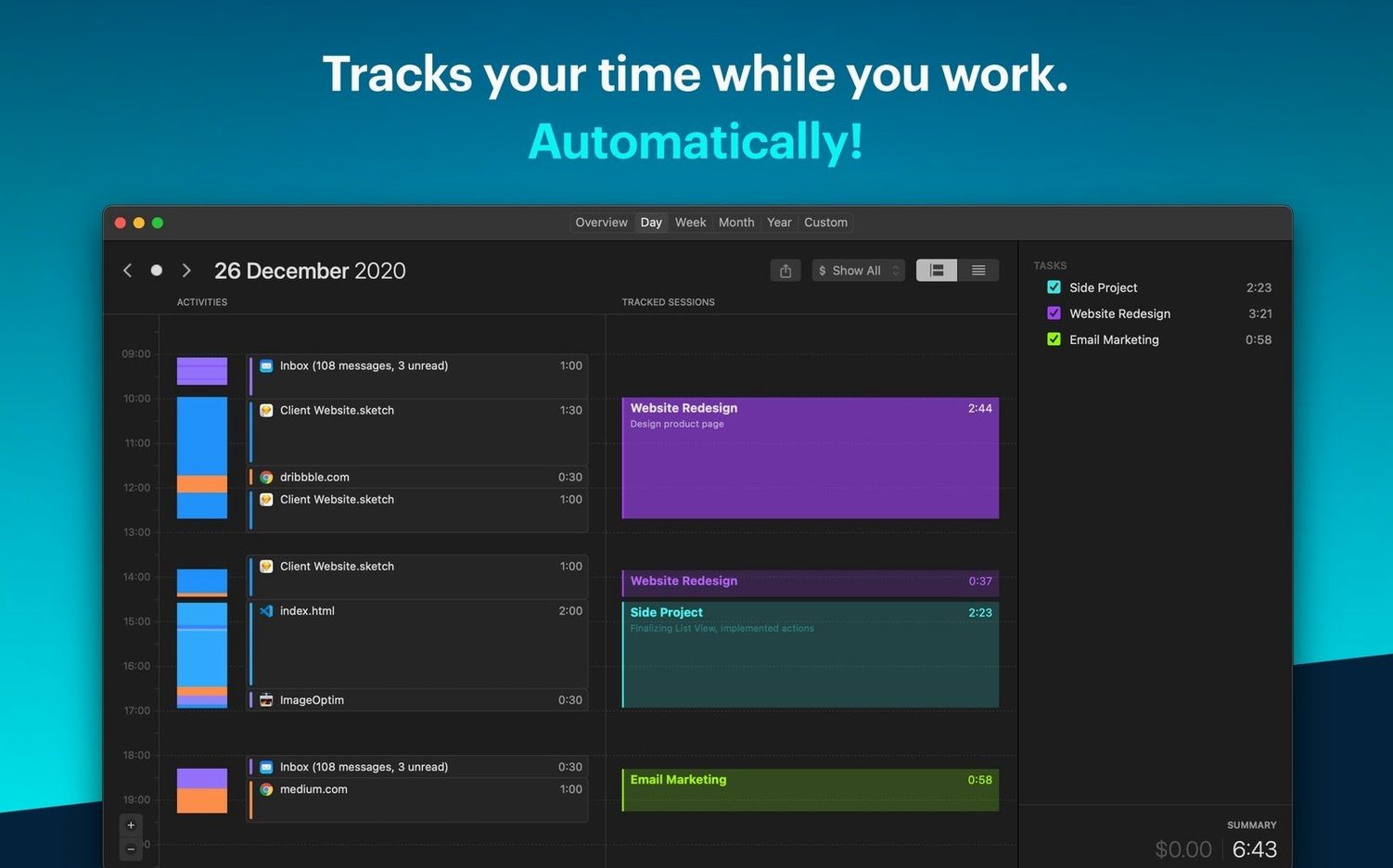
You create rules that trigger when you switch to a specific app or open a certain file. Timemator logs that activity and shows it on a day view, ready for you to drop into the right project. No manual start button needed.
Can I track earnings with it?
Yes. You can set an hourly rate per project, and Timemator calculates what you have earned based on the time logged. The reports then show both time and income.
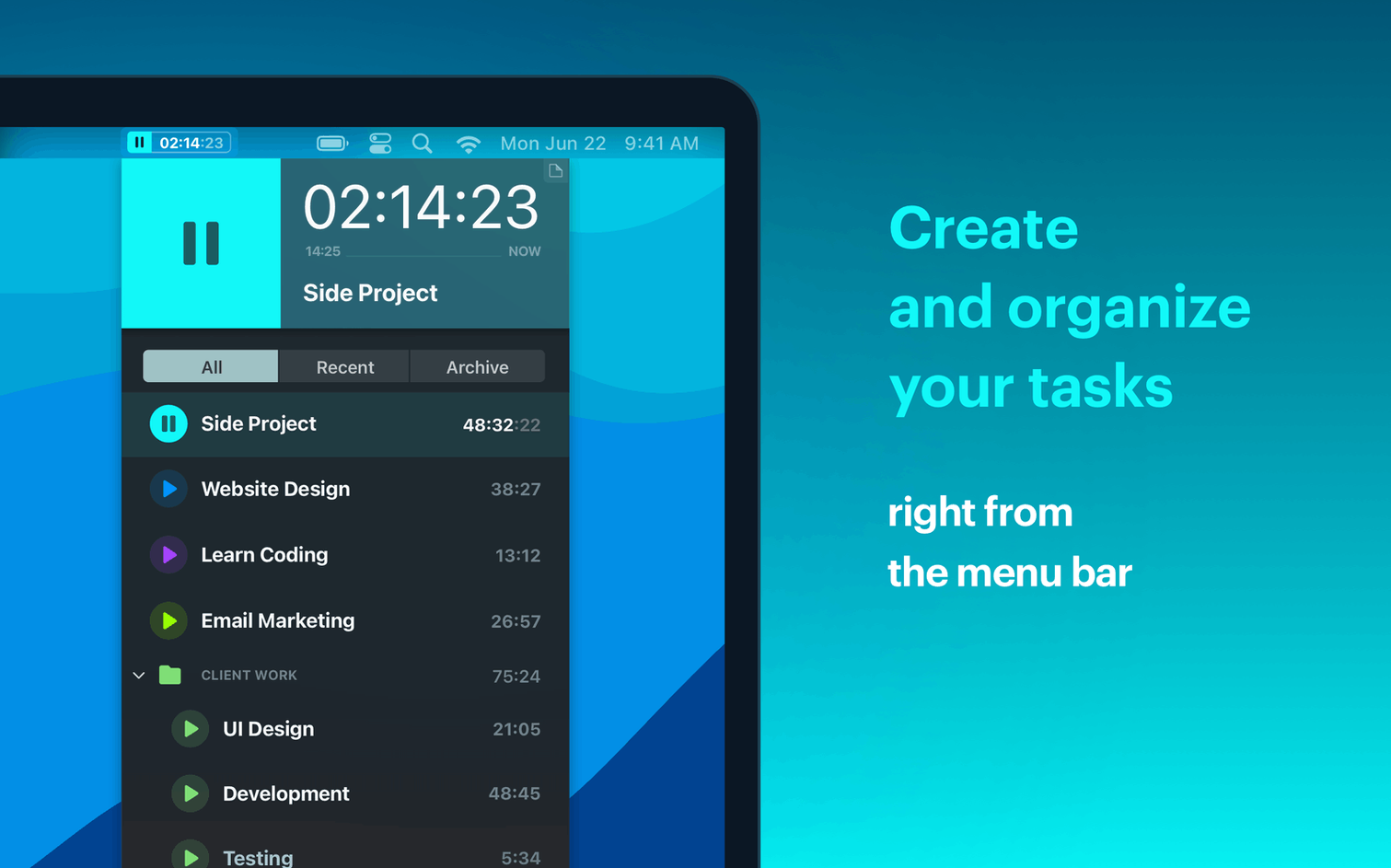
A lightweight menu-bar timer that runs quietly in the background
Timemator is a lightweight app that sits in your menu bar or runs quietly in the background. Since it watches your active windows and documents, it does not demand constant attention. On an Intel Mac running macOS 10.15 or later, it behaves the same as on Apple Silicon – the developers built it for both architectures from the start. The setup process involves a brief Gatekeeper bypass via Terminal, but after that the app works like any other Mac application. You will see a day view with your recent activity, a timeline of what you have opened, and project assignments you make yourself. The reports section gives you a breakdown of hours and earnings if you have set rates. Nothing about the interface feels crowded; it is a single-window tool designed for glancing at, not staring into.
Automatically tracks time when you switch from Capture One to Safari
Let us walk through a typical session. You are editing a set of wedding photos in Capture One and switching to Safari to send emails. With Timemator running, you create a rule that says: when Capture One is the frontmost app, log time to the "Wedding Edits" project. You also set a rule for Safari to log time to "Client Communication". Now you work normally. Every time you switch between apps, Timemator records the moment on the timeline. At the end of the day, you open the day view and see a clean sequence of your activity. If you spent ten minutes in Safari on personal browsing, you leave that block unassigned or drag it into a non-billable project. The manual timer is there if you need it – for phone calls or off-screen work – but the auto-rules handle the bulk of logging. You finish by checking the report for the week, where the hours and calculated earnings line up with what you expected.
Perfect for freelancers billing by the hour across multiple apps
This app suits anyone who bills by the hour and works across multiple apps or files. Freelance designers, developers, writers and photographers are the obvious fit – you switch contexts often and need to account for every segment. If you run a small creative agency and track time for several clients, the project-based rules and rate settings save you from remembering what you did three hours ago. Mac users who already work with a project management app will find that Timemator fills the gap between "what I did" and "what I logged". On the other hand, if you use only one app all day or your work is entirely meeting-based, the auto-tracking might be overkill. But for the rest of us who jump between tools, it is a way to let the machine do the remembering.
Timemator runs on macOS 10.15 and later, and it works on both Intel and Apple Silicon Macs. The interface is available in English and German.
New this release
- Bug fixes and improvements.
Mac it needs
- macOS 10.15 or later
- Intel or Apple Silicon processor
- Interface languages: English, German
Installing on a Mac
- Mount the disk image and open it — Gatekeeper will ask for confirmation.
- Press Enter in the Terminal window that appears to allow the app to run.
- Drag Timemator into your Applications folder.
- Open the app from Applications once the copy finishes.
Notes from photographers
Sign in or create your account to leave a comment.
No notes from photographers yet. If you have used this on a real folder, say which camera and which Mac.
