Get it for my Mac (783 MB)
 Affinity Designer
2.6.5
Affinity Designer
2.6.5

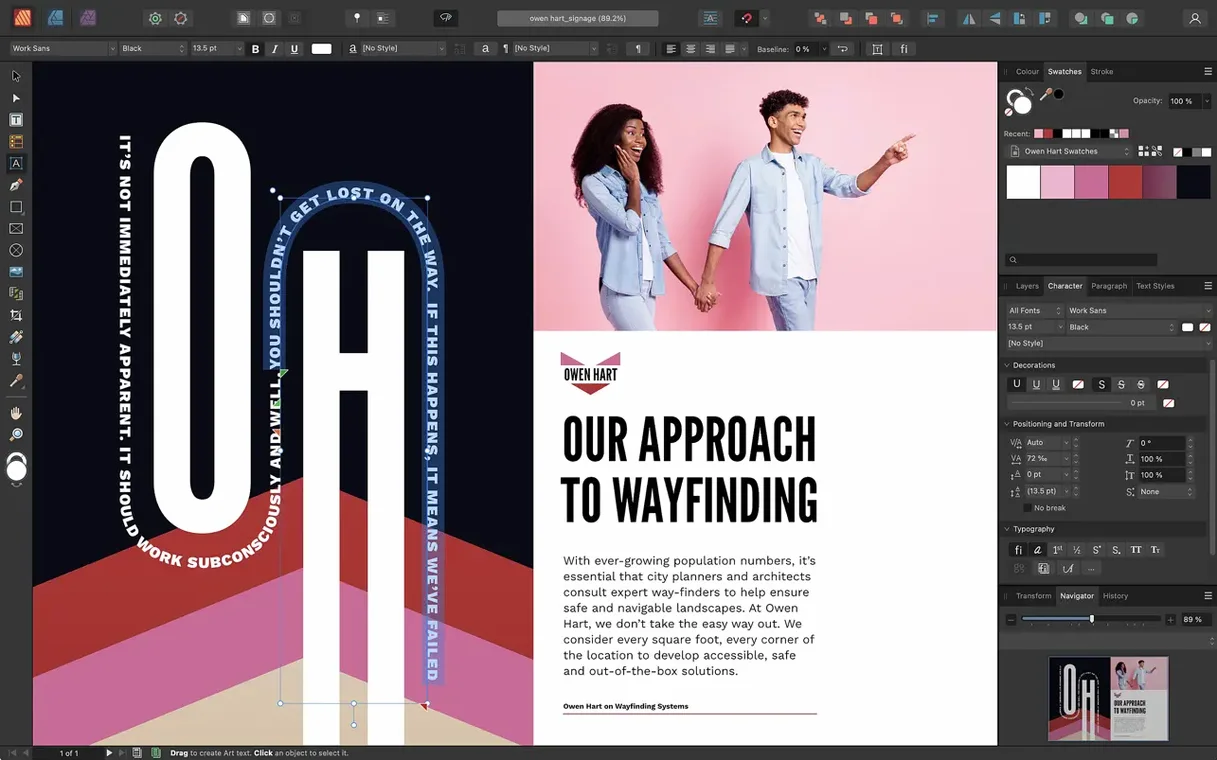
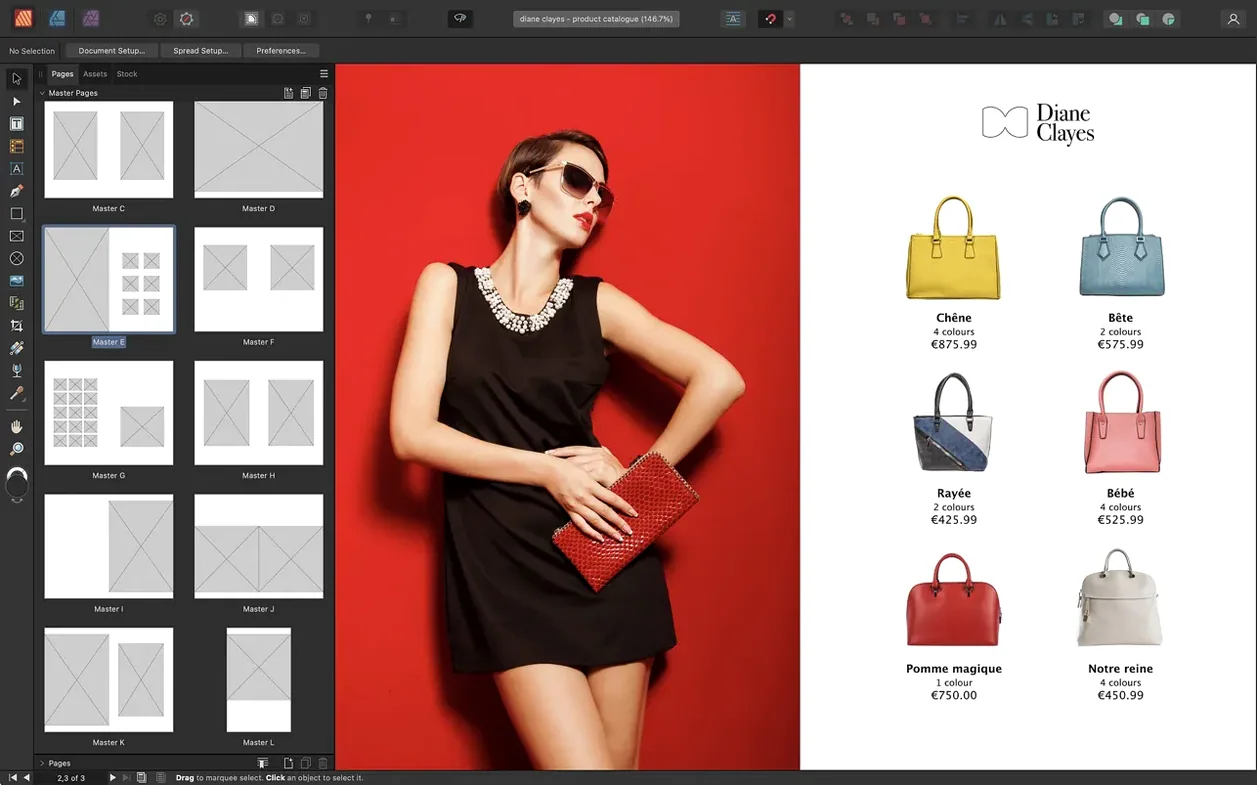
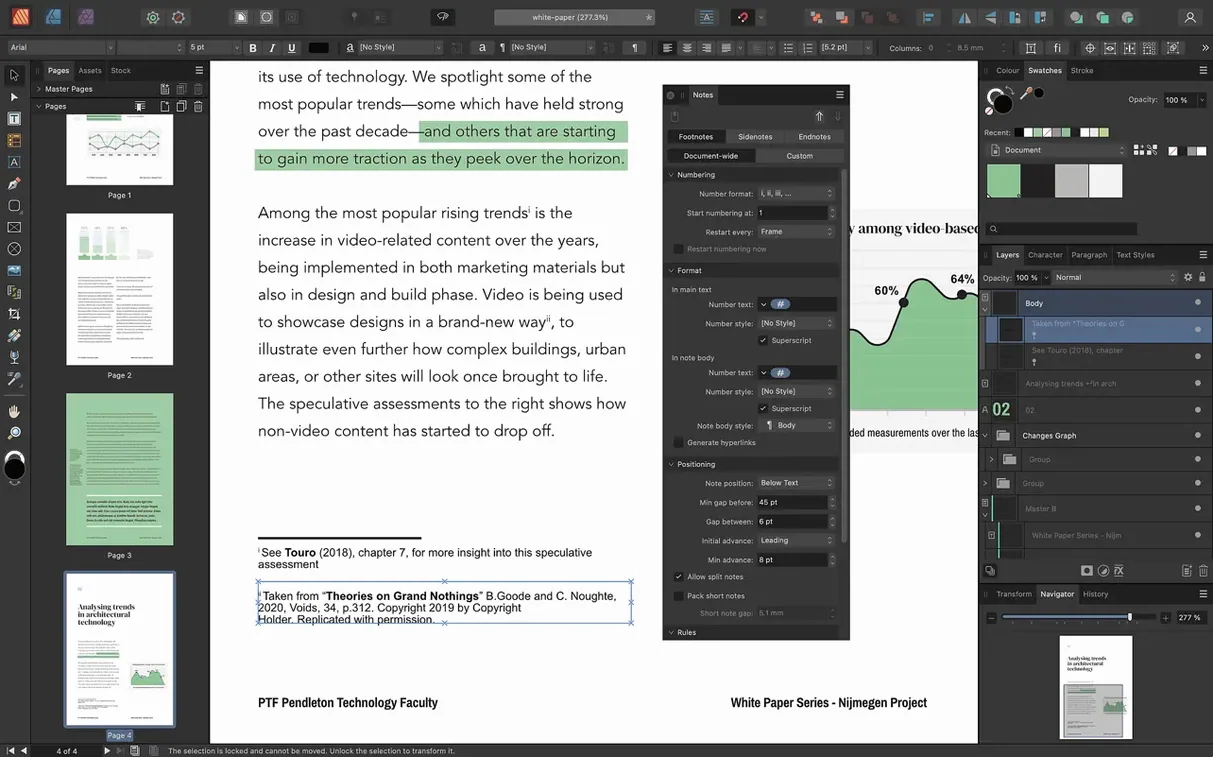
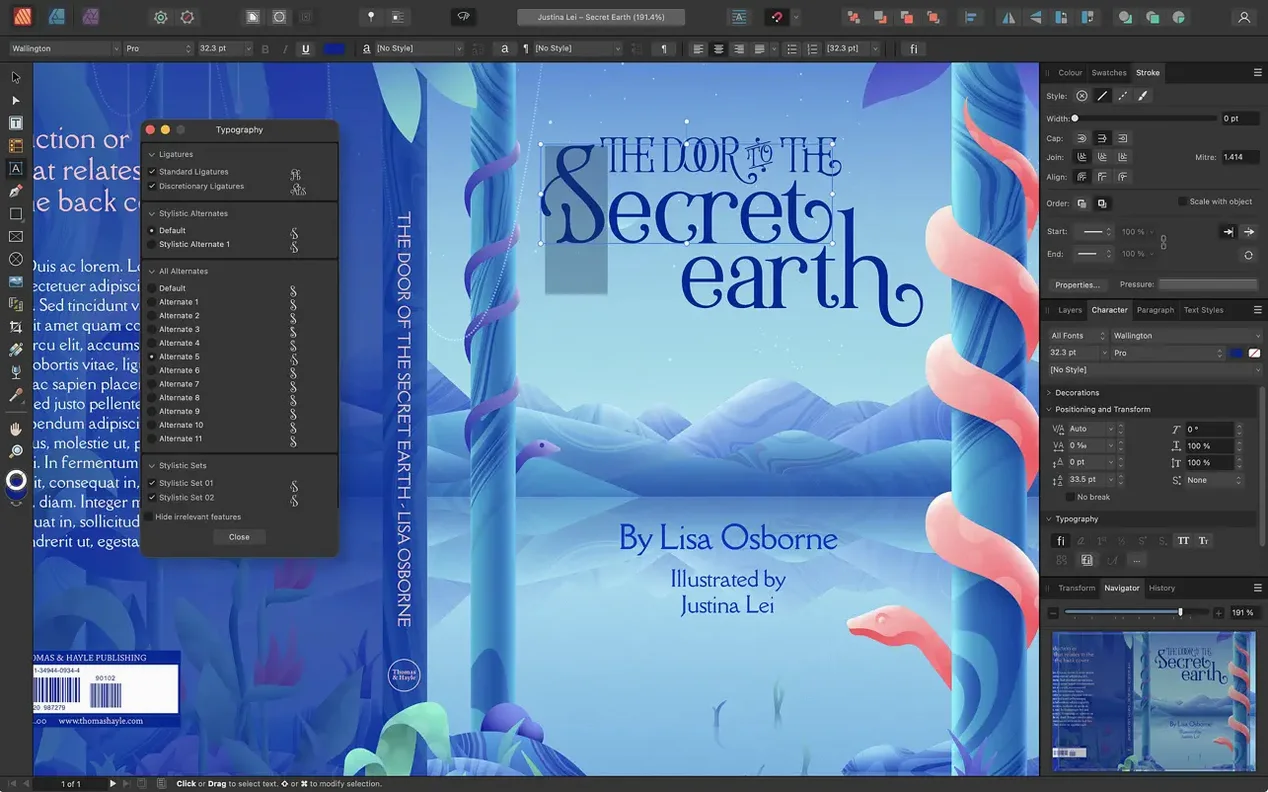
Getting a page layout app to behave on your Mac can be a hassle, especially when you're mid-project and the software starts stuttering. Affinity Publisher is built to handle magazines, brochures, posters, reports, and books without that friction. Before you download, here is what you need to know about compatibility and what the current version actually offers.
| Detail | Info |
|---|---|
| Developer | Serif Labs |
| Version | 2.6.5 |
| macOS required | 10.15 or later |
| Architecture | Intel and Apple Silicon |
| Interface languages | 8 languages including English, German, Spanish, French, Japanese |
Affinity Publisher supports character and paragraph styles, text frames of any shape, drop caps, and OpenType features. It handles CMYK and spot colours, has Pantone library support, and includes advanced guides, grids, and snapping. You can place or embed images directly in a document. Version 2.6 adds foldable spreads like gatefolds, trifolds, and accordion folds, plus multiple-page spreads and a Reading Order panel for PDF accessibility. If your Mac runs macOS 10.15 or later with at least 8 GB of RAM and a 1280x768 display, you are good to go.
Jumping into a new DTP app usually means tripping over a few things. With Affinity Publisher, the most common slip is ignoring master pages and trying to apply headers, footers, or page numbers manually to every single page. It works, but it is painfully slow and guarantees you will miss one page during proofing. Set up a master page first, even for a one-off poster, and you save yourself a lot of clicking.
Another one is forgetting about text frame linking. You drop in a large block of text, it overflows, and instead of linking frames you start resizing or deleting paragraphs to make it fit. That is the wrong direction. Affinity Publisher lets you chain text frames across a document, so the text flows naturally from one column to the next. Once you get used to that, long documents stop being a fight.
Beginners also tend to place images at full resolution without thinking about linked versus embedded. If you embed a dozen high-res Tiff files, your document balloons in size. Linking them keeps the file lean and lets you swap images later without redoing layouts. You can still use the image editing tools and adjustment layers non-destructively, but the file stays manageable.
And then there is the colour panel. People design in RGB, export to print, and wonder why the brochure looks washed out. Set your document to CMYK from the start, check the Pantone library if you have brand colours, and proof in the app before exporting to PDF/X-1a or PDF/X-4.
Affinity Publisher runs on macOS 10.15 or later, so it works on both Intel Macs and Apple Silicon machines. It is a 64-bit app and supports ARM as well as x86 architecture. You need at least 8 GB of RAM to keep things moving, and about 2.8 GB of free hard drive space, though the installer will need a bit more temporarily. Your display should be 1280x768 or larger.
The interface is available in eight languages: English, German, Spanish, Italian, Chinese (Simplified), Portuguese, French, and Japanese. That covers most teams working in publishing or editorial design. On a MacBook Pro with an M2 Pro, the app handles spreads, nested master pages, and vector tools without any noticeable drag, but your mileage depends on your document size and how many linked images you are streaming.
Elena runs a quarterly arts magazine out of a shared studio in Hackney. She has three contributors and a designer who works remotely. Before she switched to Affinity Publisher, she was stitching together page layouts from two different apps and praying nothing shifted during PDF export.
Now she creates a 48-page magazine with multiple-page spreads for the centre feature. She sets up master pages with running headers and page numbers, then links text frames across articles. Her contributors send Photoshop files and Affinity documents, and Elena places them directly without converting. She uses the Reading Order panel to tag the PDF for accessibility, which the print distributor now requires. When the designer needs to adjust a vector illustration, she opens StudioLink and moves into Affinity Designer without closing the layout. One file, one workflow, no exporting back and forth.
Say you are laying out a 24-page brochure for a client. You open Affinity Publisher and create a new document, choosing a custom page size and setting up facing pages. The first thing you do is build two master pages: one for the left side, one for the right. You add the client logo in the header area and a page number placeholder in the footer. You apply those masters to all pages in the Pages panel.
Next, you bring in copy from a text file. You draw a text frame on the first content page, paste the text, and watch it overflow. Instead of panicking, you draw a second frame on the next page and link the two by clicking the red overflow indicator. The text flows across automatically. You apply a paragraph style for the body copy and a character style for pull quotes, all set up in the Styles panel.
Now you place images. You drag a few JPGs and a PSD file from Finder into the document. They land as linked images so the file stays light. You resize them inside the frames and use the text wrap tool to make the body copy flow around the shapes. For the product shot on page 12, you add a non-destructive adjustment layer to tweak brightness without altering the original file.
You need a gatefold insert for the middle spread. Version 2.6 has you covered: you create a foldable spread in the Spread Properties panel, choose the gatefold preset, and the page dimensions adjust. You design across the folded panels, keeping the margins aligned with guides and snapping.
Before export, you open the Reading Order panel and check that the PDF tags read left-to-right, top-to-bottom for screen readers. Then you export to PDF/X-1a for print and a standard PDF for the client preview. The whole session takes about two hours, and you never once had to switch apps or rebuild a master page.
Yes, Affinity Publisher runs natively on both Intel and Apple Silicon Macs, so you get full performance on M1, M2, and M3 machines.
Version 2.6 adds multiple-page spreads, foldable spreads such as gatefolds and trifolds, and a Reading Order panel for improving PDF accessibility.
Sign in or create your account to leave a comment.
No notes from photographers yet. If you have used this on a real folder, say which camera and which Mac.