Get it for my Mac (3.1 GB)
 Plasticity
26.1.3
Plasticity
26.1.3

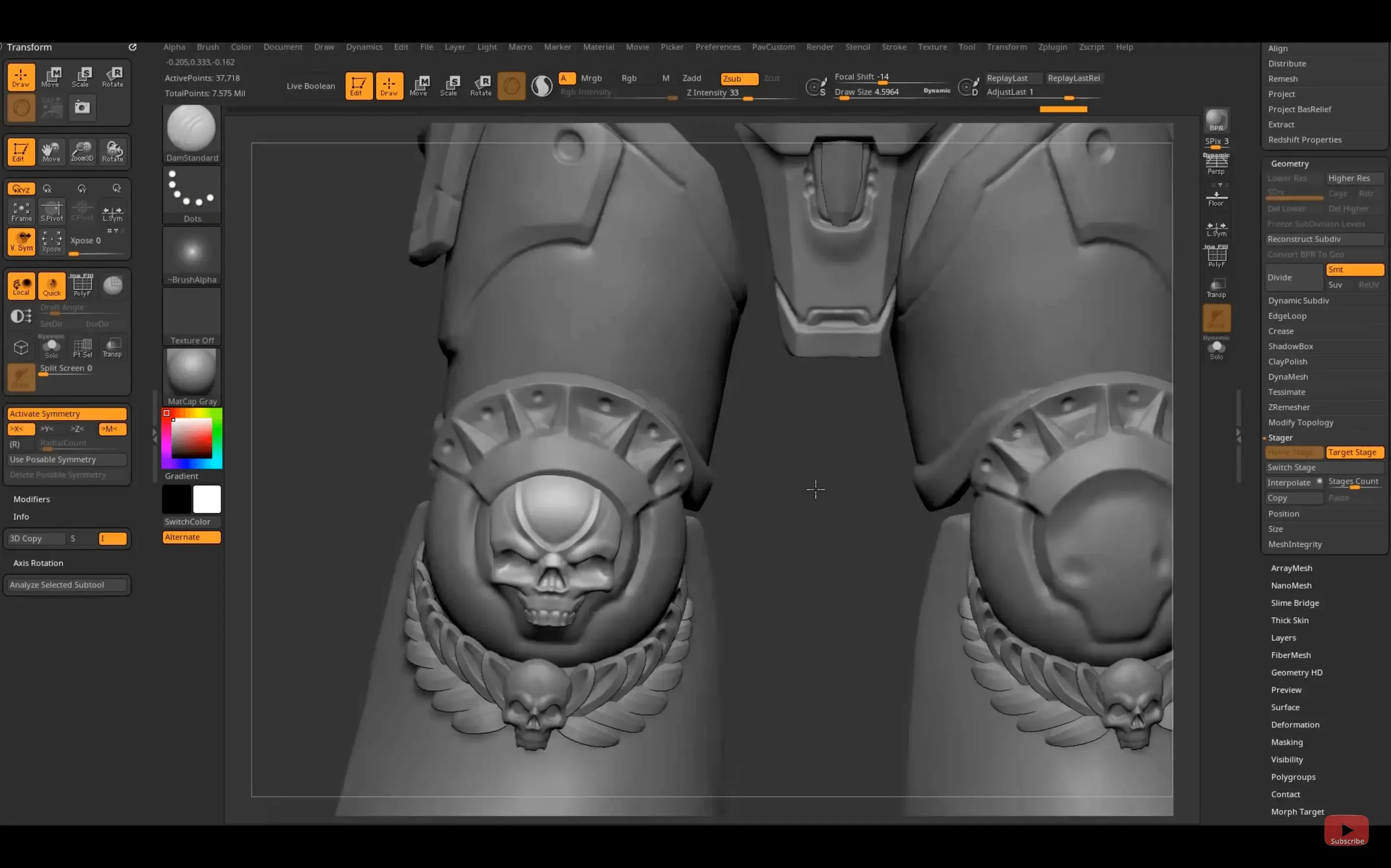
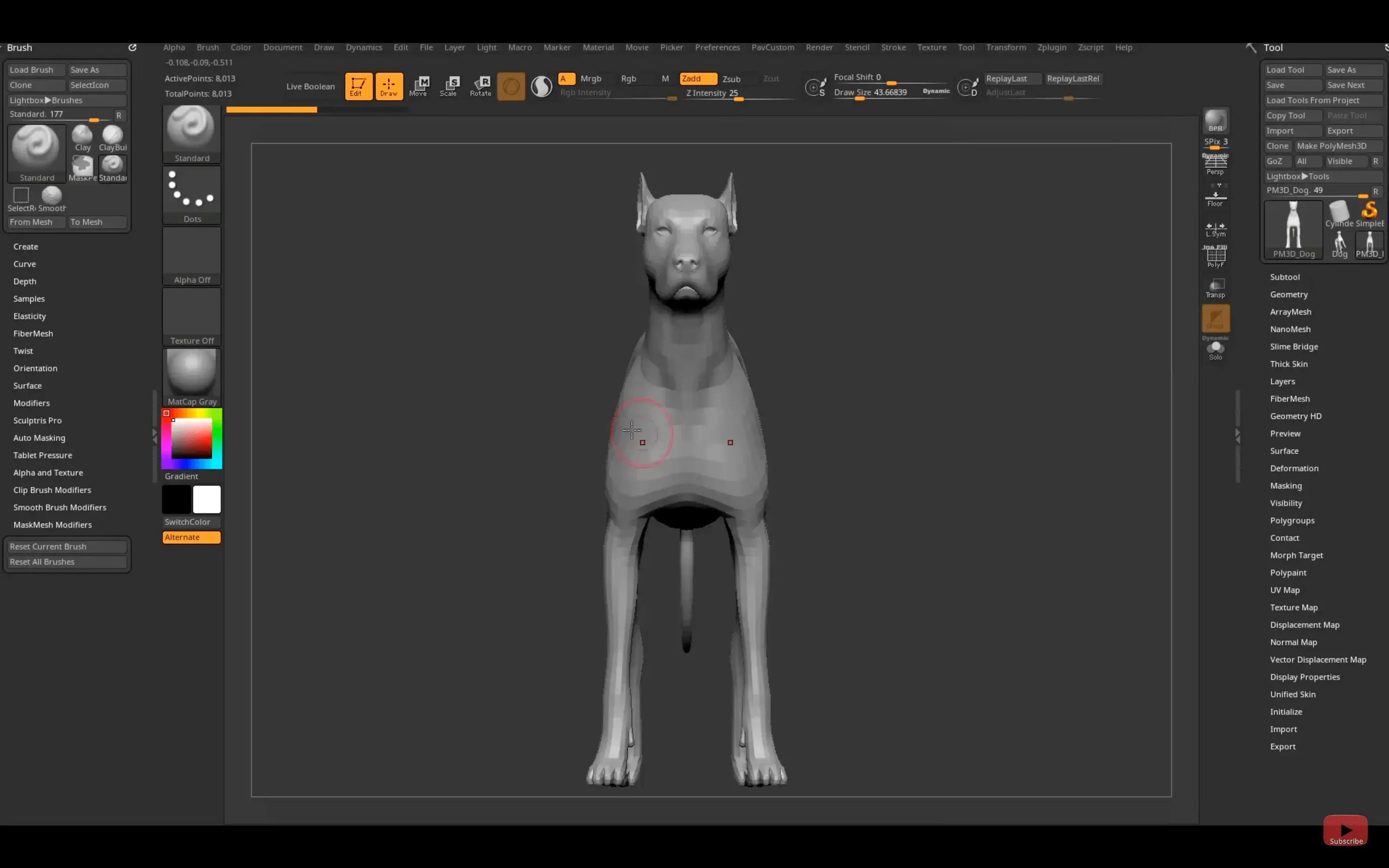
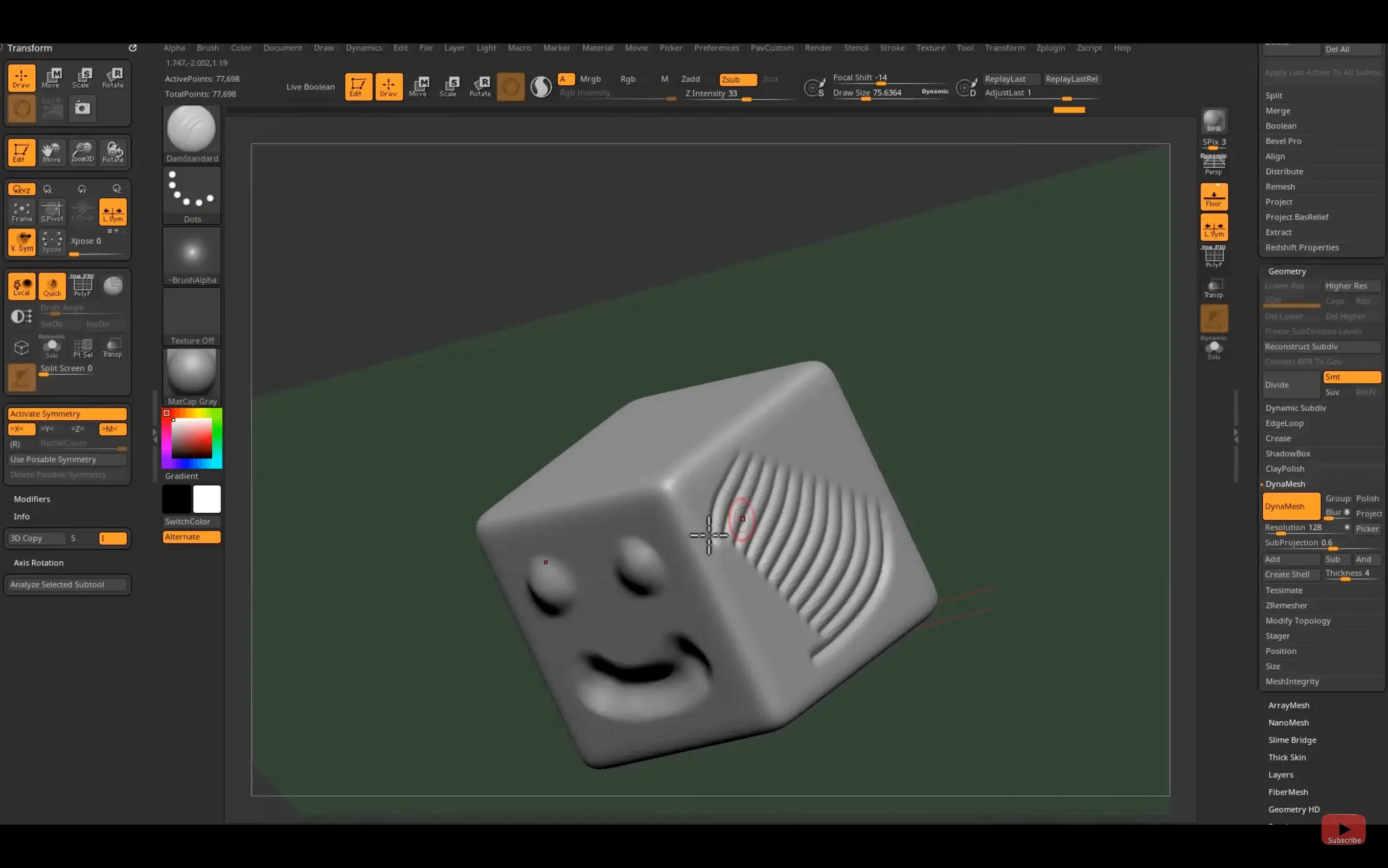
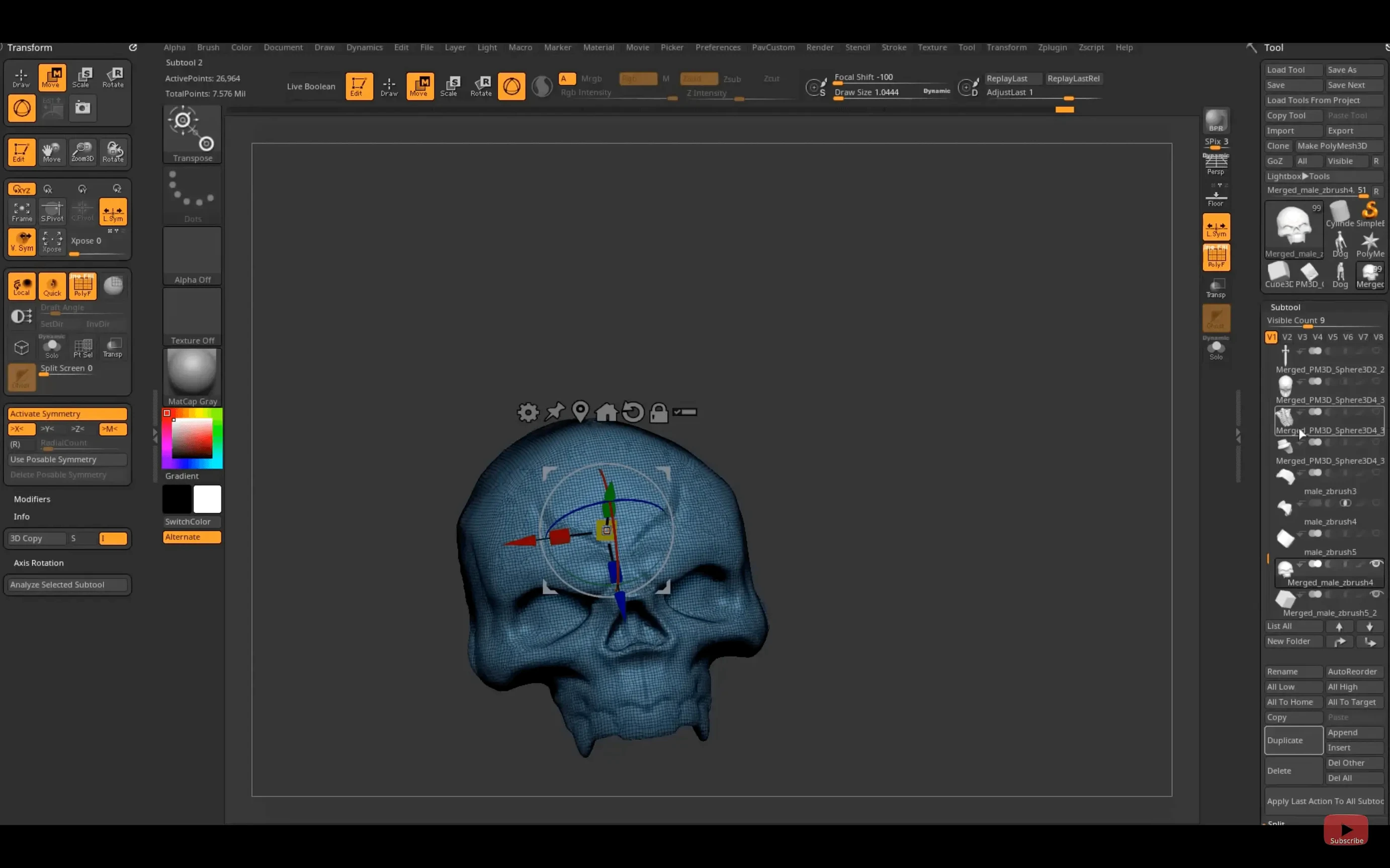
ZBrush 2026.2.1 introduces a Substance Bridge that lets you send your model to Substance Painter with a single click — no exporting, no re-importing. That change alone reshapes how texture work fits into a sculpting session. The rest of the update tightens things further: native Windows on Arm support, updated GoZ links for Maya 2026 and 3ds Max 2026, and custom hotkey saving and sharing on iPad.
Pick a basic 3D primitive — a sphere or a cube — from the Tool palette. ZBrush stores every point on that mesh as a pixol, which holds colour, depth, orientation and material all at once, so you get instant feedback as you push and pull the surface.
You choose a brush from the shelf — Clay Buildup for rough volume, Dam Standard for sharp creases — and work the model like physical clay. The real-time render engine shows your changes immediately, and because each stroke edits the underlying geometry, you can refine forms until they feel right.
Once the sculpt is finished, you hit the new Substance Bridge button. ZBrush hands the model over with its UVs and base colour intact, and you pick up texturing in Substance Painter without a single format conversion. That’s the whole loop: sculpt, texture, done.
When you first open ZBrush, the interface can feel like a lot. The shelves, the palettes, the gizmo icons — it’s not laid out like Maya or Blender, and that’s by design. For the first couple of days, I’d suggest sticking to the default workspace and just learning where the brushes live. Open the Light Box (it’s the little icon that looks like a folder) and load one of the included demo projects. Pick a ready-made model and experiment with the Standard, Move, and Clay brushes. You’ll feel the pixol system respond immediately, and that tactile feedback is the quickest way to understand why ZBrush works the way it does.
Another thing worth doing early on: try out the different draw sizes and intensity settings. Hold down the Size slider on the top shelf and drag left or right while you stroke the model. You’ll notice how a large, soft brush pushes volume gently and a small, sharp one carves detail. Get comfortable with that dynamic before you worry about symmetry or subdivision levels.
A few defaults are worth adjusting so they match how most sculptors actually work. Here’s the short list:
Activate Symmetry is on, with the axis set to X. That way every brush stroke mirrors across the centre, which saves time when you’re blocking out a face or a creature.Undo History setting and bump it to at least 100. You’ll thank yourself when a stroke goes wrong ten moves back.These aren’t mandatory tweaks, but they remove small frictions that add up over a long session. Once they’re set, the interface stays out of your way and you can focus on the sculpt itself.
Let’s walk through a task that covers the core of ZBrush without needing plug-ins or external apps. The goal is a portrait bust from start to finish, using only the tools built into the current version.
Step 1: Start with a sphere. Open the Tool palette, pick a Sphere 3D, and drop it on the canvas. Go to the Geometry palette and hit DynaMesh to turn the sphere into a sculptable volume. Set the resolution to 64 — that’s coarse enough to push big forms without lag.
Step 2: Block in the head shape. Switch to the Move brush and pull the sphere into an oval that suggests a human head. The Move brush shifts geometry without changing volume, so you can stretch the chin, widen the cheekbones, and flatten the back of the skull. Keep the forms broad at this stage; detail comes later.
Step 3: Add facial landmarks. Change to the Clay Buildup brush and set the draw size to about half the head height. Lay down rough mounds for the brow ridge, the nose, and the cheekbones. Don’t worry about symmetry yet — ZBrush’s Activate Symmetry in the Transform palette mirrors your strokes automatically as long as the tool is centred on the model.
Step 4: Refine the features. Once the major volumes are in place, switch to a smaller brush — Dam Standard works well for creases and eye sockets. Carve the eye hollows, the mouth line, and the nostrils. Keep the model at a low subdivision level so the changes stay broad. You can always increase DynaMesh resolution later for finer work.
Step 5: Polish and detail. When the proportions feel right, bump the DynaMesh resolution to 128 or 256 and use the Standard brush with a small alpha to add skin texture, wrinkle lines, and hair direction. The pixol system keeps everything responsive even at higher polygon counts, so you can push detail without waiting for the viewport to catch up.
That’s the full loop. From sphere to finished bust in one session, using only the brushes and geometry tools that ship with ZBrush. Once you’ve done it a couple of times, the interface stops feeling foreign and starts feeling like a natural extension of your hand.
ZBrush works with standard 3D formats like OBJ, STL, and FBX for import and export, plus its own ZTL format for saving full project data including pixols and layers.
Sign in or create your account to leave a comment.
No notes from photographers yet. If you have used this on a real folder, say which camera and which Mac.