Get it for my Mac (8 MB)
 Sweet Home
7.5.7
Sweet Home
7.5.7
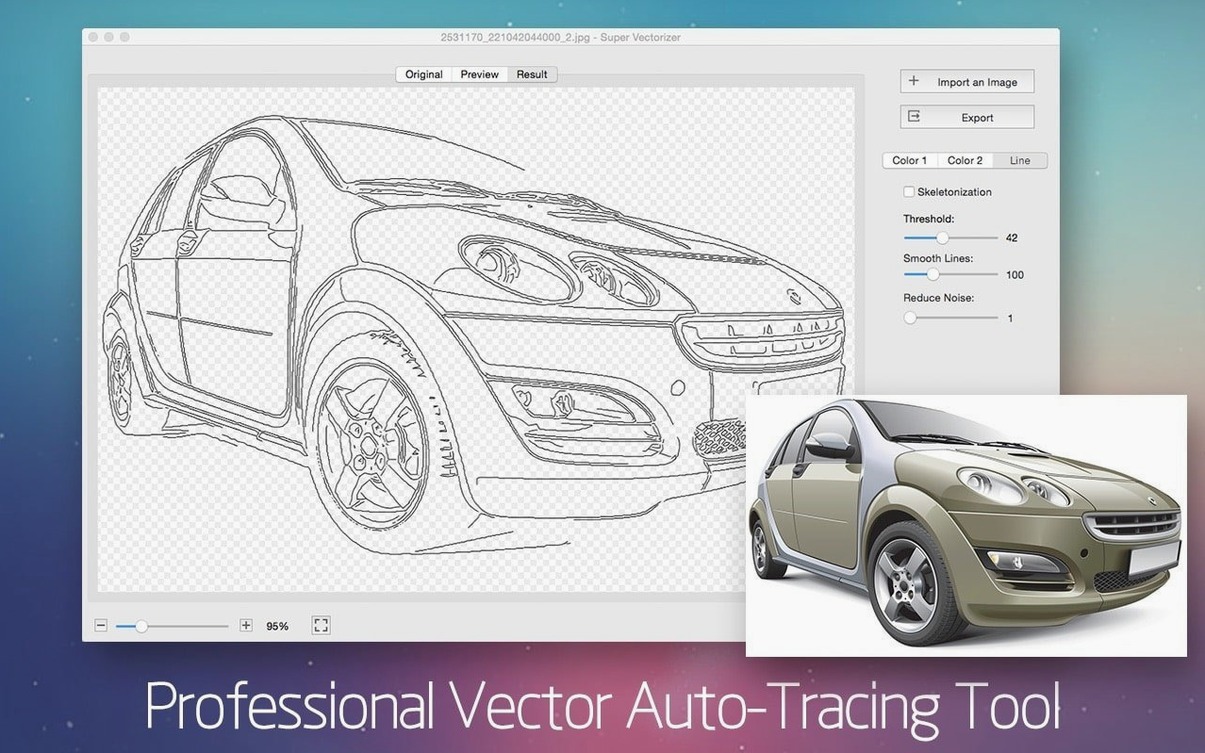
Version 2.3.3 keeps the same solid workflow: drop a bitmap in, watch the vector preview appear in real time, and export to AI, SVG, DXF, or PDF when it looks right. It's the kind of tool that sits quietly next to Illustrator or Corel, ready when you need to trace a logo or clean up a scan.
Bitmap image — any raster file you feed in, ready for conversion.
Real-time preview — see the vector result as you tweak settings, no waiting.
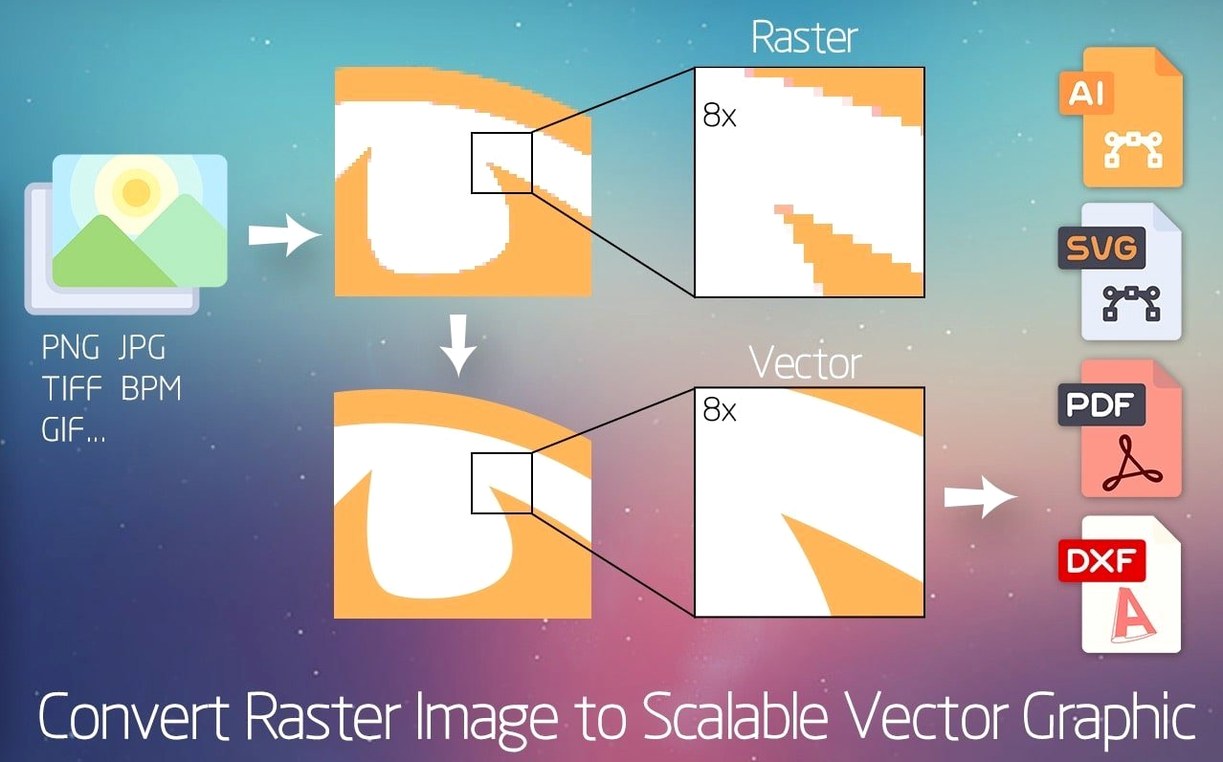
Vector export — AI, SVG, DXF, and PDF files that open straight in your usual editor.
Transparent background — output with alpha, handy for overlays and web work.
System support — runs on macOS 10.10 or later, on both Intel and Apple Silicon Macs.
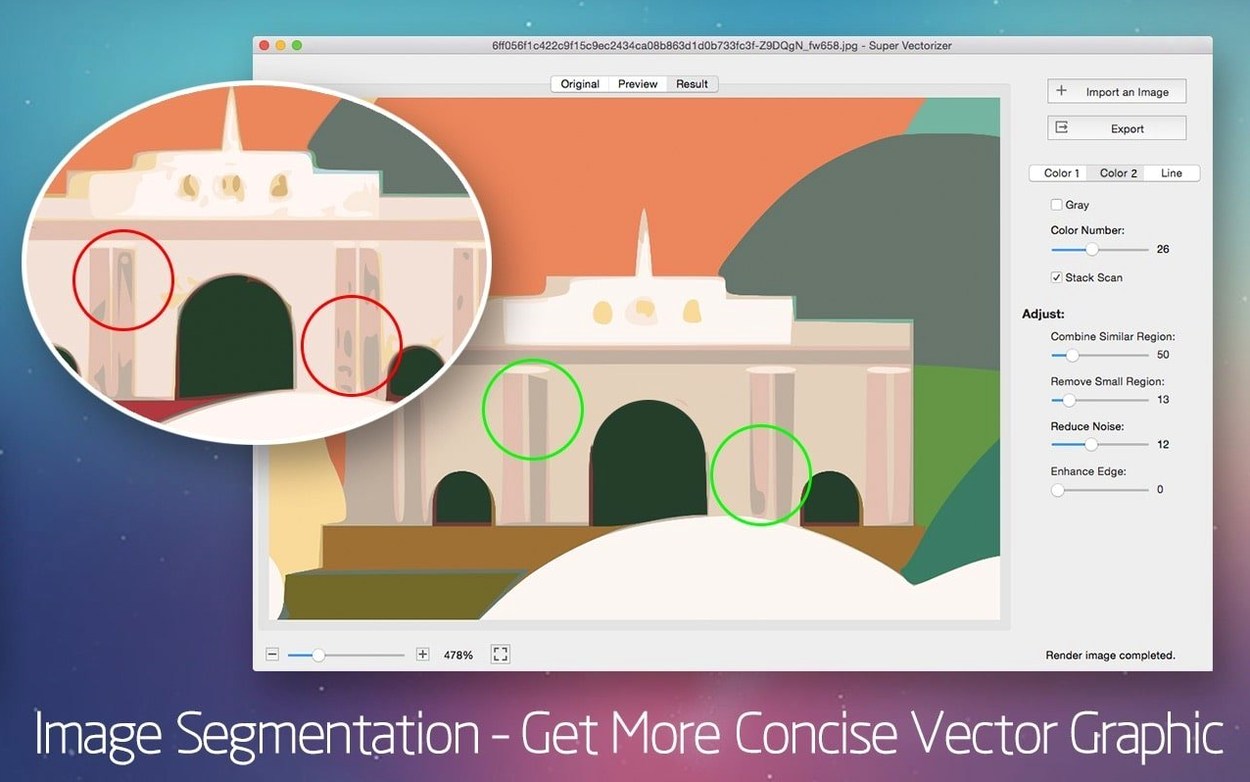
You've got a scan of a hand-drawn logo — pencil on paper, a bit rough around the edges. Open Super Vectorizer Pro, and the first thing you notice is the clean window with a large drop zone. Drag the scan in. The real-time preview shows the vector result almost immediately, no render bar or loading spinner. You adjust the colour count slider: the preview updates as you move it, letting you see exactly how much detail gets kept.
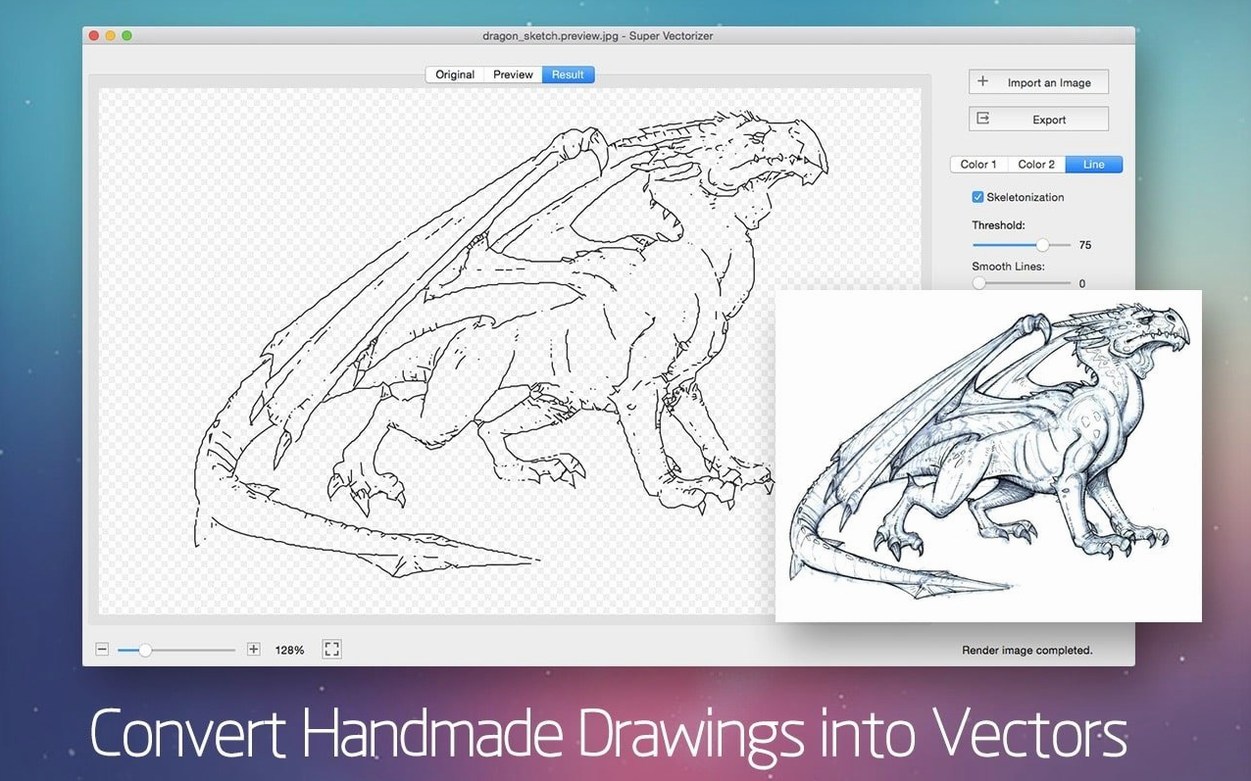
The skeletonization function is what sets this apart for line art. Toggle it on, and the app strips back the fill, leaving just the structural lines of your drawing. For a pencil sketch, that's the difference between a muddy shape and a clean vector outline. Once it looks right, export to SVG and open it in your vector editor. The paths are editable, no cleanup needed on the basic shape.
Super Vectorizer Pro supports over 70 input formats, which means you rarely need to convert a file before you bring it in. PNG, JPEG, TIFF, even obscure ones — if it's a bitmap, chances are it opens. The transparent background output is another quiet win: export a logo with alpha and drop it straight onto a website mockup without masking anything.
The interface itself is available in nine languages, so if English isn't your preference, Russian, German, Spanish, Italian, French, Japanese, or either flavour of Chinese is there. It's a small thing until you're working with a colleague who needs the UI in their own language.
When you first open the app, the colour count defaults to a moderate number. For most logo work, dropping it to 8 or 12 colours gives a cleaner trace without the noise of tiny colour shifts. If you're vectorising a pencil drawing, turn on skeletonization straight away — that's the feature that turns thick pencil strokes into single-weight vector lines.
For the export format, SVG is the most flexible for web and Illustrator work. DXF is worth choosing if you're sending the file to CAD or CNC software. AI and PDF are solid for print workflows. Pick the one that matches where the file is headed next.
Start with a scanned pencil drawing on a white background. Drag the file into the Super Vectorizer Pro window. The preview shows a full-colour vector version, but for a sketch you want lines, not fills.
Enable skeletonization from the controls. The preview shifts: the fills disappear and the pencil lines become thin, continuous vector paths. If the lines look too thick or too broken, adjust the detail threshold until the preview matches the original drawing's weight.
When the preview looks right, choose SVG from the export dropdown and save. Open that SVG in your vector editor — the lines are editable paths, ready for refinement or scaling to any size. No manual tracing, no cleanup of stray pixels. The whole process takes a few minutes, and the result is a vector file that behaves like one you'd drawn digitally.
It's a focused utility rather than a full design suite, which is exactly why it earns a spot on the shelf.
Yes, the app outputs AI, SVG, DXF, and PDF formats that work directly in Illustrator and other vector editors on Mac.
It does. Super Vectorizer Pro runs on both ARM and 64-bit x86 architectures, so it's fine on M-series and Intel machines.
Tip: if the app won't open, check that you've completed step 2 before moving it.
Sign in or create your account to leave a comment.
No notes from photographers yet. If you have used this on a real folder, say which camera and which Mac.