Get it for my Mac (6.4 GB)
 Farming Simulator 25
1.25.0.0 Native
Farming Simulator 25
1.25.0.0 Native


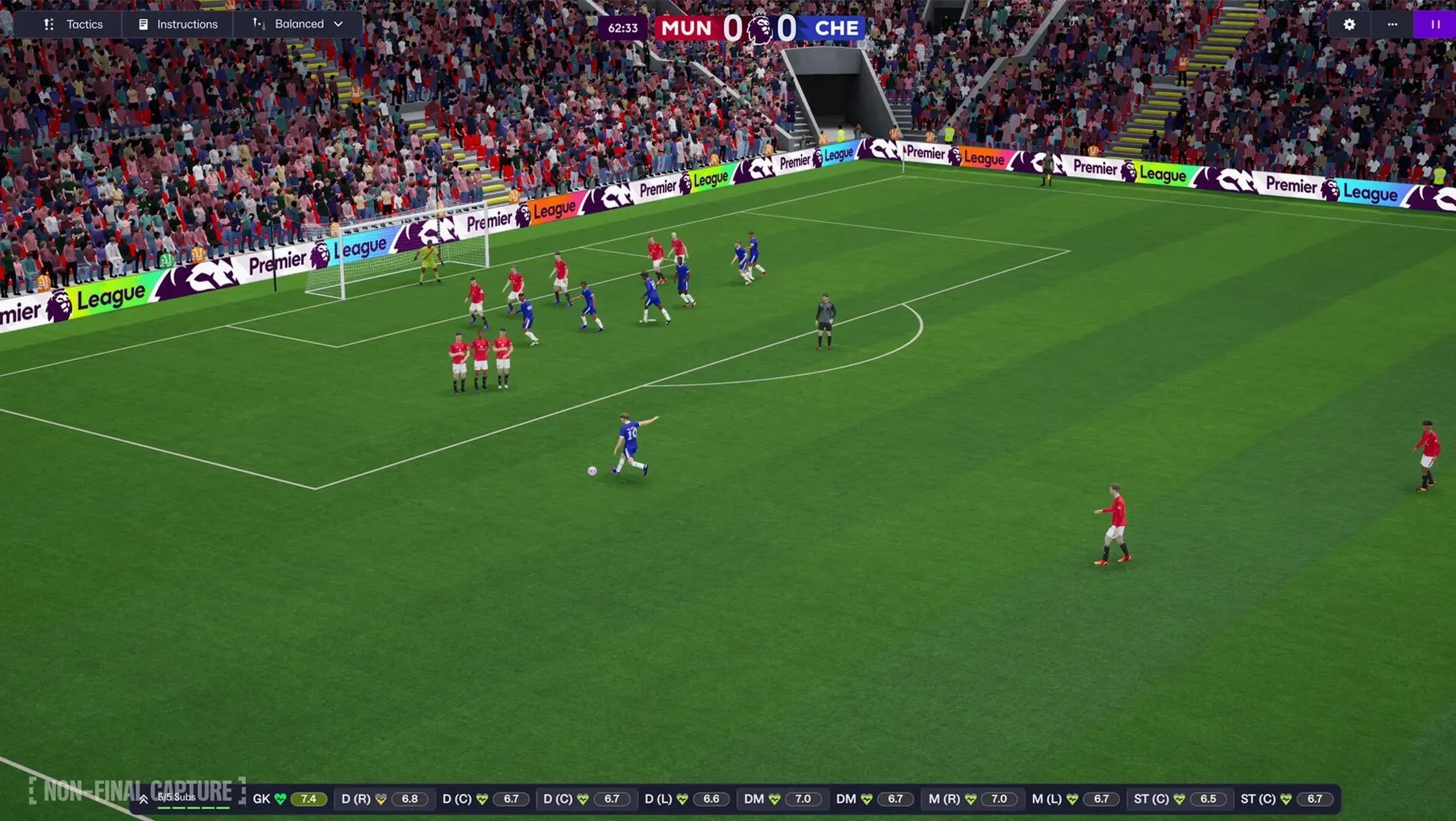
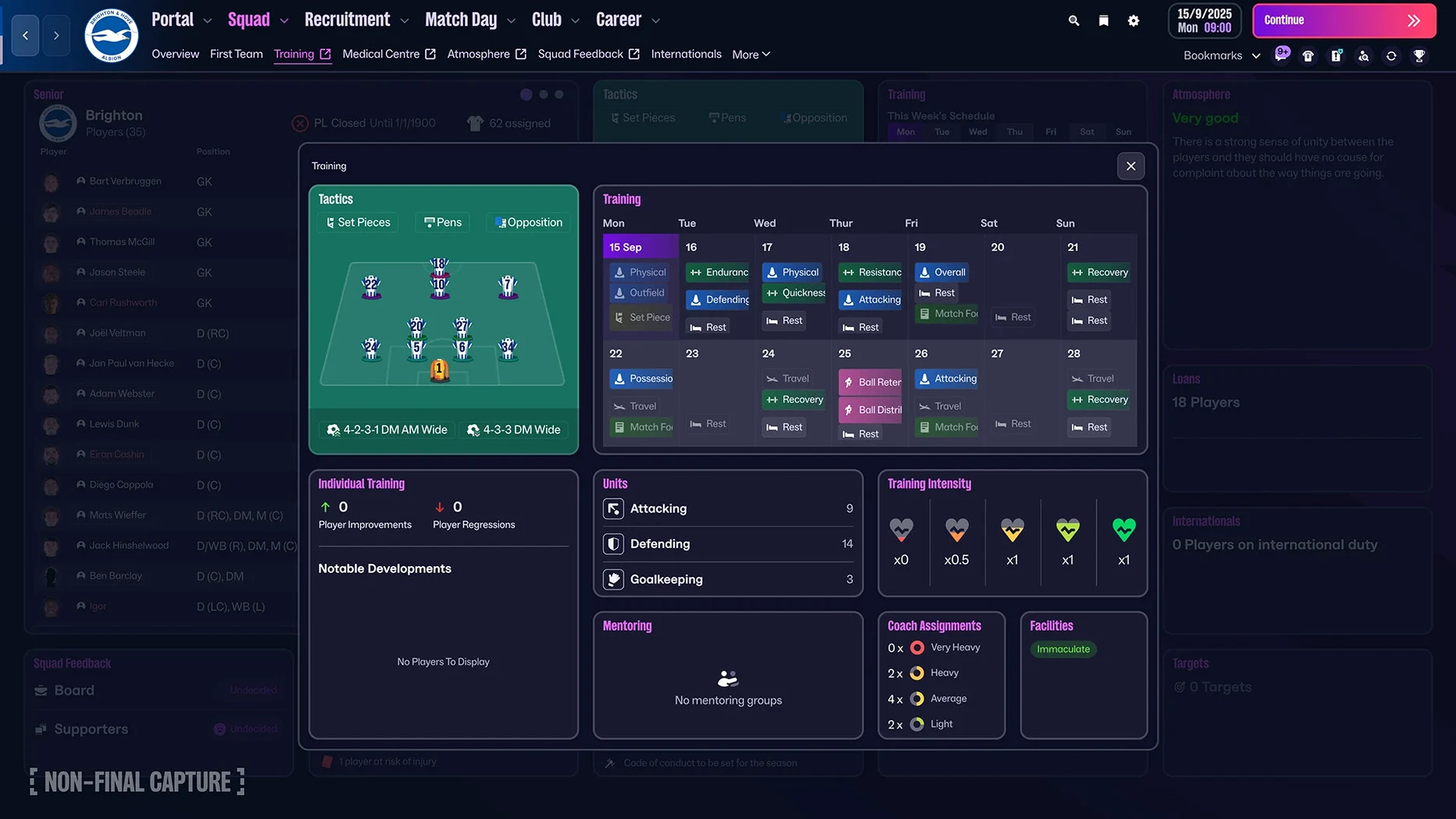
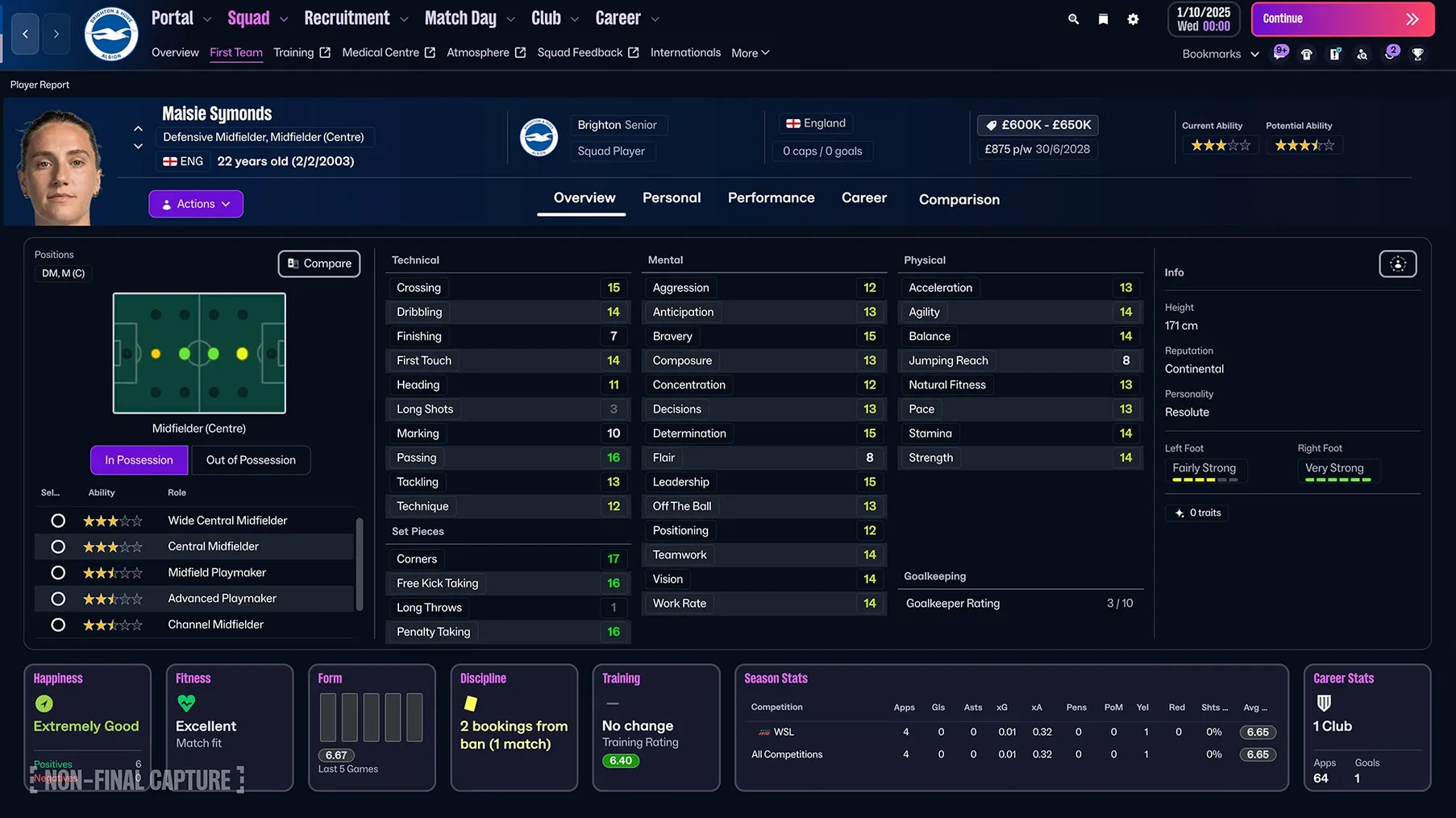
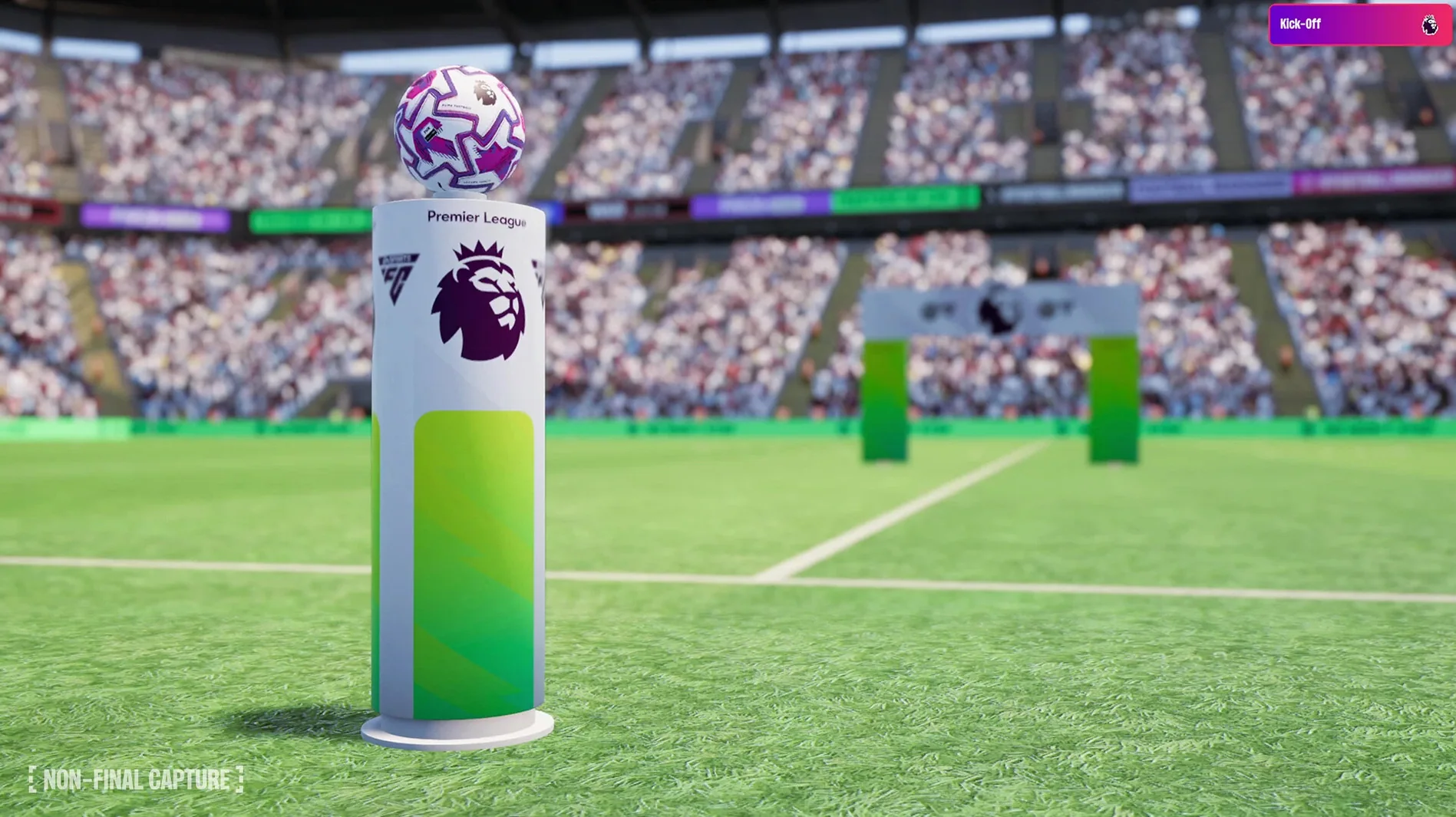
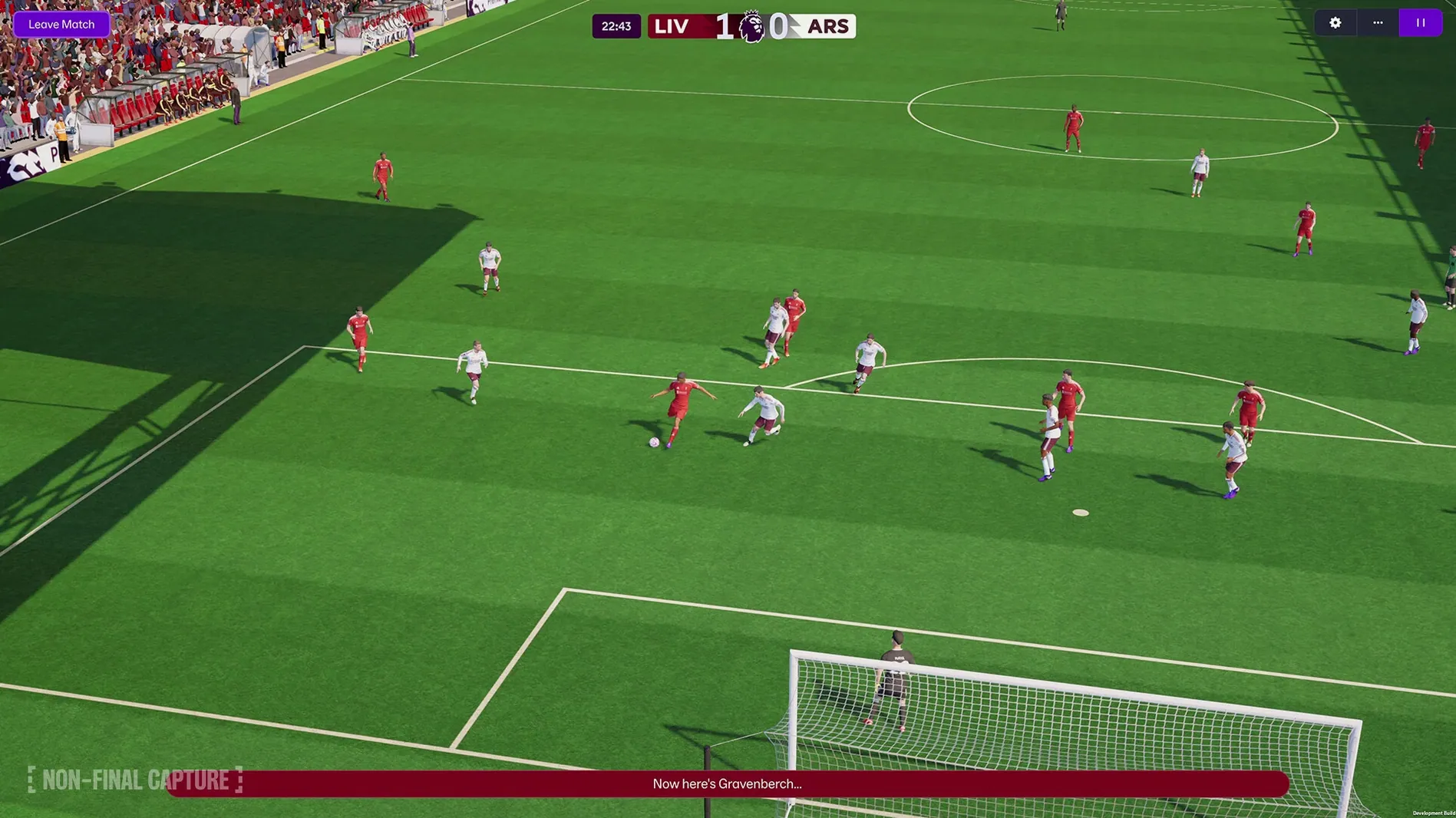
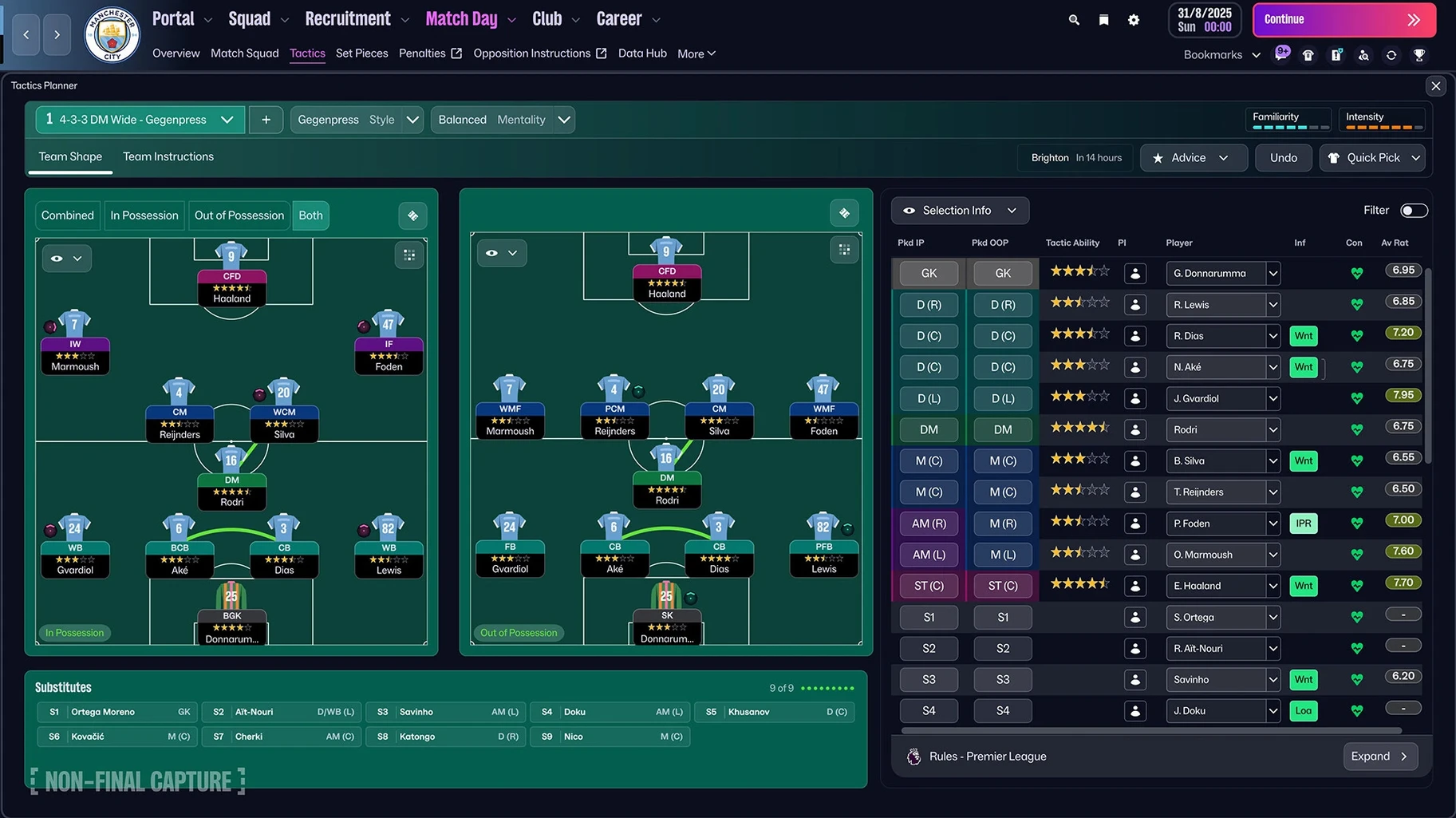
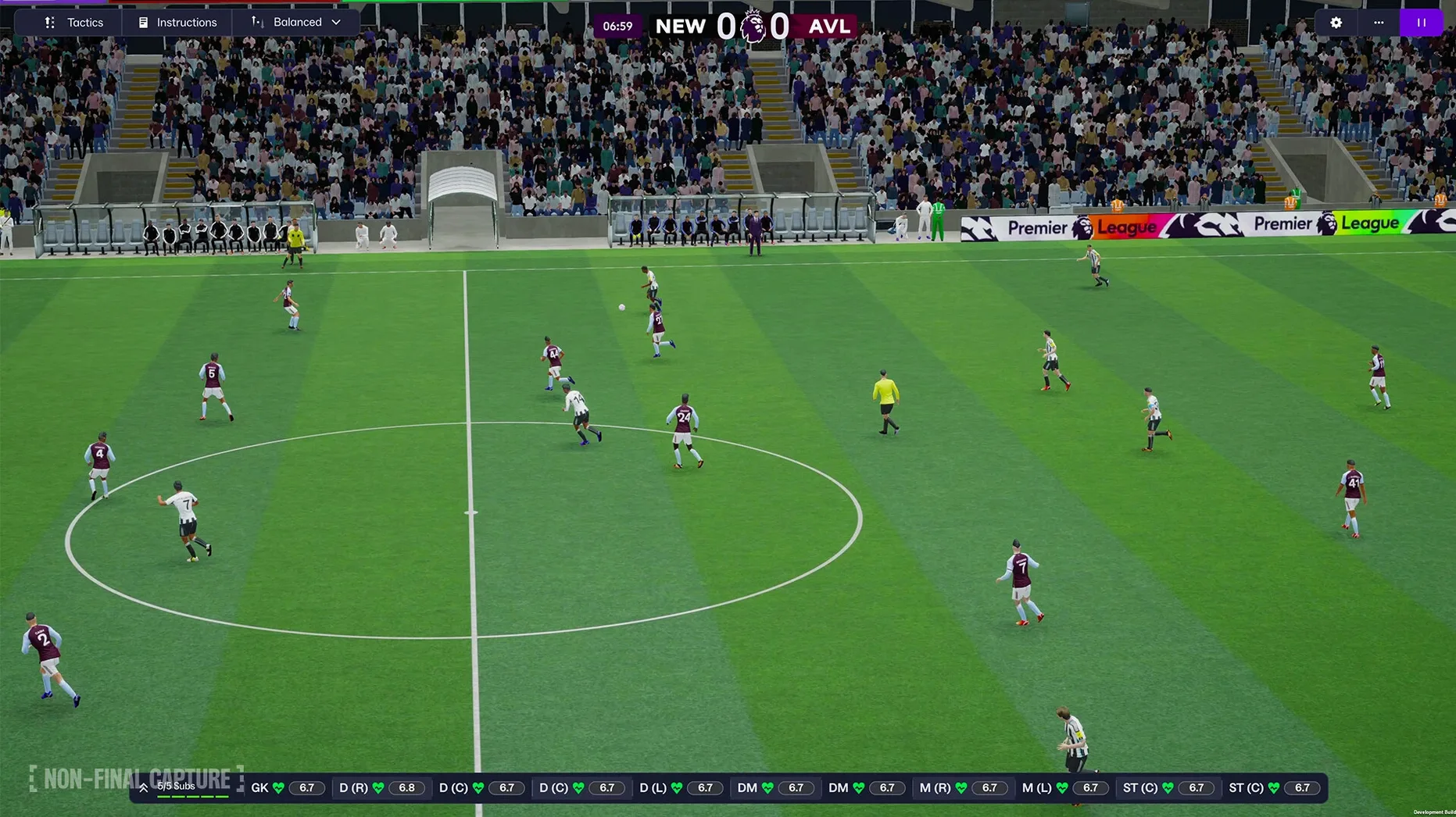
Football Manager 2026 is the latest management simulation from Sports Interactive, built from the ground up with the Unity engine. That shift powers a reworked user interface and a new portal for football information, making it easier to find the detail you need during a busy transfer window. The version we’re looking at — 26.3.2.2329565 — ran well on a Mac mini 2024 M4, and supports both ARM and 64-bit x86 architectures, so it covers the range of modern Macs.
The headline addition is women’s football, which brings a whole new layer of depth to the career mode. Alongside that, Premier League licensing means official club badges, kits, and player photos for English top-flight sides. Tactics have been split into separate attacking and defensive setups, which gives you more control on the touchline. The improved search and FMPedia glossary help you find players and understand terms without tabbing out.
Interface languages include English, German, Spanish, French, Italian, Russian, and a dozen others. If you prefer a lighter version, Football Manager 26 Touch is available on Apple Arcade and requires macOS 11.0 or later. For the full desktop experience, the main game stays the deep, time-honoured simulation it’s always been — just with a cleaner face and a bigger world to manage.
If you manage football on a Mac, you have a few routes in. Football Manager 2026 is the full-fat simulation, the one where you lose yourself in scouting reports, board requests, and contract negotiations until the sun comes up. The Touch version strips that back for quicker sessions, but keeps the core match engine and squad management — it’s what you play on a lunch break or a short flight.
Outside the Football Manager family, options are thinner on macOS. There are browser-based management sims and older titles that still run through Rosetta, but none offer the breadth of real-world data or the updated women’s leagues that FM26 brings. The Unity engine rebuild means the game feels more modern than its predecessors, and the Premier League licensing adds a layer of authenticity you won’t find in free alternatives. For Mac users who want a dedicated football management sim with proper tactical depth and official licences, Football Manager 2026 is the only game in town that covers both men’s and women’s football in a single save.
Once the game is copied to your Applications folder and launched, a few early moves save you time later.
Football Manager 2026 runs on both ARM and 64-bit x86 Macs, so it covers Intel and Apple Silicon machines. The game was tested on macOS Tahoe and on a Mac mini 2024 M4, which gives a good indication that modern hardware handles it without fuss. The Unity engine drives the match engine and the new user interface, so the visual side benefits from the same optimisations that other Unity-based games have seen on Mac.
You do not need an internet connection to play once the game is installed — there is no activation requirement. That means no phoning home to start a save, which is handy if you work on the move or have an unreliable connection. The game supports official Premier League badges, kits, and player photos, so those assets are included in the installation rather than streamed.
Languages cover a wide range, from English and German through to Thai, Korean, and Japanese. The interface and text are fully localised for each supported language, though commentary remains as music rather than voice, which is consistent with previous editions.
One of the biggest changes in FM26 is the separation of attacking and defensive tactics. Here’s how you might approach setting up a 4-3-3 for a Premier League side in your first save.
Start with the defensive shape. In the tactics screen, set your defensive line and pressing intensity first. With a back four, you can choose a higher line if your centre-backs have pace, or drop deeper if they’re stronger in the air. The separate defensive tab means you can leave this alone and tweak the attack without messing up your defensive structure.
Build the attack. Switch to the attacking tab. For a 4-3-3, you want your wingers high and wide, your striker central, and your midfield three providing support. The updated player roles give you more options — you can set an inside forward on one flank and a traditional winger on the other, depending on the players you have. The TransferRoom-based recruitment tools help you find the right profiles if your current squad doesn’t fit.
Assign set pieces. The match engine handles set pieces through the same tactical framework. Assign your best header to attack near-post corners and your playmaker to take them. The improved search makes it quick to find who has the best crossing and corner attributes.
Test it in a friendly. Play a pre-season friendly using the enhanced match presentation. You can watch the full match or jump to key highlights. If your defence is getting pulled apart, go back to the defensive tab and adjust the line or the pressing trigger. If you’re not creating chances, tweak the attacking width or the forward runs. The split tabs let you change one without undoing the other.
Save as a template. Once you have a tactic you like, save it as a template. You can use it as a base for future saves or tweak it for specific opponents without starting from scratch every time.
A few settings make the early hours more comfortable.
Sign in or create your account to leave a comment.
No notes from photographers yet. If you have used this on a real folder, say which camera and which Mac.