Get it for my Mac (122 MB)
 Commander One PRO
3.18.0
Commander One PRO
3.18.0

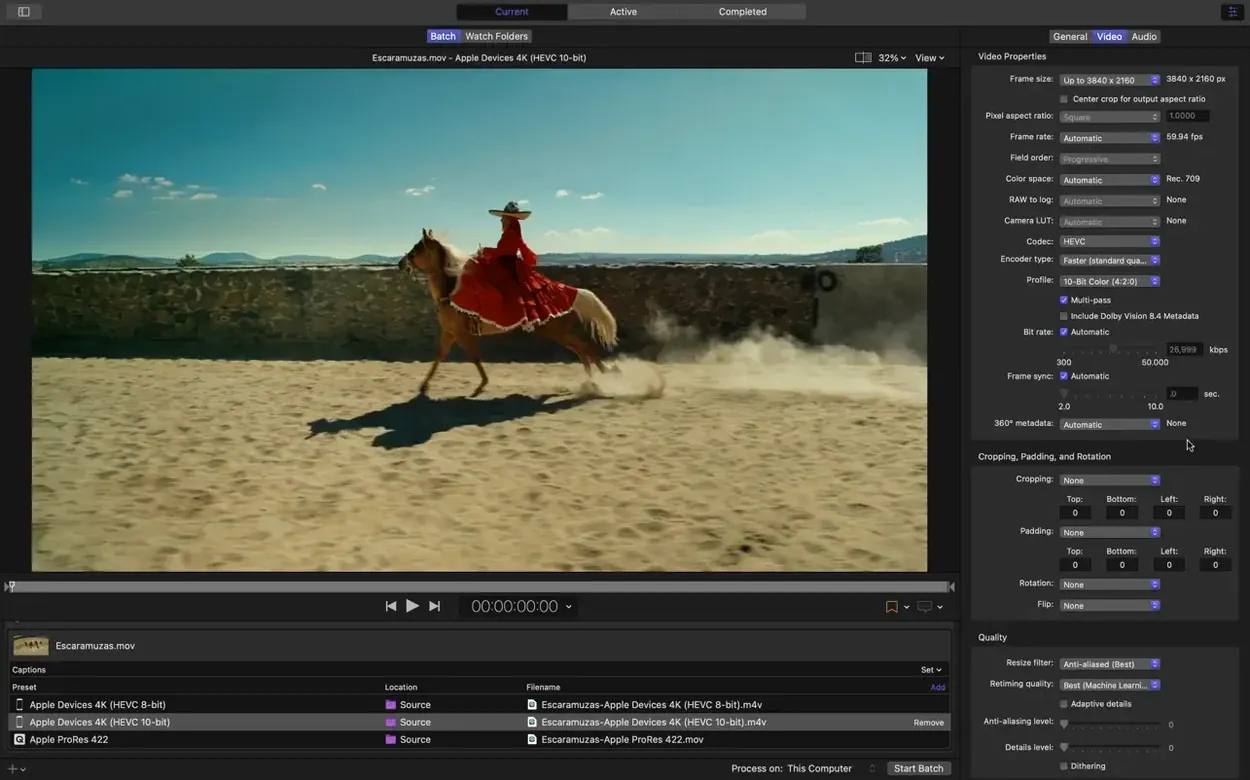
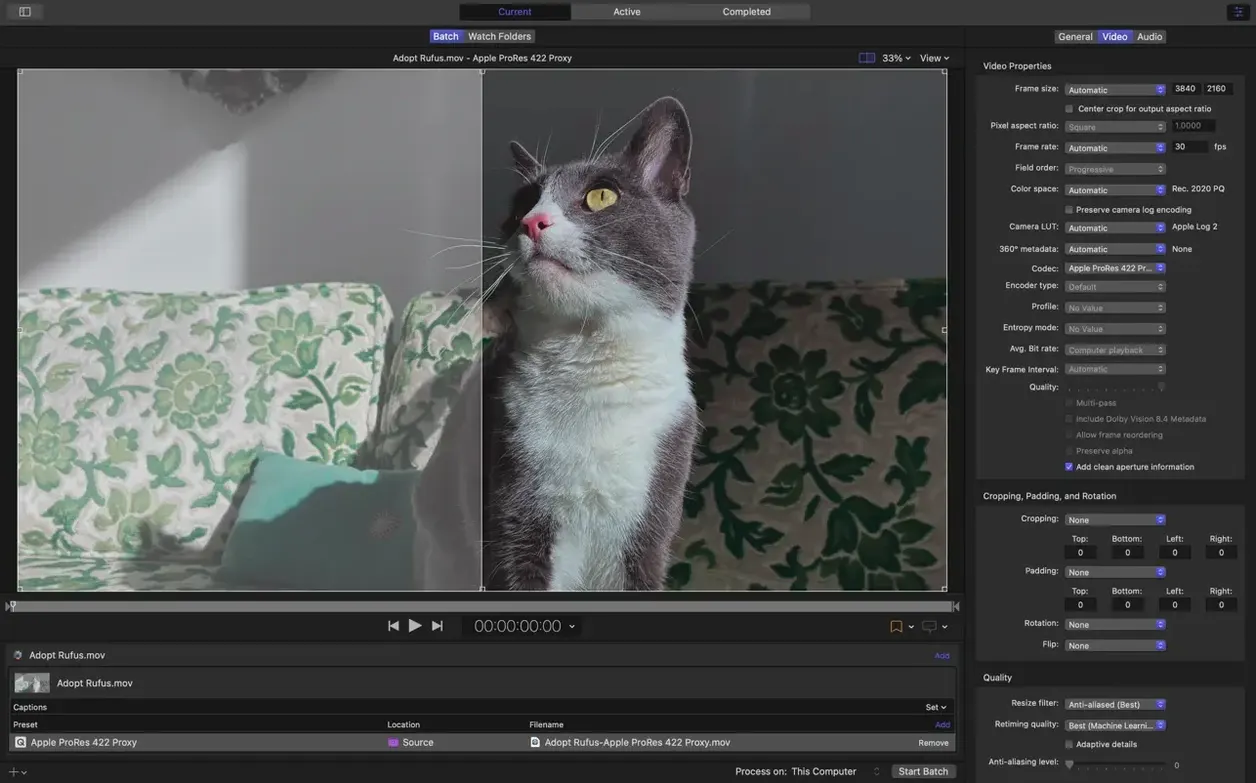
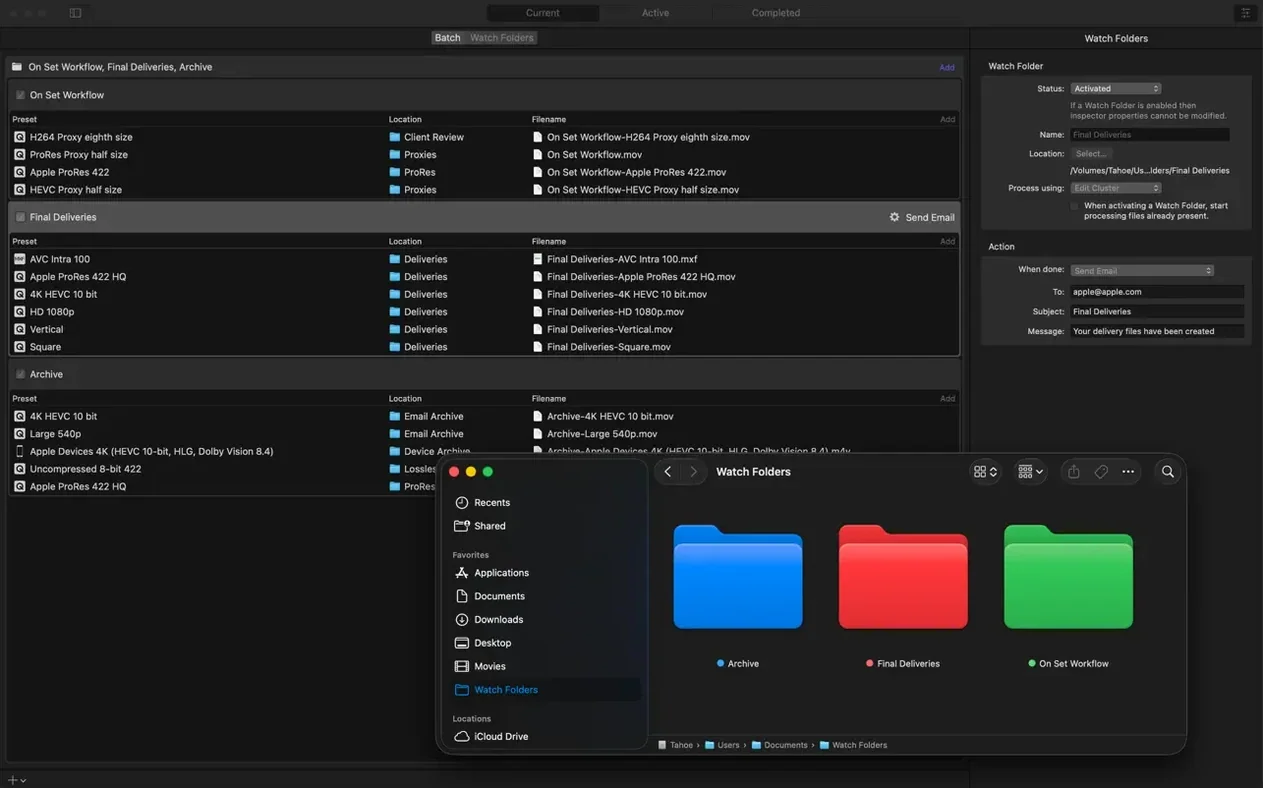
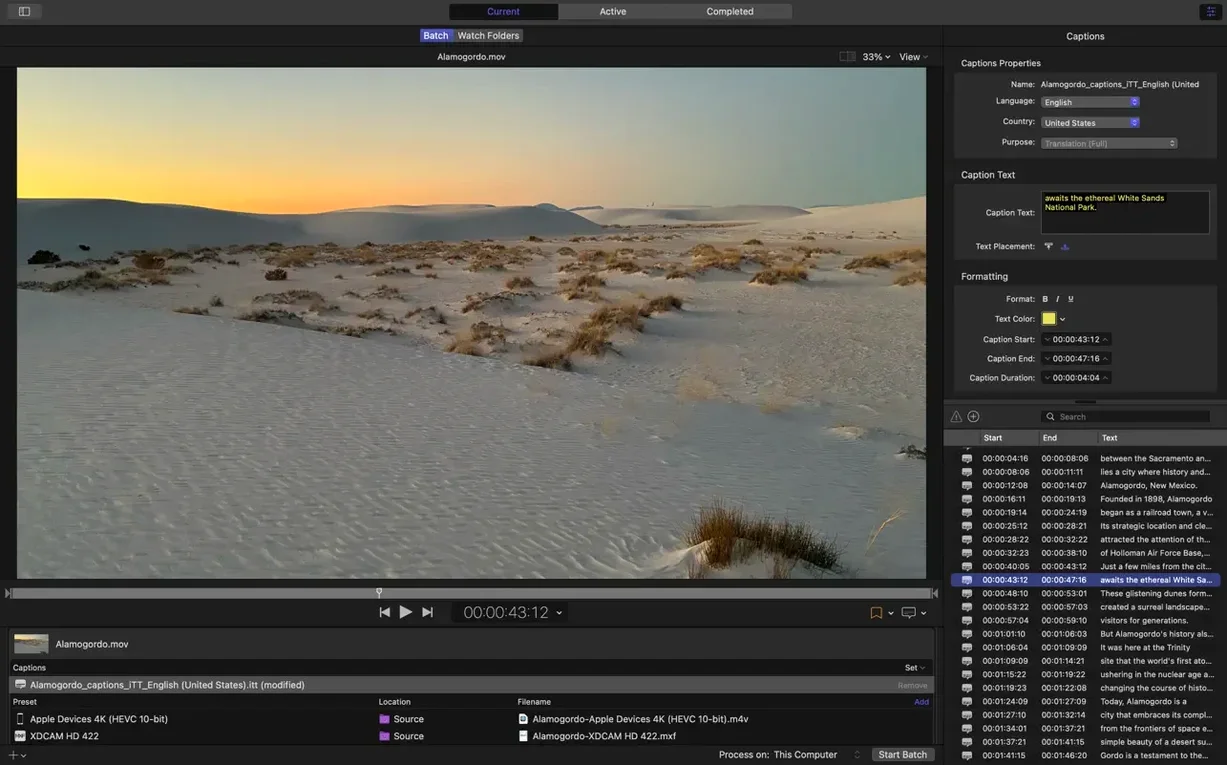
Compressor 5.3 needs macOS 15.6 or later, 8 GB of memory and about 1.2 GB of free disk space. It runs on both Intel and Apple silicon Macs, so whether you're on an M-series machine or an older Intel model, you're covered.
This is Apple's dedicated media transcoding app, built around the same rendering engine that powers Final Cut Pro and Motion. It handles a wide range of output formats, including HDR, HEVC, 360° video and MXF. The distributed encoding feature lets you spread a batch across multiple Macs on your network, which can save serious time during a busy season. It also works hand-in-hand with Final Cut Pro, so you can send projects straight to Compressor for custom export settings.
The latest update adds an immersive metadata viewer that lets you inspect source files before encoding. There's also support for 180° Apple Projected Media Profile output, an anaglyph preview option for stereoscopic video, and a 5.1 AAC option in the Apple Device export settings. On Apple silicon machines, you can now set HEVC data rate limits, and Compressor can transcode immersive sources that don't include WAV files to Apple Immersive outputs. The interface is available in English, German, Spanish, Simplified Chinese, French and Japanese.
Let me walk you through how a recent project played out. A regular client needed a series of short interview clips for their company intranet, plus a version for their public YouTube channel. The source material was shot in 4K HDR on a mix of cameras, and I had about thirty minutes of footage to wrangle.
I started by dragging the folder of clips into Compressor's window. That alone saved a few back-and-forth checks.
From the side panel, I set up two output presets: one for Apple Devices with the new 5.1 AAC option for the intranet version, and an H.264 preset for YouTube. Compressor queued the whole batch and ran through the night. By morning, all files were sitting in the right folders, thanks to a post-encode action that moved completed files to a shared drive. No babysitting required.
If you already use Final Cut Pro or Motion, Compressor slots in without any extra setup. You can send a timeline straight from Final Cut to Compressor for a custom export, which is useful when the built-in export options aren't enough. The rendering engine is identical, so the colours and levels you see in your edit are what come out the other end.
Distributed encoding uses your local network, so if you have a couple of Macs in the office, you can add them as rendering nodes. It's not something you'd set up for a single clip, but for a day-long batch of deliveries it makes a real difference. The post-encode actions — email, file copy, custom scripts — tie into macOS automation nicely. I've got a script that renames finished files based on their creation date, and Compressor runs it automatically after each job finishes.
The most common one I see is ignoring the format selection in the side panel. People drag in a clip, pick a quick preset and wonder why their 360° video looks flat or their HDR file loses its punch. It's worth spending a moment to match the output format to the actual source — 360° video, HDR, HEVC and MXF each need their own settings.
Another one is forgetting to check the inspector for advanced audio and video properties. The side panel shows the basics, but the inspector holds the detailed controls. Beginners often miss the audio mapping options there and end up with silent files or the wrong language track.
Distributed encoding is powerful, but it only works if you set it up before you hit start. A few people have loaded a huge batch, realised halfway through that the network nodes aren't configured, and had to start again. It's a one-time setup that saves a lot of waiting around later.
Yes, Compressor works as a standalone transcoding app. You don't need Final Cut Pro installed to use it, though it integrates tightly with Final Cut and Motion.
Yes, Compressor includes distributed encoding, which lets you spread encoding jobs across multiple Macs on the same network.
Sign in or create your account to leave a comment.
No notes from photographers yet. If you have used this on a real folder, say which camera and which Mac.