Get it for my Mac (9 MB)
 dBpoweramp Music Converter
2026.09.13
dBpoweramp Music Converter
2026.09.13
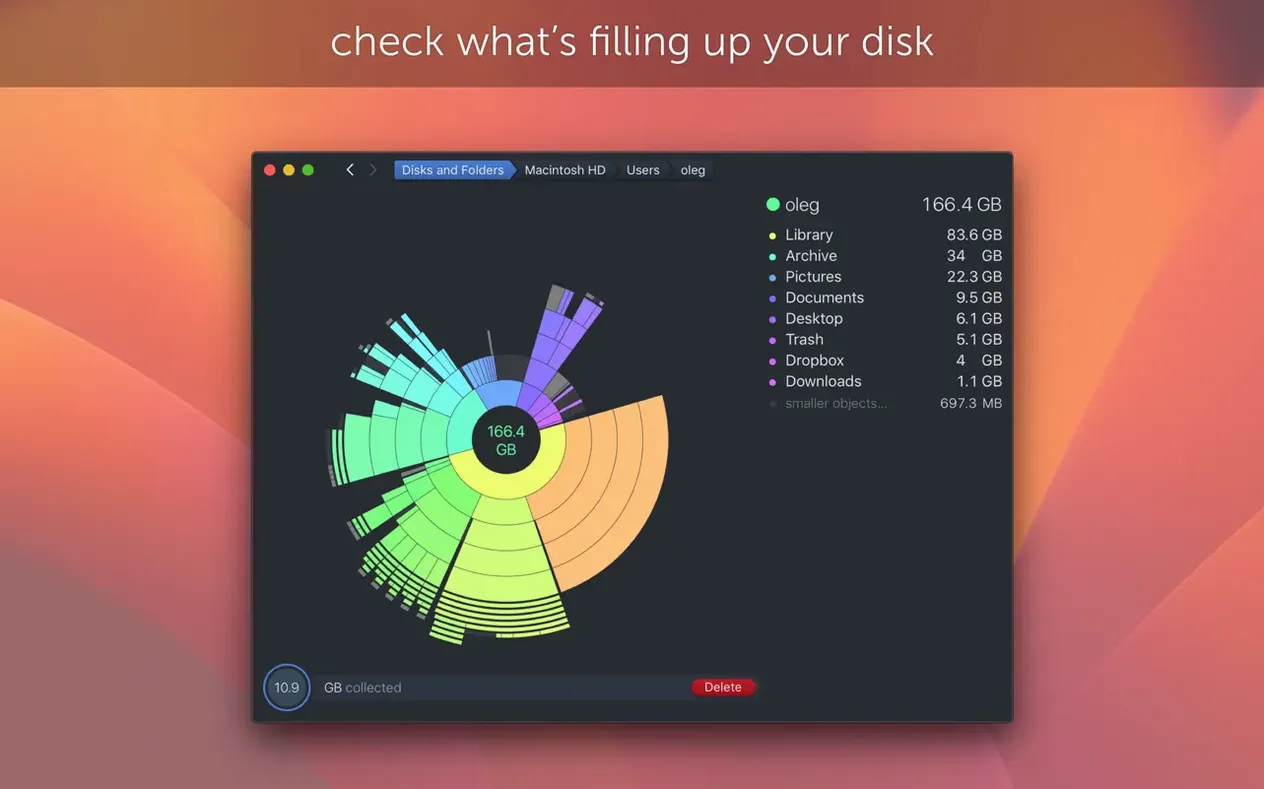
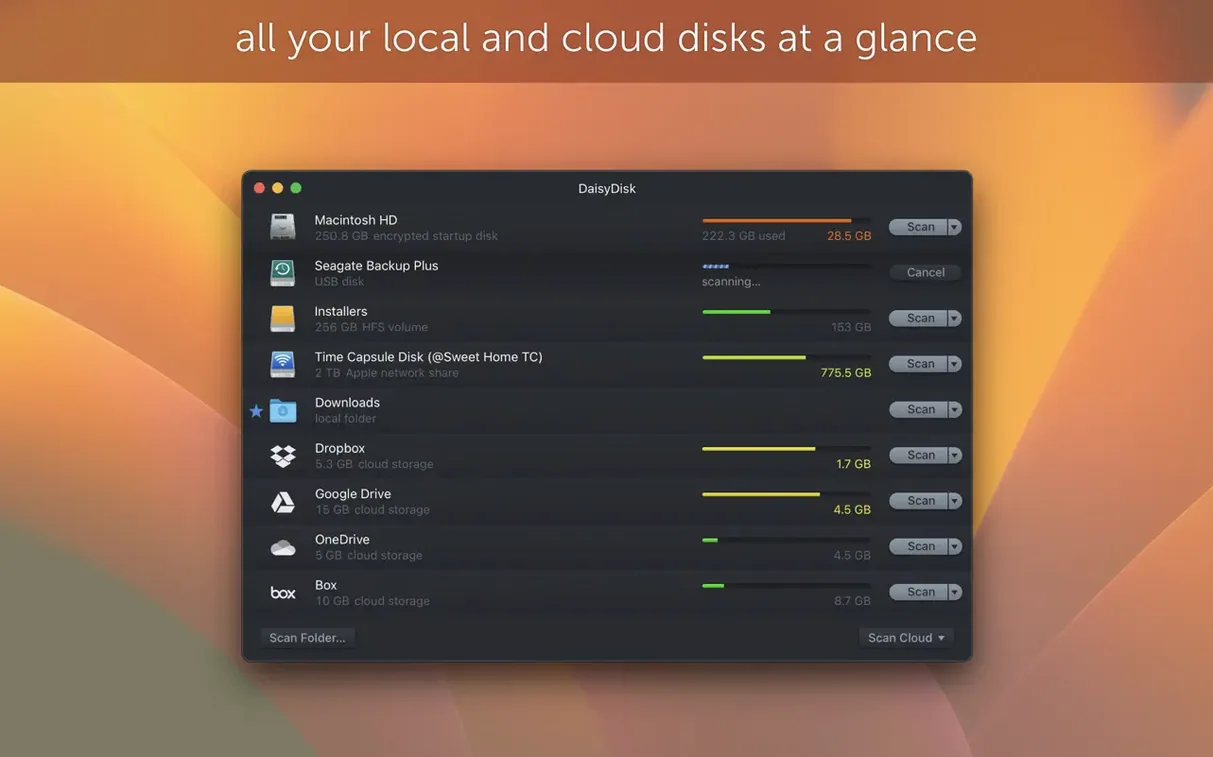
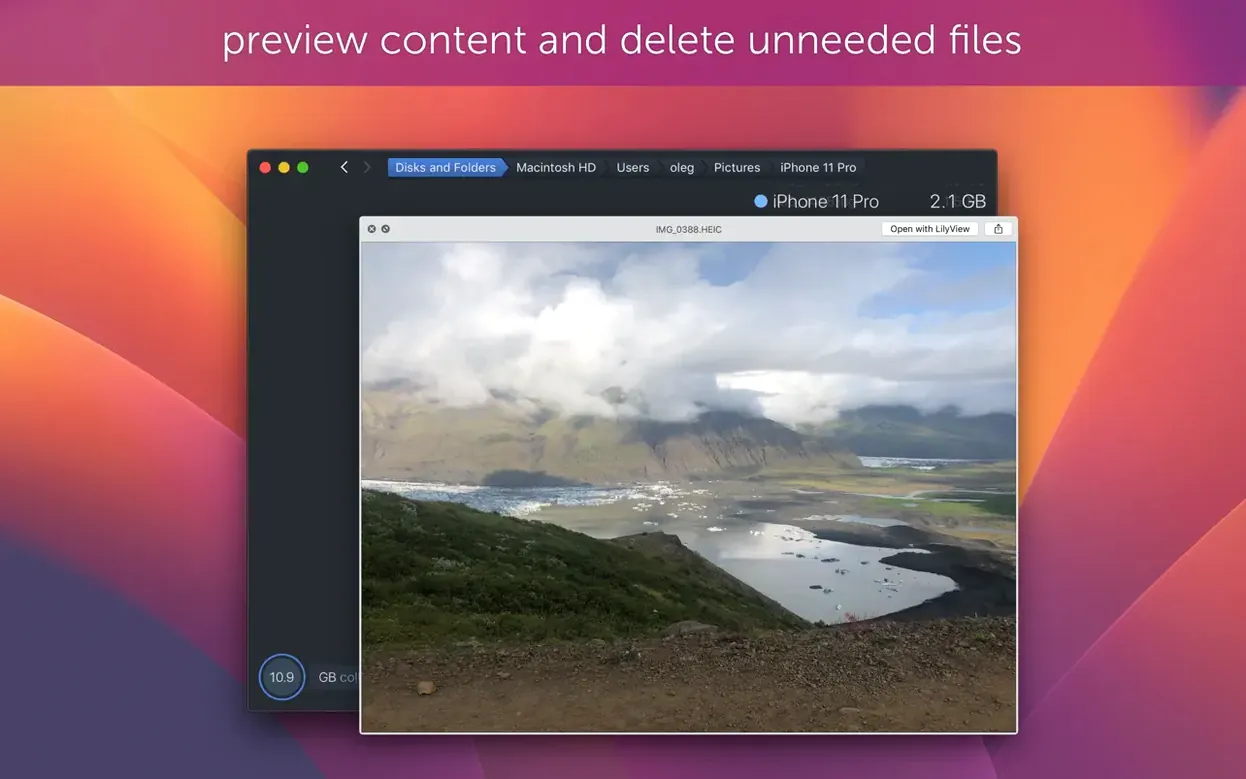
DaisyDisk is for anyone who looks at their Mac’s storage bar and wonders where it all went. It scans any mounted volume and draws an interactive map of what is using space, so you can spot a forgotten cache or a duplicate project folder at a glance.
Open DaisyDisk, pick a disk, and get a colour-coded treemap of every file and folder. Hover to see sizes, click to drill down.
Version 4.34 accounts for APFS clones — files that share the same physical blocks. Instead of counting them twice, DaisyDisk counts only the first occurrence, so your used space numbers actually match what the system reports.
If you have external drives, network volumes or a RAID array, DaisyDisk can scan them in parallel. You get a real-time overview of every mounted disk without waiting for one scan to finish before starting the next.
DaisyDisk has a few touches that do not announce themselves but become part of your routine fast. The Quick Look integration is one: hover over any file on the map, press the space bar, and you see a preview without leaving the app. Handy when you are trying to tell apart two similarly named video files or checking whether a downloaded installer is still needed.
The drag-and-drop deletion is another. Instead of hunting through Finder to remove a folder you spotted on the map, you drag it from the DaisyDisk window straight to the trash icon in the corner of the screen. The app asks for confirmation first, which has saved me from deleting something I actually wanted a few times.
If you keep an eye on several external drives at once, the real-time disk info panel at the side of the main window shows every mounted volume and its usage before you even start a scan. You can see at a glance which drive is nearly full and decide where to point the next scan.
The most frequent one is scanning the system drive and then deleting something from the visual map without checking what it actually is. DaisyDisk shows file names and sizes, but a folder called "Cache" could be a temporary browser cache you can safely clear or a system cache that macOS rebuilds immediately. Using Quick Look to peek inside before dragging to trash is a good habit.
Another mistake is not letting the scan finish before acting. On a large drive with hundreds of thousands of small files, DaisyDisk needs a moment to build the full map. If you start deleting during the scan, the numbers shift and the map redraws, which can be confusing. Wait for the scan to complete, then work through the results.
Some people also forget that DaisyDisk scans mounted disks only. If you have a Time Machine backup drive that is connected but not mounted, or a network volume that is not currently visible in Finder, DaisyDisk will not see it. A quick check in Finder before opening the app saves time.
People often wonder if DaisyDisk can delete files from within the app or if it only shows them. It does both — you see the map and you can delete items by dragging them to the trash icon. The app does not delete anything automatically; you choose what goes.
Another common question is whether the scan slows down the Mac while it runs. DaisyDisk reads the disk metadata to build its map, which is not especially intensive. Most scans complete in a few seconds on an internal SSD, though a spinning external drive with a lot of files takes a little longer. You can keep working while it scans.
Some users ask if DaisyDisk works with APFS drives and the answer is yes, fully. Version 4.34 added proper handling of APFS clones, so the space numbers match what the Finder and About This Mac show. Earlier versions sometimes double-counted cloned files, but that is no longer an issue.
And yes, it runs on both Intel and Apple Silicon Macs. The current version is universal, so it works on any Mac running macOS 10.13 or later, including the latest macOS Tahoe releases.
Start with an external drive or a secondary volume, not your main system drive. That way you get comfortable with the visual map and the drag-to-trash workflow without the worry of touching something important. Once you see how it works, scan the main drive.
Use the search field inside DaisyDisk to find files by name or extension if you already know what you are looking for. Typing "dmg" shows all disk images, "log" shows log files, and so on. It is faster than clicking through the map when you have a specific target.
After your first scan, take a screenshot of the map before deleting anything. That gives you a before picture to compare against a later scan, so you can see exactly how much space you freed up. It is not a feature of the app, but it helps keep track.
If you use Time Machine, remember that DaisyDisk sees local snapshots as part of your used space. Those snapshots are not actual files you can delete from within DaisyDisk — Time Machine manages them itself. If the map shows a large chunk of space in the "Other" or "Hidden" category, local snapshots are often the reason. You can check by running tmutil listlocalsnapshots / in Terminal, but you do not need to remove them unless you are very short on space.
Finally, get into the habit of scanning once a month. Storage creeps up quietly, and a quick look at the map every few weeks catches the build-up before it becomes a problem. DaisyDisk takes seconds to open and scan, so it is easy to fit into a routine.
Yes, since version 4.34 DaisyDisk accounts for APFS clones and counts only the first occurrence of each clone in used space calculations, giving you accurate storage figures.
Sign in or create your account to leave a comment.
No notes from photographers yet. If you have used this on a real folder, say which camera and which Mac.