
 Get it for my Mac (10 MB)
 dBpoweramp Music Converter
2026.09.13
- Version
- 3.10.0
- Developer
- Devstorm SRL
- Interface in
- English, German
- Licence on file
- K'ed by TNT team
- macOS it runs on
- macOS 11.5 or later
- Chip support
- Apple Silicon, Intel 64-bit
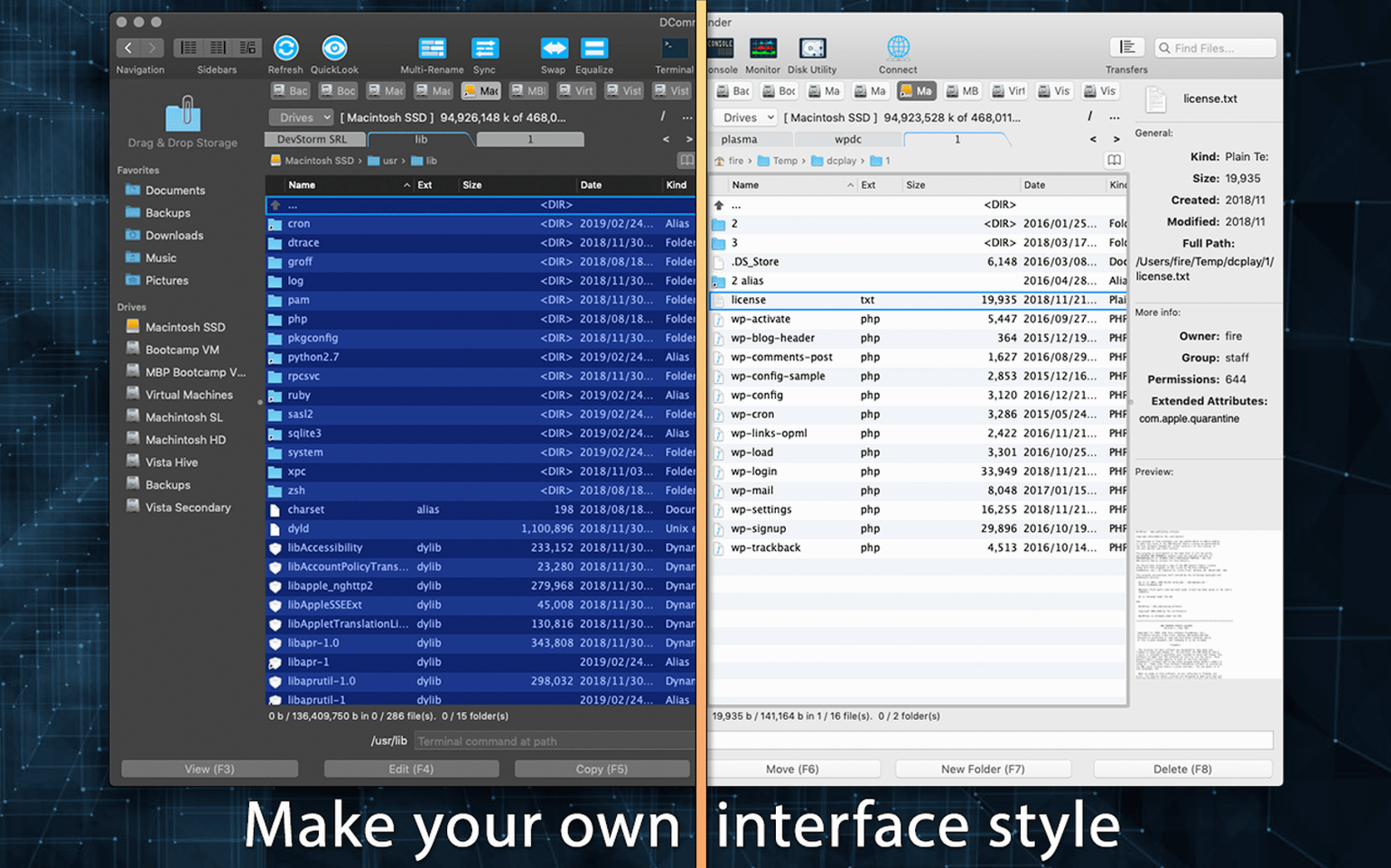
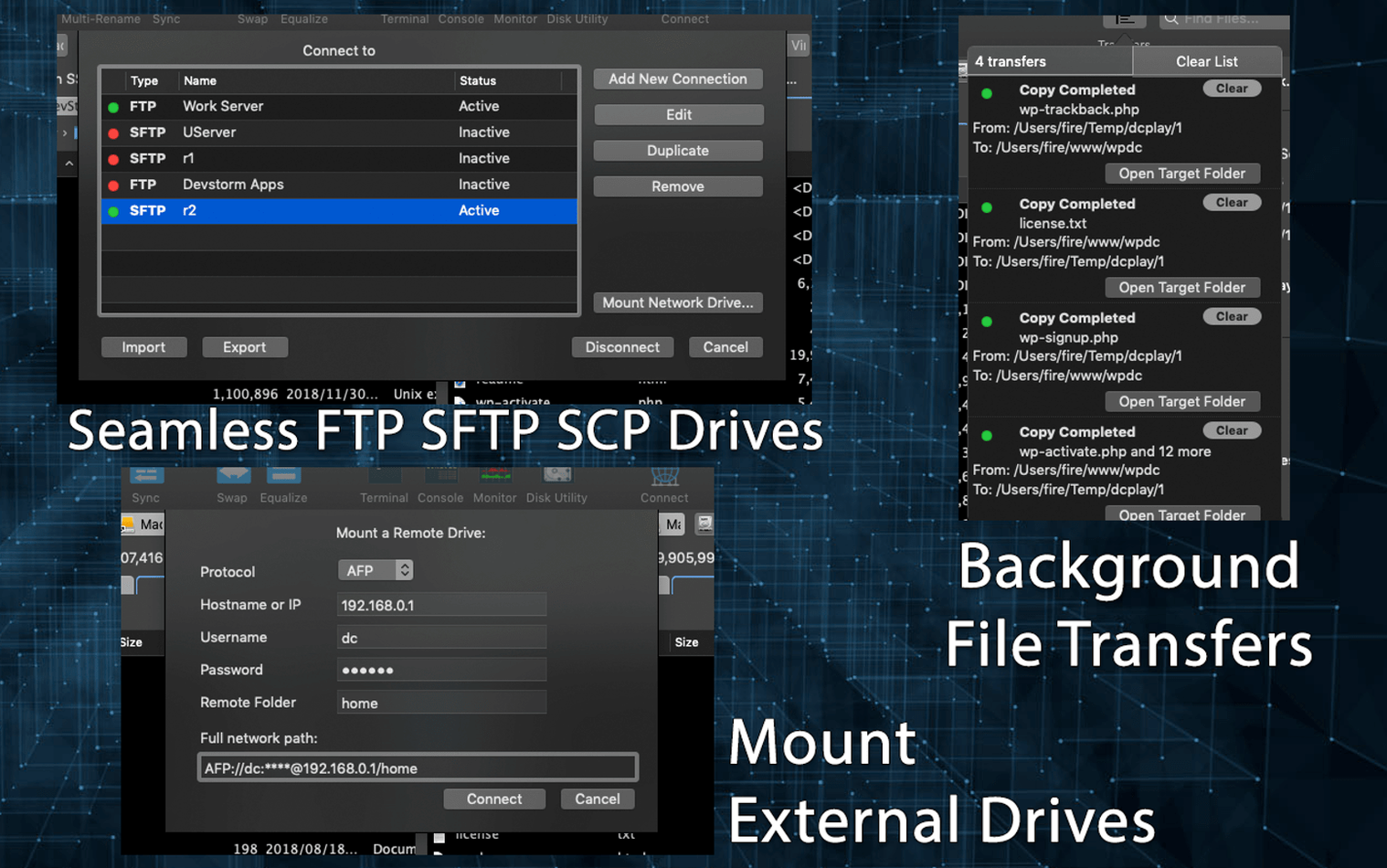
In the edit
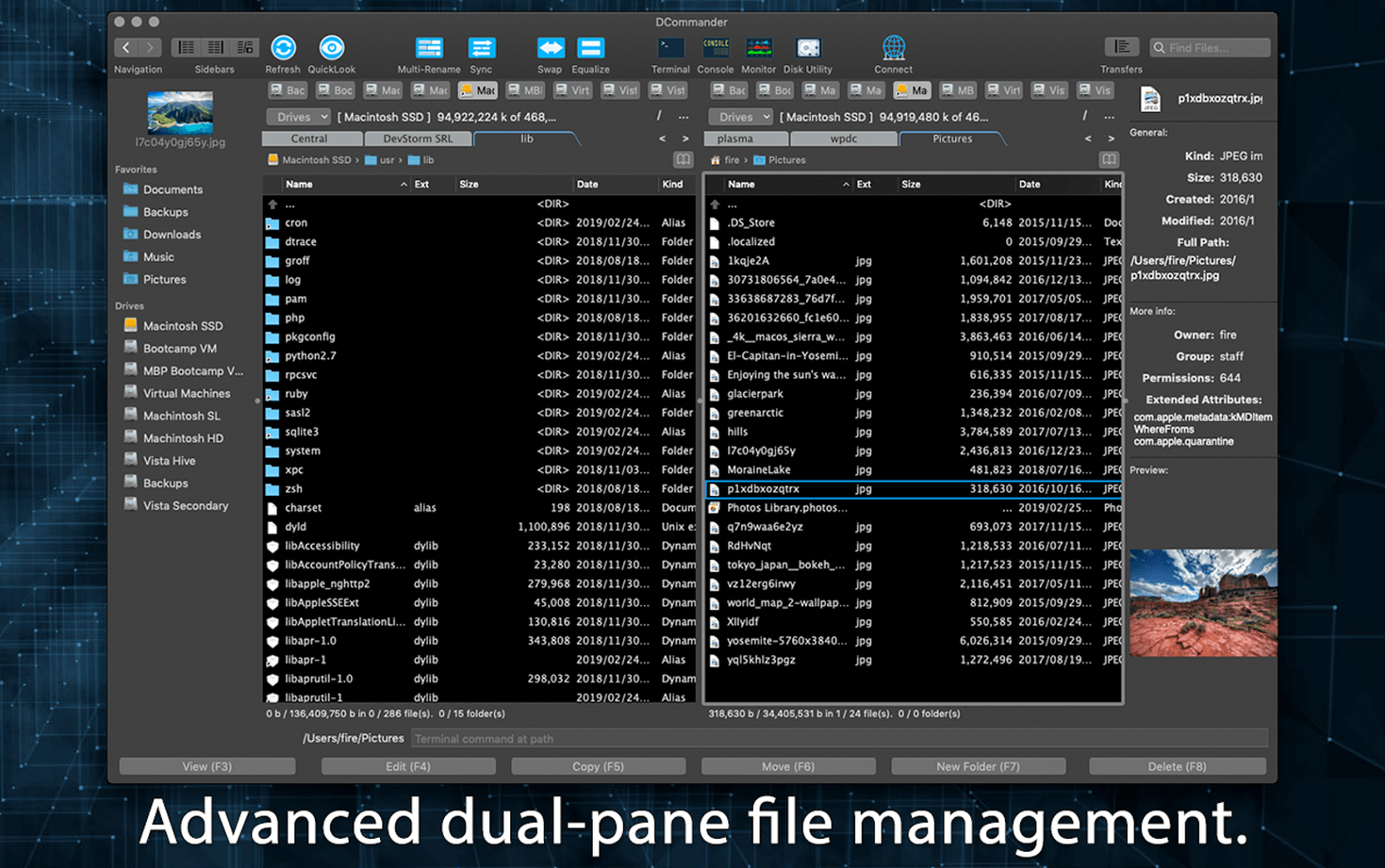
DCommander is a two-pane file manager for macOS, built for people who prefer keyboard-driven file operations over dragging icons around a single window.
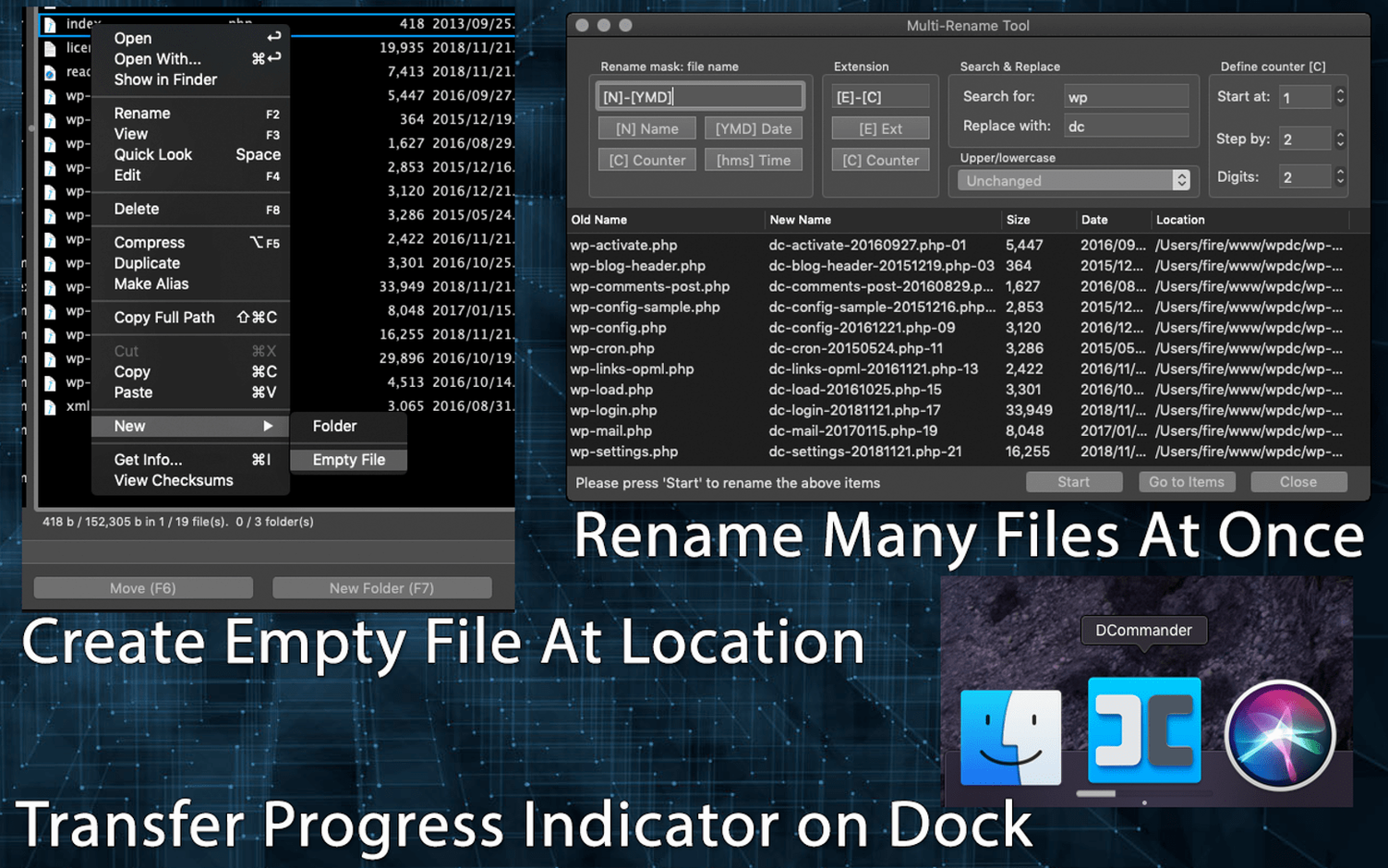
Copy, move, sync, or archive files across local folders and remote servers
- Copying, moving, synchronising, and archiving files between local folders or remote servers via FTP and SCP.
- Checking file integrity with built-in checksum tools.
- Editing binary data directly with the HEX editor.
- Working with multiple directories at once thanks to tab support and detailed file info panels.
The two-pane layout takes a moment to get used to if you're new to it
- It follows the orthodox (Norton Commander) layout — if you never used one, the two-pane view takes a moment to get used to.
- Version 3.10.0 runs on macOS 11.5 and later, and is optimised for both Apple Silicon and Intel processors.
- Interface is available in English and German only.
Treating the two-pane layout like Finder is the most common misstep
The two-pane layout is the main thing that trips people up when they first open DCommander. A common error is treating it like Finder — clicking a folder on one side and expecting it to open in the same pane. In DCommander, each pane has its own directory tree, so you need to navigate each side independently. Beginners also tend to overlook the tab support. Tabs work per pane, not globally, which means you can have several directories open on the left and several on the right without losing your place.
Another one is forgetting to check which pane is active before running an operation. The active pane has a highlighted border, and that’s where the copy or move command will act from. If you hit the copy shortcut without looking, you might send files somewhere unexpected. Similarly, the background transfer manager is there for a reason — running large FTP or SCP transfers in the foreground locks the interface, and beginners often don’t realise they can queue those jobs to the background and keep working.
Leaner than ForkLift, sticking to orthodox file manager traditions
If you’ve used ForkLift, you’ll notice DCommander is leaner. ForkLift bundles cloud service connections and a built-in editor, while DCommander sticks closer to the orthodox file manager tradition. It doesn’t try to be a Swiss Army knife — it’s a focused two-pane tool with remote protocols and a HEX editor when you need it.
Commander One is another option in this space. It offers a similar two-pane layout but leans heavier on customisation and themes. DCommander feels more restrained out of the box, with fewer visual distractions. For someone who just wants to move files fast between local directories or a remote server, DCommander’s simpler interface might save you a few clicks per session.
Then there’s muCommander, which is Java-based and cross-platform. It’s free and open-source, but the Java runtime means it doesn’t feel as native on macOS. DCommander is a Cocoa app, so keyboard shortcuts, drag-and-drop, and file previews behave more like the rest of the system. If you spend all day in a terminal, muCommander might still appeal, but DCommander feels more at home on a Mac desktop.
Switching to the dark theme makes long sessions easier on the eyes
Before you start moving files around, it’s worth opening the preferences and tweaking a few things. The default colour scheme is functional, but switching to the dark theme can make the file lists easier on the eyes during long sessions — especially if you work late or keep the room dim.
You’ll also want to set your preferred transfer mode for remote connections. If you mostly use SFTP, make that the default so you aren’t choosing it every time. And if you regularly compare folders, turn on the synchronisation view in the toolbar — it’s one of those features that saves time once you remember it’s there.
DCommander for Mac torrent is a dual-pane file manager that simplifies organizing files for power users. After that, it’s a matter of adjusting those first settings to match how you actually work.
Mac it needs
- macOS 11.5 or later
- Apple Silicon or Intel processor
- English or German interface
Questions I actually get
Does DCommander support remote connections?
Yes, it supports both FTP and SCP connections for transferring files to and from remote servers.
Can I edit binary files with DCommander?
Yes, it includes a built-in HEX editor for viewing and editing binary data directly.
Installing on a Mac
- Mount the disk image and run the Open Gatekeeper friendly command.
- Press Enter in Terminal to bypass Gatekeeper.
- Drag the app to the Applications folder.
- Launch the app.
Notes from photographers
Sign in or create your account to leave a comment.
No notes from photographers yet. If you have used this on a real folder, say which camera and which Mac.
Similar apps
Next to it in Utilities
All Utilities picks
dBpoweramp Music Converter
2026.09.13
 DaisyDisk
4.34.2
 Cursor Teleporter
1.0.2
 Downie
4.13.5
 Dropover
5.4.0
 Duplicate File Finder Pro
9.2.1
 DVDFab
12.0.8
 CopyQueue
3.1
