Get it for my Mac (33 MB)
 Duplicate File Finder Pro
9.2.1
Duplicate File Finder Pro
9.2.1

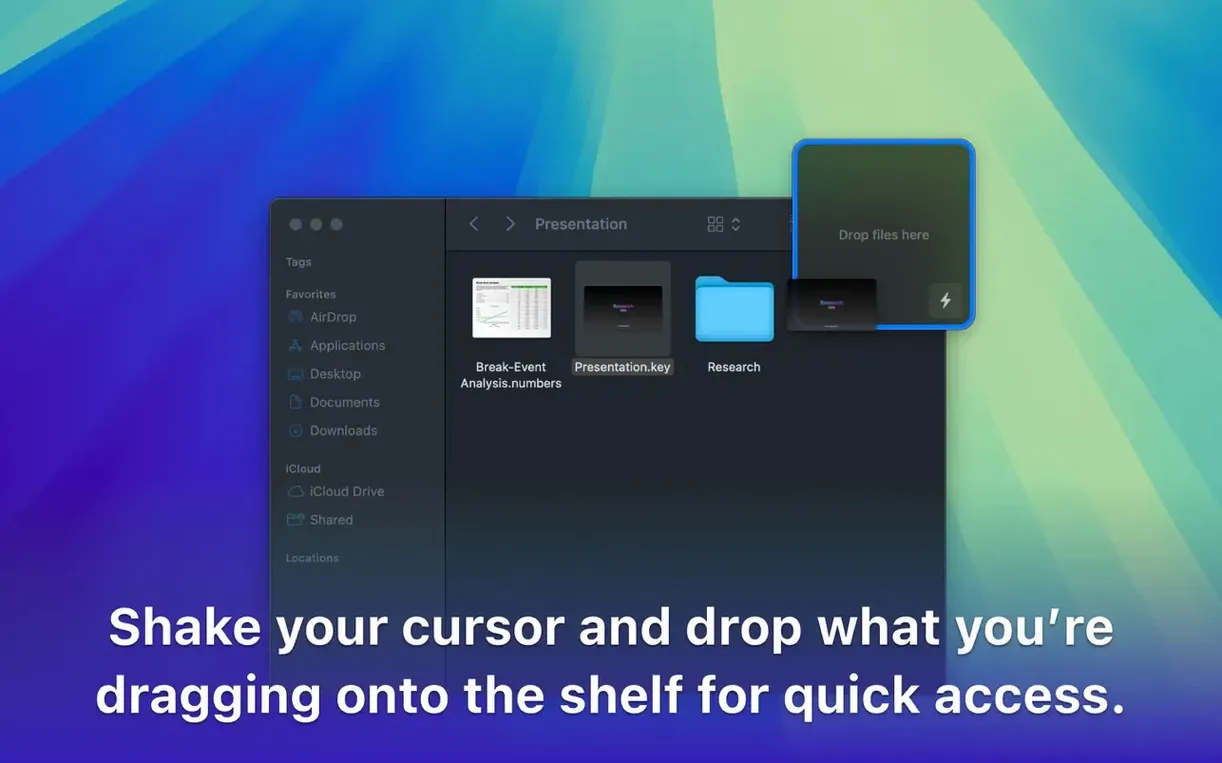
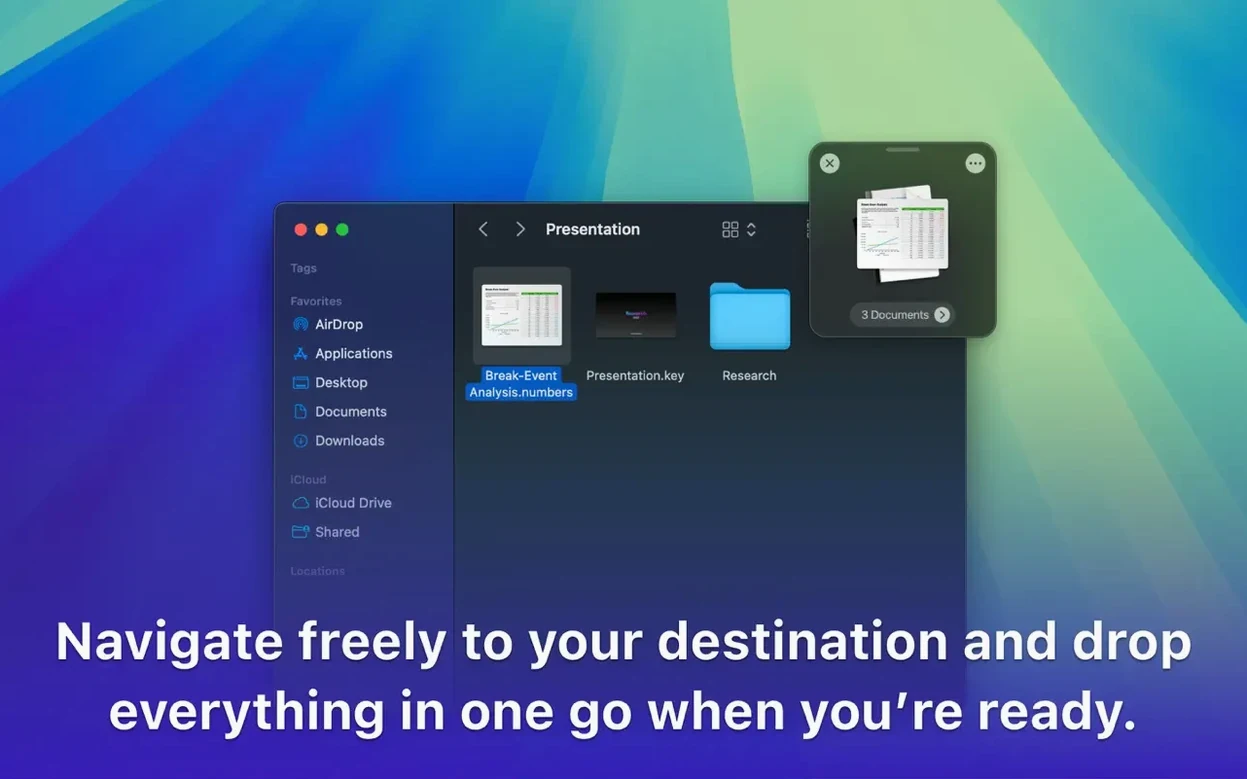
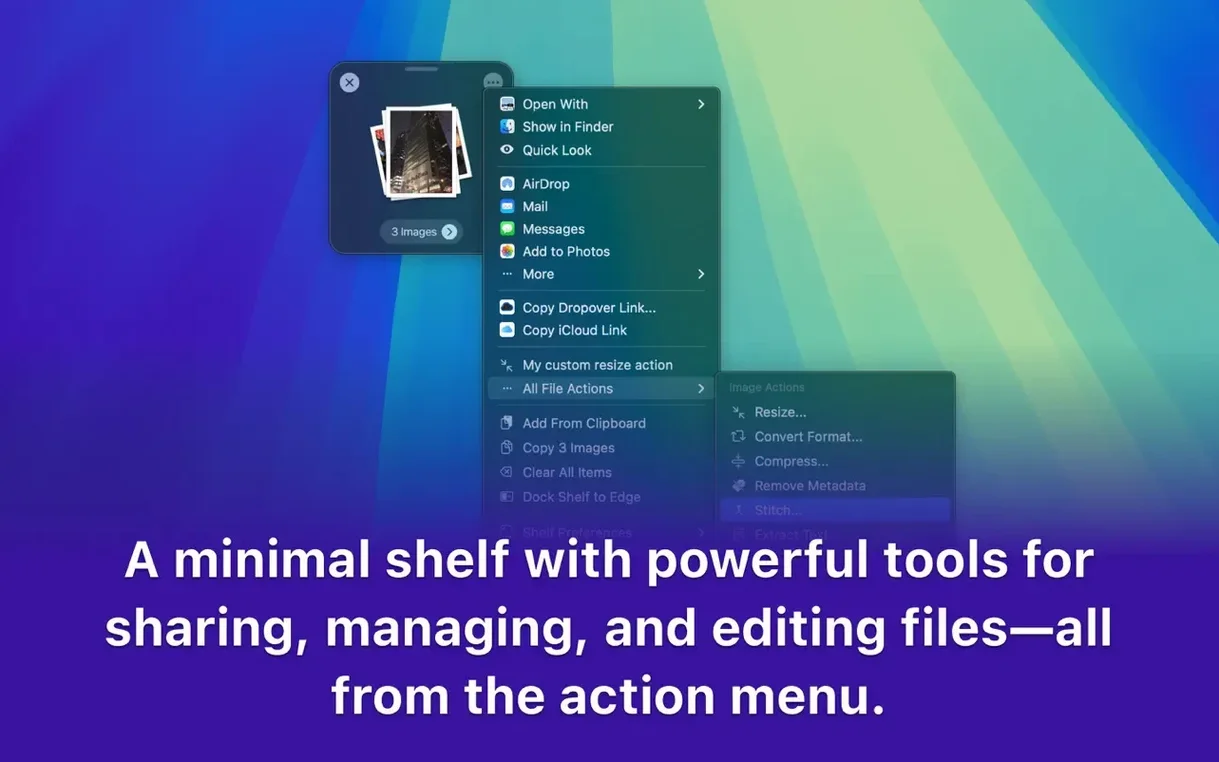
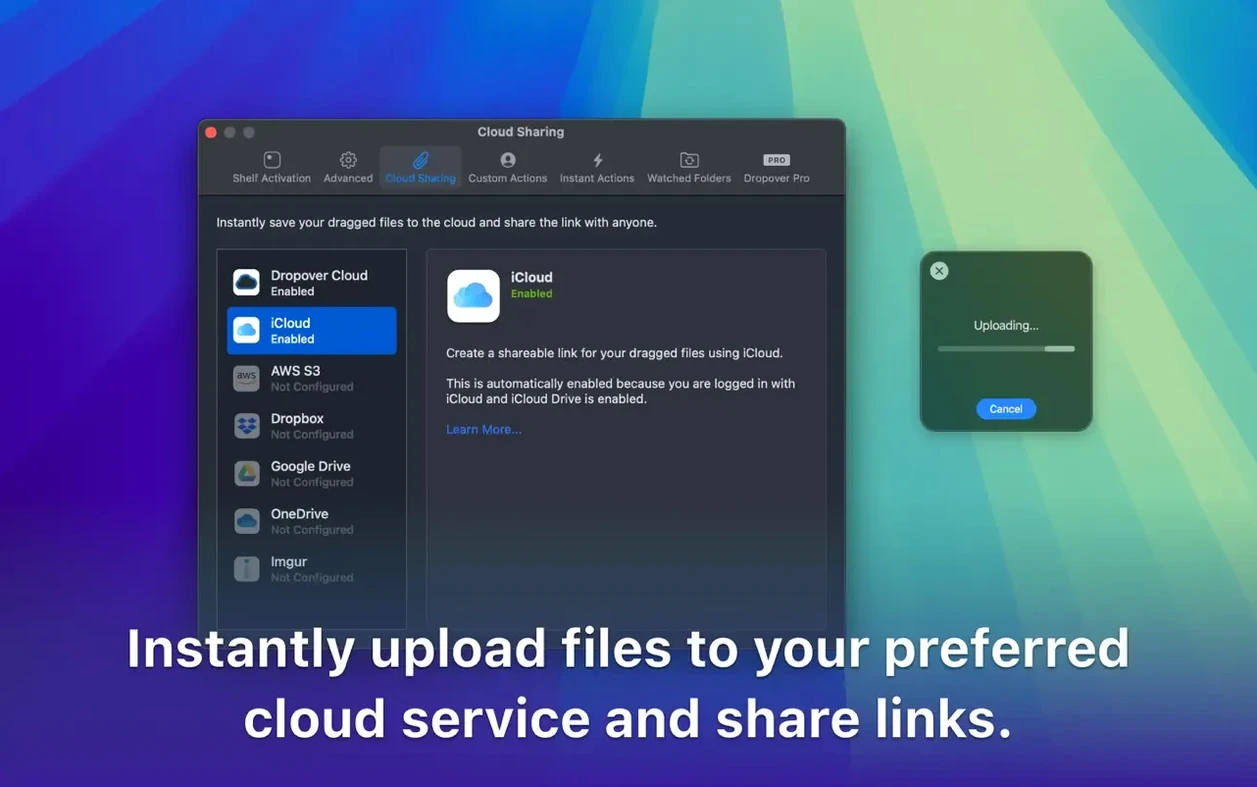
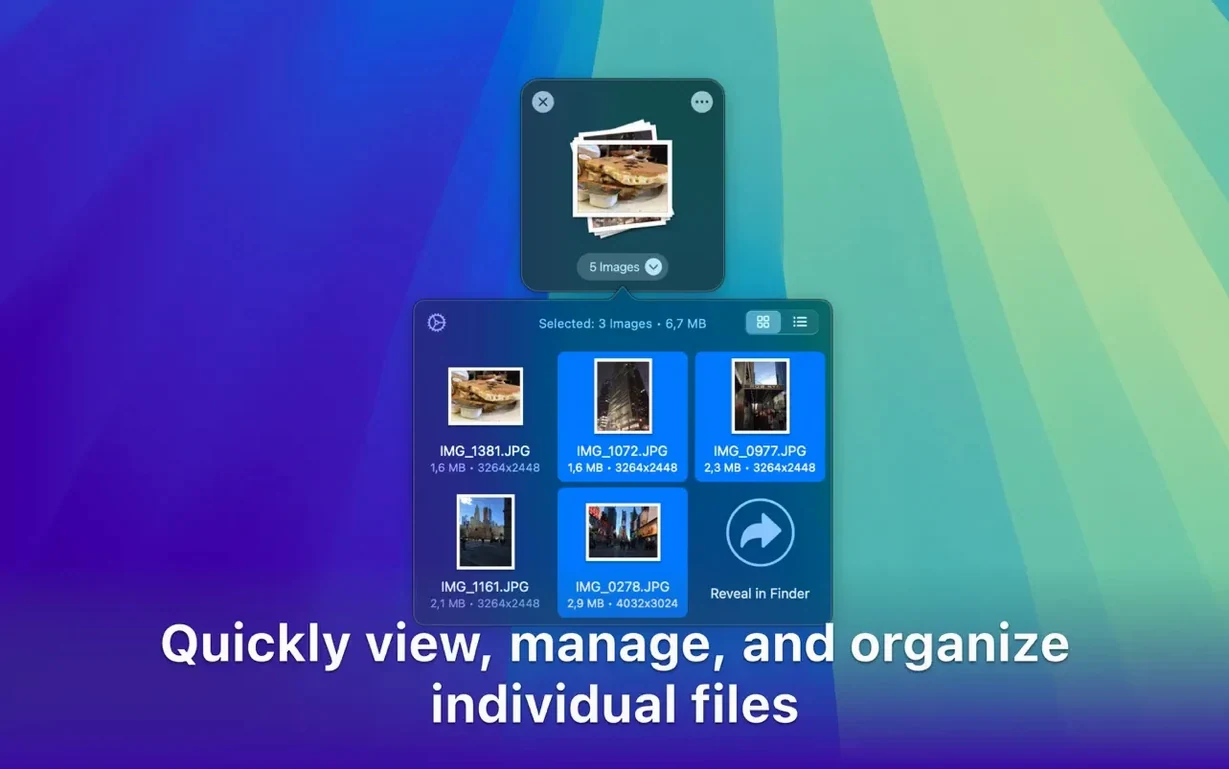
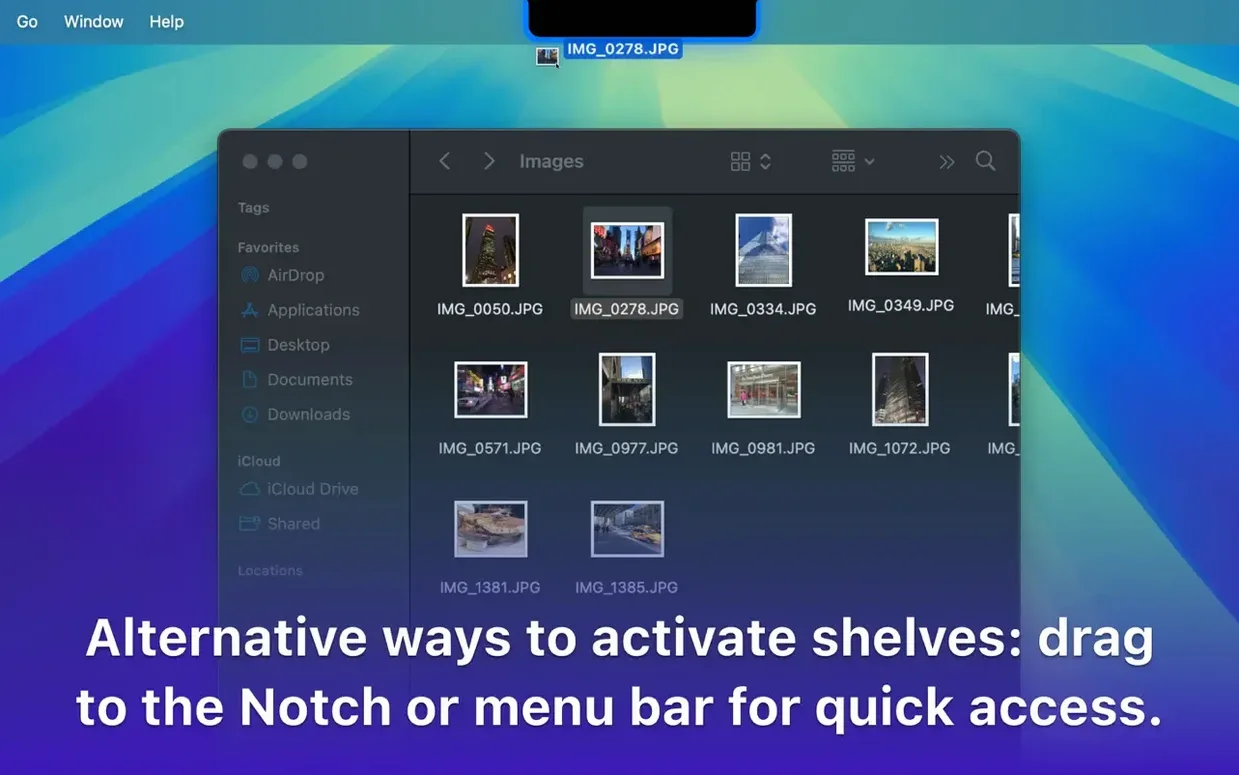
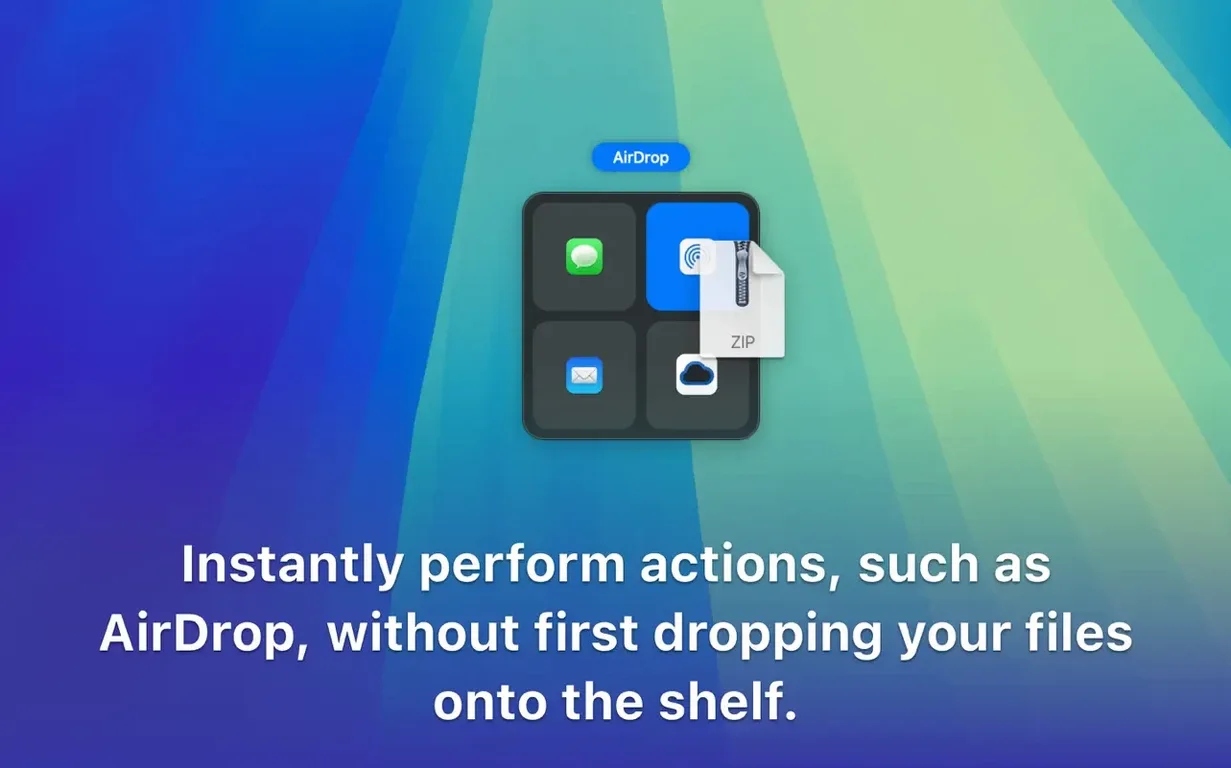
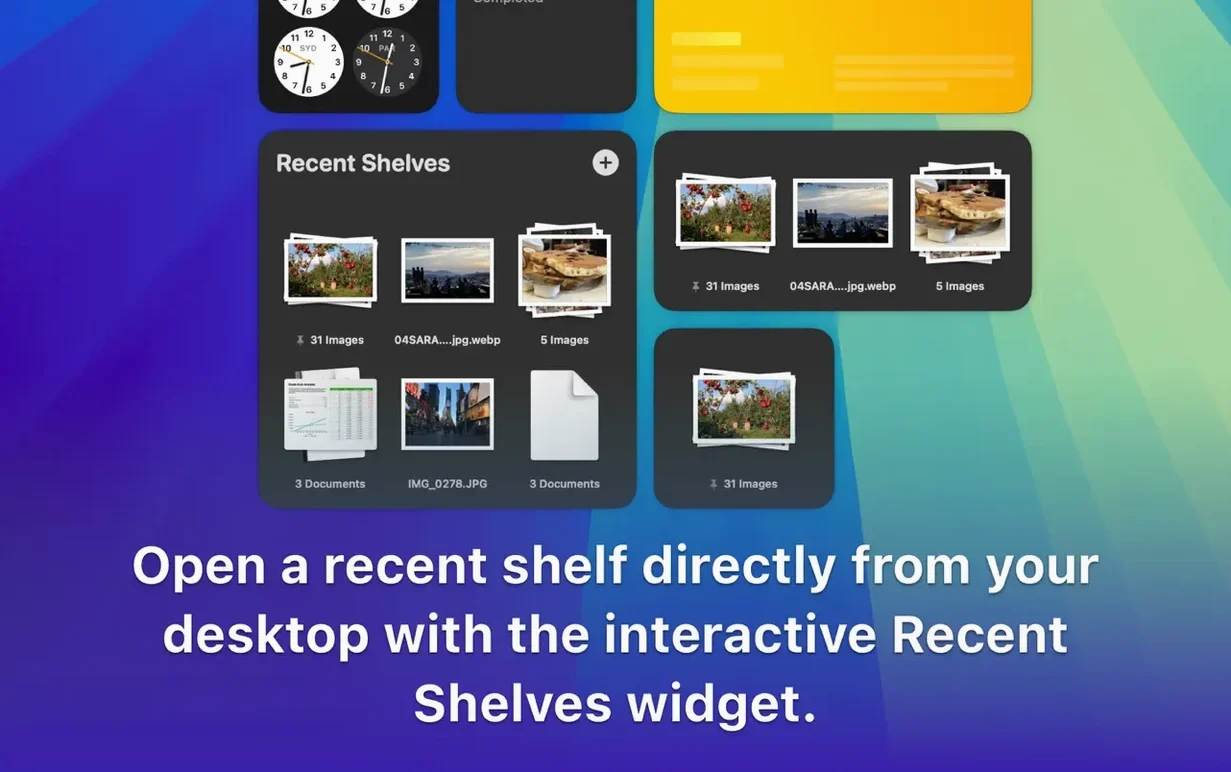
Dropover 5.3.0 runs on macOS 12 and later, and it works on both Intel and Apple Silicon Macs. That is the first thing to check before you try it. After that, the idea is simple: you drag a file, a photo, a link or a snippet onto a small floating shelf that stays on screen while you switch apps, open folders or browse windows. When you are ready, you drop everything where it needs to go.
Good for
Keep in mind
Wednesday morning, I am editing selects from a wedding at a Cotswolds barn. I have got Lightroom open on one monitor and a Finder window with the final export folder on the other. But the couple sent me a Dropbox link with phone photos they want included, and I need to pull three of those into the same folder as the edited RAWs. Normally that means downloading each one, finding it in Downloads, then dragging it over. With Dropover I drag the link from the browser onto the shelf, grab two more from Dropbox, switch to the Finder and drop all three at once. It sounds small, but over a full edit it saves dozens of trips between windows.
The shelf sits in the top-right corner by default, though you can move it. When I am pulling images from a Google Drive folder and text notes from Apple Notes at the same time, the shelf holds everything in one place. I click the shelf icon, and the contents expand into a small grid. From there I can drag them out one by one or grab the whole lot and drop them into a folder, an email attachment field, or an upload dialog in a browser.
For bigger jobs — say I am organising a client gallery and need to rename a few files before uploading — I right-click an item on the shelf and rename it there. I can also archive items I do not need immediately or share them straight to another service. The shelf becomes a kind of temporary staging area that does not clutter the desktop or the Dock.
Hotkeys speed things up when I am moving fast. I have mapped a couple of shortcuts to toggle the shelf visibility and to clear its contents after a batch upload. It is not a tool I think about much; it is just there when I need to gather before I drop.
Dropover suits anyone who moves files between apps regularly, but some Mac users will lean on it more than others.
It is less useful if you mostly work inside a single app and rarely move files between windows. But if your day involves scattering files from various places into a single folder or upload, it starts to feel essential quite quickly.
Does Dropover replace the Finder or the macOS file manager?
No. It works alongside them. You still use the Finder to browse, sort and organise. Dropover just adds a temporary holding space so you can collect items from different locations before moving them all at once. Think of it as a clipboard for files, not a file manager.
Can I use it with any app?
In most cases, yes. It works with any app that supports standard macOS drag and drop, which is almost everything. Some older software or web apps with custom drop zones might not play along, but I have yet to find a common app that refuses it. The share sheet integration adds another way to push content into the shelf from apps that support that system feature.
Does the shelf stay open after I close the app I dragged from?
Yes. That is the point. You drag a file from Lightroom, switch to Safari to find a reference image, switch again to Finder, and the shelf is still there holding everything. It only clears when you drop the items somewhere or manually empty it.
What happens if I restart my Mac with items on the shelf?
The shelf is temporary by design. If you restart or quit Dropover, any items still on the shelf will be lost. The expectation is that you drop them where they belong before you shut down. For longer projects you might want to create a temporary folder and move things there instead.
Is it available in languages other than English?
Yes. The app ships in English, German, Simplified Chinese and Dutch. The interface is light on text so switching languages does not affect the core experience much.
Dropover vs. Unclutter
Unclutter cleans up your desktop and organises files into stacks. It is about tidying what is already there. Dropover does not touch your desktop organisation; it is about catching files mid-move and holding them temporarily. They solve different problems, though someone who moves a lot of files around might want both.
Dropover vs. Yoink
Yoink works on a similar idea — a temporary holding area for files and content — but it lives in the menu bar and uses a small pop-up panel. Dropover keeps a floating icon on the desktop that you can position anywhere. Both let you gather before you drop, but Dropover feels more visible and accessible during busy work. Yoink is a bit more discrete and better suited if you want the shelf out of sight until you need it.
Dropover vs. Dropshare
Dropshare focuses on uploading files to cloud services or sharing them via links. It is a sharing tool first. Dropover can integrate with cloud services too, but its main purpose is local file staging. If your need is to move files between folders and apps on your own Mac, Dropover is the better fit. If you mostly need to upload and share, Dropshare covers that ground more directly.
Sign in or create your account to leave a comment.
No notes from photographers yet. If you have used this on a real folder, say which camera and which Mac.