
 Get it for my Mac (13 MB)






 Digital Clock 3D
2.1.2
- Version
- 1.4.4
- Developer
- DiskFox
- Interface in
- English, German, Spanish, Italian, French, Japanese
- Licence on file
- Not required
- macOS it runs on
- macOS 14 or later
- Chip support
- Apple Silicon, Intel 64-bit
In the edit
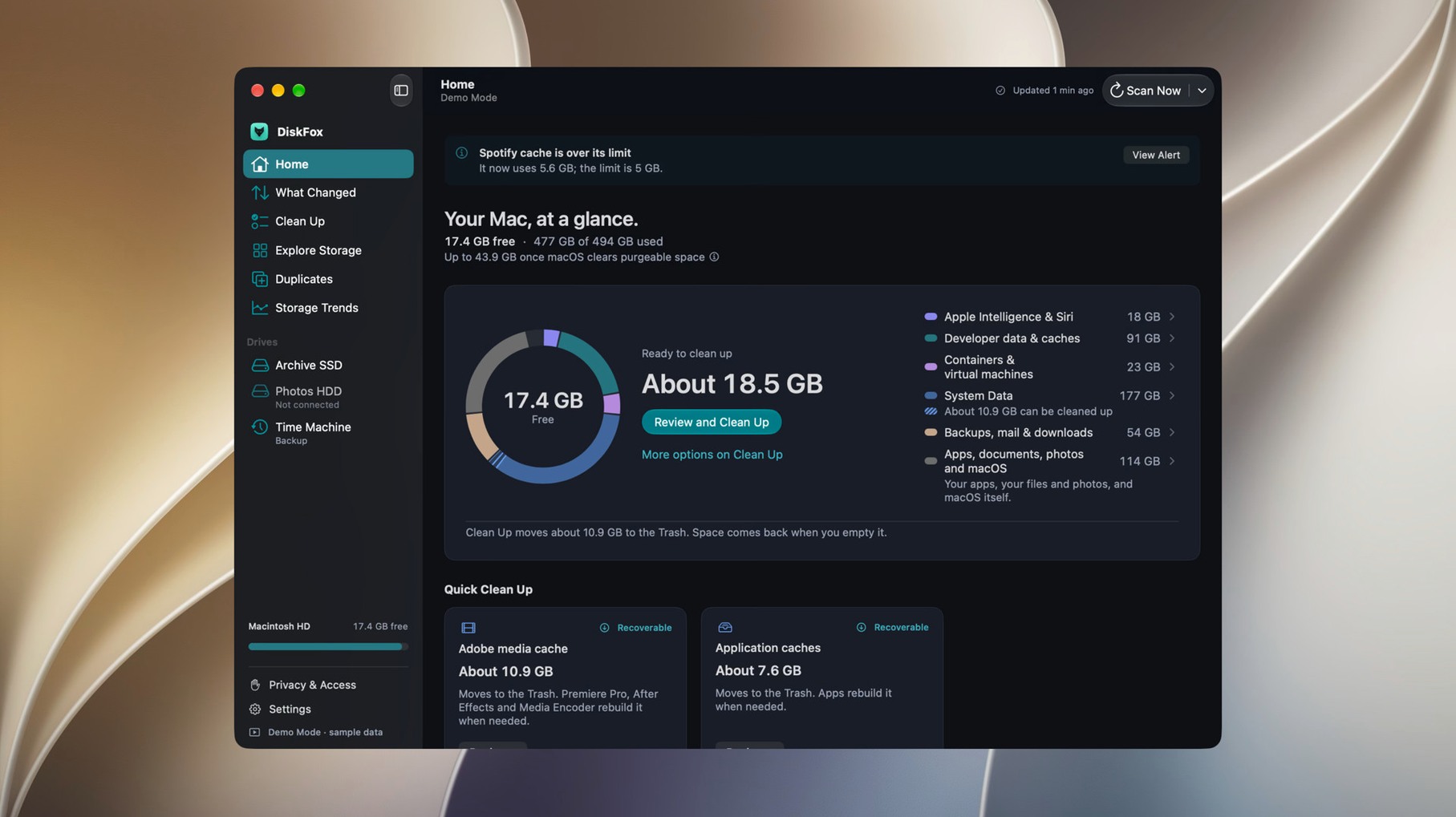
DiskFox runs on any Mac with macOS 14 or later, whether it’s Apple Silicon or Intel. It’s a storage tracker that doesn’t just show you what’s taking up space — it tells you what grew, when it grew, and, where possible, why. Version 1.4.4 is the current release, and it’s notarised by Apple so it plays nice with Gatekeeper.
What makes it different from a regular disk scanner
Most storage tools give you a static map of your disk. DiskFox builds a colour-coded storage map and then watches how it changes over time. You can compare a scan from today with one from last week, or view trends over 7, 30, or 90 days. If a cleanup goes wrong or gets interrupted, DiskFox can check the disk state again and save a receipt of what was done. It also measures storage on a schedule while open, with a quick check when it launches, so you always know what’s changed since you last looked.
Scan comparison and dated change logs
DiskFox compares storage scans taken at different times and shows dated changes. When the exact cause of a growth spurt isn’t known, it gives you a likely cause based on file metadata and system activity. That means you can spot a runaway cache or a log file that’s ballooned overnight without digging through folders manually. The app speaks English, German, Spanish, Italian, French, and Japanese, so it’s comfortable for a range of users.
Working through a full cleanup scan from start to finish
Let’s walk through a typical session with DiskFox. You open the app and it runs a quick check straight away, noting the current state of your disk. From there you can let it run on its schedule, or start a manual scan anytime. Once the scan finishes, the colour-coded storage map appears, and you can see which folders or system locations have grown since the last time you opened the app.
The smart part comes when you drill into a section that’s grown unexpectedly. DiskFox flags system locations it knows about — Apple Intelligence models, Xcode caches, iPhone backups, Docker images, local Time Machine snapshots, Adobe caches, macOS downloads, Messages attachments, Spotify cache, Homebrew, and npm data. Each of these gets a dated entry with a likely cause. You review the suggestion and choose to either move the files to Trash or take a more permanent action. Most cleanup actions go to Trash first, so you can reverse course if something breaks. Permanent or advanced actions are clearly marked so you don’t accidentally nuke something important.
After the cleanup, DiskFox checks the disk state again and compares it with the before state. It saves a receipt of everything that was done. That’s useful if you need to remember what you cleared out three weeks later when a project starts acting oddly. If the cleanup was interrupted or failed partway through, the app can check the disk again and let you resume or review what’s left.
Let DiskFox scan right away for a baseline
When you first install DiskFox, let it run through a scan right away so it has a baseline to compare against. Then leave it open for a day or two while you work normally. The app measures storage on a schedule while it’s open, and it does a quick check at launch, so the more consistently you use it, the more useful the trends become.
Set up a few watched folders early on — the folders you know tend to fill up, like Downloads, Desktop, or your project directories. DiskFox can alert you when those folders or specific data types grow again, which saves you from manually checking every few days.
Spend ten minutes exploring the storage map after the first week. Look at the coloured blocks that show what grew. You’ll quickly learn which apps on your Mac are the repeat offenders. When you spot something unfamiliar, click into it and read the likely cause. Over time you build a mental map of your Mac’s behaviour, and DiskFox just confirms what you already suspect.
Expect cleanup proposals, not automatic deletion
The most common mistake is expecting DiskFox to delete files automatically. It doesn’t. Cleanup suggestions stay as proposals until you review and confirm them. Beginners sometimes see the proposals and assume the app will take care of it, then later wonder why the disk is still full. You have to go through the list and approve each action.
Another stumble happens with permanent actions. DiskFox marks these separately, but some users rush through and hit confirm without reading the label. Then they realise they’ve deleted files they wanted. Always take a moment to check whether the action is marked as permanent or advanced. If you’re unsure, use the Trash option — it keeps a safety net.
Beginners also tend to ignore the history tab. After a cleanup, the receipt of what was done is saved, and you can revisit it later. If something breaks or an app can’t find its cache files, that history is your first place to look. People who skip it often end up reinstalling things they didn’t need to.
How DiskFox compares with similar Mac apps
DiskFox sits in a different spot than most disk tools. Apps like GrandPerspective or DaisyDisk give you a beautiful visual of what’s on your disk right now, but they’re static — you see one snapshot and then you’re done. DiskFox does that too, but it layers change tracking on top. You can compare today’s map with last week’s and see exactly what grew. That’s the feature that makes it useful beyond a one-off cleanup.
Another tool in this space is WinDirStat for those who dual-boot or run it via compatibility layers, but it’s not native to macOS and doesn’t track changes over time. DiskFox is built for macOS 14 and later, runs on both ARM and Intel Macs, and is notarised by Apple, so it doesn’t trigger security warnings on modern systems.
For developers, the ability to spot Docker images, Homebrew data, and npm caches is something most consumer disk tools miss. Those locations grow quietly in the background, and a general-purpose scanner won’t label them. DiskFox recognises more than 60 common macOS storage locations, so it saves you the detective work of figuring out what’s inside a folder named something cryptic.
The closest competitor in terms of change tracking is probably something like OmniDiskSweeper, but that app focuses on real-time scanning rather than historical comparison. DiskFox’s trend view over 7, 30, or 90 days is where it pulls ahead for anyone who manages storage week to week.
New this release
- Version 1.4.4 is the current release on the official site.
Mac it needs
- macOS 14 or later
- Apple Silicon or Intel processor
- Notarised by Apple
Questions I actually get
Can DiskFox show me what changed after a cleanup?
Yes. It can compare before-and-after cleanup states and save a receipt of what was done, so you see exactly what was removed and how much space was freed.
Does DiskFox support both Intel and Apple Silicon Macs?
Yes, DiskFox works on both ARM (Apple Silicon) and 64-bit x86 Intel Macs, as long as you’re running macOS 14 or later.
Installing on a Mac
- Open the downloaded disk image.
- Drag the app into the Applications folder alias.
- Launch the app from Launchpad after copying finishes.
Tip: You can eject the disk image once the app is in your Applications folder.
Notes from photographers
Sign in or create your account to leave a comment.
No notes from photographers yet. If you have used this on a real folder, say which camera and which Mac.
