Get it for my Mac (212 MB)
 Wondershare UniConverter
15.7.3.564
Wondershare UniConverter
15.7.3.564

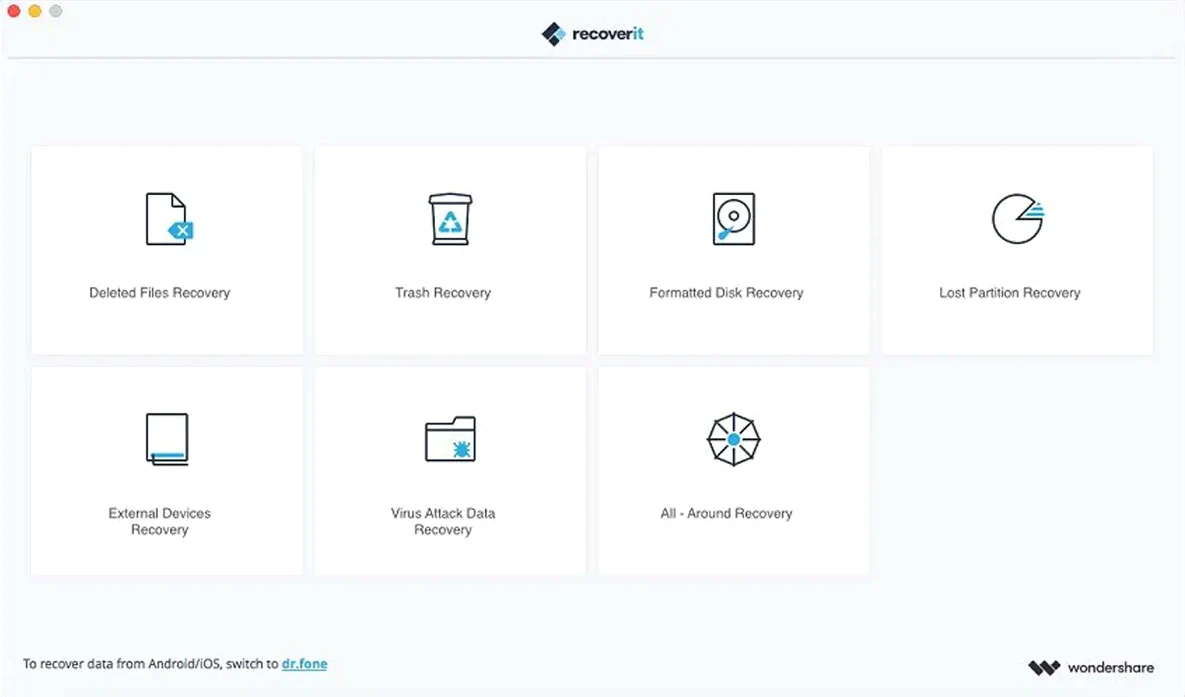
You already know the sinking feeling of a missing file. Wondershare Recoverit is the Mac app that helps you get it back — from internal drives, external HDDs, SSDs, USB flash drives, or memory cards. Here are the first things a newcomer should try.
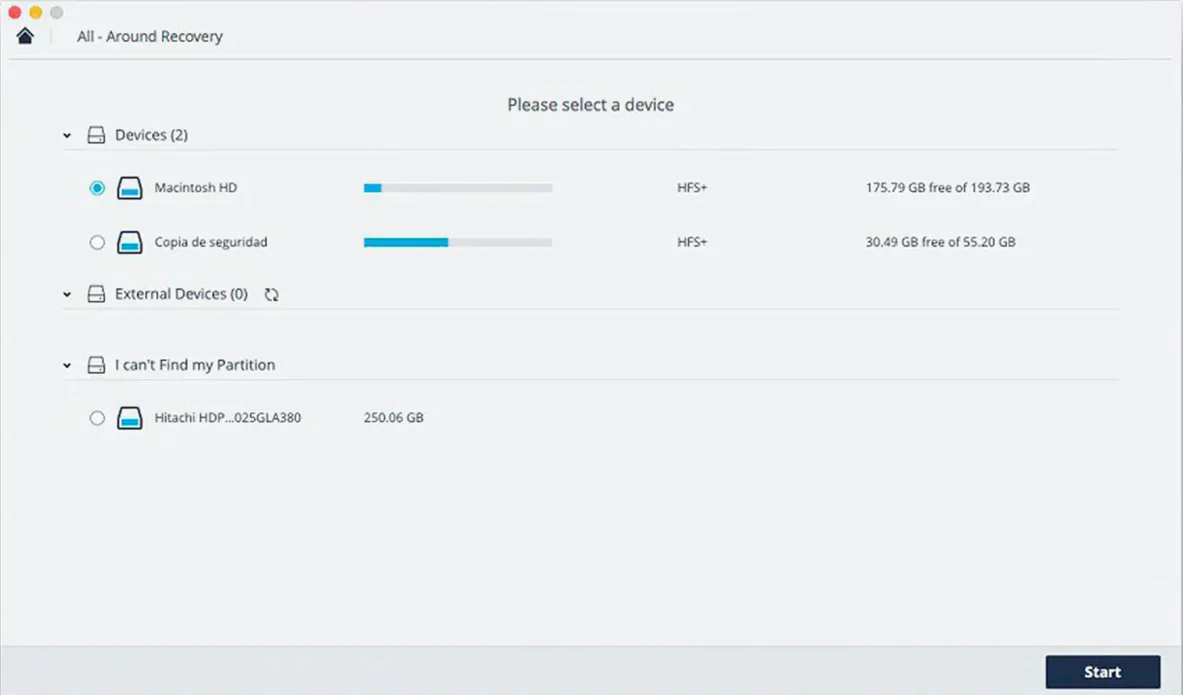
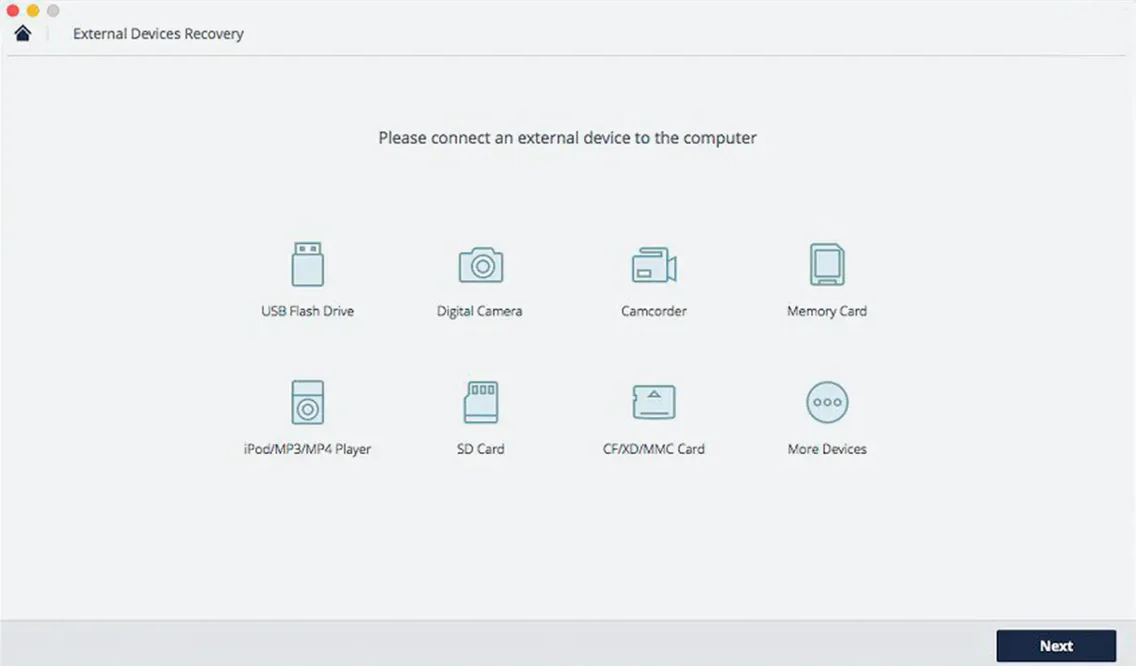
The first time you open Recoverit, you are looking at a list of drives and partitions. Take a moment to see what is there. If you are recovering from an external drive, connect it now and wait for it to mount before you start the scan. The app shows internal and external storage separately, which makes it easy to pick the right target.
One thing worth doing before any scan: close other apps that might write data to the drive you are recovering from. Every new file written after a deletion can overwrite the space where your lost file still sits. So if you are recovering from the main internal drive, avoid saving anything new until the scan finishes.
Say you deleted a folder of wedding proofs by accident and emptied the trash before you noticed. Here is how a recovery session might go from start to finish with Recoverit.
First, launch the app and select the drive where the folder used to live. If it was on an external SSD or a memory card, choose that device from the list. Click start and Recoverit begins a quick scan. For a recently deleted file, this often finds it within minutes. Watch the scan progress bar — it shows how much of the drive has been checked and how many files have been found so far.
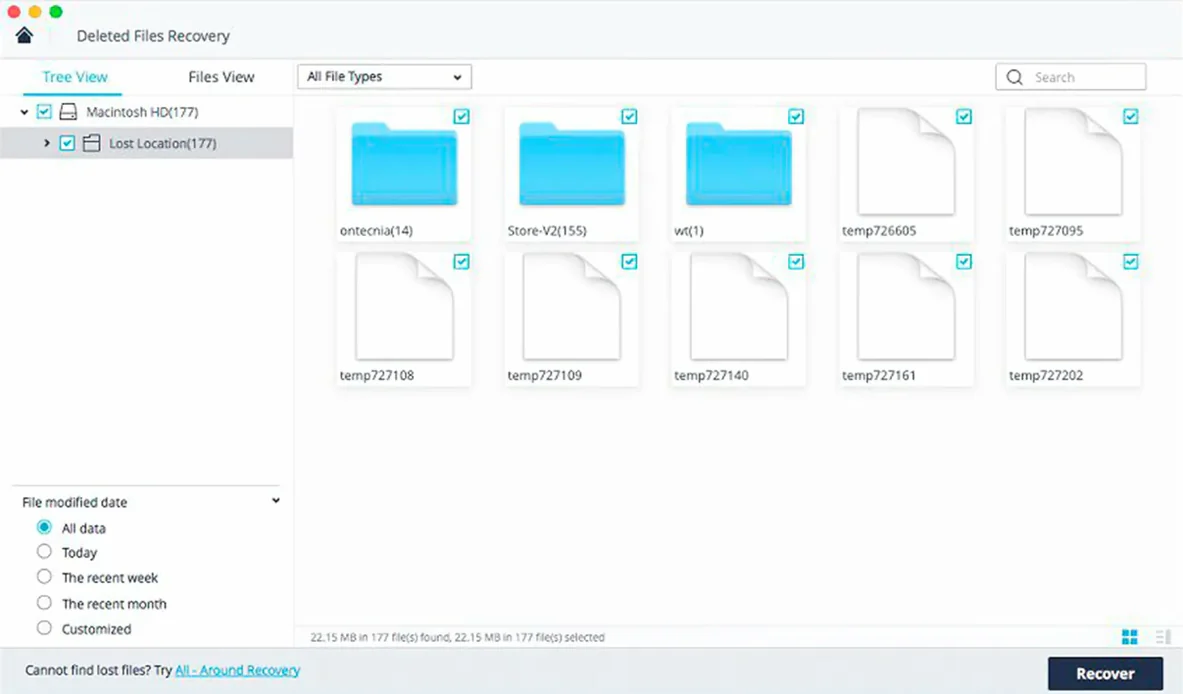
When the quick scan finishes, the app displays a file list. Use the filter at the top to show only images or only documents, depending on what you lost. If the folder of proofs was full of RAW files, set the filter to images and look for your folder name or file dates. You can also switch to list view if the default thumbnail view feels slow with hundreds of images.
If you do not see the folder in the quick scan results, do not worry. Click the deep scan button and let Recoverit run a thorough search of the drive. This takes longer — potentially hours for a large drive — but it digs into sectors that the quick scan skips. You can leave it running overnight if you need to.
Once the scan shows your files, preview a few before recovering them. Click on a file to see a preview. For images, this shows the actual photo. For documents, you get a text preview. If the preview looks correct, select the files you want and choose a destination folder. Make sure the destination is a different drive from the one you scanned — saving recovered files back to the same drive risks overwriting what is left.
Photographers and videographers who work with large media files are an obvious fit. When a memory card fails mid-shoot or a drive with months of work gets formatted by mistake, the ability to preview RAW images and video before recovery saves time and worry. The same goes for anyone who regularly moves files between external drives and internal storage — the more transfers, the more chances for something to go missing.
People who manage documents for work or study also benefit. If you accidentally delete a critical PDF or spreadsheet and the trash has been emptied, Recoverit gives you a way back that does not rely on backups alone. For users who run Macs with smaller SSDs, where space is tight and deletions happen often, having a recovery tool installed before a problem occurs means you can act fast without hunting for software when panic sets in.
IT support staff and technicians who handle other people's machines find Recoverit useful too. Being able to scan external drives and memory cards from a single Mac makes it a portable recovery station for client jobs.
Can Recoverit recover files from a drive that has been formatted?
Yes, that is one of the main use cases. When a drive is formatted, the file system is rebuilt but the actual data is not erased immediately. Recoverit can scan the formatted drive and pull back files as long as they have not been overwritten by new data.
Does it work with SSDs as well as hard drives?
It does. The app supports SSDs, HDDs, USB flash drives, and memory cards. The recovery process is similar across all of them, though SSDs with TRIM enabled may have a lower success rate because the drive actively wipes deleted data.
How long does a scan take?
It depends on the size of the drive and the scan type. A quick scan on a small memory card can finish in under a minute. A deep scan of a large internal drive can take several hours. The app shows estimated time remaining once the scan starts.
Can I recover files from a Time Machine drive?
Yes, as long as the drive mounts on your Mac. Select it from the device list and run a scan like you would with any other external drive.
What file types are supported?
The app recovers documents, images, video, audio, email archives, executable files, and compressed archives. Specific formats include DOCX, XLSX, PPTX, PDF, HTML, EPS, JPG, TIFF, PNG, BMP, PSD, RAW, GIF, AVI, MOV, 3GP, WMV, ASF, FLV, MP3, MIDI, OGG, WAV, WMA, AAC, PST, DBX, EMLX, ZIP, and RAR.
Does Recoverit support languages other than English?
Yes. The interface is available in English, German, Spanish, Italian, Portuguese, French, and Japanese.
Recoverit works well out of the box, but a couple of adjustments make the experience better. If you are scanning a drive with thousands of files, turn off thumbnail previews in the scan settings. Thumbnails take time to generate and slow down the file list. You can always preview individual files later when you find what you need.
Another useful change: set the default preview mode to list view instead of icon view. Lists let you sort by file size, date modified, or file type, which helps when you are looking for something specific among hundreds of results.
If you plan to use Recoverit regularly, consider keeping it in your Applications folder rather than on a portable drive. That way you can run a quick scan the moment a file goes missing, without hunting for the installer.
Yes, it recovers data from external HDDs, SSDs, USB flash drives, and memory cards, not just internal Mac storage.
Recoverit can restore lost or deleted files from formatted storage and partition loss situations on Mac systems.
Sign in or create your account to leave a comment.
No notes from photographers yet. If you have used this on a real folder, say which camera and which Mac.