Get it for my Mac (324 MB)
 Wondershare Recoverit
14.0.20.6
Wondershare Recoverit
14.0.20.6

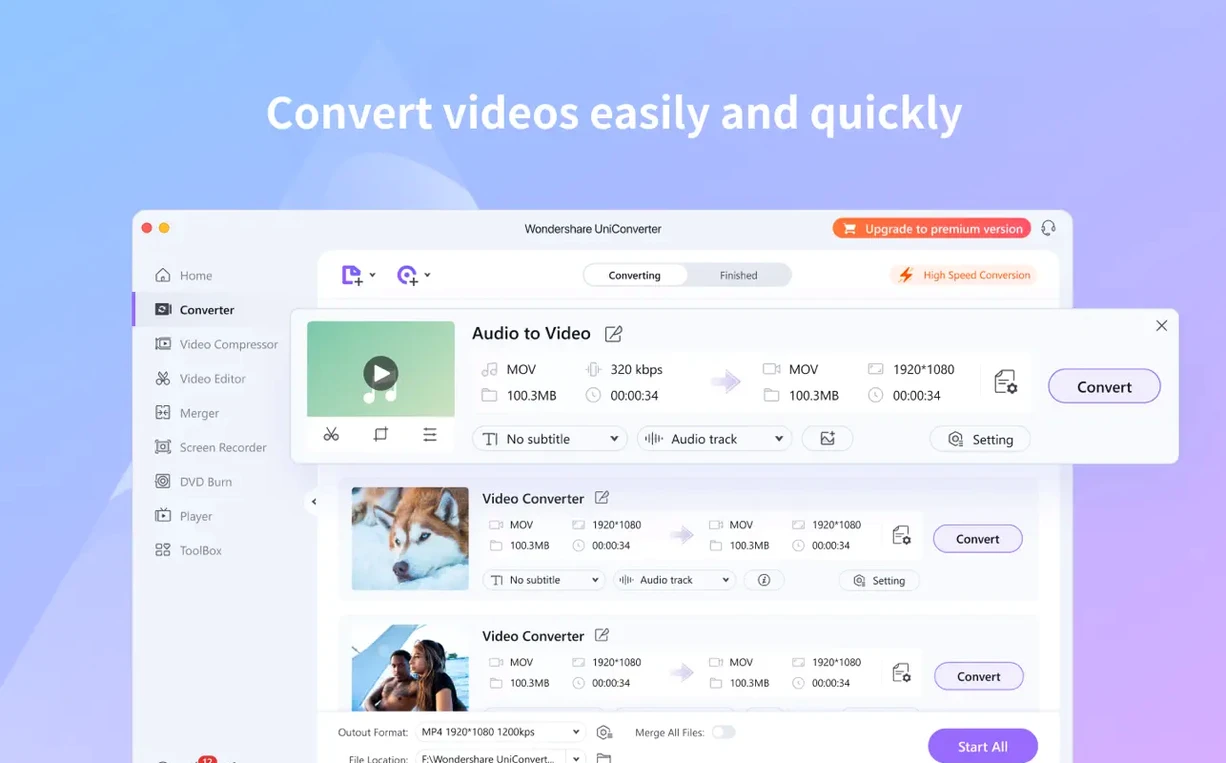
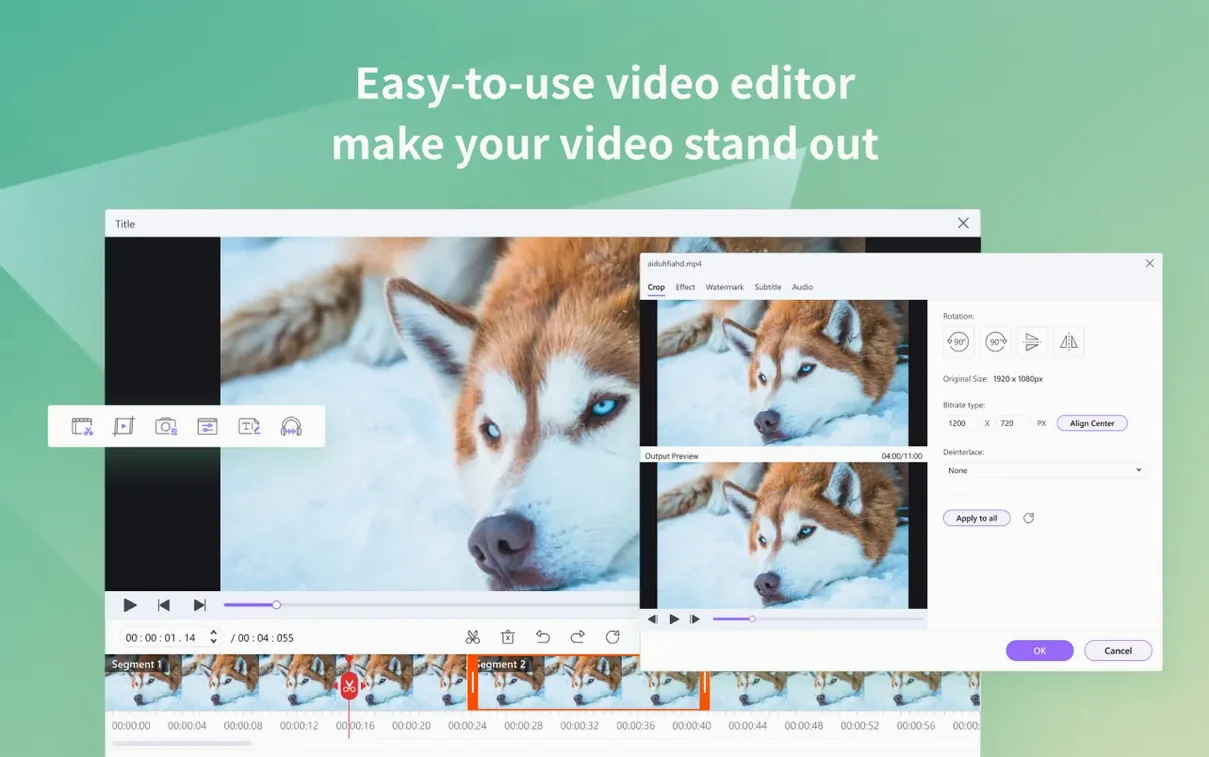
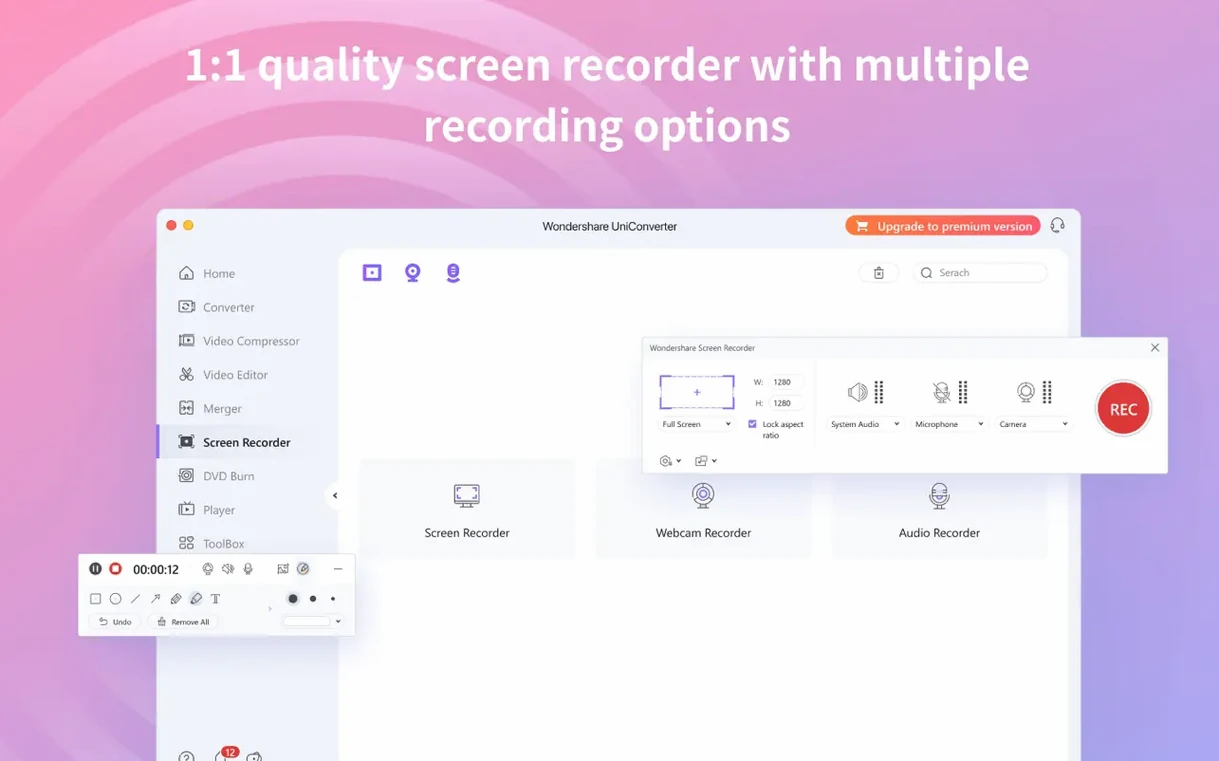
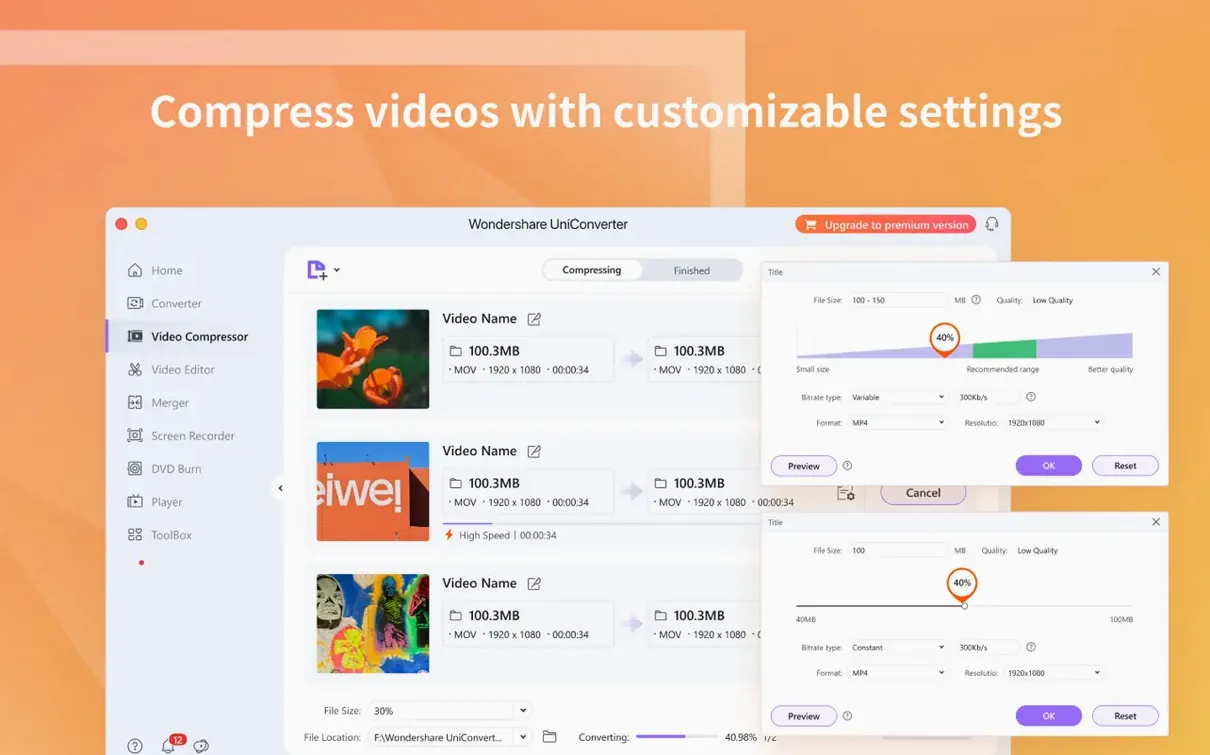
If you regularly deal with video files that won’t play, won’t import or won’t fit where you need them, you know the frustration. Wondershare UniConverter is built to cut through that mess. It’s a media toolkit that handles conversion between more than 159 formats, including HEVC/H.265 and 4K, and it can pull audio from a DVD or burn video back to disc. Batch conversion means you can queue a folder of clips and walk away.
| Detail | What it is |
|---|---|
| Developer | Wondershare Technology |
| Category | Utilities |
| Version | 15.7.3.564 |
| macOS support | OS X 10.11 and later, Intel and Apple Silicon |
| Languages | 18 including English, German, French, Japanese |
There’s a built-in video editor for quick trims and crops, and the app includes native codecs for iMovie and Final Cut Pro, which saves time if you edit regularly. DRM-protected files are supported too, and you can preview video before you commit to a conversion. It’s not flashy, but it gets the job done across a wide range of formats and devices.
Wondershare UniConverter runs on just about any Mac you’re likely to be using. The minimum requirement is OS X 10.11, so even older machines still in use can handle it. Both Apple Silicon and Intel 64-bit Macs are supported natively, meaning the app picks the right architecture for your system without any extra configuration.
When you first open the app, you’ll find a clean interface that organises its tools into separate modules. The main screen gives you access to the converter, the video downloader, the DVD tools and the media player. Each module opens its own workspace, so you’re not hunting through menus to find what you need.
Because the app bundles its own codec library, you won’t need to install additional components to work with formats like HEVC or ProRes. That library also feeds into iMovie and Final Cut Pro if you use them, which keeps your editing workflow consistent without separate codec packs.
After you drag UniConverter into your Applications folder, a couple of small steps get it running. The install instructions walk you through a quick terminal command to bypass that. It’s a one-time thing.
Once the app launches, take a moment to check the language setting. The version includes 18 languages, so if English isn’t your preference, you can switch to German, French, Japanese, Arabic or any of the others listed. The interface adapts cleanly, and all the tool labels update straight away.
I’d also recommend opening the preferences panel and confirming your output folder. By default, converted files land in a Wondershare folder inside your Movies directory. If you prefer a different location or want converted clips to go straight into a project folder, set that now so you don’t have to move files around later.
It’s late on a Tuesday evening, and I’ve got a batch of footage from a wedding shoot. The files are a mix of MP4 from a mirrorless camera and MOV from a drone, and I need them all in a single format for the couple’s online gallery.
I open UniConverter and drag the whole folder into the converter module. The app reads each file and lists them with their original format, resolution and file size. I set the output format to H.264 MP4, tick the batch conversion box, and let it run. The progress bar moves file by file, and I can see estimated time for each clip.
While that’s processing, I switch to the DVD module. The couple also wanted a physical disc with the highlight reel. I import a short film I’ve already edited, pick a menu style from the built-in templates and burn it straight to a blank DVD. The app handles the encoding and burning in one step, so I don’t need separate authoring software.
By the time the disc finishes, the batch conversion is done too. All the files are in the output folder, named consistently, and ready to upload. The whole session took maybe an hour, and most of that was waiting for the conversions to finish — no fiddling with settings or restarting failed jobs.
If you’re new to UniConverter, there are a few things worth knowing early on. First, use the preview window before you commit to a conversion. It lets you check the source clip, set in and out points, and confirm that the crop or trim you applied looks right. That saves you from converting a whole file only to realise you cut the wrong section.
Second, the downloader tool works well for grabbing online video, but be aware that site changes can occasionally break the download links. If a video won’t pull down, check that you’re running the latest version of the app. Updates often include fixes for the downloader module.
Third, if you transfer converted files to an iPhone or Android device, use the wireless transfer feature. It works over your local network, so no USB cable is needed. Just make sure both devices are on the same Wi-Fi network and the receiver app is installed.
Finally, if you work with iMovie or Final Cut Pro regularly, keep the codec library installed. It ensures that the formats UniConverter exports are recognised by your editor without re-encoding. That alone can save a lot of time on larger projects.
Yes. It can burn DVD video or common video files directly to disc, and it can also convert DVD video to standard formats.
It does. You can queue multiple files for conversion at once, which is handy when you’re working through a folder of footage.
Tip: Make sure Terminal has permission to run before you paste the command.
Sign in or create your account to leave a comment.
No notes from photographers yet. If you have used this on a real folder, say which camera and which Mac.