
 Get it for my Mac (820 MB)


 Wipr
2.38

- Version
- 16.5.5
- Developer
- Telestream
- Interface in
- English, German, Spanish, Italian, Chinese (Simplified), Korean, Dutch, Portuguese, French, Czech, Swedish, Japanese
- Licence on file
- K'ed by TNT team
- macOS it runs on
- macOS 11 or later
- Chip support
- Apple Silicon, Intel 64-bit
In the edit
You’ve got a show, interview, or live event to stream, and Wirecast Pro is the tool that’ll take it from camera to audience. Version 16.5.4 keeps things stable on macOS, and the first time you open it, a few quick steps get you going.
Add your cameras and clips to start streaming
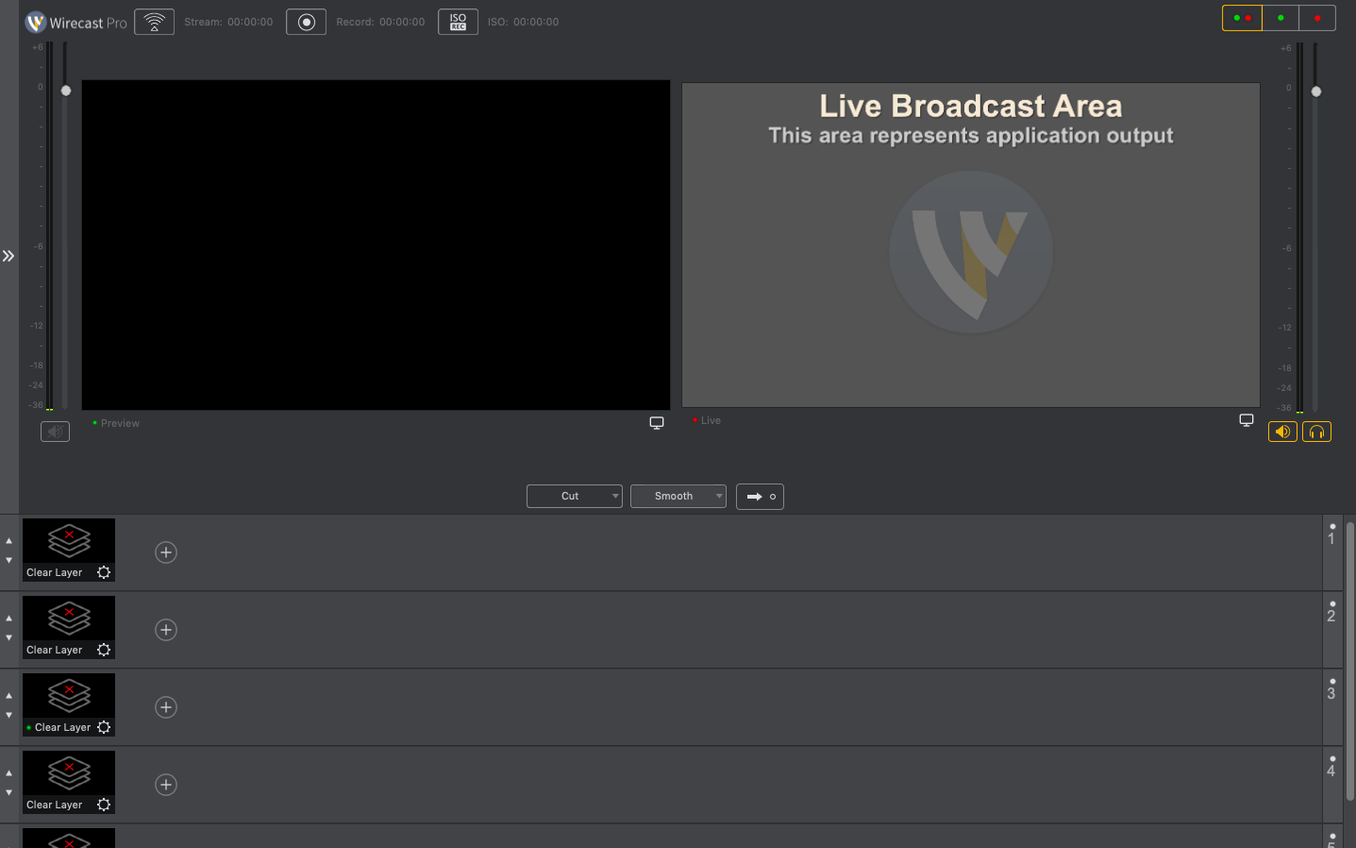
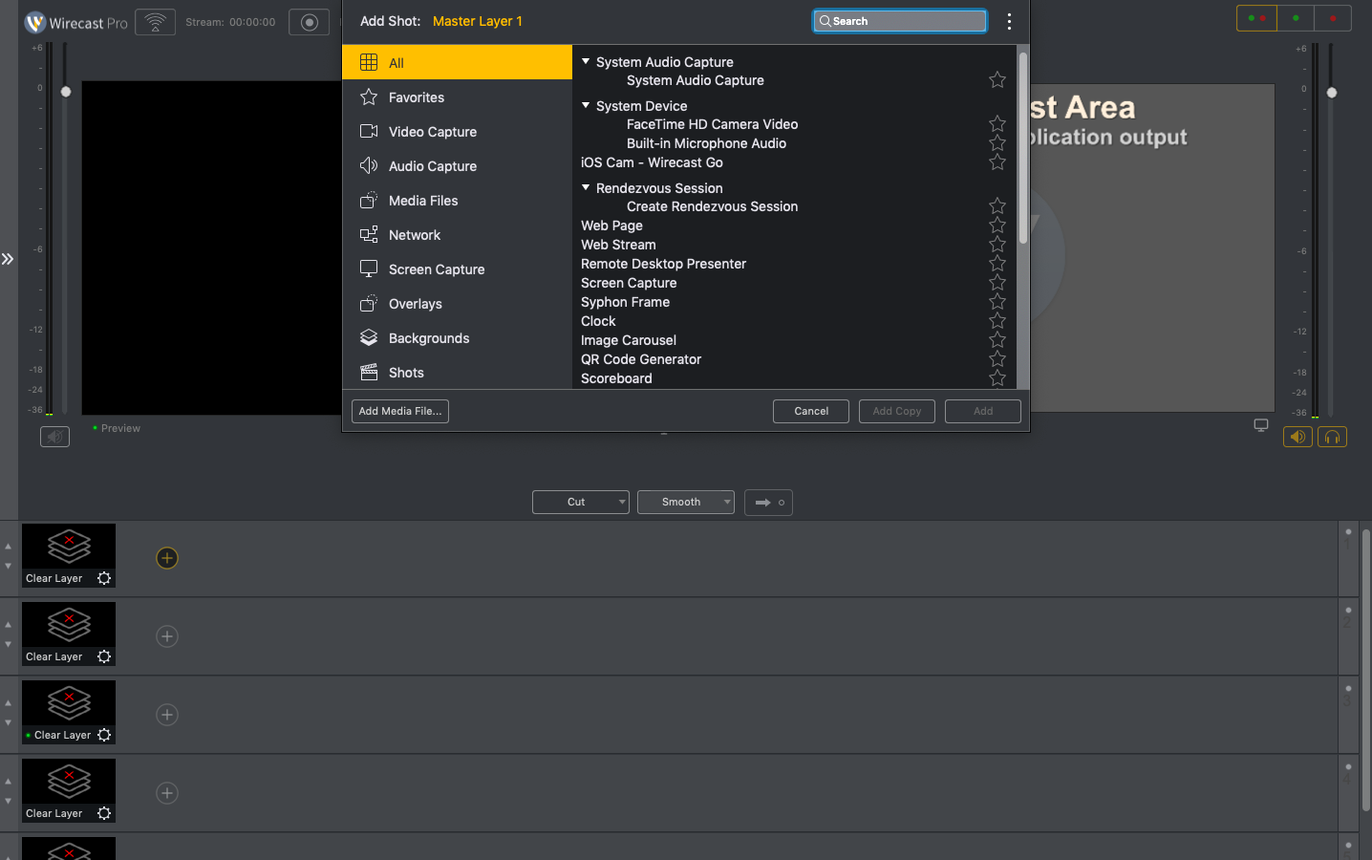
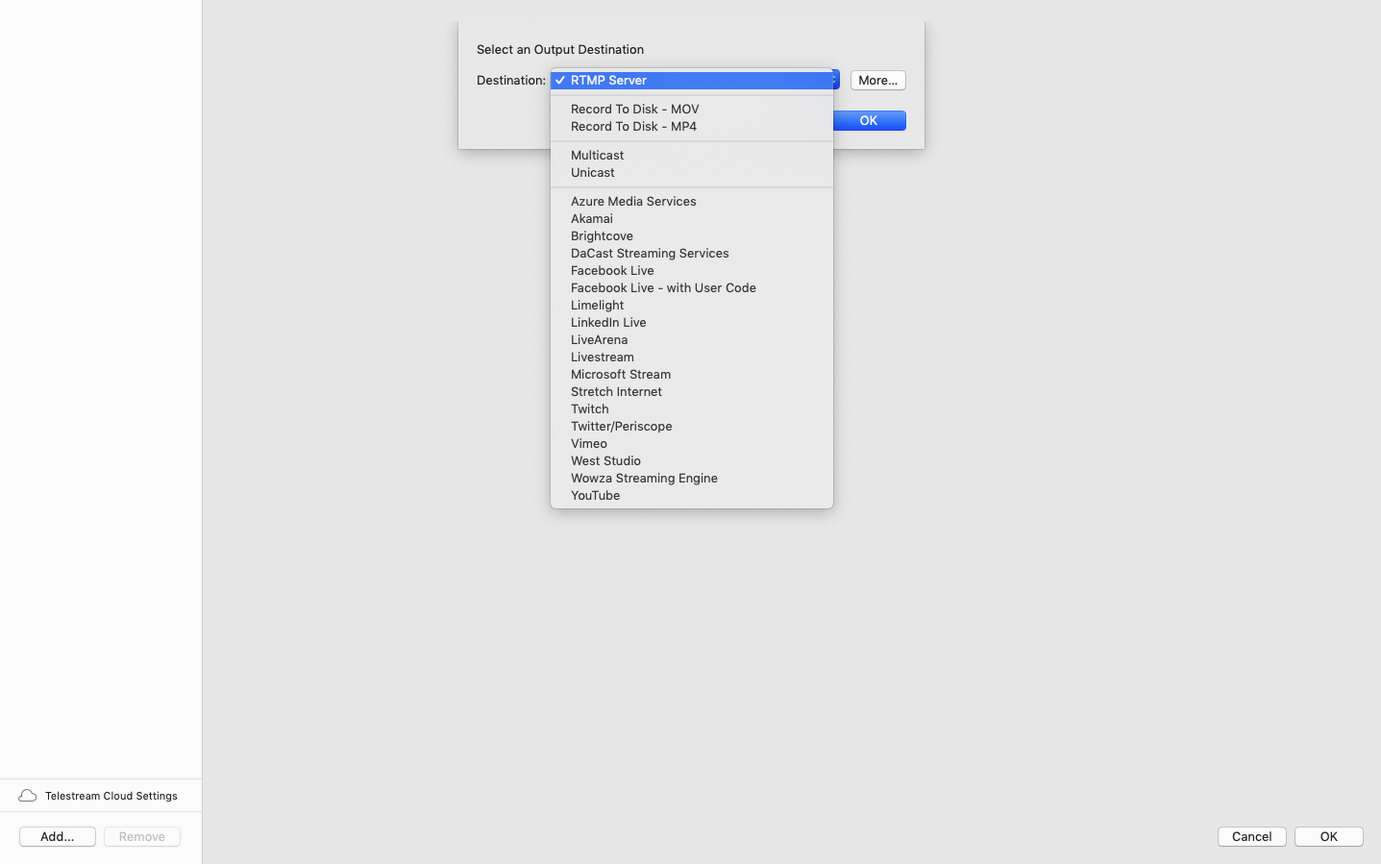
Add your video sources — cameras, screen captures, or prerecorded clips — by clicking the plus icon in the Shot List. Wirecast Pro handles NDI, USB, and PTZ cameras, and the 16.5.4 update fixed detection for certain PTZ NDI models on macOS. From there, configure your output destination (YouTube, Facebook, or a custom RTMP server) in the Output menu.
Can I record locally while streaming?
Yes. In the Output menu, enable both streaming and recording simultaneously. Wirecast Pro saves a local copy in your chosen format, which is handy for archiving or editing later. The new discontinuous-frame flag for NDI sources helps keep that recording clean if your network stutters.
What about using a virtual camera or microphone?
Wirecast Pro’s virtual camera output lets you feed its mixed signal into Zoom, Teams, or other apps. If your corporate IT blocks the virtual microphone driver, the 16.5.4 fix ensures the virtual camera still works on its own. Just select Wirecast Virtual Camera in your destination app’s camera menu.
This update fixes PTZ NDI cameras that wouldn't show
Version 16.5.4 isn't a flashy overhaul — it's the kind of update that solves the little annoyances that crop up mid-broadcast. The PTZ NDI camera fix is the one that'll save you a frustrated restart: certain models simply weren't showing up in the source list on macOS, and now they do. If you run a multi-camera setup with a mix of NDI and USB, that alone makes the update worth the time it takes to install.
The virtual camera fix is another one you might not notice until you need it. If your workplace has a strict IT policy that blocks the virtual microphone driver, earlier versions could break the virtual camera output entirely. Now the camera keeps running even when the mic driver is off the table. Good for anyone who joins a Teams or Zoom call from a locked-down machine and still wants to pipe their Wirecast mix through.
The discontinuous-frame flag for NDI sources is more of a behind-the-scenes change. It tells downstream systems that a frame was dropped, which helps your recording and streaming software handle the gap gracefully rather than freezing or repeating. On a busy network — think conference Wi-Fi or a venue with patchy infrastructure — it keeps the output feeling live even when the connection isn't perfect.
Check camera power before launching the app
Most hiccups with Wirecast Pro come down to source detection and audio routing. If a camera doesn't appear in the Shot List, check that it's powered on and connected before launching Wirecast — the app scans sources at startup, and plugging in afterwards sometimes requires a manual refresh. Restarting the app with the camera already attached clears most detection issues.
Audio drift is another one that catches people during long streams. If your video and audio fall out of sync after thirty minutes, check that all your audio sources are running at the same sample rate inside Wirecast's audio preferences. Mixing a 44.1 kHz mic with a 48 kHz camera input will cause trouble eventually, and the app doesn't always warn you.
For the Gatekeeper bypass step during installation, some users find that the Terminal command doesn't take the first time. Make sure you're pasting the full command — it's easy to miss a character when copying from the readme. If it still refuses, restart your Mac and try again before the app has ever been launched. Once you've done it correctly, Wirecast Pro opens without further gatekeeping.
Set recording to ProRes or DNxHD for easier editing
Before you go live, a few adjustments save headaches later. Set your recording format to ProRes or DNxHD if you plan to edit the stream afterwards — H.264 is fine for delivery, but it's a pain in a timeline. You'll find this in the Output settings under Recording.
Turn on automatic audio gain for each mic source in the Audio Mixer panel. It keeps levels consistent when a guest speaks quietly or a presenter gets animated, and you can always override it manually during the broadcast. The built-in audio meters are reliable; keep an eye on them during the first few minutes of any stream.
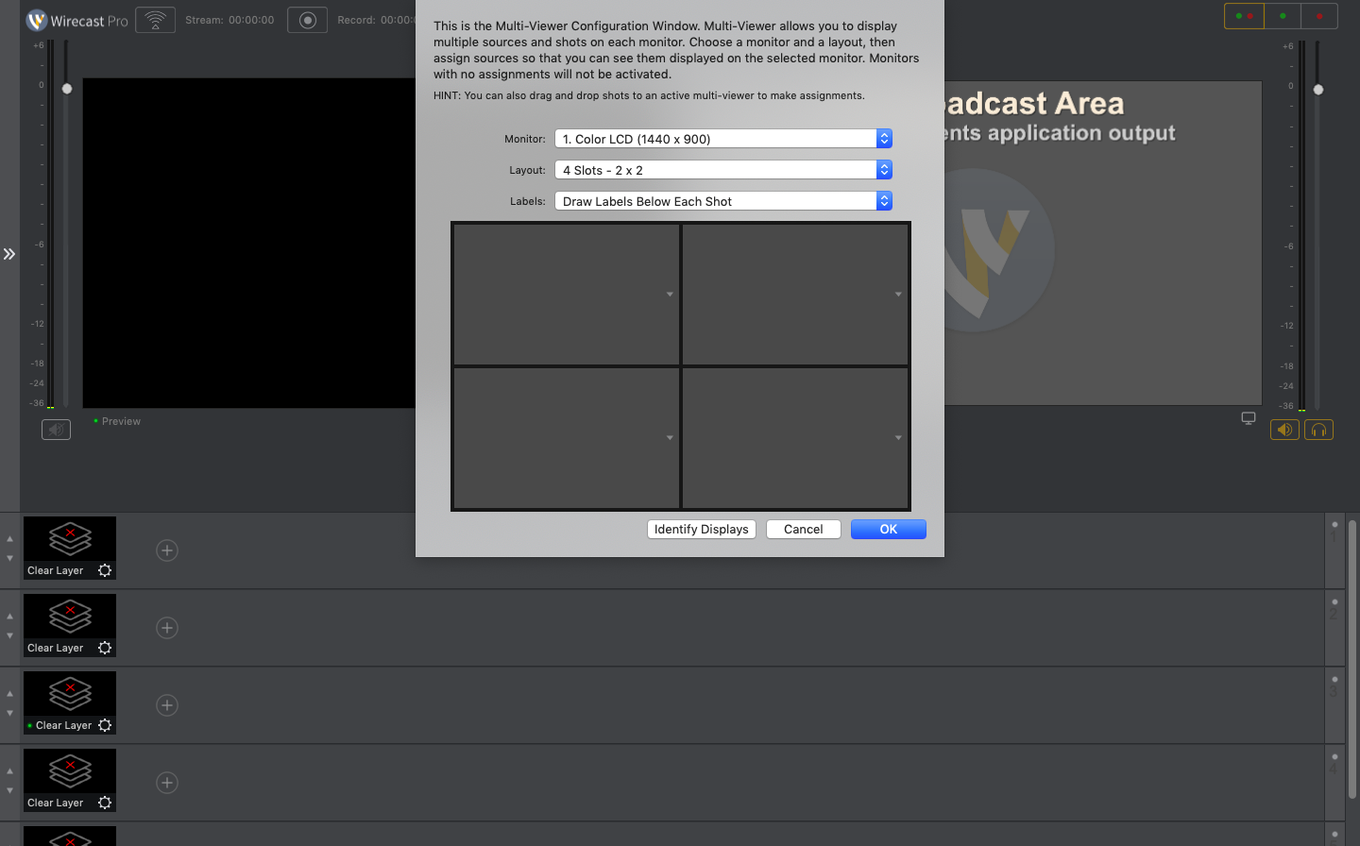
If you're using a multi-view layout for your second monitor, set it up in the View menu before you start streaming. Wirecast Pro remembers your workspace arrangement, so you don't have to drag windows around while live. Arrange your Shot List, Preview, and Program windows once, and they'll stay put for the next session.
Test stream to a private YouTube or Facebook first
Run a test stream to a private YouTube or Facebook destination before your real event. It catches source issues, audio routing mistakes, and any missing overlays while only you can see the result. Do it from the same network you'll use on the day — venue Wi-Fi behaves differently from your home connection.
Build a simple show with three shots: a title card, a camera feed, and a closing graphic. Switch between them a few times and record the result. That ten-minute test will show you if your computer handles the encoding load without stuttering, and it gives you a local file to check for sync or quality problems.
Wirecast Pro stores your project files as .wirecast documents. Keep a backup copy on an external drive or cloud folder — losing a show file an hour before broadcast is the kind of stress nobody needs. The app also autosaves periodically, but I've found it's better to save manually after any big change to your shot list.
Finally, learn the keyboard shortcuts for switching shots. The default layout uses number keys for your shot list, and it's much faster than clicking during a live event. Open the Keyboard Shortcuts panel from the Wirecast menu, note the ones that make sense for your setup, and practise them during your test stream. By the time you go live, switching between camera angles will feel like second nature.
New this release
- Fixed detection of certain PTZ NDI cameras on macOS.
- Fixed virtual camera use when the virtual microphone driver is blocked by corporate IT policy.
- Added a discontinuous-frame flag for NDI sources.
Mac it needs
- macOS 11 or later
- 64-bit processor (Intel or Apple Silicon)
Questions I actually get
What macOS version does Wirecast Pro 16.5.4 require?
It requires macOS 11 or later and supports both Intel and Apple Silicon Macs.
What languages is Wirecast Pro available in?
The interface is available in English, German, Spanish, Italian, Chinese (Simplified), Korean, Dutch, Portuguese, French, Czech, Swedish, and Japanese.
Installing on a Mac
- Mount the disk image and run Open Gatekeeper friendly.
- Press Enter in Terminal to bypass Gatekeeper.
- Drag the app to the Applications folder.
- Launch the app when installation is complete.
Notes from photographers
Sign in or create your account to leave a comment.
No notes from photographers yet. If you have used this on a real folder, say which camera and which Mac.
