Get it for my Mac (9 MB)
 Folx Pro
5.34
Folx Pro
5.34

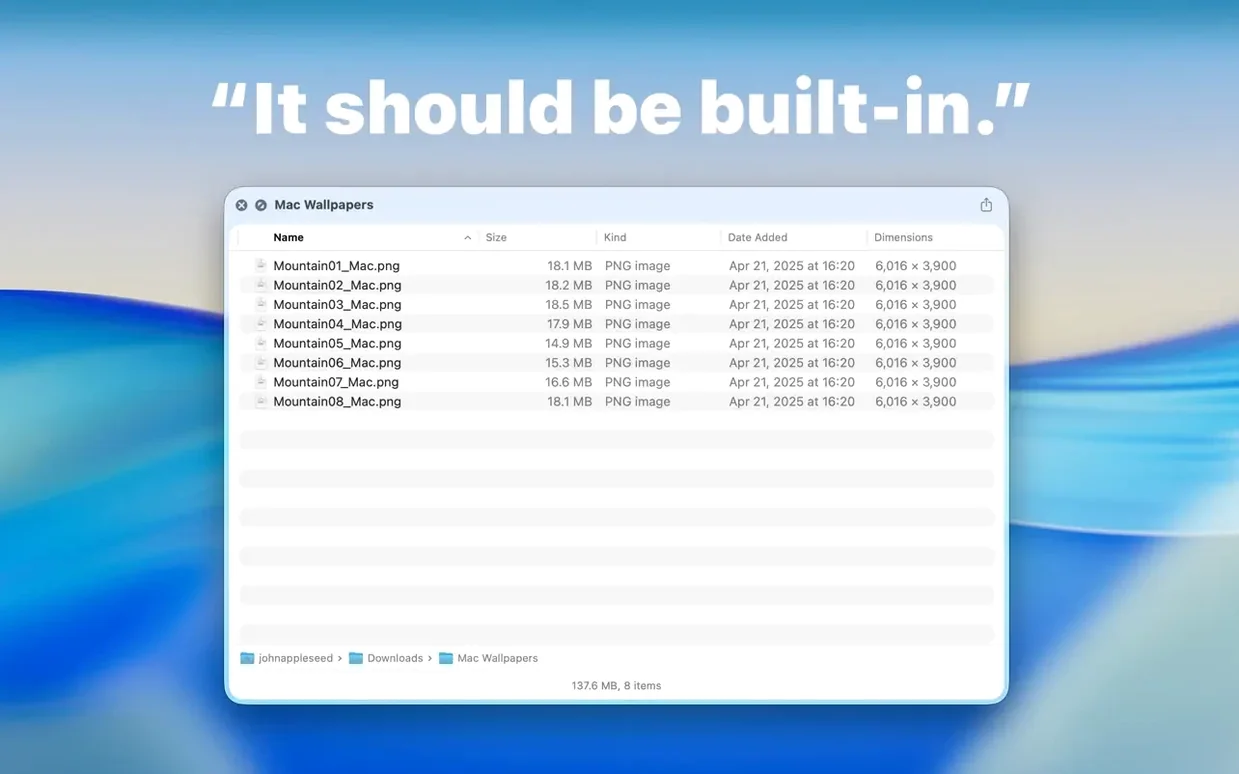
Photographers and designers who juggle dozens of folders on a Mac spend a lot of time poking around Finder to find the right batch of files. Folder Preview Pro 3.1 lets you press Space on any folder and see what's inside — images, documents, even the file tree — without opening a new window.
It's a Quick Look extension, so it works the way you already work: select a folder, hit the Space bar, and the preview panel shows its contents. Version 3.1 adds a Dual Columns view, which is useful when you want to browse two levels at once, and a Contents item that lets you drill down folder by folder from the preview. You can also drag files straight out of the preview in list and icon views, which saves a step when you're pulling selects into a Lightroom import or a design comp.
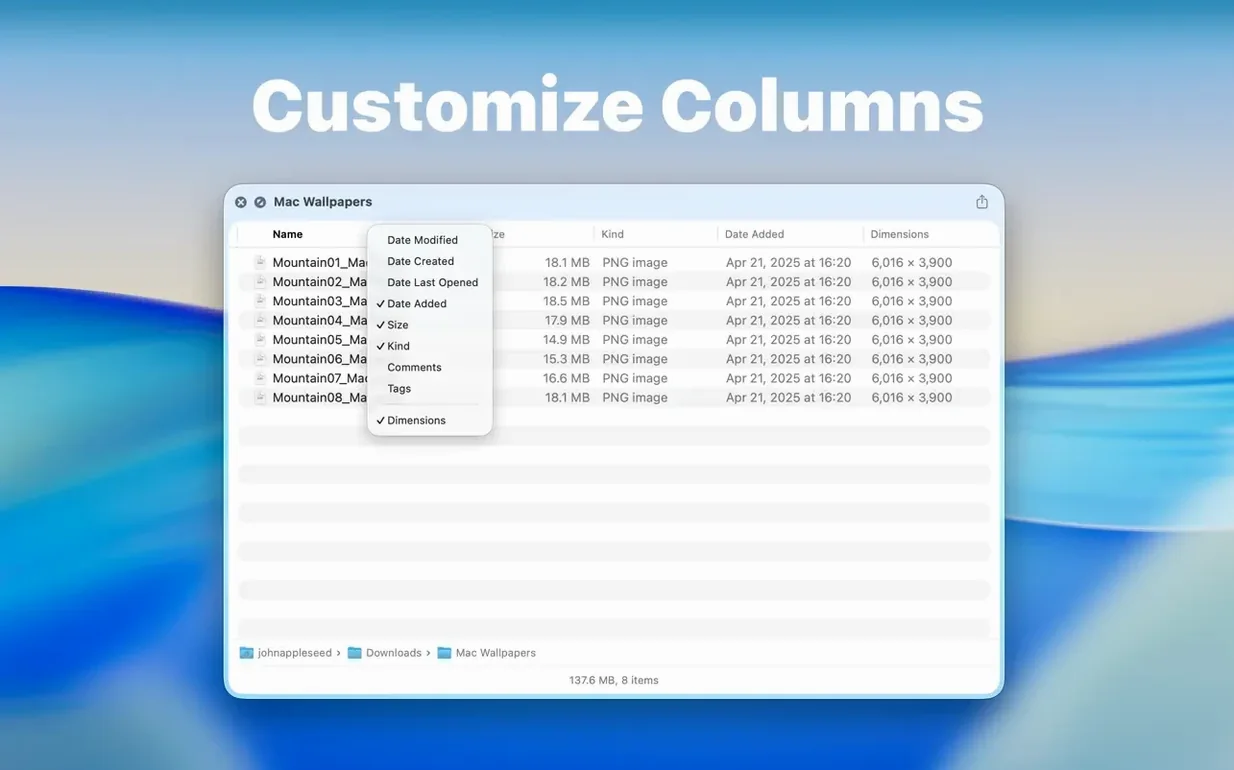
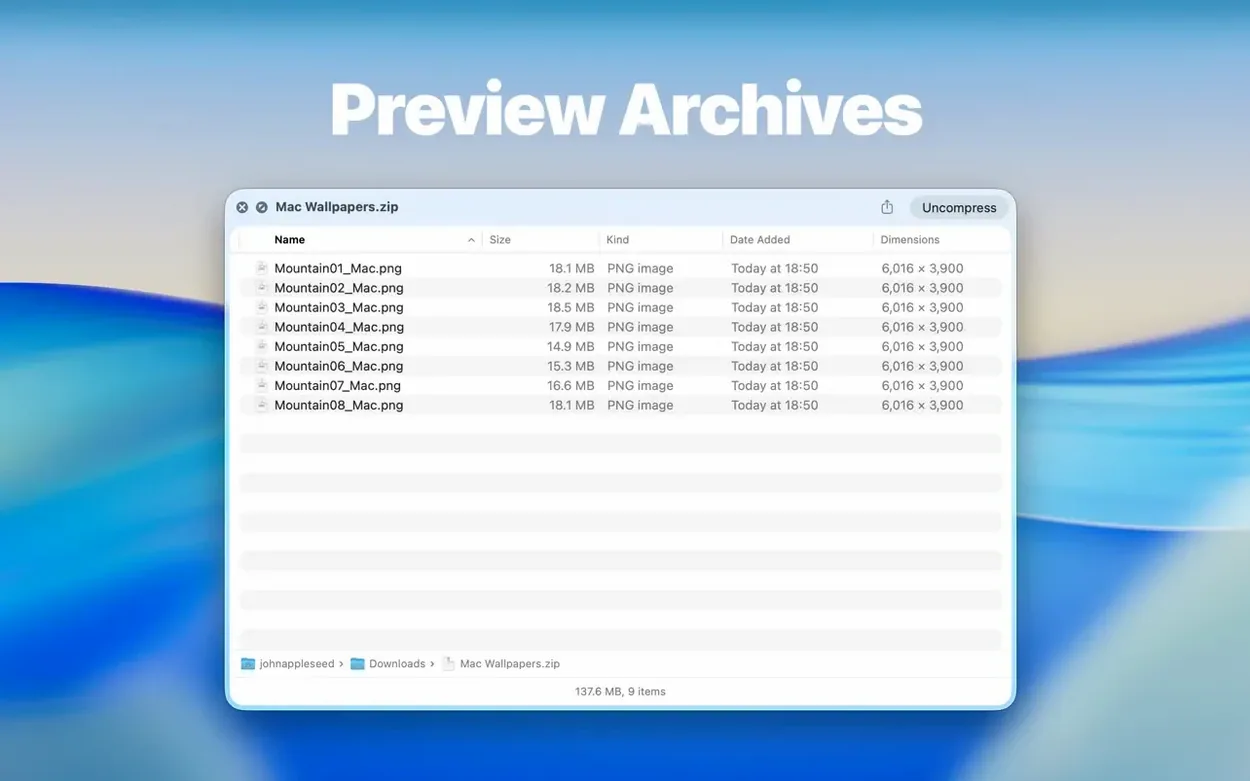
Archive support covers ZIP, TAR, GZ, 7Z, and RAR files, so a client's compressed delivery folder is readable right from the preview. Right-click any column header to show or hide columns — handy when you only need file size and date modified.
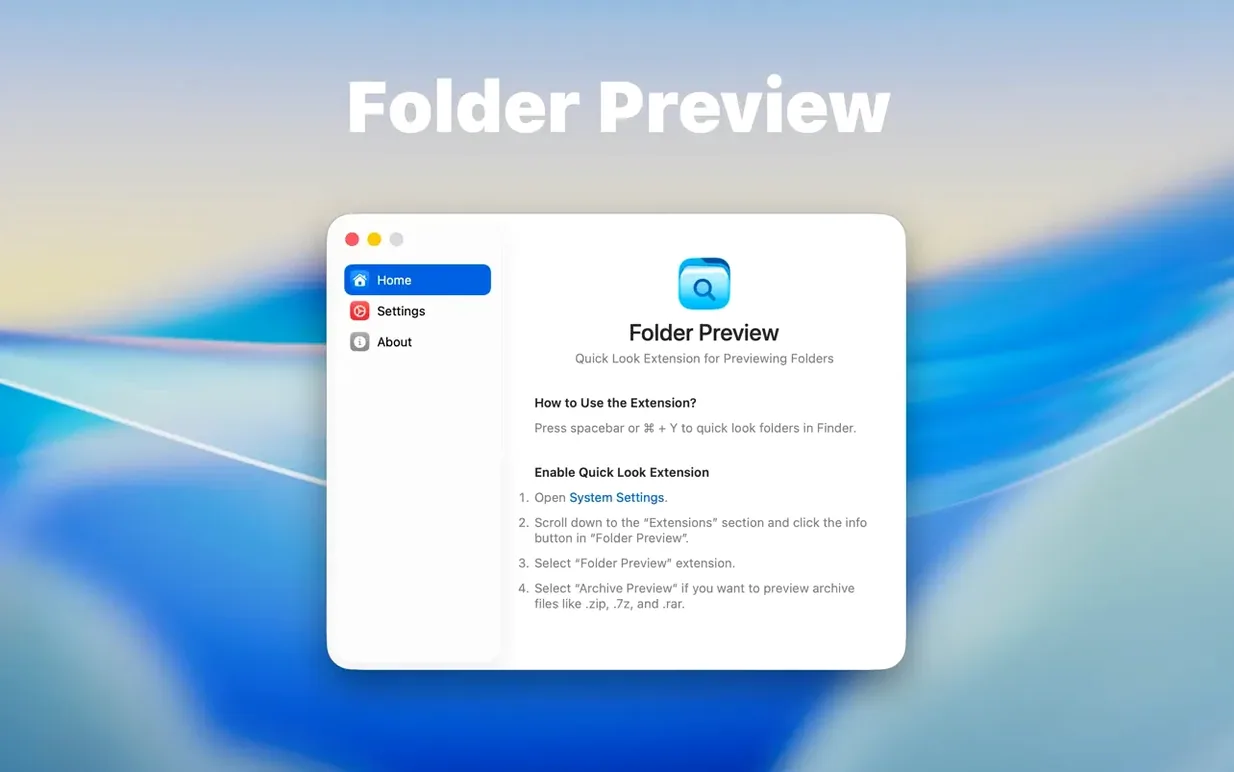
Once Folder Preview Pro is in your Applications folder and you've launched it from Launchpad, there's one thing to do before it shows up: make sure Quick Look is enabled in System Settings. Head to System Settings > Privacy & Security > Extensions > Quick Look and tick the box for Folder Preview Pro. After that, any folder you select in Finder and hit Space on will show its contents in the preview panel.
Spend the first day using it on folders you already know — your downloads folder, a project folder, a client's archive. That way you get a feel for how the Dual Columns view works and how the column headers behave when you right-click them to show or hide columns. It takes about ten minutes for the habit to stick: Space on a folder instead of double-clicking it open.
If you work with compressed files from clients, try previewing a ZIP or a RAR straight away. The archive preview support means you can see what's inside without extracting first, which is one less step when you're checking whether a delivery contains the right files.
The Dual Columns view is the headline addition, and it changes how you browse. Instead of seeing one level of a folder at a time, you get two columns side by side — the parent folder on the left, a selected subfolder on the right. For a photographer's project folder with subfolders named by shoot date, that means you can scan the whole season without drilling in and out.
The Contents item in the context menu is another addition that makes a difference. Right-click inside a preview and you get a menu that lets you move up or down one folder level at a time, which is faster than closing the preview and reopening it on a different folder.
Drag-and-drop of files out of the preview is one of those small changes that saves time across a whole edit. Before 3.1, you could see the files but had to open the folder to get them. Now you can grab a RAW file or a TIFF from the preview and drop it straight into Capture One or your desktop. It works from both list and icon views, so whichever display you prefer, the files come with you.
Folder size information has moved from the status bar to the toolbar, shown under the folder name. It's a small relocation, but it means the size is visible without scanning to the bottom of the preview. And if you work with large archives, the new archive size limit options of 5 GB and 10 GB give you control over which compressed files the extension tries to read.
Here's a task that repeats itself on every shoot: a client sends a folder of selects, compressed into a ZIP. You want to confirm the file count, check that the naming convention is consistent, and pull a few files into your edit without unpacking everything.
Start by locating the ZIP in Finder. Press Space to preview it with Folder Preview Pro. The archive preview shows you the file list inside — you can see at a glance whether it contains 50 or 500 files. Right-click a column header and choose Date Modified if you want to see which files were added last.
If the client has nested the files inside a subfolder inside the ZIP, click into that subfolder from the preview. The Dual Columns view lets you keep the ZIP contents on the left and the subfolder on the right, so you don't lose your place. Right-click inside the preview and use the Contents item to browse level by level if you prefer that method.
Once you've confirmed the files look right, switch the preview to icon view if it isn't already, and drag a few sample files to the desktop or into a photo editor. The drag-and-drop works without extracting the whole archive, so you're only moving what you need.
When you're done, close the preview with Space again. The ZIP stays untouched, you've verified the delivery, and you've pulled the files you need without creating an extracted copy on your drive. It's a small routine, but it adds up over a busy season.
Yes, version 3.1 requires macOS 13 or later, so it runs on both Ventura and Sonoma (including Sequoia). Just make sure Quick Look is enabled in System Settings before you start.
Yes. The extension supports ZIP, TAR, GZ, 7Z, and RAR files, so you can peek inside compressed folders right from the Quick Look panel.
Tip: If the Quick Look preview doesn't appear, check that Quick Look is enabled in System Settings > Privacy & Security > Extensions.
Sign in or create your account to leave a comment.
No notes from photographers yet. If you have used this on a real folder, say which camera and which Mac.