Get it for my Mac (14 MB)
 Folder Preview Pro
3.1
Folder Preview Pro
3.1

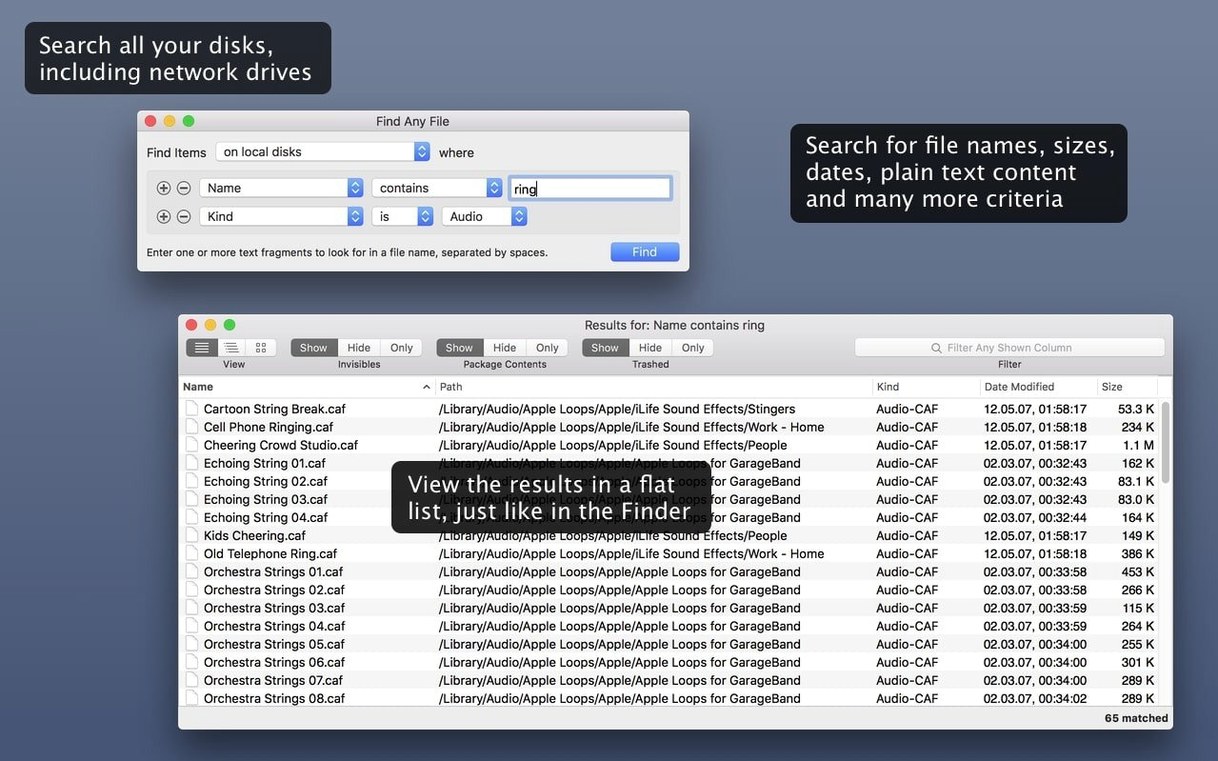
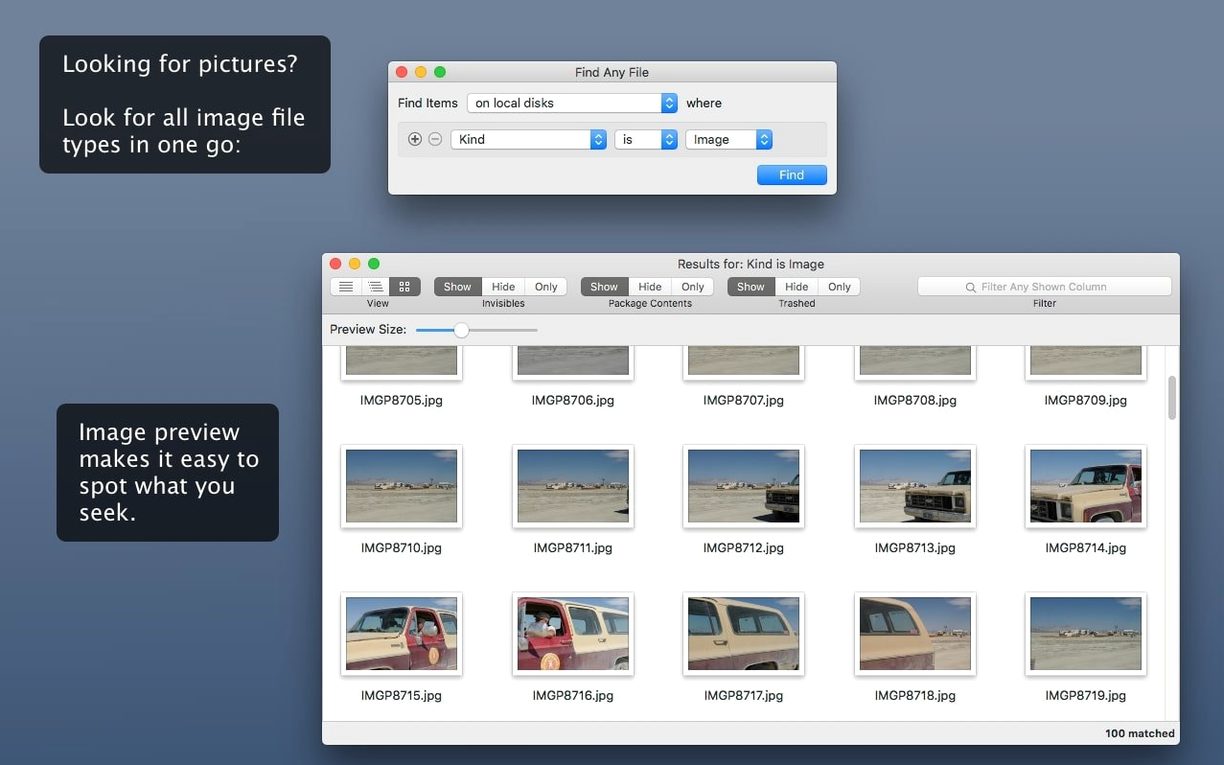
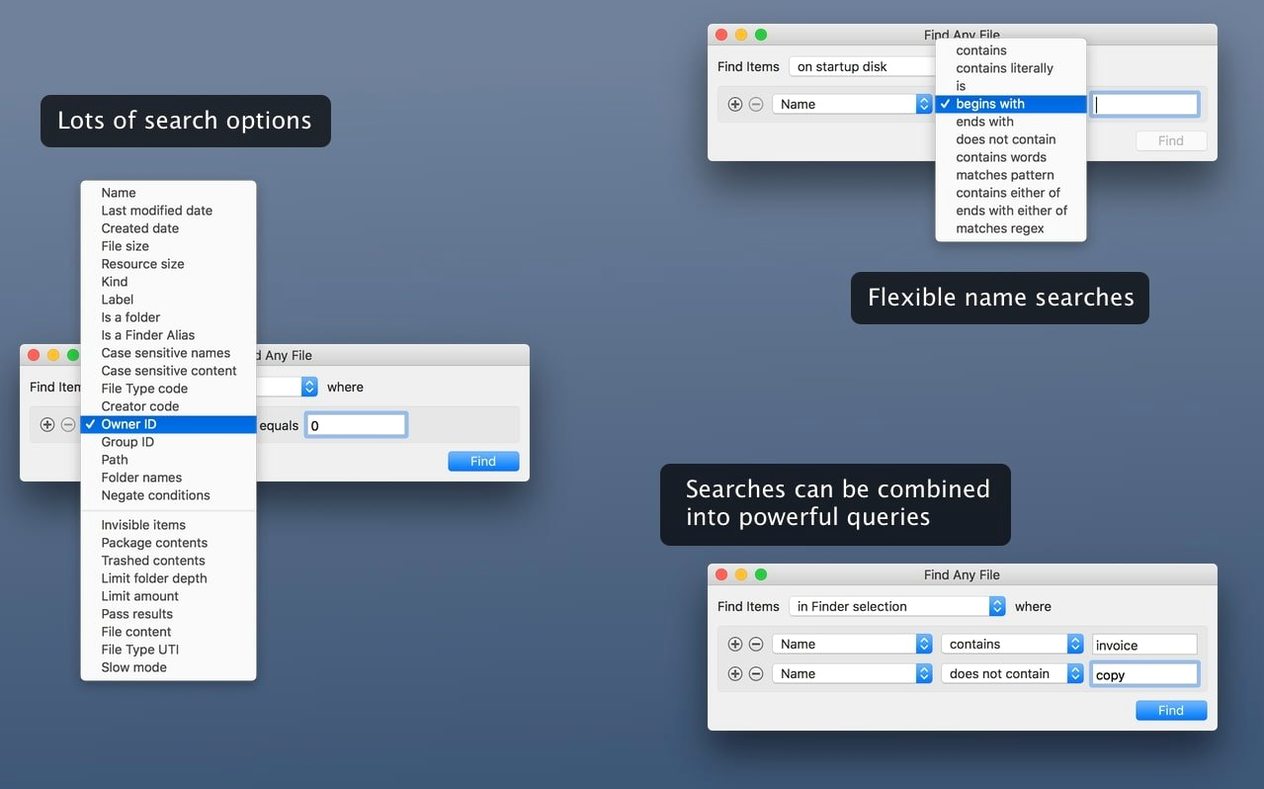
Over 20 file formats, 6 search filters and zero database dependence. Find Any File 2.6.1 works the way you expect a file search to work: it reads disks directly, so it can reach the system folders and bundles that Spotlight tends to skip. You search by name, date, size, or plain text content, and the app shows you what it finds without building a separate index.
It is presented as a companion to Spotlight — the tool you open when the usual search comes back empty. Because it searches inside packages and can read comments, it handles the edge cases that a normal Finder search can’t touch. The current version adds AppleScript support, so you can script a common search routine if you do this kind of thing regularly.
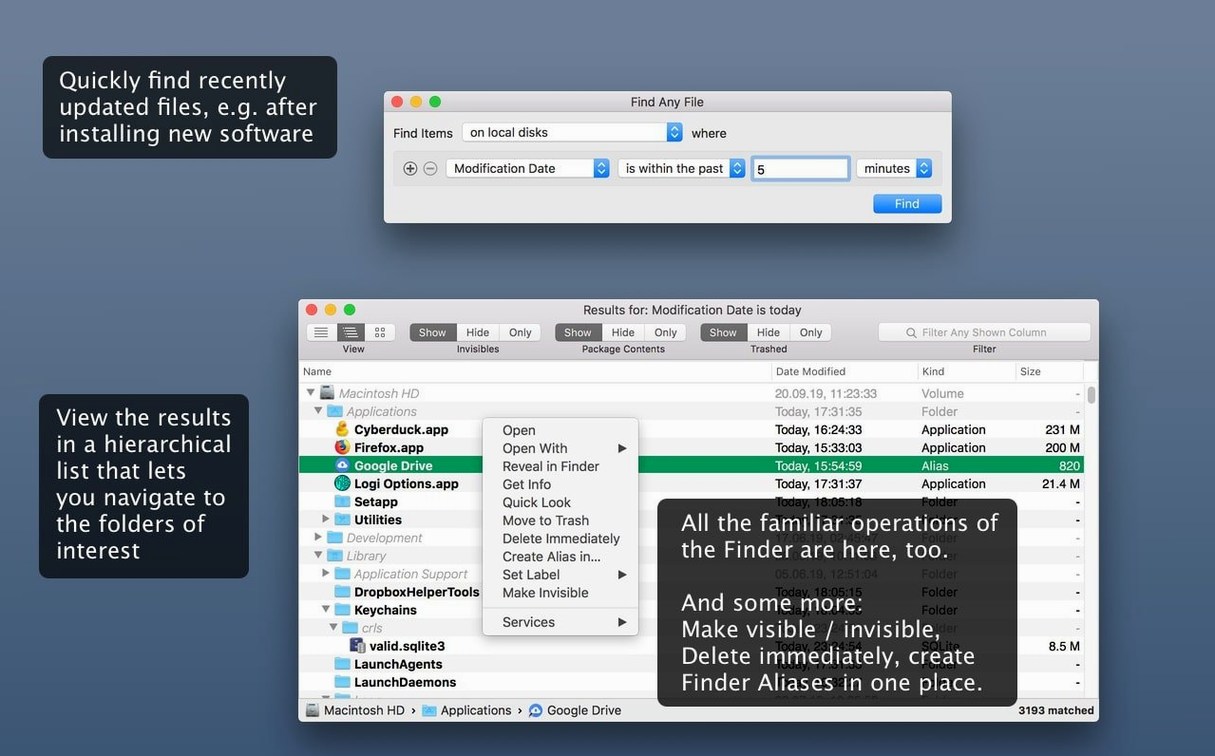
I know a media archivist who keeps a stack of external drives from past projects — LaCie, WD, old SSDs from retired iMacs. Spotlight doesn’t touch those unless you explicitly add them to its preferences, and even then it can take hours to index a 4 TB drive full of ProRes and camera originals. He uses Find Any File to search by date range and file extension directly on the mounted volume. The hierarchical folder view lets him see which project folders contain the files he needs without opening each one. It is not a replacement for Spotlight on his main drive, but it is the only tool that reliably finds files on disks that were formatted on a different Mac or that have never been indexed.
Yes, that is one of the main reasons to use it. Find Any File searches inside packages and can reach system directories that Spotlight intentionally ignores. If you are looking for a preference file, a plugin buried inside a bundle, or a log that the OS keeps hidden, the app will find it by name or date.
Only plain, unformatted text. The app reads the raw text inside files, so it works well with source code, logs, configuration files and simple text documents. It does not parse PDF, Word or email formats — for those, you still rely on Spotlight or a dedicated content search tool.
No. It reads the disk directly every time you search. That means no waiting for an index to update, but also means searches on large volumes can take longer than a Spotlight query. The trade-off is that you always see the current state of the disk, including files that were added or renamed moments ago.
It can search server volumes and network disks that are mounted on your Mac. Since it does not rely on a local index, it can find files on drives that Spotlight cannot or will not index. Performance depends on the speed of the network connection, not on the app itself.
Gatekeeper blocks the app on first launch. This happens because the app is not signed with an Apple developer ID. The install steps include a straightforward workaround: mount the disk image, press Enter to bypass Gatekeeper in the Terminal window, then drag the app to your Applications folder. Once it is there, start it normally.
Searches return no results for files you know exist. Double-check that you are searching the correct volume. Find Any File lets you select a specific disk or folder as the search root. If you leave it at the default, it might be searching only your home folder or a recently mounted volume. Also verify that your search criteria are not too narrow — a date range that does not cover the file’s timestamp will return nothing.
The app finds files but the path looks unfamiliar. The hierarchical folder view shows the full path from the volume root. If you are searching a network drive, the path might include the mount point name instead of the volume label you expected. The file itself is still accessible — you can open it directly from the results.
AppleScript automation does not work as expected. The AppleScript support was added in version 2.6, so make sure you are running that version or later. Scripts that worked with earlier releases may need updating. Check the developer’s documentation for the correct syntax and dictionary.
Find Any File 2.6.1 runs on OS X 10.11 and later, with support for both Intel and Apple Silicon Macs. The download is a disk image you mount and copy to Applications. The app itself is shareware, so you can try it before deciding whether it fits your workflow. It searches local disks, external volumes and mounted network drives without creating its own database, which keeps the system clean but means each search is a direct read operation. The interface is in English and the results appear in a folder tree rather than a flat list, so you always know where each file lives on the disk.
Yes. It reads disks directly instead of using a database, so it can find files in system folders, bundles and packages that Spotlight usually leaves out.
Sign in or create your account to leave a comment.
No notes from photographers yet. If you have used this on a real folder, say which camera and which Mac.