Get it for my Mac (111 MB)
 TunesKit iPhone Unlocker
2.7.0.16
TunesKit iPhone Unlocker
2.7.0.16

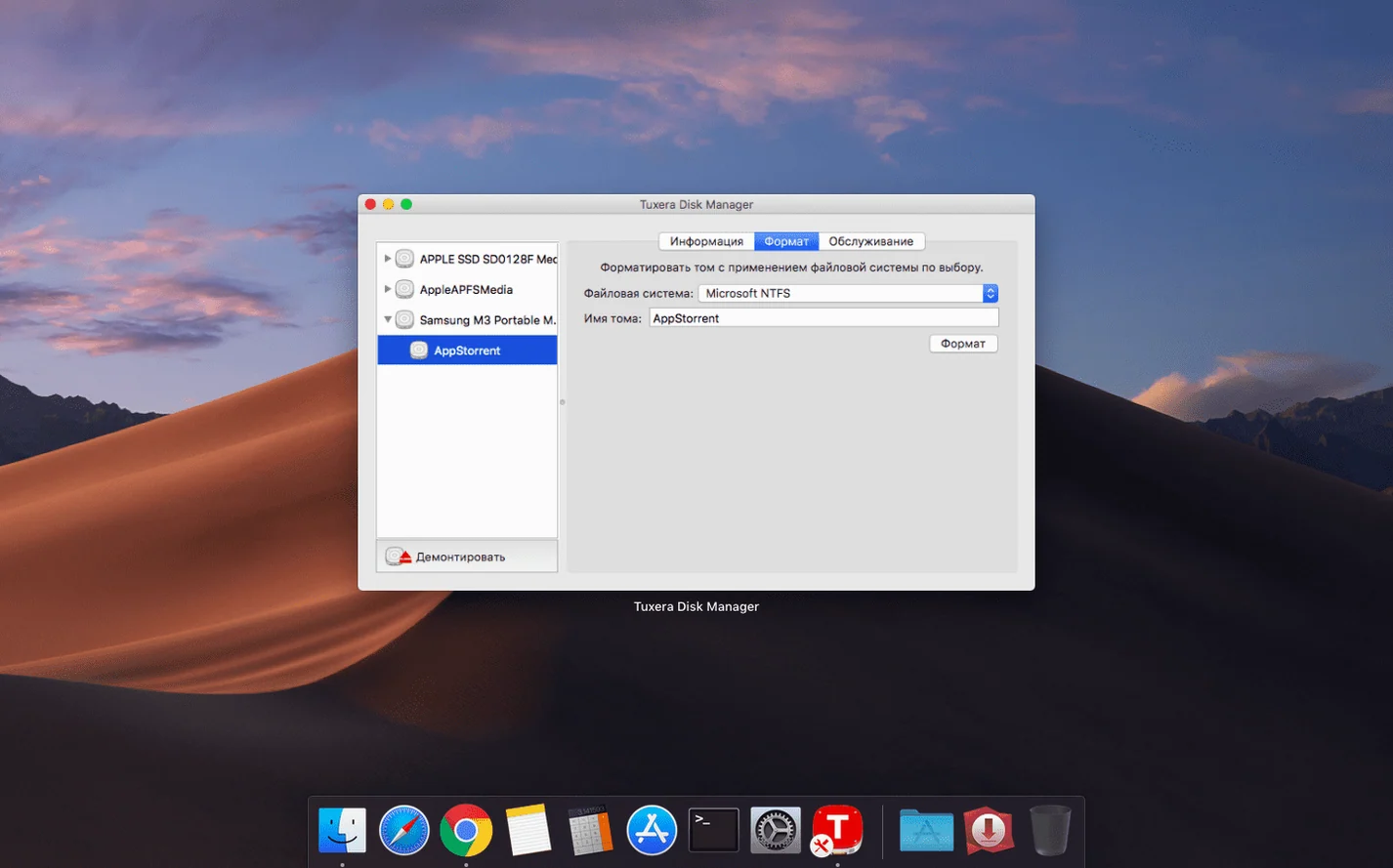
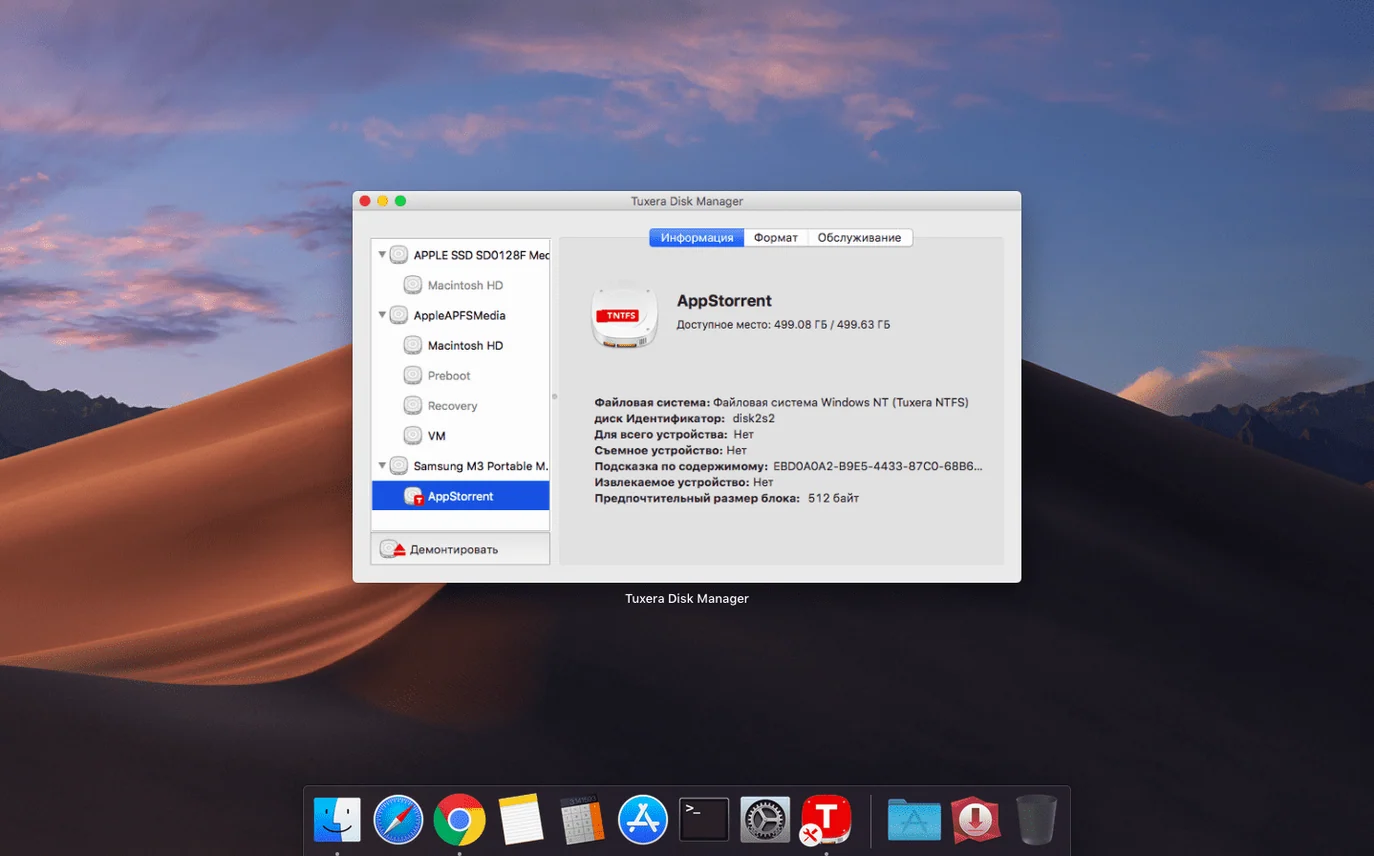
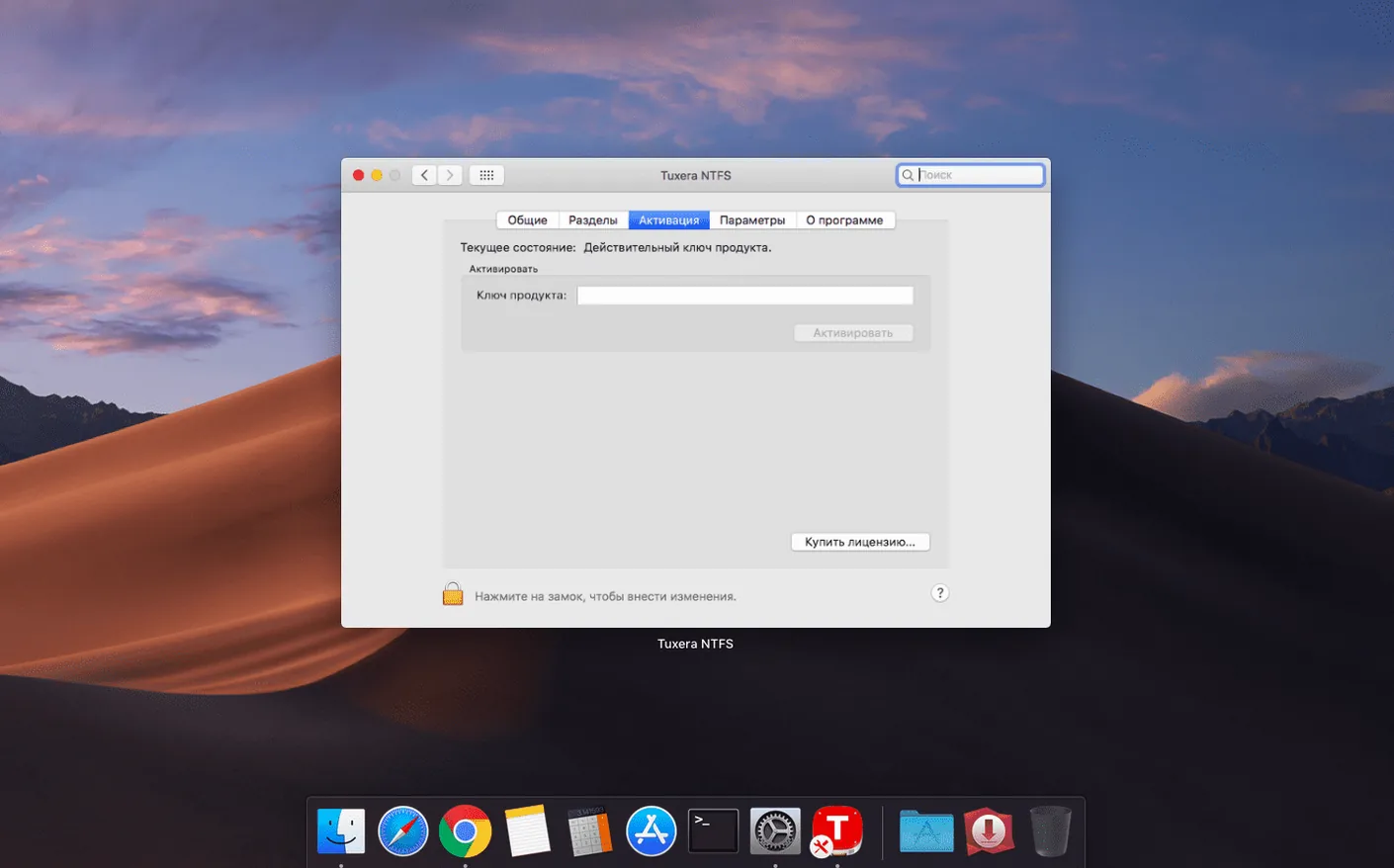
Tuxera NTFS for Mac runs on any machine from OS X 10.9 Mavericks onward — that means both Intel Macs and Apple Silicon models are covered. If you switch between Windows and macOS on the same computer or plug in an external USB drive that was formatted on a Windows PC, this driver gives you full read and write access. Without it, macOS can read NTFS drives but won’t let you edit, copy, move or delete files on them.
That’s the workflow for a busy photographer carrying client drives between a Windows PC and a Mac. It also supports creating NTFS volumes and disk images, and the current version fixes a timestamp issue where copied files showed the wrong date or time. Interface languages include English, German, French, Spanish, Chinese and many more.
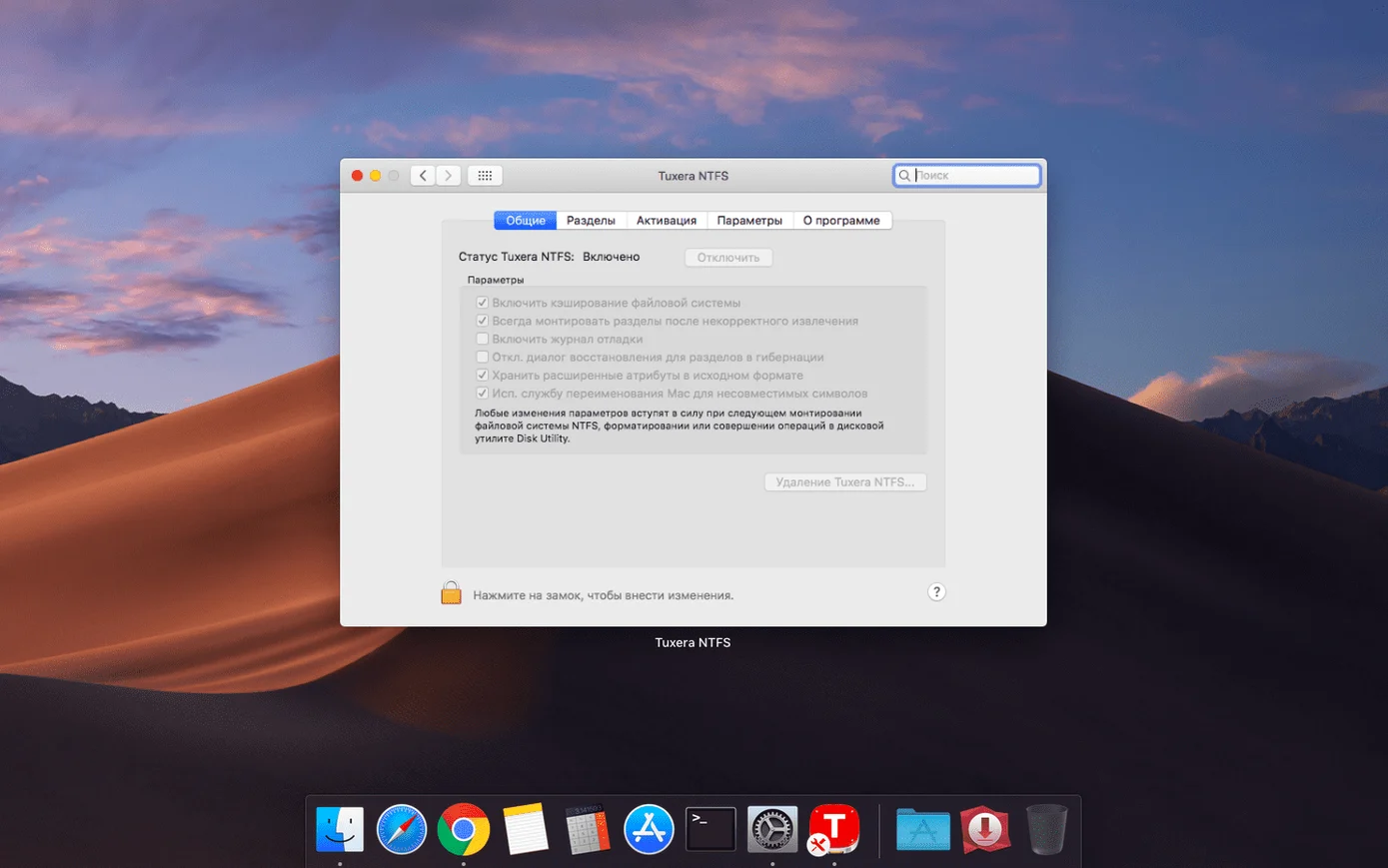
Once Tuxera NTFS is installed, a few small checks save you from the usual head-scratching later. Open System Preferences and look for the Tuxera NTFS pane — that’s where you’ll find the main settings. The driver is active by default, so any NTFS drive you plug in should mount with write access straight away.
Try it with a drive you don’t mind testing on. Copy a small file to it, edit a text document, then delete it. If everything works, you’re good. If the drive mounts but still feels read-only, check that the Tuxera NTFS preference pane shows it as enabled. Occasionally macOS’s own restrictions on third-party storage extensions need a reboot to kick in, so restart the Mac if the first connection doesn’t behave.
The default configuration works for most people, but two adjustments make daily use smoother. First, decide whether you want NTFS drives to appear on the desktop. Some photographers prefer a clean desktop and access drives through the Finder sidebar instead. You can toggle this in the Tuxera NTFS settings under the General tab.
Second, if you regularly move large video files or RAW photo folders between machines, consider enabling the cache write mode. It speeds up transfers by holding data in memory before writing it to the drive. The trade-off is that you should always eject the drive properly before unplugging it — pulling the cable mid-write with cache mode on can leave files incomplete. For quick swaps between cameras and laptops, leave it off and keep the safer default.
The biggest trip-up with any NTFS driver on Mac is thinking the drive is done when the Finder window closes. macOS can keep writing background data even after the file copy progress bar disappears, especially with cache mode on. If you unplug the drive while that’s happening, the file looks fine on your Mac but shows as corrupt or empty when you plug it back into a Windows PC.
The fix is simple: always use the Finder’s eject button or drag the drive to the Trash before disconnecting. Wait for the icon to vanish from the desktop. That extra three seconds saves a lot of re-shooting and re-copying.
Another mistake beginners make is formatting a drive on a Mac as FAT32 or exFAT just to get cross-platform access, then running into the 4 GB file size limit of FAT32. With Tuxera NTFS installed, you can keep the drive in NTFS and never worry about file size limits. No reformatting needed.
Let’s say you’re a wedding photographer who edits on a Mac and delivers galleries on a USB drive that a client will plug into a Windows PC. Here’s how the first run with Tuxera NTFS looks.
That’s the core scenario. If the client’s drive has a specific folder structure — for example, a folder named “Print selects” — you can create new folders on the NTFS drive right from the Mac and name them whatever you like. The drive behaves like any other external volume.
I know a designer who runs macOS as the main system and keeps Windows in a virtual machine for one legacy CAD application. Before Tuxera NTFS, sharing project files between the two meant emailing them to himself or using a cloud folder — both slow when the files are multi-gigabyte Illustrator documents.
He now keeps an external SSD formatted as NTFS. He saves his work from the Mac side directly to that drive, then opens the same drive inside the Windows VM. The files stay local, the transfer is instant, and there’s no reformatting or file-size limit to work around. The driver handles the handover invisibly. For anyone running Windows in a VM on a Mac, this is the cleanest way to share a single storage volume between both operating systems.
Sign in or create your account to leave a comment.
No notes from photographers yet. If you have used this on a real folder, say which camera and which Mac.