Get it for my Mac (29 MB)
 Winclone Pro
10.5
Winclone Pro
10.5
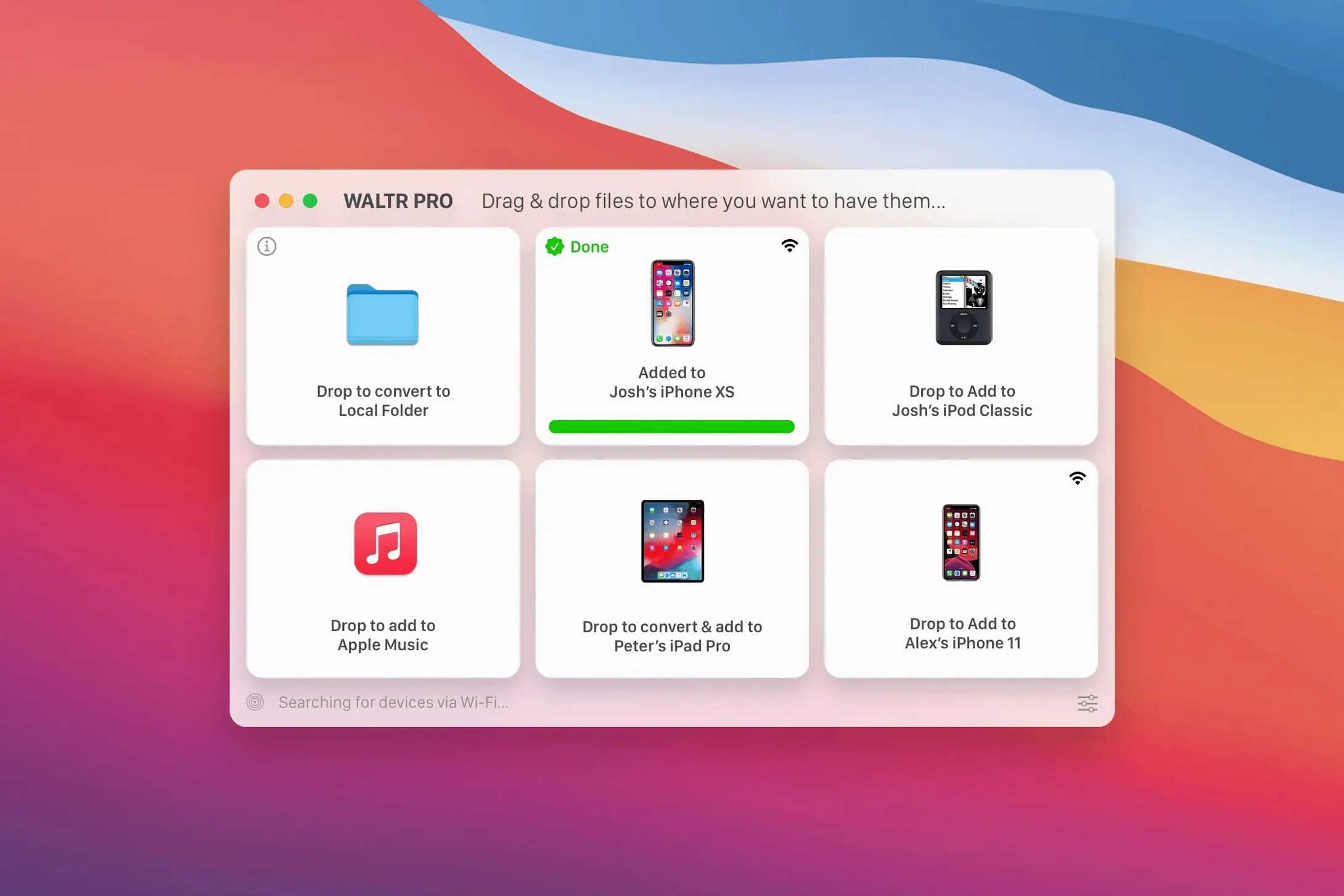
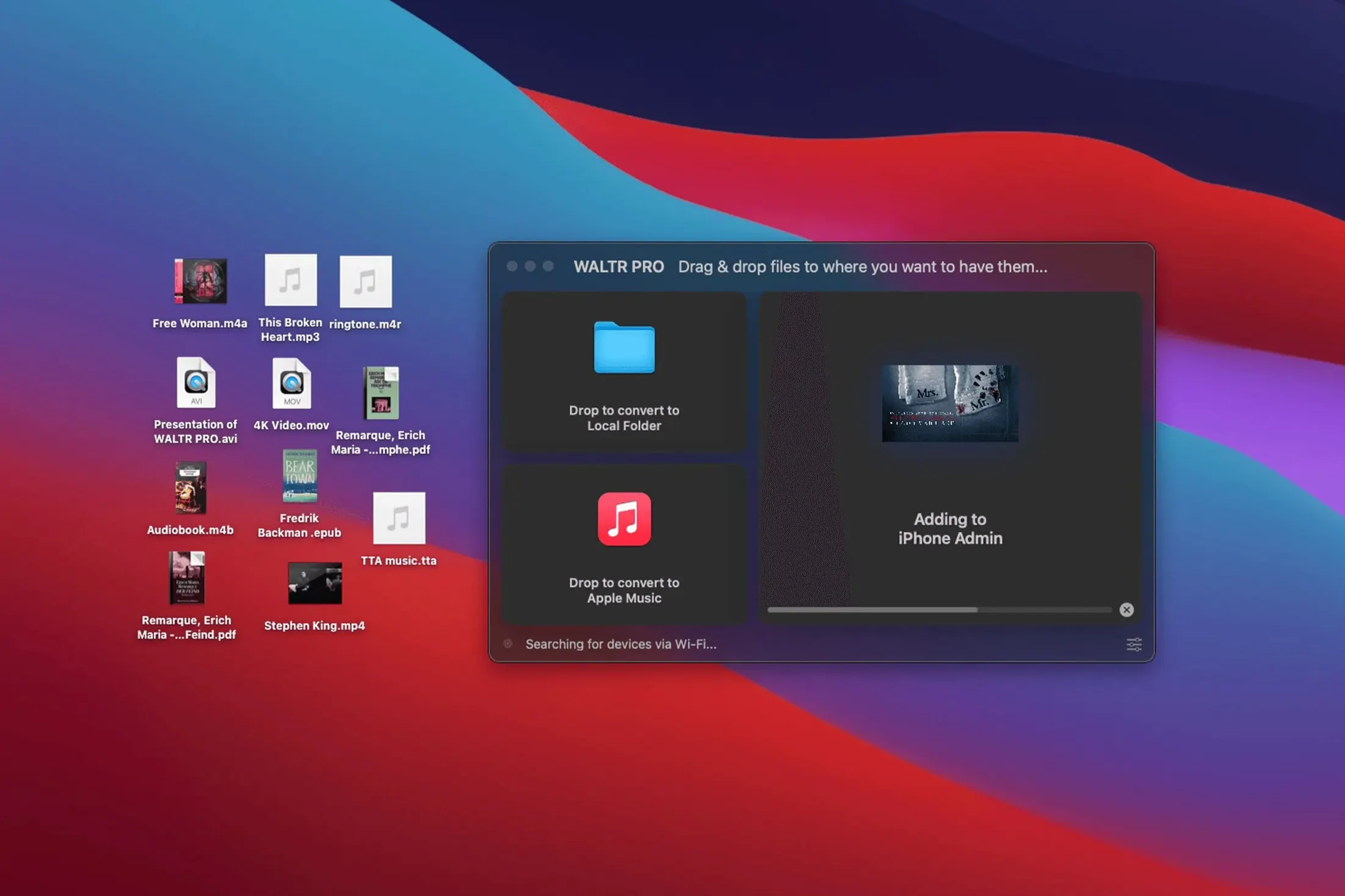
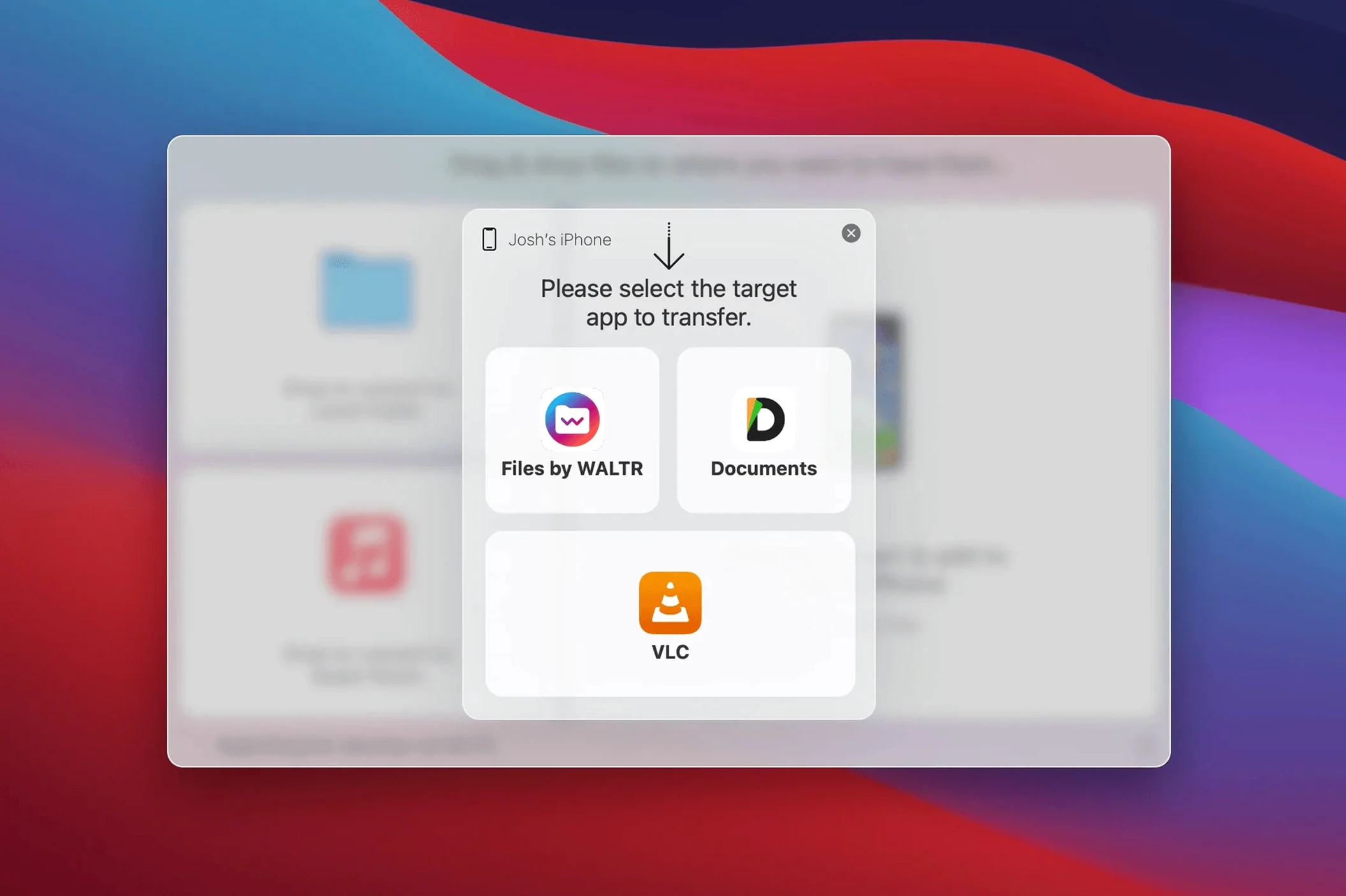
The current version of WALTR PRO, 4.0.122, keeps the core idea simple: you drag a file onto the app window and it lands on your iPhone, iPad or iPod ready to play. No iTunes sync, no format guessing — the app converts on the fly if the device needs it. For a newcomer, the first thing to try is a music file you already have on your Mac. Drop a few tracks onto the WALTR PRO window and check the Music app on your phone. They should show up, playable, with album art intact. Next, try a video file that iTunes never liked — an MKV or an AVI. WALTR PRO handles the conversion so it plays in the native Videos app. The app also supports the original iPod Classic, which is a nice touch for anyone still running one. After that, explore the drag-and-drop queue and the way it remembers your last device. It is a utility that stays out of your way once you know the single gesture it expects.
WALTR PRO works well out of the box, but a couple of tweaks save time once you start moving larger libraries. Open the preferences and look at the conversion quality slider. The default is fine for most files, but if you are sending FLAC or ALAC tracks and care about the audio detail, nudge it toward the lossless side. The difference is subtle on standard earbuds, but noticeable through a decent pair of headphones or a car system.
The other setting to visit is the automatic device detection. WALTR PRO can prompt you every time a device connects, or it can just pick the last one it saw. If you only ever move files to one iPhone, set it to remember the last device and skip the confirmation. It is a small change that removes one click from every transfer, and those clicks add up across a weekend of organising a music library.
WALTR PRO suits a few kinds of Mac users more than others. If you keep a local music collection in formats like FLAC or ALAC, and your phone is the main playback device when you are out, this app solves the gap between your library and iOS. The same goes for anyone who has video files in MKV or AVI that refuse to play on an iPad without conversion. The drag-and-drop nature means you do not think about formats; you just send the file and the app figures out the rest.
Another group is people who manage devices for others — a parent setting up an iPod for a child, or someone who keeps a spare iPhone loaded with audiobooks and podcasts for long trips. WALTR PRO skips the setup steps that iTunes or Finder require, so you can grab a handful of files and push them across quickly. And for anyone still running an original iPod Classic, it is one of the few current apps that still speaks to that hardware without extra software.
Start with a small batch. Pick five music tracks and one short video file. Transfer them, check playback on the device, then move on to a bigger set. This confirms the connection and the conversion settings before you commit a full album or a long film.
Keep the WALTR PRO window visible while you work. The app shows the progress of each file and flags anything that could not convert. If a file fails, it is usually a corrupt source or a very unusual codec, not the app itself. You can also queue multiple files at once; the app processes them one after another, so you can drag a folder and walk away.
Wireless transfer works over your local network, so make sure your Mac and iOS device are on the same Wi-Fi. If the transfer feels slow, try moving the devices closer to the router or use a USB cable if you have one handy. The app supports both, and cable transfers are noticeably faster for large video files.
Consider someone who has been ripping CDs to FLAC for years. Their Mac holds a carefully tagged library of live recordings and rare B-sides. They also have an iPhone that they use on the commute and at the gym. Before WALTR PRO, they had to convert each FLAC to AAC in a separate app, then import the result into iTunes, then sync the phone. It took several steps and sometimes lost the metadata.
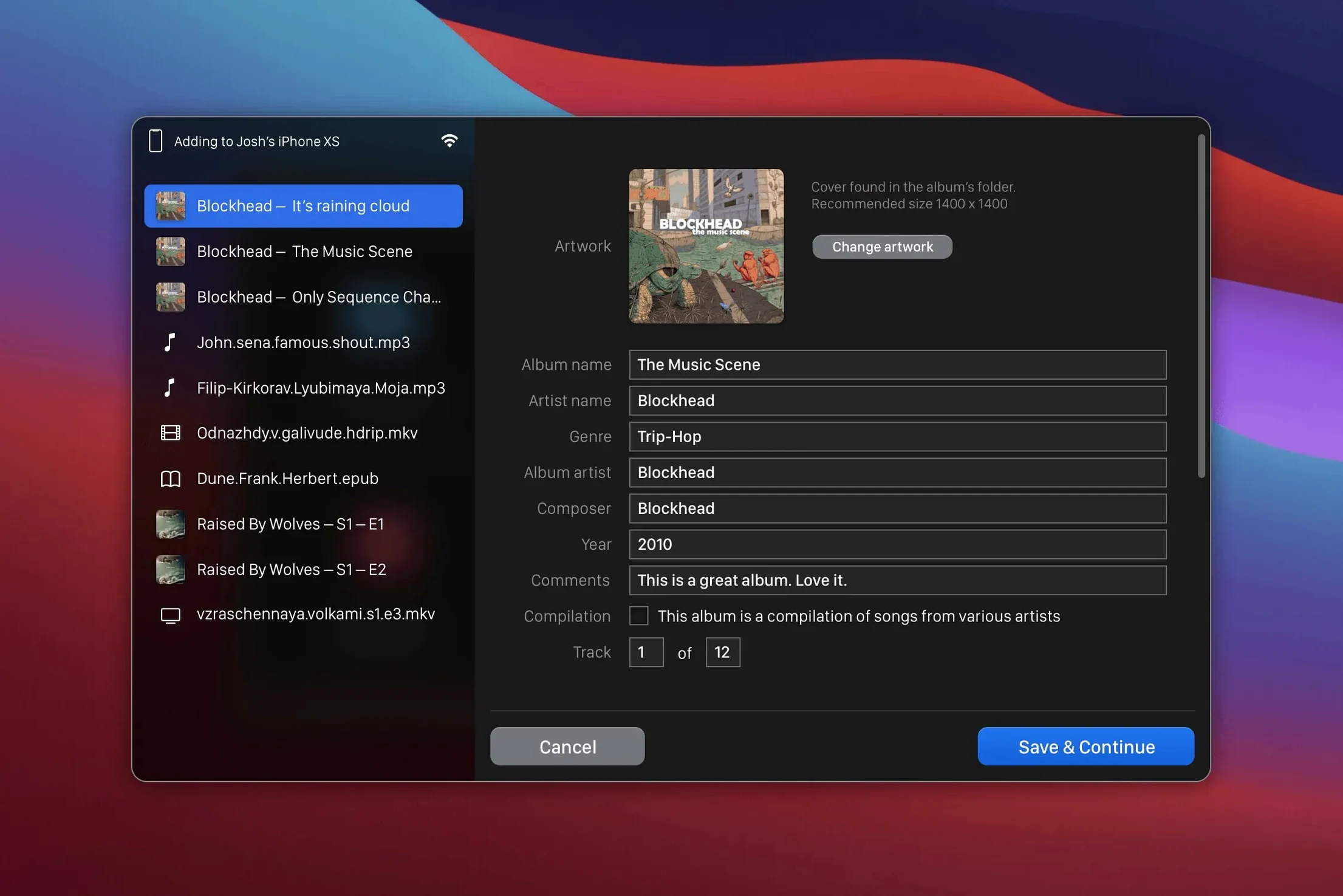
With WALTR PRO, they open the app, drag a folder of FLAC files straight from Finder, and the tracks appear on the phone a few minutes later, with artist, album and cover art intact. For a collector with hundreds of albums, the time saved across a single library transfer is measured in hours, not minutes. And because the app remembers the last device, the second batch is even faster.
Yes, WALTR PRO supports all iPhones, iPads and iPods, including the original iPod Classic.
WALTR PRO converts the video on the fly so it plays in the native Videos app on your iPhone or iPad.
The install process involves mounting the disk image, running Open Gatekeeper friendly, pressing Enter in Terminal to bypass Gatekeeper, then dragging the app to Applications.
Sign in or create your account to leave a comment.
No notes from photographers yet. If you have used this on a real folder, say which camera and which Mac.