- Version
- 10.5
- Developer
- Twocanoes Software
- Interface in
- English
- Licence on file
- K'ed by TNT team
- macOS it runs on
- macOS 10.15 or later
- Chip support
- Intel 64-bit
In the edit
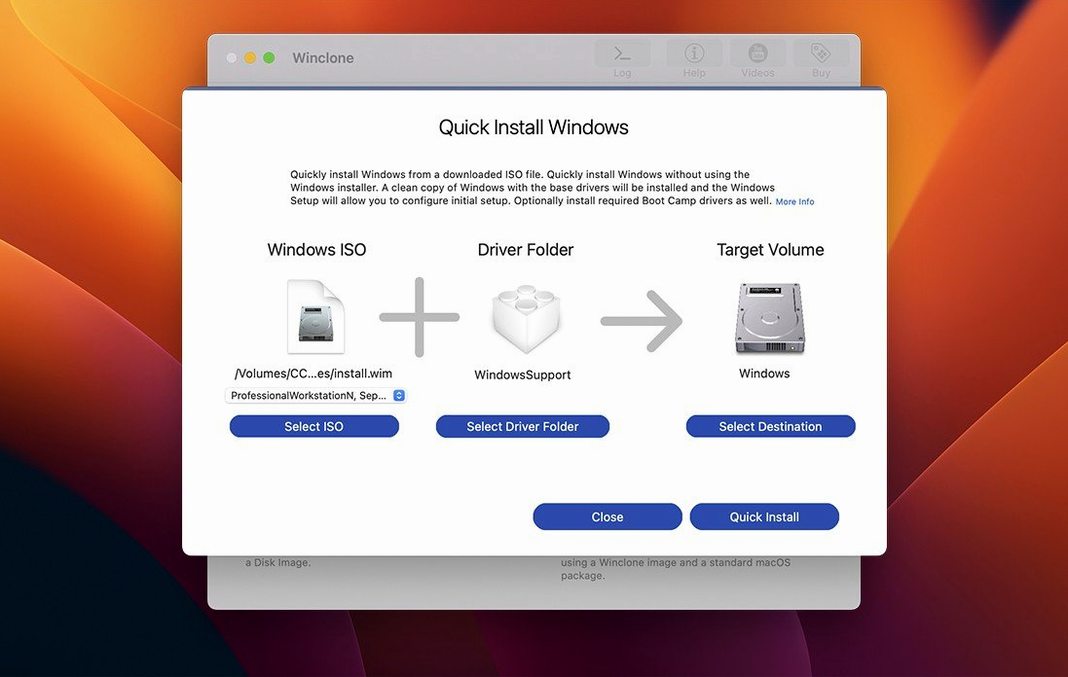
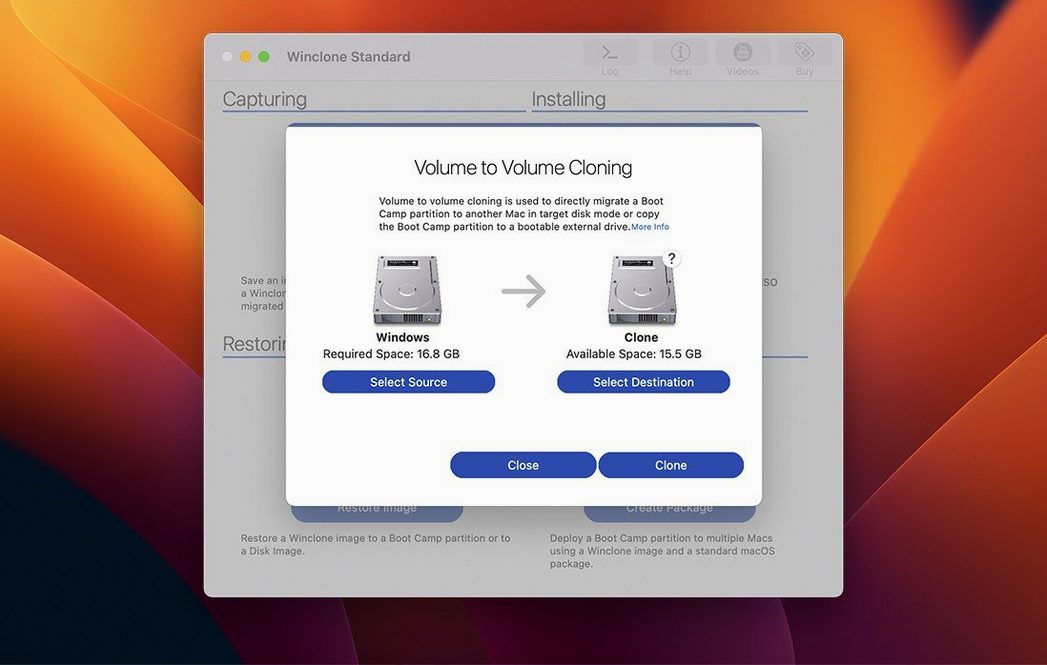
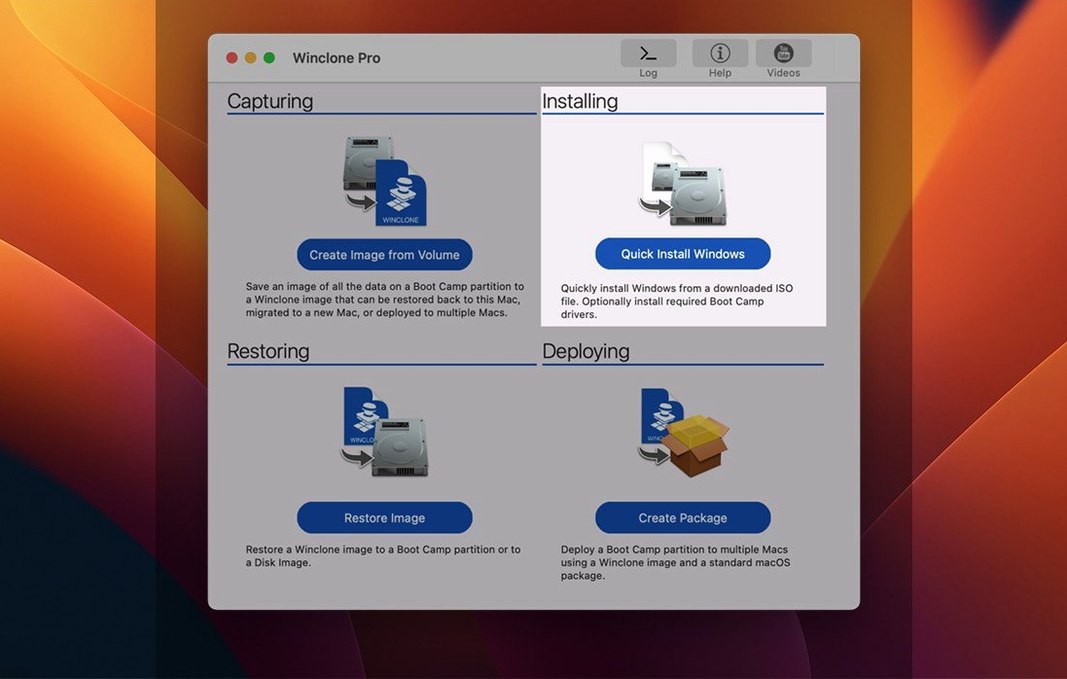
Winclone Pro is the tool for anyone who manages Boot Camp on a fleet of Macs – IT admins, labs, schools. It handles the whole lifecycle of a Windows installation: clone it, migrate it to another machine, restore it when things go sideways.
Cloning workflow, step by step
- Create a Winclone image of your current Boot Camp partition.
- On the target Mac, boot into macOS and open Winclone Pro.
- Restore the image to the Boot Camp volume, choosing your target filesystem – DOS-FAT32, ExFAT, or NTFS.
- If needed, shrink or expand the restored partition to fit the new drive.
- For older hardware, pick the legacy bootable option; for Windows 7 and later, EFI bootable is available.
Winclone Pro also detects and reports when GPT and MBR boot records disagree – a common cause of boot failures after imaging. You get a sound notification when a clone succeeds or fails, so you can walk away and come back when it's done. Incremental images and local disk-to-disk migration round out the package for regular backups and quick swaps.
Still the business and education tool with added extras
The core mission hasn't shifted: it's still a business and education tool, not a consumer toy. Winclone is the standard edition, and Pro adds the extras like incremental imaging and legacy boot support. Version 10.5 brings updated OS requirements and verified Tahoe compatibility, so it keeps pace with macOS releases without changing the workflow you already know.
Starting a deployment package from scratch
One of the tasks I see most often in school labs is building a deployment package that creates a Boot Camp partition and restores a Windows image in one go. Winclone Pro lets you do this straight from the app.
- Take a clean Windows install on a reference Mac and clone it with Winclone Pro to an image file.
- Open the package creator inside Winclone Pro and point it at that image.
- Choose your target volume settings – the app will build a macOS installer package that, when run on another Mac, creates the Boot Camp partition and writes the image into it.
- Push that package out with your management tool of choice, or run it locally on each machine.
The result is a consistent Windows environment across every machine, and you never have to run the Boot Camp Assistant on the target Macs. For IT teams managing dozens of identical iMacs or MacBooks, this saves an afternoon of clicking through the same dialogs.
Small conveniences that earn their keep
A few details in Winclone Pro don't get mentioned much but make a real difference when you're in the middle of a deployment.
- In-app support links. When something goes wrong – a GPT/MBR mismatch, a partition that won't mount – the app includes direct links to Twocanoes support resources. You don't have to hunt through a website while a room full of machines waits.
- Progress estimate and completion percentage. It shows you how far along the operation is, and the estimate updates as the process runs.
- Sound notifications. Winclone Pro plays a sound when a clone finishes or fails. If you're working on several machines at once, you can hear the result without staring at the screen.
- Detection of inconsistent boot records. The app checks GPT and MBR for mismatches before it starts an operation. That caught me early on – I'd imaged a partition that looked fine until boot, and Winclone Pro flagged it before I wasted time on a bad restore.
Restoring three lab Macs from a saved network image
It's a Tuesday morning and three Macs in the design lab need updated Windows partitions for the new semester. I already have a clean Winclone image on a network share from the reference machine I set up last week.
First Mac: I boot into macOS, open Winclone Pro, and point it at the network image. The restore dialog lets me pick the target volume and choose NTFS, since that's what the lab software expects. I start the restore and the progress bar appears with an estimate. I hear the success sound about twelve minutes later.
Second Mac: this one has an older Boot Camp partition that's too small. Before restoring, I use Winclone Pro to expand the target file system. The operation runs, the partition resizes, and the image writes without issues.
Third Mac: the restore fails with a sound I don't like. Winclone Pro shows a message about an inconsistent GPT and MBR. I check the disk utility output, see the mismatch, and use the app's built-in detection report to understand what's wrong. A quick disk repair later, the restore completes.
The whole session takes under an hour for three machines. The sound notifications mean I can tab between them without watching each progress bar.
Forgetting to disable SIP before the first install
I've seen a few common slip-ups, especially when someone is new to Boot Camp imaging.
- Not disabling SIP before the first install. Winclone Pro needs SIP off to do its work. People forget, the app doesn't behave, and they blame the software instead of the security setting.
- Choosing the wrong filesystem. DOS-FAT32, ExFAT, and NTFS are all supported, but each has its limits. Beginners pick FAT32 out of habit and then wonder why a 50 GB Windows image won't fit. NTFS is the usual answer for modern Windows installs.
- Skipping the boot record check. Winclone Pro flags GPT and MBR mismatches, but only if you let it scan first. Some people jump straight into a restore, hit a boot failure, and don't realise the app was trying to warn them.
- Using a Winclone image from a different hardware generation. The image itself is fine, but the drivers won't match. Beginners restore the same image to a 2019 Mac Pro and a 2023 MacBook Air, then wonder why the trackpad doesn't work on the laptop. The app doesn't inject drivers – that's a separate step in the deployment workflow.
- Forgetting to update to the latest version. Winclone 10.5 includes verified Tahoe compatibility and updated OS requirements. Running an older build on a newer macOS can cause issues that the update already fixed.
None of these are showstoppers. Once you know them, they're easy to avoid, and Winclone Pro gives you the feedback to catch most of them before you waste time.
New this release
- Updated OS requirements.
- Verified Tahoe compatibility.
Mac it needs
- macOS 10.15 or later
- Intel Mac
- English interface
Questions I actually get
Can Winclone Pro restore to any attached volume?
Yes, it supports restoring images to attached volumes, depending on your hardware and Windows version.
Does Winclone Pro work with Windows 7?
It includes an option to make the Boot Camp installation EFI bootable on Windows 7 and later.
Installing on a Mac
- Mount the disk image and run Open Gatekeeper friendly.
- Press Enter in the Terminal window to bypass Gatekeeper.
- Drag the app to the Applications folder.
- Disable SIP before installing.
Notes from photographers
Sign in or create your account to leave a comment.
No notes from photographers yet. If you have used this on a real folder, say which camera and which Mac.