Get it for my Mac (1.6 GB)
 OmniPlayer: MKV Video Player Pro
2.1.22
OmniPlayer: MKV Video Player Pro
2.1.22

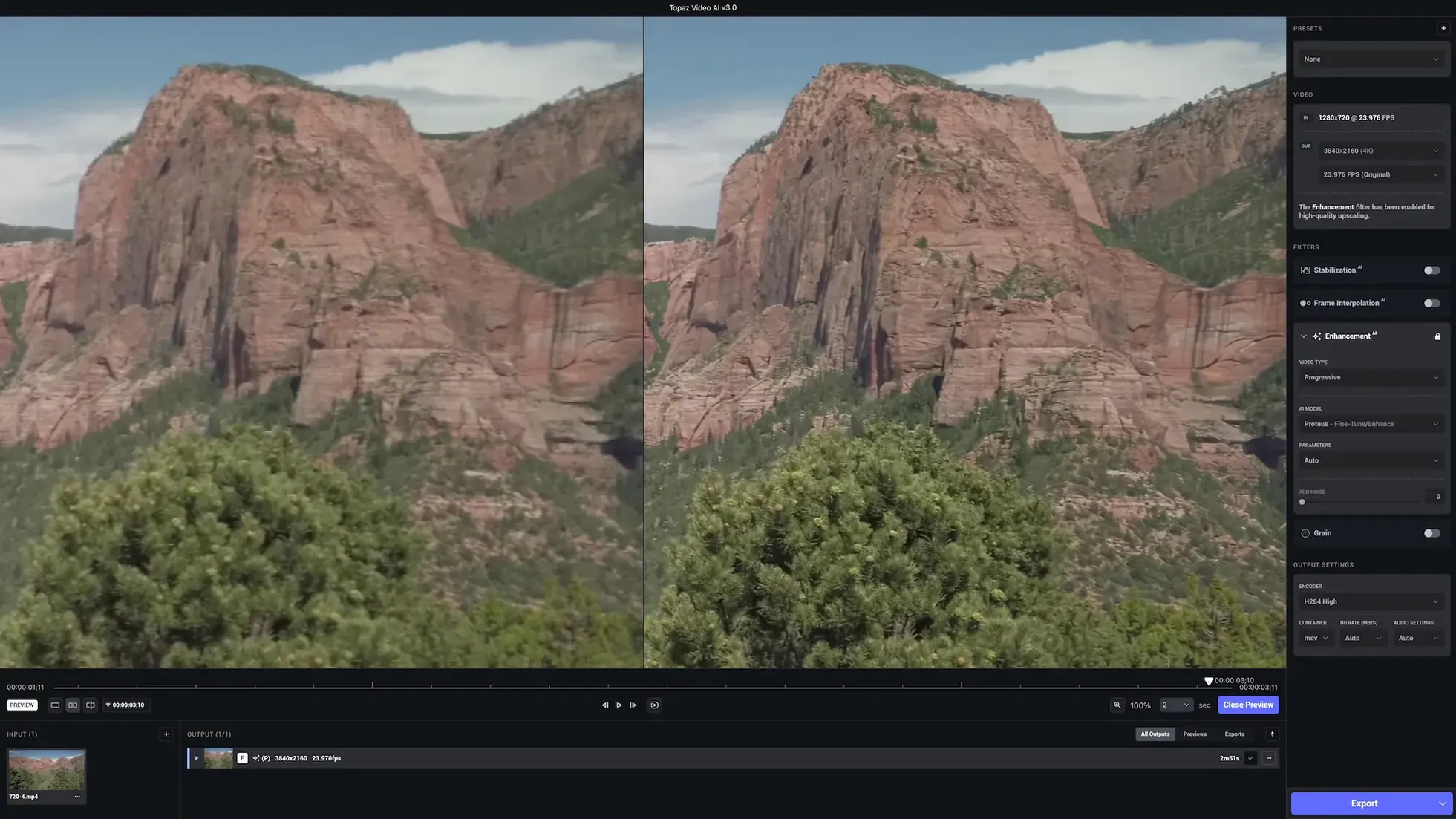
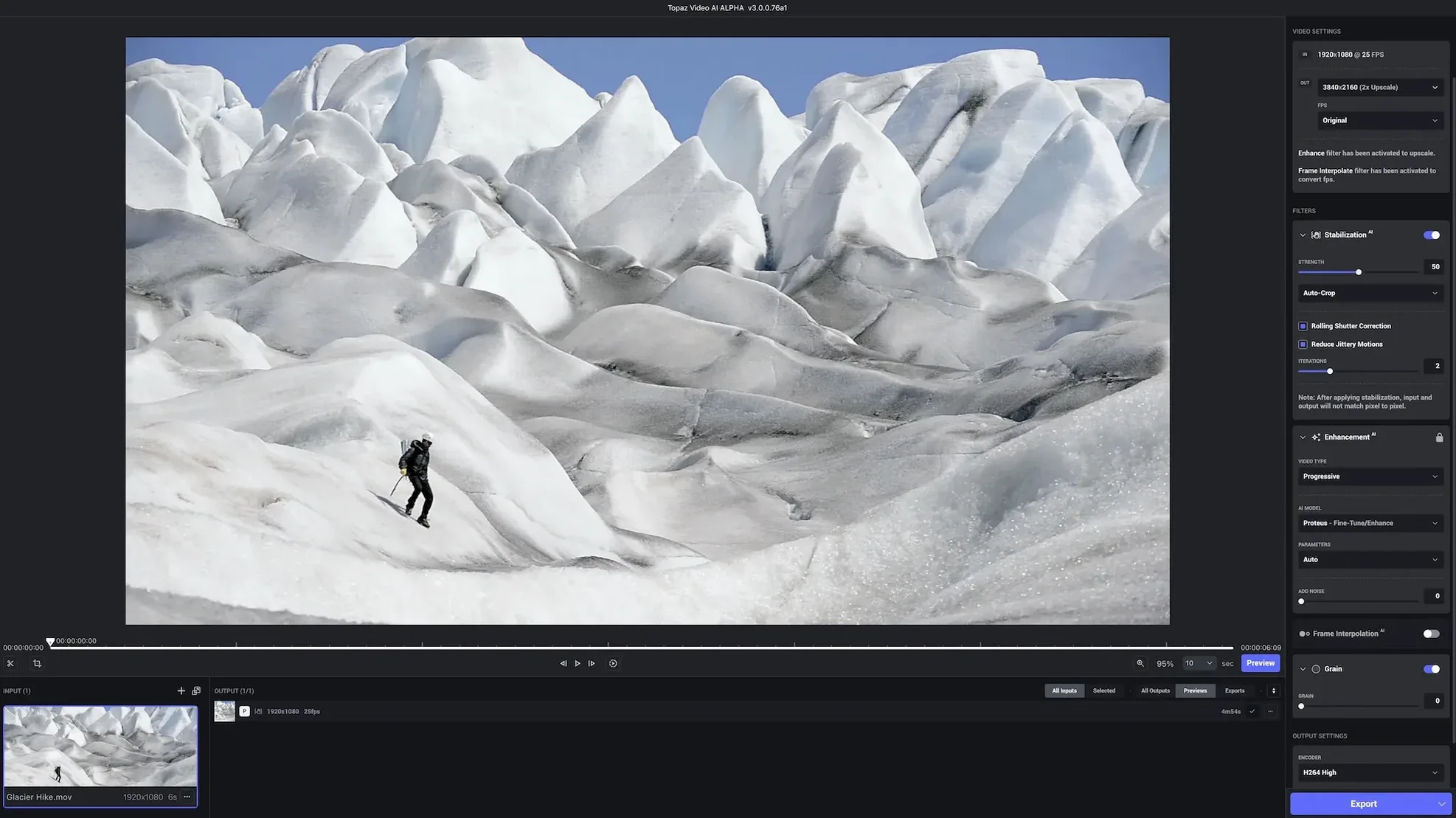
Topaz Video AI is a desktop app that uses trained AI models to upscale, denoise, and stabilise video on your Mac.
| Detail | Info |
|---|---|
| Developer | Topaz Labs |
| Version | 1.7.1 |
| macOS support | 11 and newer, Intel and Apple Silicon |
| Interface language | English |
It handles footage from DSLRs, drones, game captures, and HD stock clips, and can enlarge video up to 8K while keeping motion consistent. The same app also cleans up low-light noise, sharpens soft frames, and steadies shaky camera work. If you already run a photo workflow with Topaz DeNoise or Gigapixel, this slots in beside them for the video side of things. Frame-rate changes are possible too, by generating new in-between frames rather than simply duplicating. For a Mac user editing mixed media projects, it means one less trip to a separate stabiliser or upscaler.
The workflow in Topaz Video AI looks simple enough on the surface — load a clip, pick a model, export — but there are a few traps that catch people early on. The most frequent one is running every clip through the heaviest AI model available. New users see "Proteus" or "Artemis" and assume bigger means better, but those models are built for specific source problems. If your footage is already clean HD, using a model designed for heavy noise reduction just softens detail you wanted to keep. Pick the model that matches the flaw, not the one with the longest name.
Another mistake is skipping the preview. The app lets you scrub through a processed section before committing to a full render, and that step saves hours. People jump straight to export, find the result looks different on the timeline than it did in the preview window, and have to start again. A few seconds of preview can tell you whether the model is hallucinating weird textures in faces or blowing out highlights.
Beginners also tend to upscale in one giant jump. If you are taking 480p archival footage to 4K, doing it in a single pass asks the AI to invent a lot of information at once. Running it through a first pass to 1080p and then a second to 4K gives the model an easier job at each stage and often produces cleaner results. It takes longer, but the output holds together better.
Frame-rate conversion trips people up too. The app can generate new frames, but if the source footage has motion blur, the AI might create frames that look stuttery or unnatural.
Version 1.7.1 is the current release, and the jump from earlier builds under the old Video Enhance AI name brought a few changes you notice in daily work. The app now handles stabilisation and denoising in the same interface rather than sending you to separate tools. For a wedding photographer cutting together highlight reels, that means you can clean up a shaky gimbal shot and reduce ISO noise in one go without round-tripping through another app.
Model loading also behaves differently. Earlier versions could take a long pause when switching between models, especially on Intel Macs. The 1.7.1 branch improved how models cache in memory, so switching from a denoise model to an upscale model feels faster in practice. It is still doing heavy computation, but the wait between previews is shorter than it used to be.
The export panel was reorganised too. Output format choices like ProRes and H.264 are now grouped more clearly, and the app remembers your last export settings between sessions. Small thing, but when you are rendering twenty clips for a client edit, not having to reset codec and resolution every time adds up.
Before you run your first real project, a handful of settings save you from surprises later. The app defaults to processing at the source resolution in the preview window. That is fine for a quick look, but switch the preview quality to "Full" in the view menu so you see exactly what the AI is doing to fine detail. Lower quality previews hide artefacts that only appear at full resolution.
Output format matters more than most people think. If you are delivering to a client who edits in Premiere or Final Cut, set the output to ProRes 422. It keeps the quality high and avoids the compression artefacts that H.264 can introduce on the second export. If the final destination is social media or web delivery, H.264 at a high bitrate is fine and keeps file sizes manageable.
Auto-upscaling is turned on by default. If you only need denoising or stabilisation, switch it off. Otherwise the app will enlarge the frame even when you do not need it, adding render time and file size for no benefit.
Letting the app guess can produce an extra pulldown conversion you did not ask for.
Topaz Video AI runs on macOS 11 and later, and supports both Intel 64-bit and Apple Silicon Macs natively. That means it will launch and run on a 2019 Intel iMac just as it will on an M2 MacBook Air, but the experience differs in predictable ways. Apple Silicon machines handle the AI model inference more efficiently because the unified memory cuts down on data copying between CPU and GPU.
The app is English-only, so the interface labels, model names, and settings are all in English. That is fine for most video editors, but worth noting if you are setting it up for someone who prefers another language.
Installation is straightforward: run the TopazVideo.pkg installer first, then open Patch.command and enter your Mac password. On macOS versions after Golden Gate, the Patch.command may not open correctly the first time — a known quirk that usually resolves by right-clicking and selecting Open from the context menu. Once installed, the app appears in your Applications folder and behaves like any other Mac app.
Storage is worth thinking about. The AI models themselves take up a few gigabytes, and exported ProRes files can be large. A single 4K clip at a few minutes can run into tens of gigabytes, so keep an eye on free space before starting a batch render. External SSDs work fine as output destinations if your internal drive is tight.
For anyone coming from the photo side who has used topaz video ai crack or topaz video ai torrent downloads, the app itself is the same installer regardless of how you obtained it. The models, the interface, and the output quality are identical. If you have been working with a topaz video ai mac torrent or a topaz video ai pro torrent, the version 1.7.1 release is the one to look for — it includes all the stabilisation and frame-rate tools in one package.
It works with macOS 11 and newer, on both Intel and Apple Silicon Macs.
Yes, it includes stabilisation as one of its AI enhancement features.
It accepts DSLR footage, game captures, HD stock clips, commercials, music videos, and more.
Sign in or create your account to leave a comment.
No notes from photographers yet. If you have used this on a real folder, say which camera and which Mac.