
 Get it for my Mac (18 MB)




 Rhino
8.30.26103
- Version
- 10.2.1
- Developer
- LIYI CHENG
- Interface in
- English
- Licence on file
- K'ed by TNT team
- macOS it runs on
- macOS 11.1 or later
- Chip support
- Apple Silicon, Intel 64-bit
In the edit
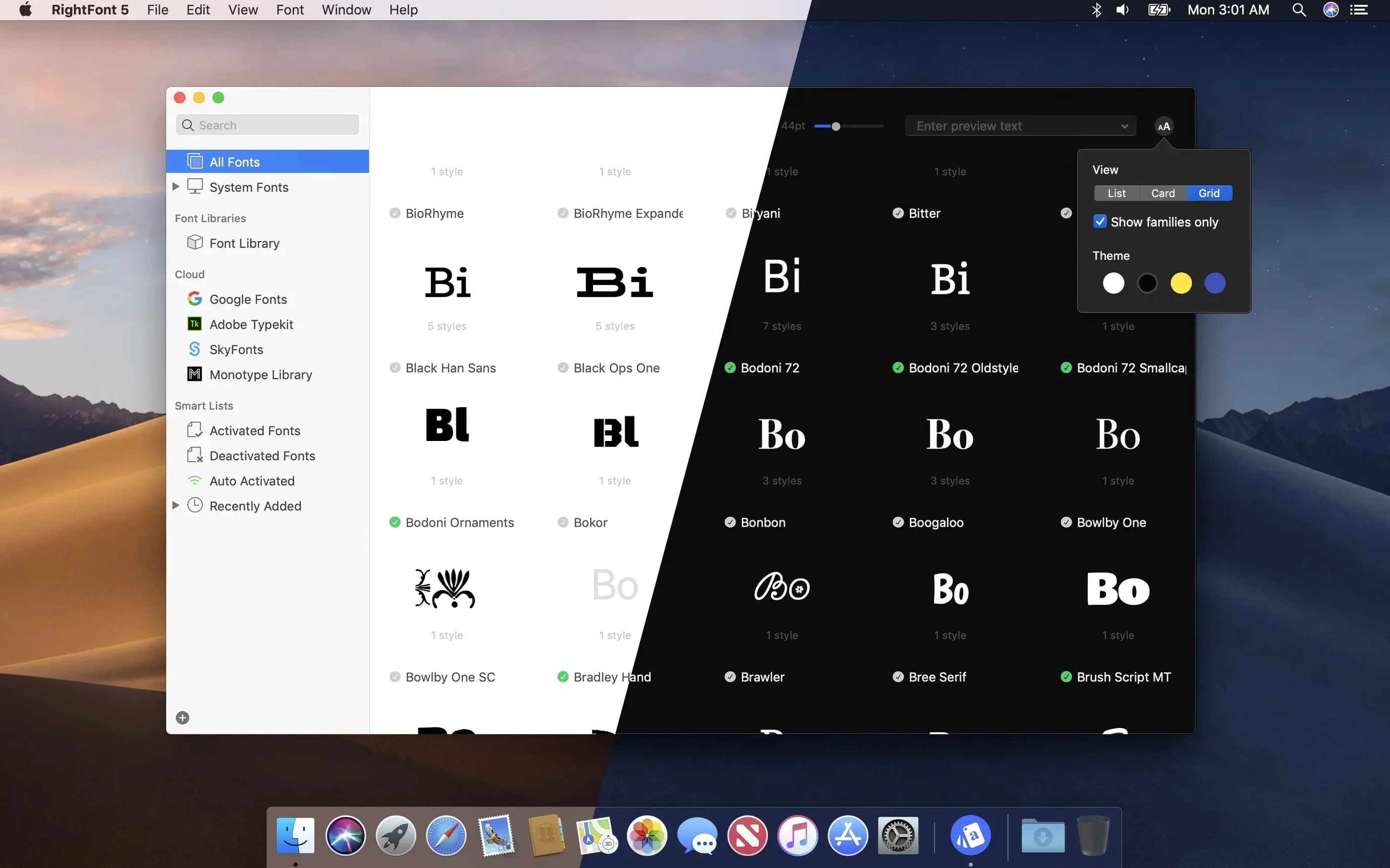
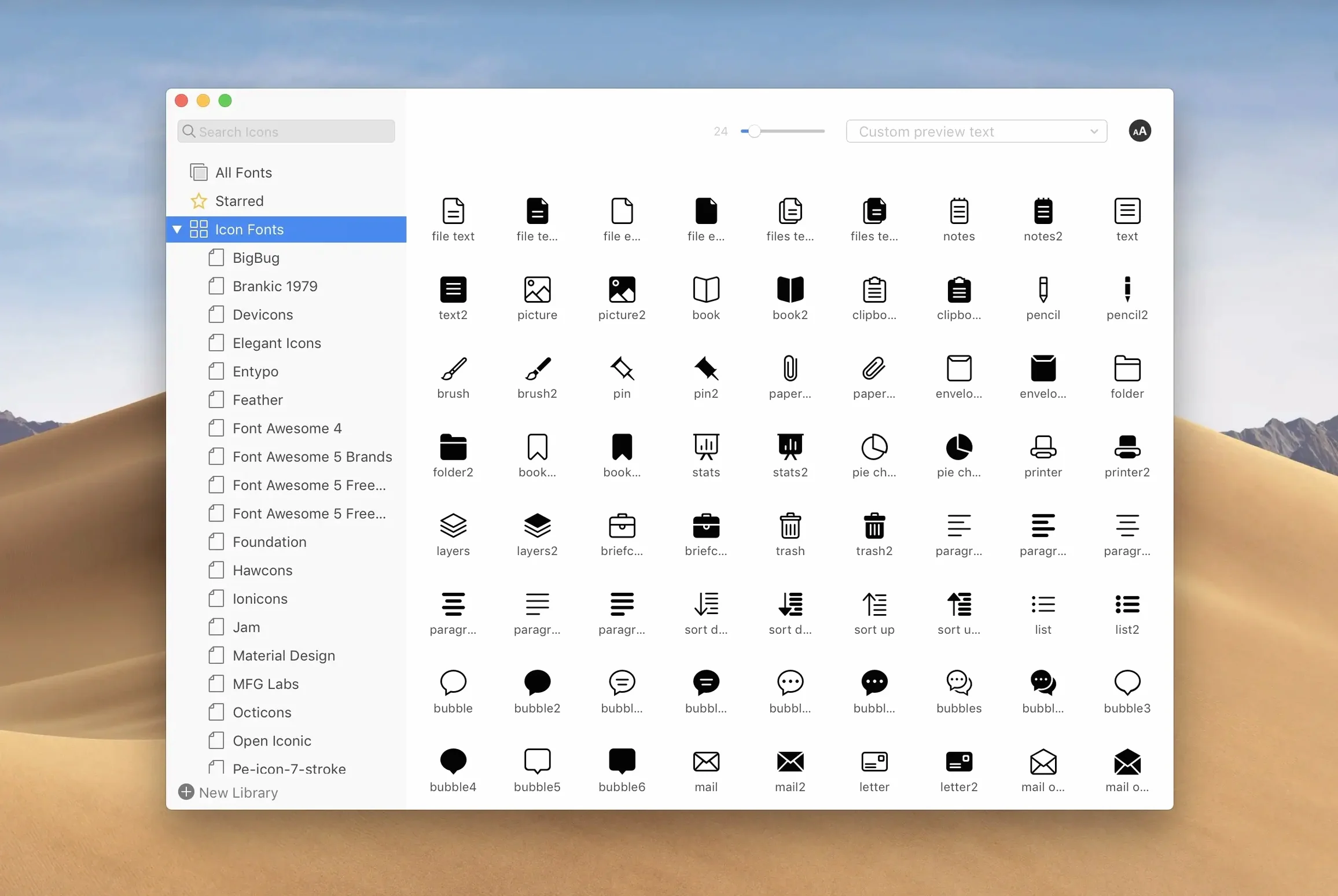
Anyone who works with type on a Mac knows the feeling of having too many fonts and no easy way to find the right one. RightFont steps in as a lightweight font manager built to keep your library organised, previewed and ready to use. Version 10.2.1 refines tag management and makes font imports more reliable, with clearer progress details so you know exactly what’s happening during a batch import.
Juggling three client projects and their brand fonts
Imagine you’re a brand designer juggling three client projects. Each one has its own set of brand fonts — a dozen weights for the primary typeface, a handful of display faces for headlines, and a few supporting scripts for accents. Without a proper font manager, you’d be hunting through Finder folders, guessing which version of Helvetica Neue is current, and hoping you don’t accidentally use a retired font in a deck.
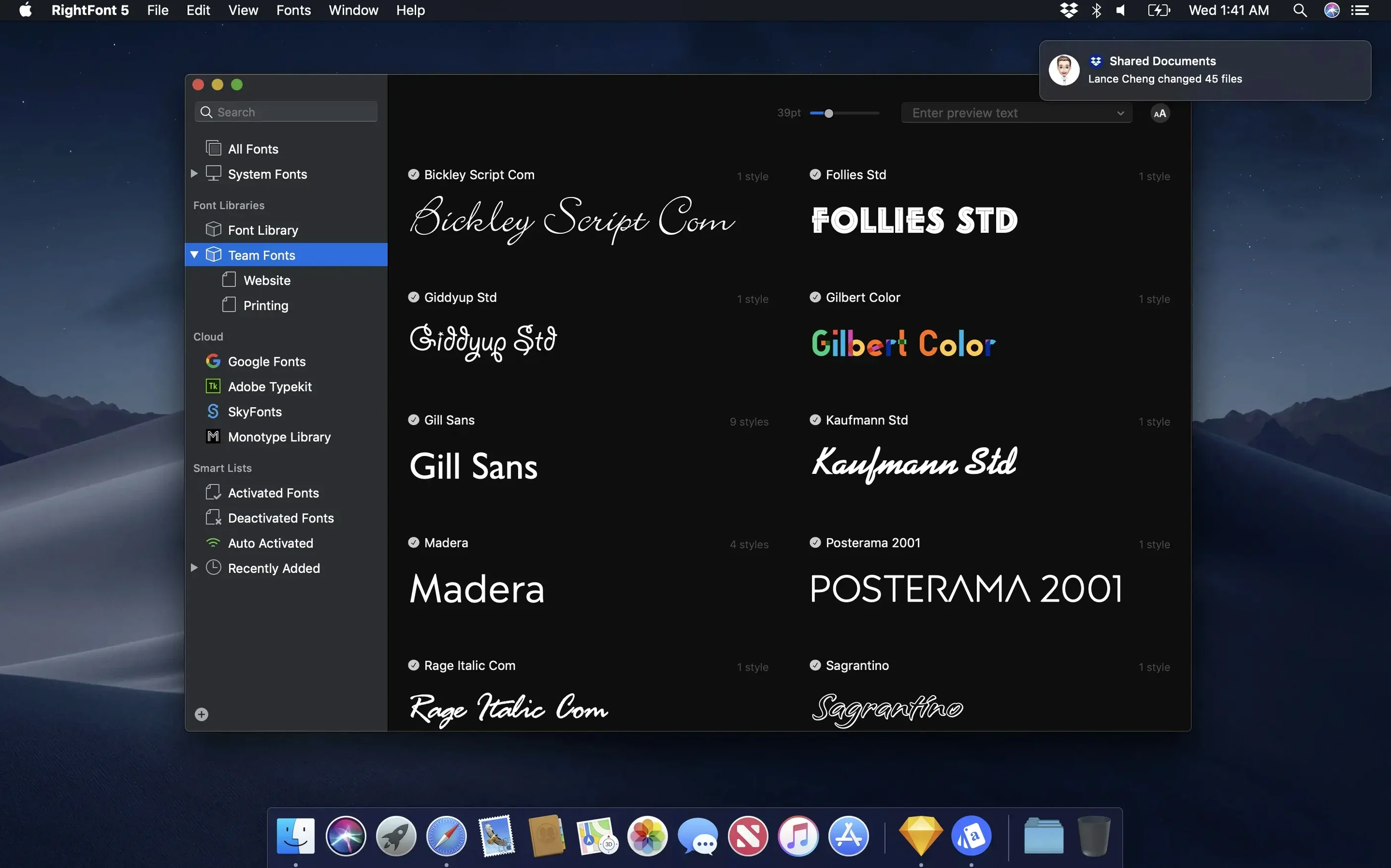
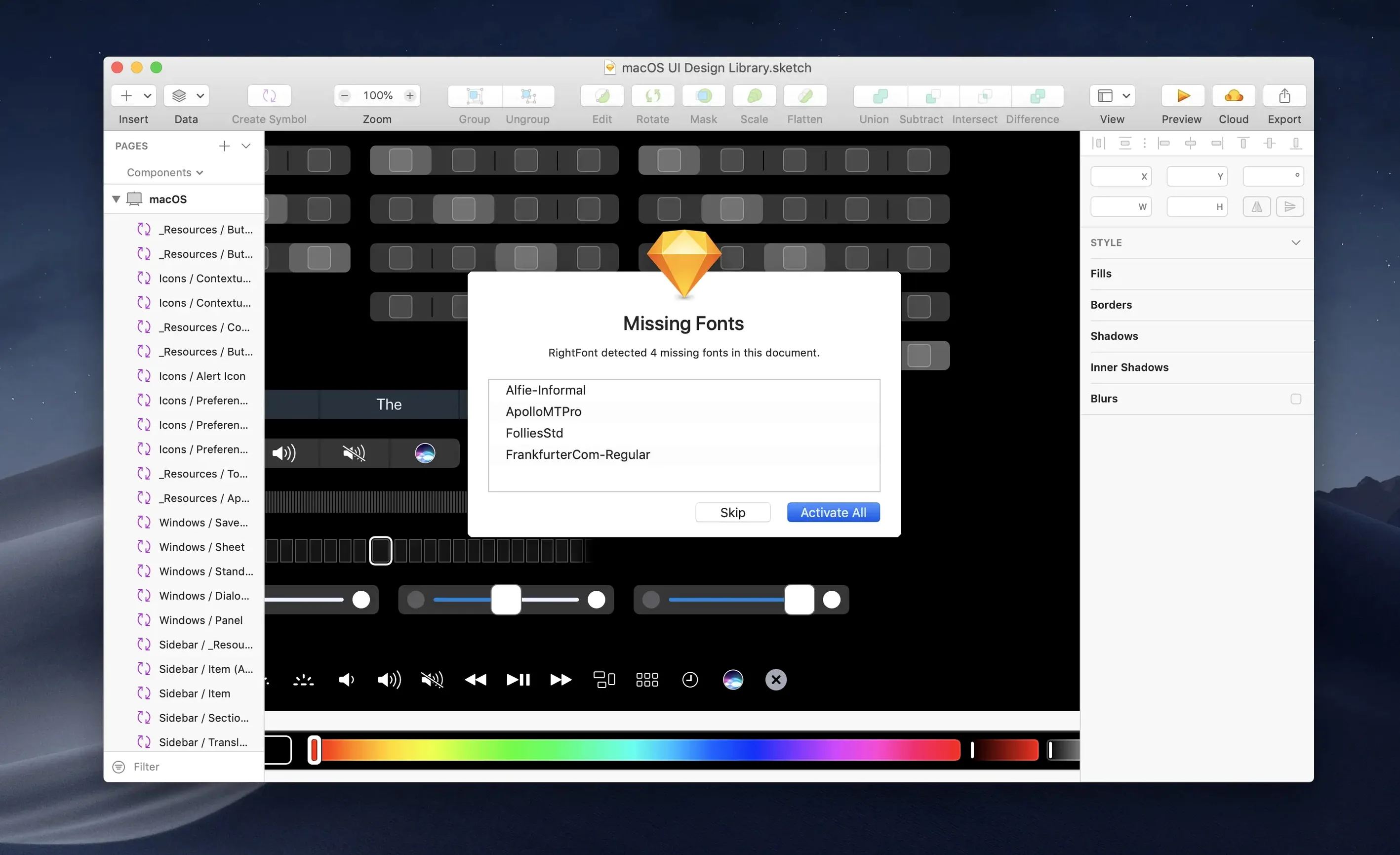
RightFont changes that. You create a separate font list for each client, drag the relevant fonts in, and label them with tags like “approved”, “draft” or “presentation”. When a client sends a revised brand guide, you import the new font files and RightFont flags any duplicates or unsupported formats during the import — the progress panel shows a finalisation stage and a count of files it couldn’t handle, so nothing slips through. From there, you activate only the fonts you need for that project, work in Illustrator or Sketch, and double-click a text layer to swap a font without leaving the app. The menu bar gives you quick access to activate or deactivate sets as you switch between projects.
The font manager that stays out of your way
RightFont sits in a particular spot among Mac font tools. It isn’t trying to be the biggest or the most feature-packed; it’s aiming to be the one that gets out of your way.
FontExplorer X Pro has been around for a long time and offers deep auto-activation across Adobe apps, plus server-based font sharing for teams. It’s powerful but feels heavier. RightFont, by contrast, keeps its interface clean and its font library view straightforward. You don’t have to learn a dozen panels to find a font.
Typeface is another popular choice, known for its beautiful interface and sync with Google Fonts. It handles font organisation well, but its strength is more on the browsing and discovery side. That’s a time-saver when you’re deep in a layout.
FontBase is free for basic use and syncs with Google Fonts and Typekit. It’s fast and lightweight, but its team features and library management are more limited.
None of these are wrong choices. It depends on whether you prefer RightFont’s menu-bar-first approach and design-app integration, or if you need the server sync and auto-activation depth of something like FontExplorer.
Fixing fonts that don't show up in Adobe apps
Even a straightforward font manager can throw up a few hiccups. Here are the ones I’ve seen most often with RightFont, and what usually fixes them.
Fonts not showing up in Adobe apps after activation. This usually means the app hasn’t scanned the new fonts yet. Restart the Adobe app, or in some cases, restart RightFont itself. If it keeps happening, check that the fonts are actually activated in RightFont — the icon next to each font should show it as active.
Duplicates appearing in the library. When you import fonts that are already installed, RightFont will list them but it can get messy. Use the tag and list system to group only the versions you want. Version 10.2.1’s improved import progress helps here — it now shows unsupported file counts, so you can catch problem files before they clutter your library.
Subtags getting lost. Earlier versions made it fiddly to reorganise tags. In 10.2.1, you can drag subtags back to the main Tags section, which makes tidying up a lot less frustrating. If your tag hierarchy looks wrong, just drag and drop until it feels right.
Font imports hanging or showing no progress. This was more common before 10.2.1. The update added a finalisation stage to the import progress bar, so you can see when it’s actually done versus still processing. If an import still seems stuck, try importing a smaller batch at a time.
Menu bar not showing the RightFont icon. Sometimes it hides behind other menu bar items or macOS’s notch on newer MacBooks. Go to RightFont’s preferences and toggle the menu bar icon off and on again. If that doesn’t work, relaunch the app.
How the 10.2.1 update makes imports more reliable
The 10.2.1 update isn’t a ground-up redesign, but it touches a few areas that matter if you use RightFont daily.
- More reliable font imports. The import process now handles edge cases better — files that previously caused a silent failure now get flagged or processed correctly. The progress panel also shows a finalisation stage and a count of unsupported files, so you’re not left guessing whether your fonts actually made it in.
- Improved tag management. Subtags can be dragged back to the main Tags section. That sounds small, but if you’ve ever accidentally buried a tag too deep, you’ll appreciate being able to pull it back without deleting and recreating it.
- The Illustrator fix addresses font activation issues that sometimes required a restart. The QuarkXPress fix keeps font lists in sync. The macOS 27 fix is for compatibility with whatever Apple’s latest OS brings — good to have before you upgrade.
- Clearer import progress. Beyond the finalisation stage and unsupported file count, the progress details are more granular. You can see which file is being processed at any moment, which helps when you’re importing a large batch and wondering if it’s still working.
None of these changes will transform how you work, but they remove a few small frustrations that used to crop up. For a tool you reach for dozens of times a day, that’s exactly the kind of update that matters.
New this release
- More reliable font imports.
- Improved tag management.
- Fixes for Adobe Illustrator, QuarkXPress, and macOS 27.
- Clearer import progress, including a finalisation stage and a count of unsupported files.
- Subtags can be dragged back to the main Tags section.
Mac it needs
- macOS 11 or newer
- Intel or Apple Silicon
Questions I actually get
What macOS version does RightFont require?
RightFont requires macOS 11 or newer. It supports both Intel-based Macs and Apple Silicon Macs.
Can RightFont work with Adobe Creative Cloud fonts?
Yes, RightFont provides access to fonts from Adobe Creative Cloud apps and Sketch.
What changed in version 10.2.1?
Version 10.2.1 improves tag management, makes font imports more reliable, adds clearer import progress details, and fixes issues in Adobe Illustrator, QuarkXPress, and macOS 27.
Installing on a Mac
- Mount the disk image and run Open Gatekeeper friendly.
- Press Enter to bypass Gatekeeper in Terminal.
- Drag the app to the Applications folder.
- Launch the app when installation is complete.
Notes from photographers
Sign in or create your account to leave a comment.
No notes from photographers yet. If you have used this on a real folder, say which camera and which Mac.
