
 Get it for my Mac (1.6 GB)





 Sketch
2026.4.1

- Version
- 27.0.277
- Developer
- Trimble Inc.
- Interface in
- Russian, English, German, Spanish, Italian, Chinese (Traditional), Chinese (Simplified), Korean, Portuguese, French, Swedish, Japanese
- Licence on file
- K'ed by TNT team
- macOS it runs on
- macOS 15 or later
- Chip support
- Apple Silicon, Intel 64-bit
In the edit
You have a design in your head and a client who needs to see it before it exists. SketchUp Pro is the tool that turns that mental model into a 3D object you can rotate, walk through, and hand over as a set of plans. This is the Mac version, so let’s start with the practical bit: will it run on your machine, and what do you actually get once it’s installed.
- Check your macOS version. The current build supports macOS 13 Ventura, 14 Sonoma, 15 Sequoia, and 26 Tahoe. If you’re on anything older, you’ll need an update first.
- Make sure you have enough memory and disk space. Trimble recommends at least 8 GB of RAM and 6 GB of free hard-drive space. Models with lots of textures and components will thank you for the extra headroom.
- Confirm your processor type. SketchUp Pro runs natively on both Apple Silicon (ARM) and Intel-based (x86) Macs, so no emulation layer is needed.
- Open the downloaded disk image, drag the app to your Applications folder, run the license installer, and launch from Launchpad. That’s the whole installation routine — no hidden steps.
Once it’s running, you can model with precision down to one-thousandth of an inch, generate animated walkthroughs and flythroughs, and produce plans and elevations using the included LayOut tool. The interface is available in a dozen languages, including English, German, French, Spanish, and Japanese, so it fits into most studios without a translation headache.
What a real session with SketchUp Pro looks like
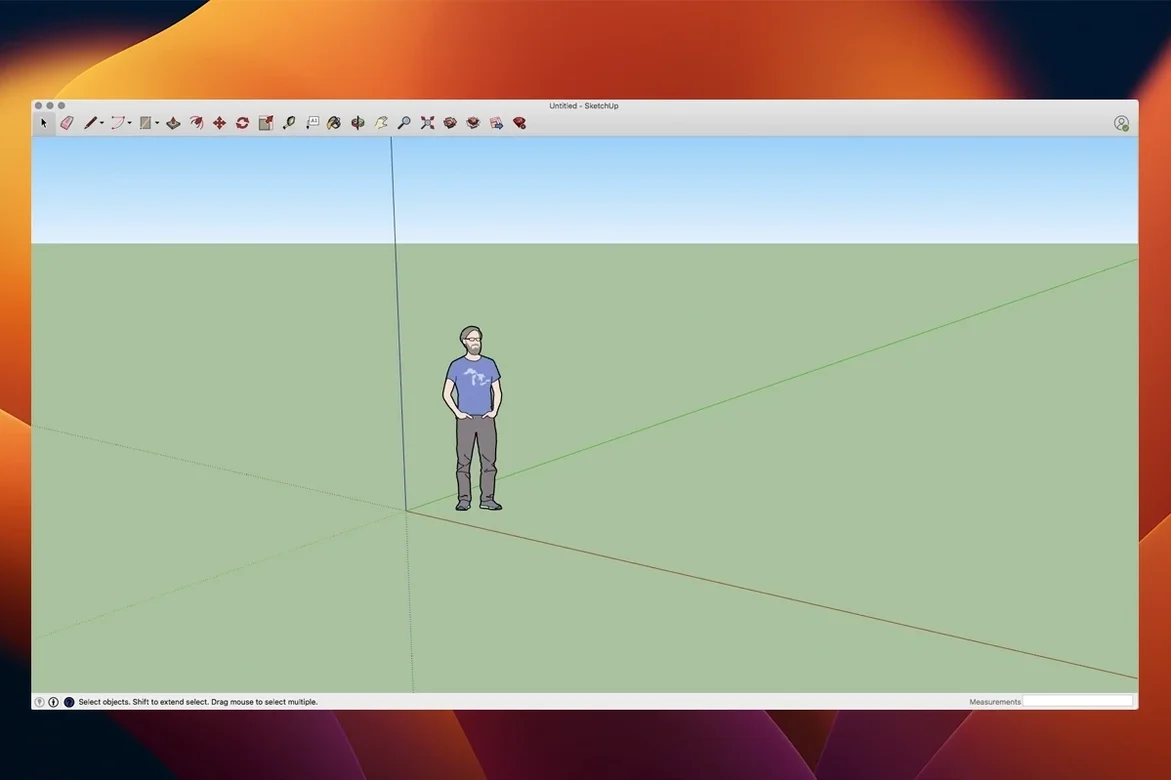
I get in, open the model I was working on yesterday — a residential extension with a tricky roofline. The first thing I do is orbit around to check my place. That’s the beauty of SketchUp: you can spin the view with a click-and-drag and instantly see if something’s off. I notice the dormer window is sitting a few millimetres too far left, so I switch to the Move tool, tap a couple of inference points, and nudge it back. The whole operation takes maybe twenty seconds.
From there I drop in a few window components from my local library — saved from past projects — and group them so they don’t fuse with the wall geometry. I’ll often rough out a massing model first, then come back later to add detail. For this job, the client wants to see the interior layout, so I cut a section plane through the building and start placing furniture blocks. The precision setting (one-thousandth of an inch) means I can align a kitchen island exactly 900 mm from the back wall without doing the maths twice.
Once the model is tidy, I switch to LayOut to build the presentation sheets. I drop in a few scaled viewports, add dimensions, and drop a title block from a template I made years ago. Because LayOut stays linked to the model, any change I make in SketchUp — moving that wall, changing the window size — updates automatically on the sheet. That alone has saved me from printing the wrong set of plans more times than I care to count.
Before I send the file, I generate a quick flythrough: set a path along the corridor, hit the animation settings, and export a short video. The client gets a walkthrough they can watch on their phone. That one feature has closed more discussions than any rendered still ever did.
Mistakes I see beginners make (and have made myself)
Most people who pick up SketchUp Pro for the first time treat it like a drawing board. They start extruding faces before they’ve thought about organisation. The biggest mistake is not using groups and components from the start. Draw a box, extrude it, and then try to move that box later — you’ll discover you’ve accidentally stretched the wall next to it. Everything sticks together. Get into the habit of making each object a group or component the moment you finish it. It keeps the model clean and editable.
The second common one is ignoring the inference system. SketchUp’s coloured lines and points tell you when you’re aligned to an axis, a midpoint, or an edge. Beginners click and hope. If you watch the screen and wait for the right colour cue — red for the red axis, green for green, blue for up — your geometry stays square and your dimensions stay honest. It takes a day of practice and then it becomes second nature.
Third: scaling everything by eye. The software gives you precise dimensions in the Measurements panel, but people still drag a corner handle and guess. Type the number. It’s faster and your model won’t be a quarter-inch out when you try to fit real-world components later.
Finally, beginners tend to model every brick and bolt. Unless you’re doing a close-up detail, keep the geometry simple. You can always add more resolution where it matters. A bloated model slows down navigation and makes LayOut viewports lag. Work broad to fine.
Model diagnostics and health checks built right in
The current release, 26.2.242, is part of the SU2026.2 update. For everyday work, a few things stand out. The Analysis Hub is now built in — it gives you model diagnostics and health checks without needing a separate extension. If you’ve ever had a file slow to a crawl because of hidden or duplicate geometry, this tool helps you find and fix it before it becomes a problem.
Extensions migration has been improved, which matters if you’ve built up a library of plugins over the years. The process of moving them between versions or reinstalling after a clean macOS setup is less fiddly than before.
LayOut got graphics improvements. Pan and zoom feel noticeably more responsive when you’re working on dense sheets with multiple viewports and hatches. And there’s a batch of Mac-specific shortcut and interface fixes — things like modifier keys responding correctly on non-US keyboards and toolbar icons scaling properly on high-DPI displays. Small stuff, but it adds up over a full day of modelling.
Finder tags work with the SketchUp file picker
SketchUp Pro plays well with the rest of the ecosystem in ways that save time. If you use Finder tags to organise project files, the SketchUp file picker respects them — you can tag your models by client or phase and find them again quickly. The app also supports macOS’s built-in screen recording, so if you need to capture a walkthrough for a quick client review, you don’t need a third-party tool.
For rendering, many people export from SketchUp into Twinmotion or Thea Render, but you can also use the built-in styles to produce a clean, hand-drawn look without leaving the app. If you work with CAD drawings, SketchUp imports DWG and DXF files, so you can bring in a floor plan from Vectorworks or AutoCAD and model on top of it.
The LayOut files can be exported as PDFs, which means they slot straight into a proposal or a shared Dropbox folder. And because the model and the layout are linked, you can make a change on the train home, open the same file on your MacBook the next morning, and the presentation sheets update automatically. No re-exporting, no version confusion.
For anyone who keeps a library of components — furniture, trees, window types — the local Components panel works with standard macOS folders, so you can organise them however you like. Drag a component in, and it brings the geometry and the material with it. It’s not a cloud system; it’s just your files, which I prefer for projects where internet access isn’t guaranteed.
New this release
SketchUp Pro 27.0.277 has landed — the full release notes are up on the SketchUp Help site for anyone who wants the deep dive.
Mac it needs
- macOS 15 or later
- Apple Silicon and Intel 64-bit Macs
Questions I actually get
Does SketchUp Pro run on Apple Silicon Macs?
Yes, the current version supports both ARM (Apple Silicon) and 64-bit x86 (Intel) architectures natively.
What macOS versions are supported?
SketchUp Pro 2026.2 supports macOS 13 Ventura, 14 Sonoma, 15 Sequoia, and 26 Tahoe.
Installing on a Mac
- Open the downloaded disk image.
- Drag the SketchUp Pro application to your Applications folder.
- Open and install the SketchUp 2026 License file.
- Launch the app from Launchpad.
Notes from photographers
Sign in or create your account to leave a comment.
No notes from photographers yet. If you have used this on a real folder, say which camera and which Mac.
