
 Get it for my Mac (735 MB)







 Resident Evil Village
1.1.2
- Version
- 1.0.033r Native
- Developer
- Mandragora
- Interface in
- Russian, English, German, Spanish, Chinese (Simplified), Korean, Portuguese, French, Japanese
- Licence on file
- Not required
- Chip support
- Apple Silicon, Intel 64-bit
- Edited with it on
- macOS Tahoe, Mac mini 2024 M4
- Out on
- 06.08.2026
- Voices in
- Music only
In the edit
Version 1.0.015r of ReStory: Chill Electronics Repairs brings the full repair-shop experience to Mac, built by the same team behind I Am Future.
Run a gadget repair shop in mid-2000s Tokyo
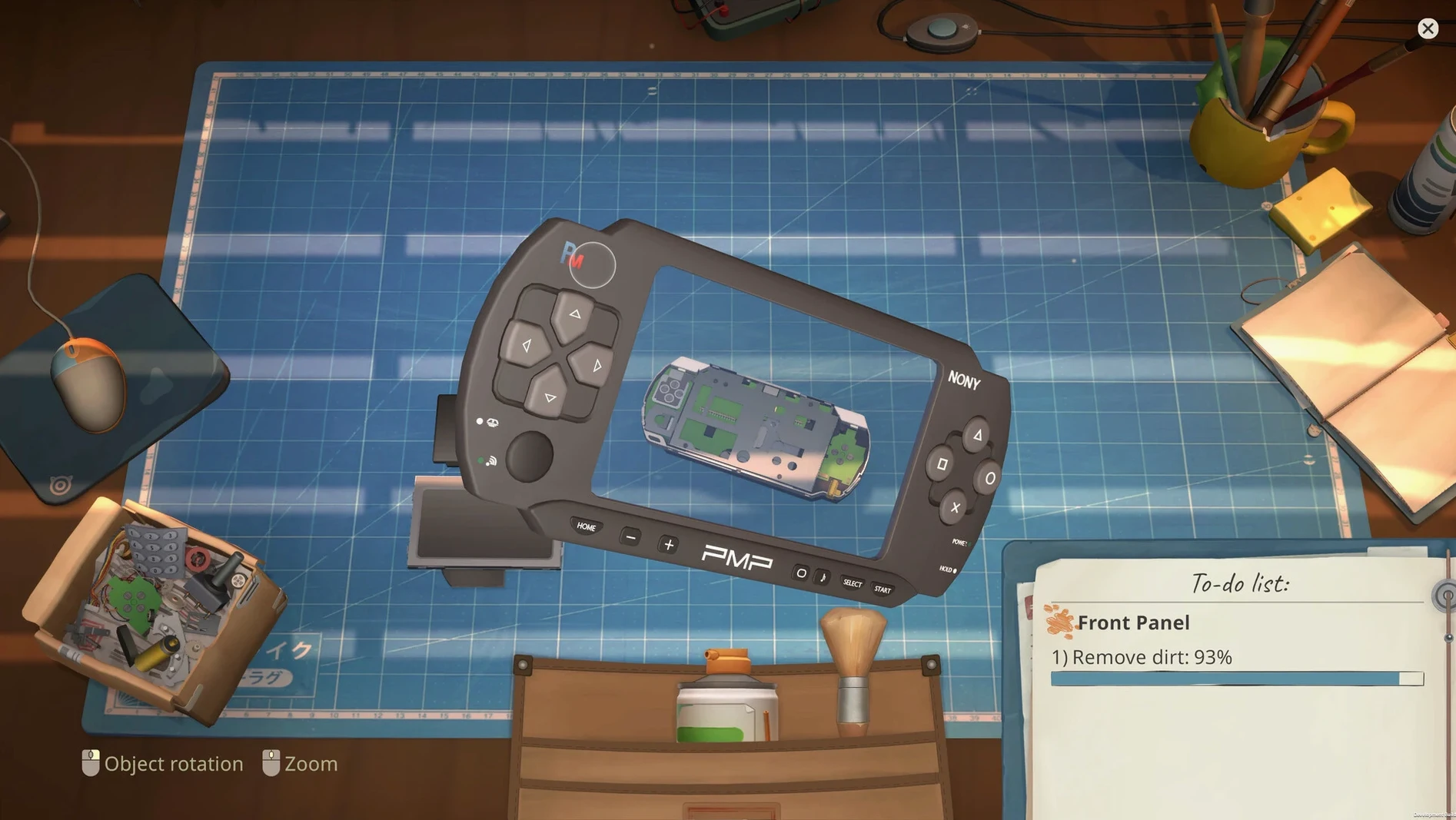
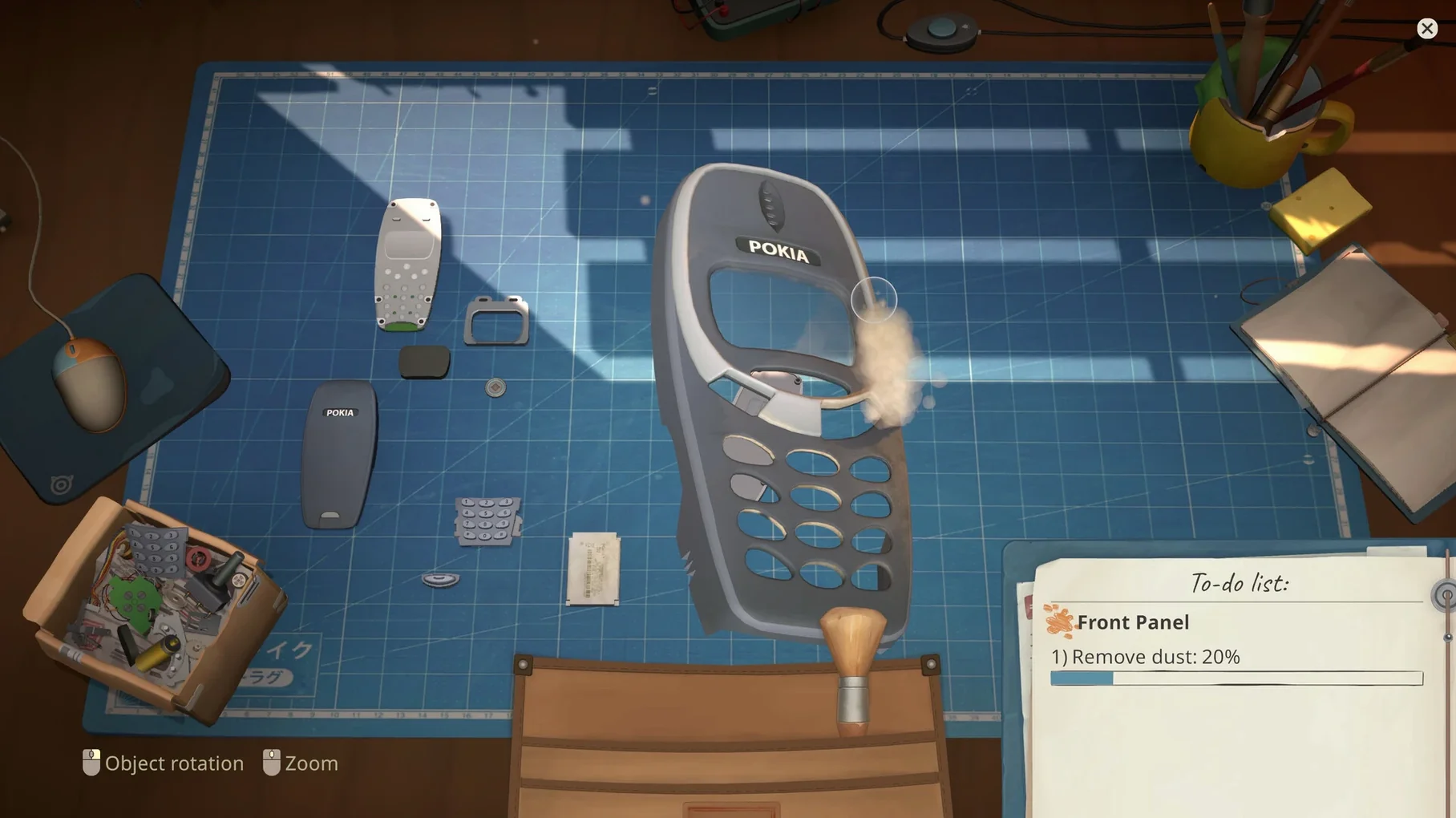
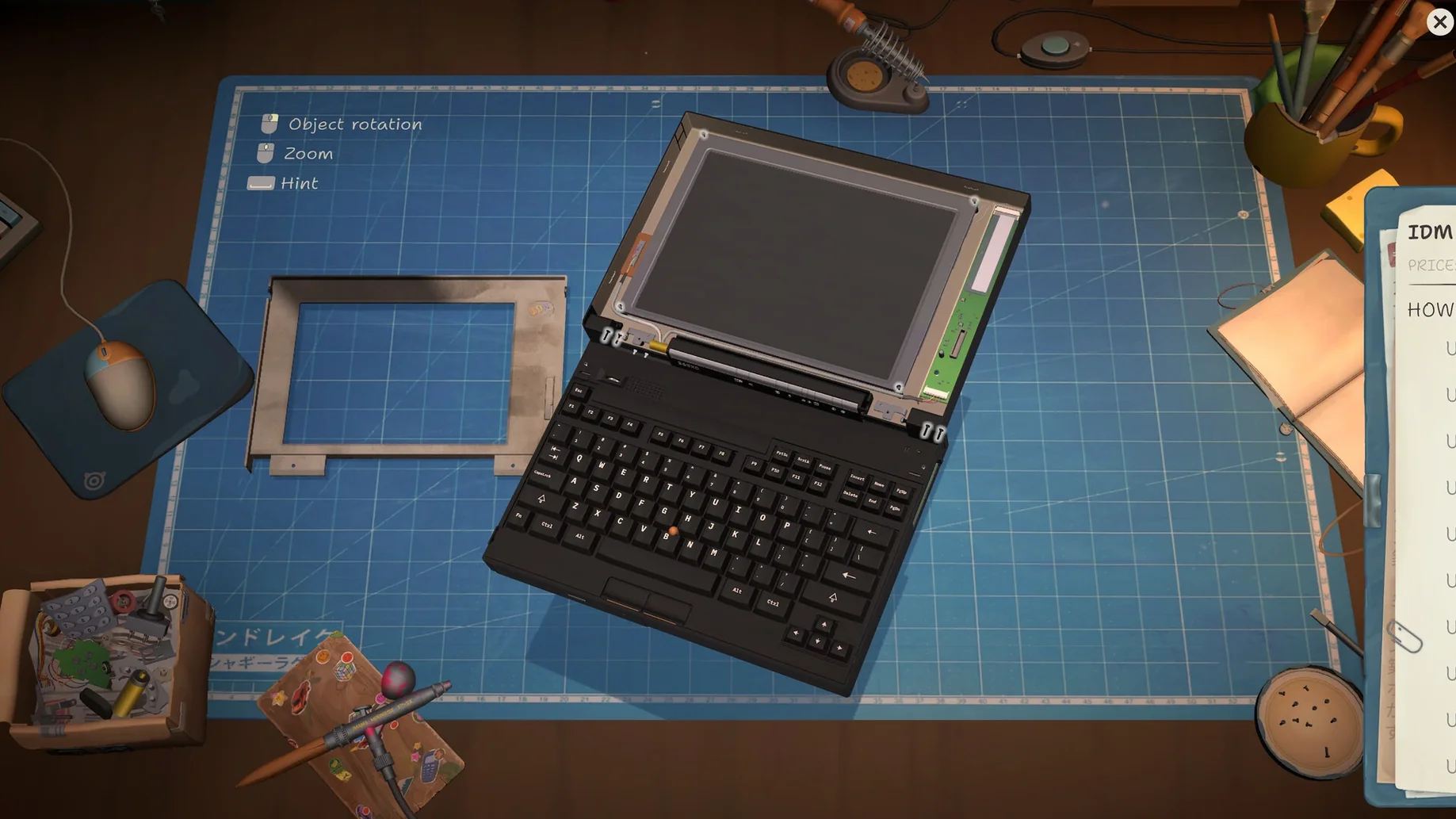
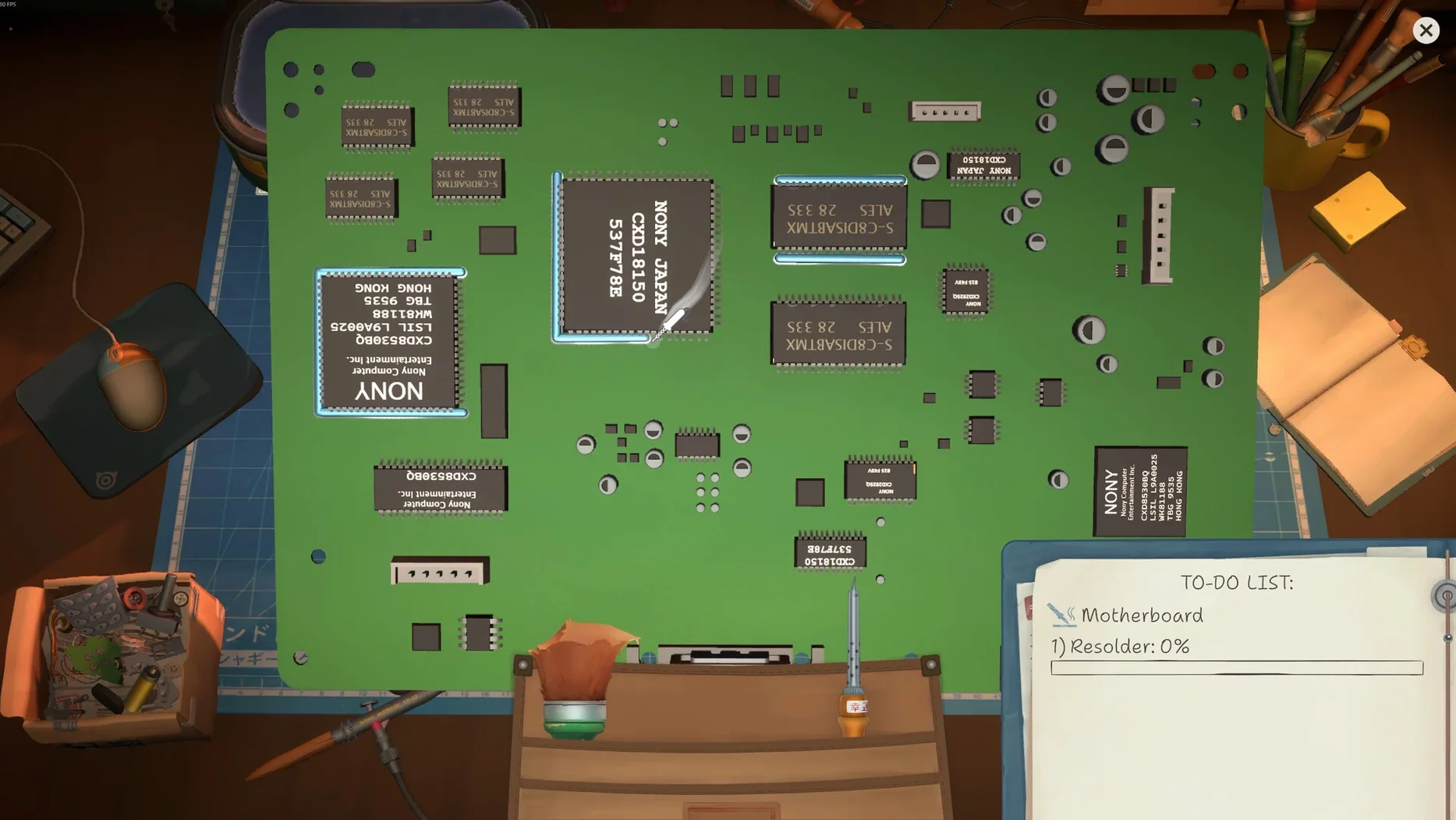
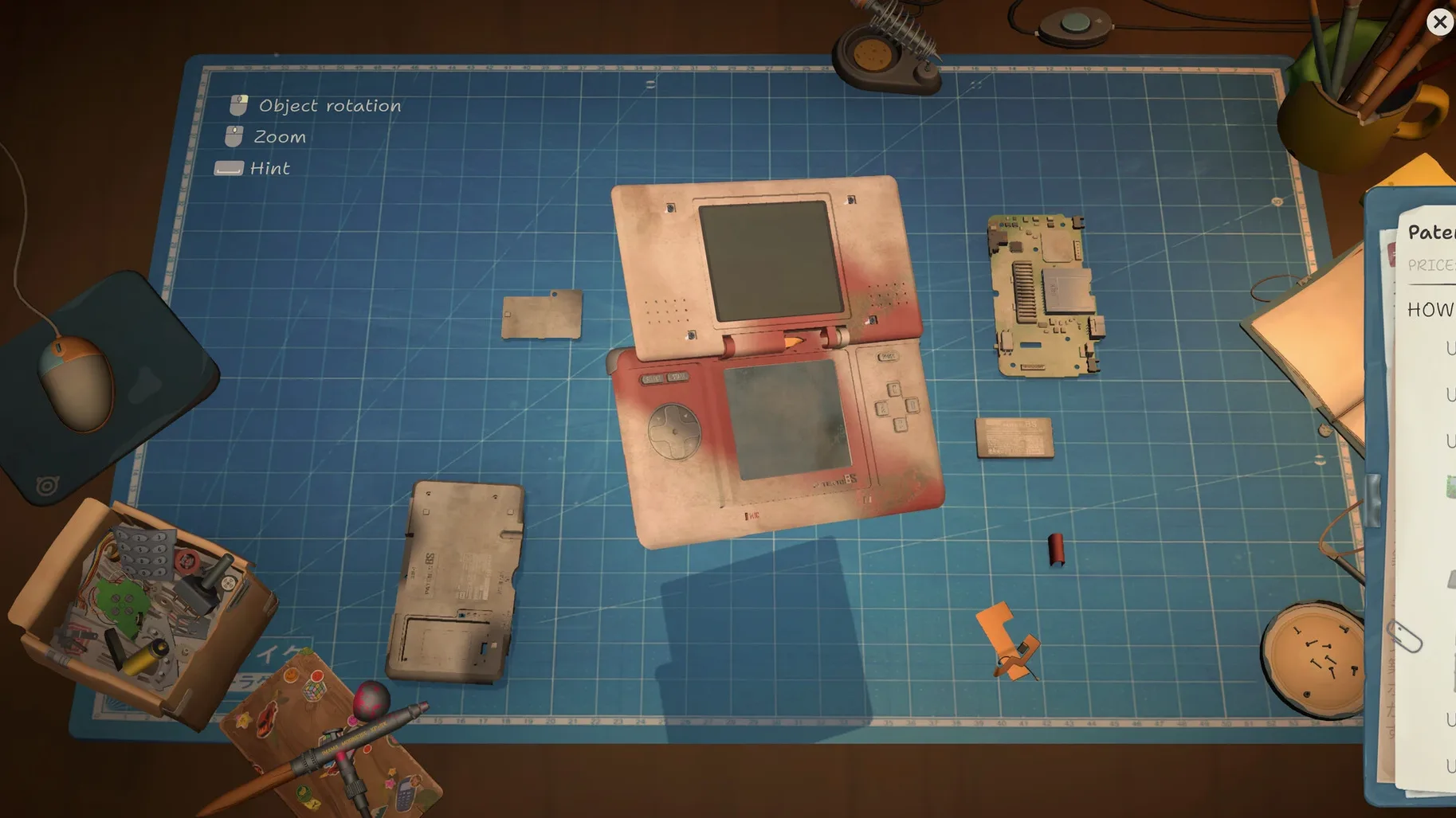
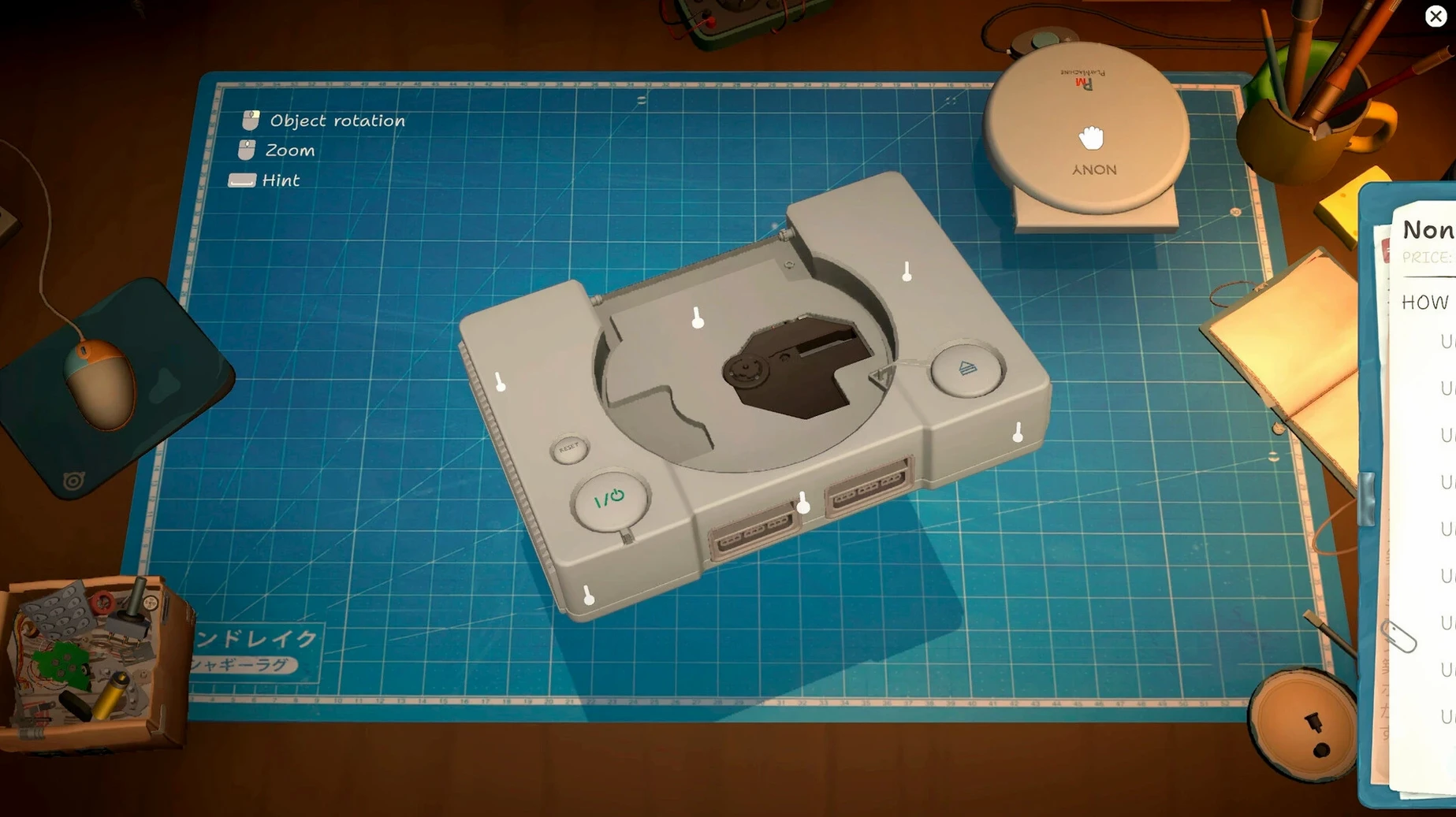
A story-driven management simulator set on the streets of mid-2000s Tokyo. You run a small electronics repair shop, disassembling gadgets, cleaning them, replacing faulty parts and putting them back together.
How the story works
The narrative is nonlinear. Each customer who walks in has a personal story that unfolds as you work through their repairs.
Languages and audio
The interface supports Russian, English, German, Spanish, Simplified Chinese, Korean, Portuguese, French and Japanese. Music is the only listed audio language.
Runs smoothly on Apple Silicon and Intel Macs
The game runs on both Apple Silicon and Intel Macs. It was tested on macOS Tahoe with a Mac mini 2024 M4, so expect smooth performance on modern hardware.
A full repair from start to finish
When a customer brings in a device, you start by talking with them to hear what is wrong. That conversation might reveal more than just a broken part — their story starts here, and your responses shape where it goes. Once you accept the job, the repair itself has a clear flow.
First, you disassemble the gadget. The game gives you the tools to open it up and see what is inside. Then you identify the faulty components and search for replacements using the in-game Y2K-style web browser. Finding the right part means browsing pages that feel like the early internet, which fits the mid-2000s setting. After the new part arrives, you fit it and reassemble the device. The whole process is hands-on without being rushed.
Between repairs, you manage the shop finances and check the browser for incoming orders. It is a loop that mixes quiet focus with small story beats, and it suits an evening session with no particular hurry.
Atmosphere-driven simulation for methodical players
If you like simulation games that lean on atmosphere rather than pressure, ReStory fits well. The repair process is methodical and the customer stories add weight to each job. Players who enjoy management games with a strong narrative — think a slower, more personal take on the genre — will find plenty to sink into. The mid-2000s Tokyo setting is specific enough to feel distinct, and the licensed Atari consoles are a nice touch for anyone who remembers that era of hardware.
Mac users who appreciate a game that runs natively on both architectures can install it without worrying about Rosetta or compatibility layers. And if you already play games like I Am Future, you will recognise the developer's approach to storytelling and pacing.
What version 1.0.015r brings to everyday play
The current build, released on 6 August 2026, is the first full version of the game. The key change from earlier builds is that the complete repair loop, nonlinear story and web browser are all present and working. For everyday use, that means you can start a fresh save and play through the entire story without hitting placeholder content or missing features. The interface languages are all included from the start, so switching between English and Japanese, for example, does not require a separate language pack.
If you have been following the game since its earlier releases, this is the version where everything comes together — the tools, the stories and the browser are all in place for a proper playthrough.
Mac it needs
- Apple Silicon or Intel 64-bit Mac
Questions I actually get
Does ReStory support Apple Silicon Macs?
Yes, the game is built for both Apple Silicon and Intel architectures, so it runs natively on M-series Macs.
Installing on a Mac
A tidy 735 MB download that settles onto any Mac you have in the studio, Apple Silicon or Intel, with two steps and no fuss.
- Open the downloaded disk image and drag the app into the Applications folder shortcut.
- Once the copy finishes, you can launch it straight from Launchpad.
Notes from photographers
Sign in or create your account to leave a comment.
No notes from photographers yet. If you have used this on a real folder, say which camera and which Mac.
