Get it for my Mac (78 GB)
 Tropico
t6 1290
Tropico
t6 1290


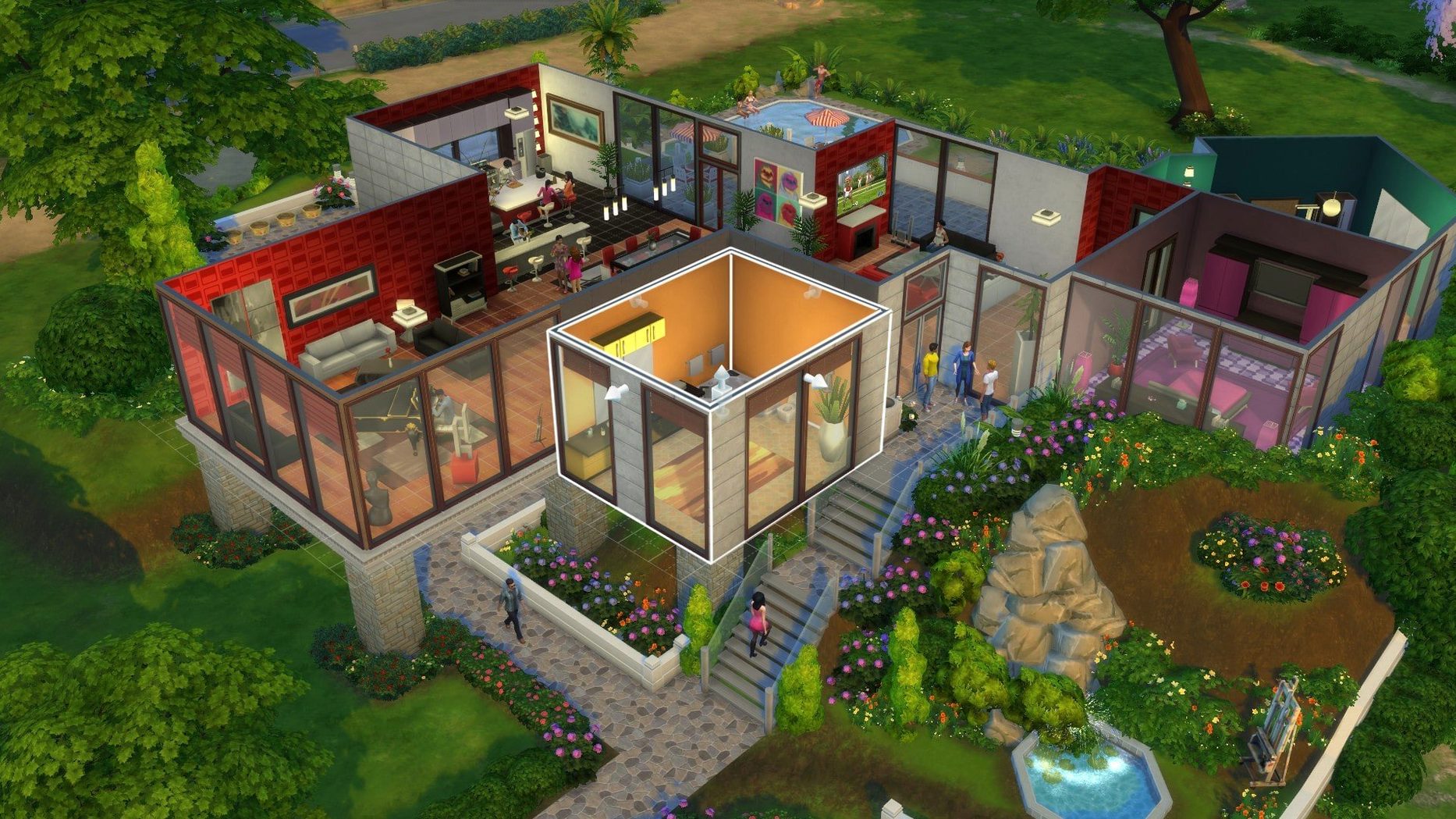

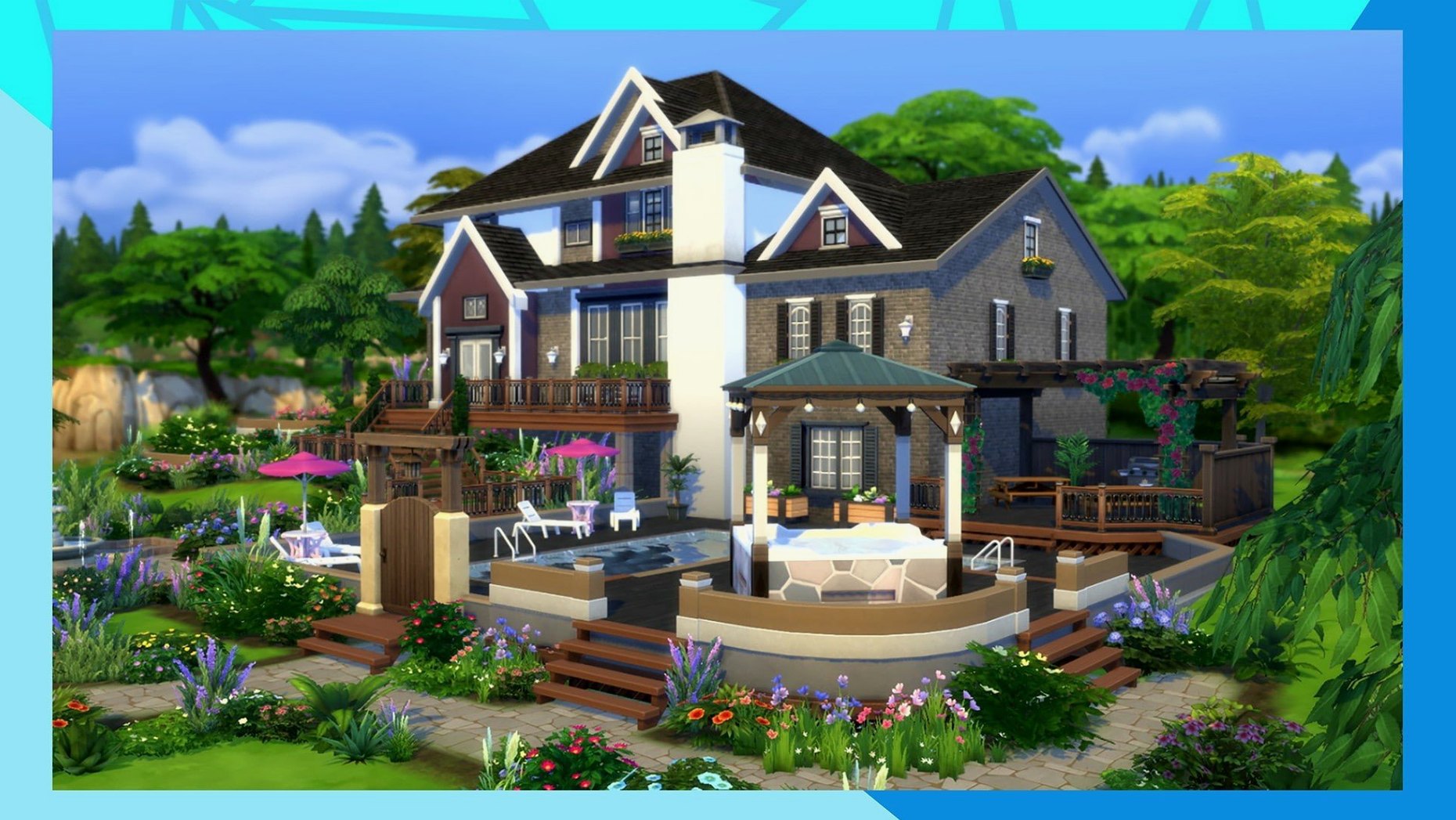
The latest update to The Sims 4, version 1.127.41.1030, improves how you browse the Marketplace and caches images after the first download, which means less waiting when you're shopping for new content. For experienced players, the real depth is in the tools you use every day.
Start by designing a Sim with precise control over appearance, traits, and outfits. Then build a home using the full suite of construction tools, from room shapes to roofing. Once your Sim moves in, you direct their career, relationships, and hobbies. Travel to different towns to meet other Sims and expand your story.
The game runs on both ARM and 64-bit Intel Macs, and supports 17 languages including English, Russian, German, and Japanese. If you're downloading the sims 4 mac torrent, the process is straightforward, but the language setting is handled inside the EA App before you launch.
A clean start is the best way to get familiar with what the game offers. Begin by launching The Sims 4 and selecting New Game from the main menu. You will be asked to choose between starting a household with one Sim, two Sims, or more. For your first run, a single Sim lets you learn the basics without juggling multiple needs.
When you enter Create-A-Sim, spend time in the face sculpting tools. The sliders for jaw, cheekbones, and eye shape are more responsive than they first appear, so make small adjustments rather than large ones. After you lock in the face, pick a trait set that matches a play style you enjoy. The Creative trait, for example, makes painting and writing skills rise faster, while the Active trait suits Sims who will use fitness equipment regularly.
Once your Sim looks right and has three traits selected, move to the outfit categories. Every Sim gets five outfit slots: everyday, formal, athletic, sleepwear, and party wear. Changing each one separately means your Sim will always look appropriate for the occasion. It is worth cycling through all five before leaving Create-A-Sim because the game will not remind you later.
Next, you are placed in the world map. Choose a neighbourhood and an empty lot. If you are unsure, Willow Creek offers balanced weather and easy neighbours. On the lot, use the build mode to place a simple structure. A rectangle with a roof, a door, and a few windows is enough to start. Inside, put down a bed, a fridge, a toilet, and a shower. That is the minimum for your Sim to survive comfortably while you learn the rest.
Several features in The Sims 4 do not announce themselves loudly, but they save time once you know they are there. The game caches Marketplace images after the first download, so browsing the gallery for new builds or Sims becomes noticeably faster on subsequent visits. If you spend a lot of time in the gallery, this small change adds up.
Another convenience is the ability to lock doors for specific Sims. Click on any door in build mode, select the lock icon, and you can restrict access by household members, guests, or specific Sims. This is useful when you want to keep toddlers out of the kitchen or prevent visitors from using a private bedroom.
The game also remembers the last colour swatch you selected for each object category. If you are building a room with a consistent palette, you do not need to scroll back to the same shade every time you place a new chair or cabinet. It is a small thing, but it keeps the flow going during longer building sessions.
In live mode, pressing the T key speeds up time, and pressing 1 returns to normal speed. Many players discover this by accident, but it is one of the most used shortcuts once learned. Similarly, holding the right mouse button and dragging rotates the camera freely, which helps when placing furniture in tight corners.
After you install The Sims 4, the first thing to do is set the language through the EA App before launching the game. Open the app, find the game properties, and select your preferred language from the list. Save the change, close the window, and click Update to refresh the game files. This step avoids having to redo the process later when you have already started playing.
If the game freezes on the initial splash screen, the solution is simple. Navigate to the Documents folder on your Mac, find the Electronic Arts folder, and open The Sims 4 folder. Delete everything inside except Tray, Saves, and Mods if you have any. This clears any corrupted cache files without losing your progress. The game will regenerate the necessary files on the next launch.
During your first few days, avoid downloading too many items from the gallery at once. The game loads all installed content on startup, so a large collection of community builds and Sims can slow down the initial loading screen. Instead, download a few items at a time and see how your Mac handles them before adding more.
Save your game often, especially after building or completing a major life event like a promotion or a wedding. The game has an autosave feature, but it does not run as frequently as manual saves. Use a new save slot every few sessions so you can go back to an earlier point if something goes wrong.
The Sims 4 works on both Apple Silicon and Intel Macs, but the experience varies depending on your hardware. The build mode also benefits from the faster architecture when placing and moving objects.
Players who enjoy storytelling and character creation will find the most value in the game. The depth of the Create-A-Sim tools rewards those who take their time with facial features, outfit combinations, and trait selection. If you like writing stories or creating characters for fun, The Sims 4 gives you a visual sandbox to bring them to life.
For Mac users who prefer building and architecture, the construction tools are flexible enough to design anything from a small cottage to a modern mansion. The room-based building system makes it easy to experiment with shapes and floor plans without needing advanced skills. Players who enjoy interior design will appreciate the furniture placement grid and the ability to move objects freely using the 3D camera.
Casual players who only have a few hours a week to play will also enjoy it. The game does not punish you for taking breaks. Your Sims wait exactly where you left them, and you can pick up their story at any time without feeling lost.
One common mistake is ignoring the needs panel. New players often focus on building skills or socialising and forget that Sims need to eat, sleep, and use the toilet regularly. When a Sim's needs drop too low, they become unhappy and may refuse to perform tasks. Keep an eye on the coloured bars at the bottom of the screen and address the lowest one first.
Another mistake is overcomplicating the first build. Beginners sometimes try to build a large, detailed house right away and end up frustrated when the roofing tools do not behave as expected. Start with a simple box shape and add details later. You can always renovate after your Sim has earned some money.
Some players also forget to set the five outfit categories in Create-A-Sim. The game will generate random outfits for events if you leave them blank, and they often clash with your Sim's style. Take the extra minute to fill all five slots before you start playing.
Lastly, beginners sometimes download too many mods and custom content too early. While mods can enhance the game, they can also cause conflicts or slow down performance if not managed carefully. Stick to the base game and official packs for your first few weeks. Once you understand how the game works normally, you can add mods one at a time and test them before adding more.
The game supports Russian, English, German, Danish, Spanish, Italian, Traditional Chinese, Simplified Chinese, Korean, Dutch, Polish, Portuguese, Finnish, French, Czech, Swedish, and Japanese.
Sign in or create your account to leave a comment.
No notes from photographers yet. If you have used this on a real folder, say which camera and which Mac.