Get it for my Mac (254 MB)
 VideoByte BD-DVD Ripper
2.1.6
VideoByte BD-DVD Ripper
2.1.6

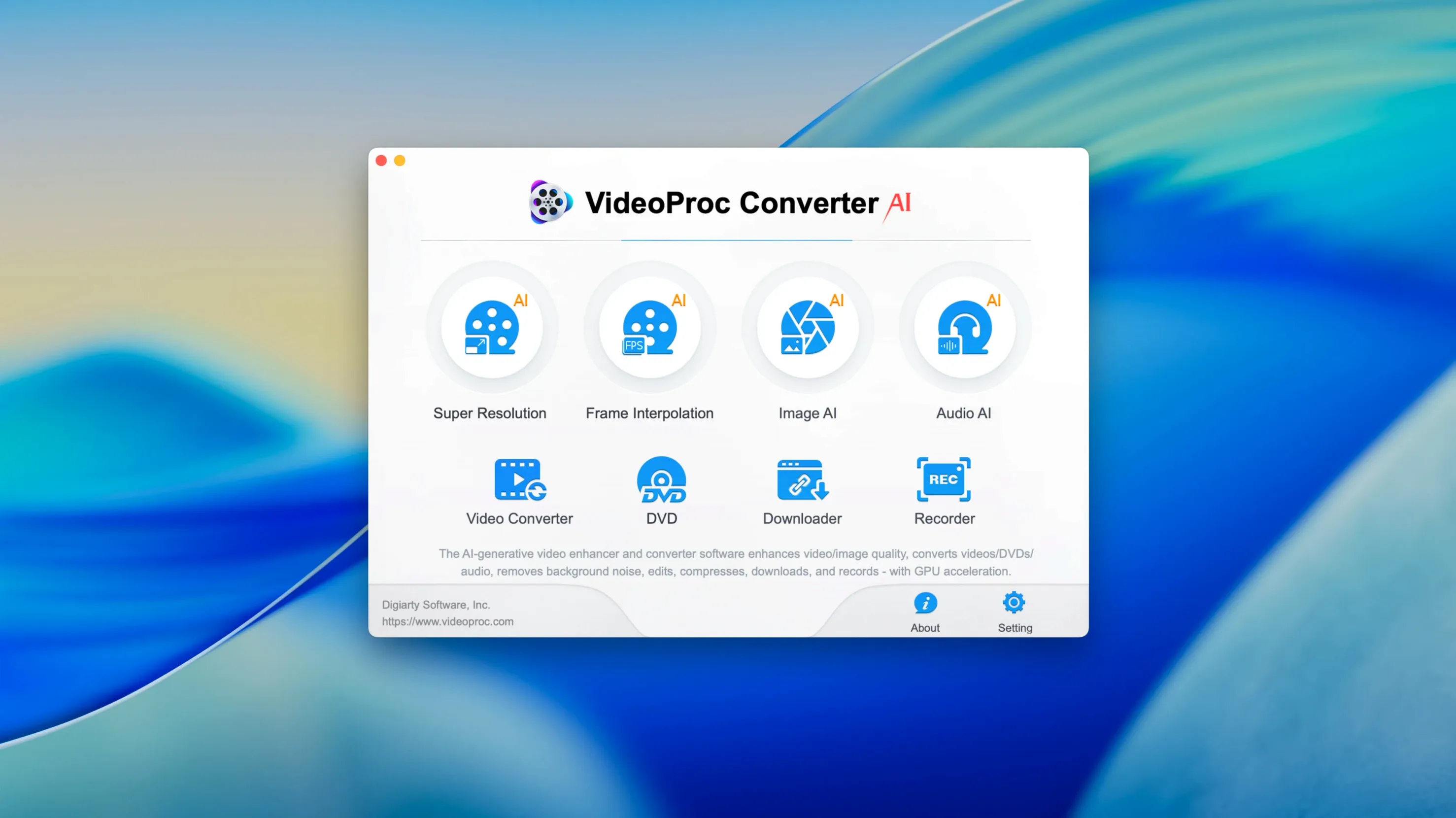
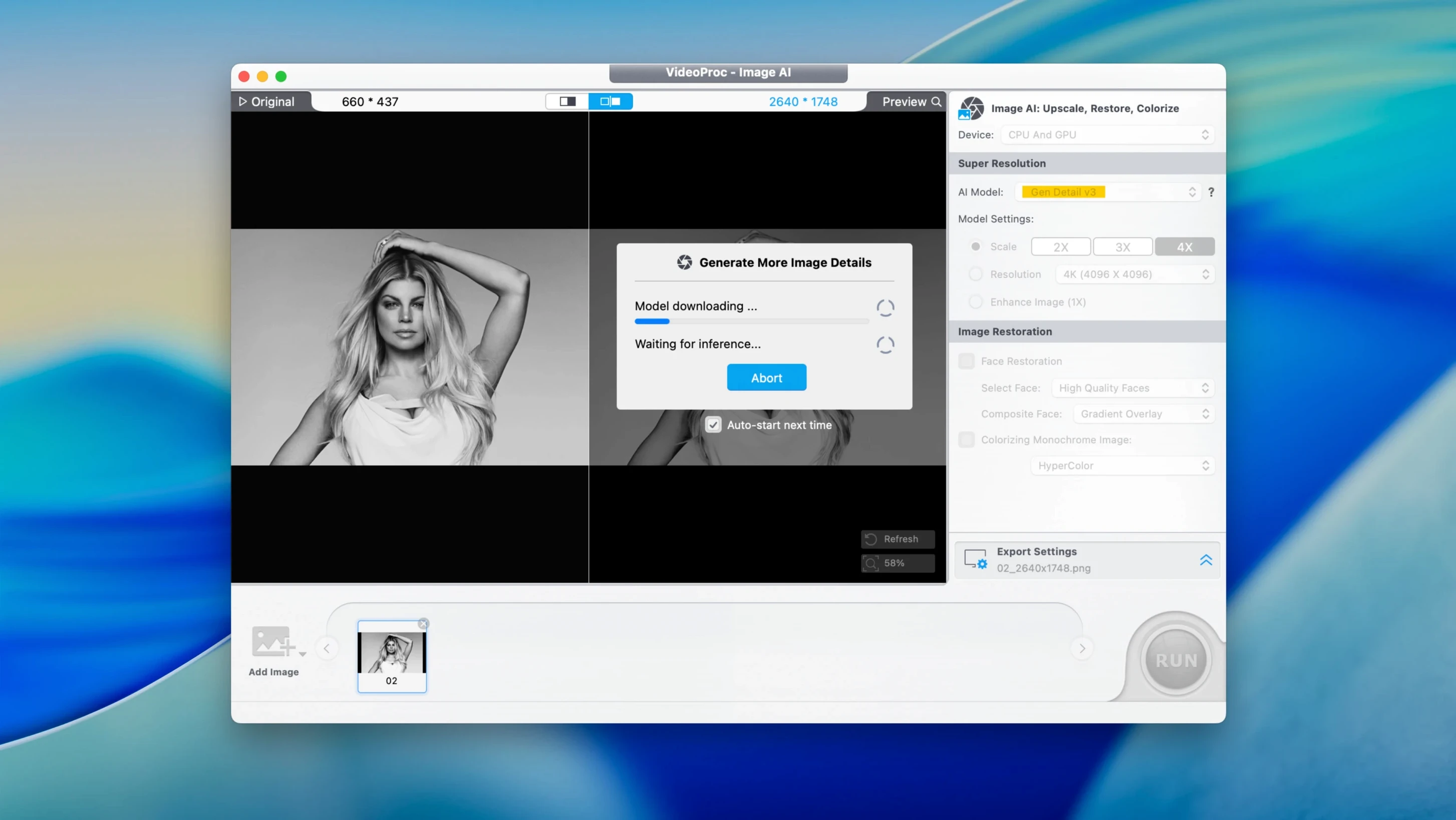
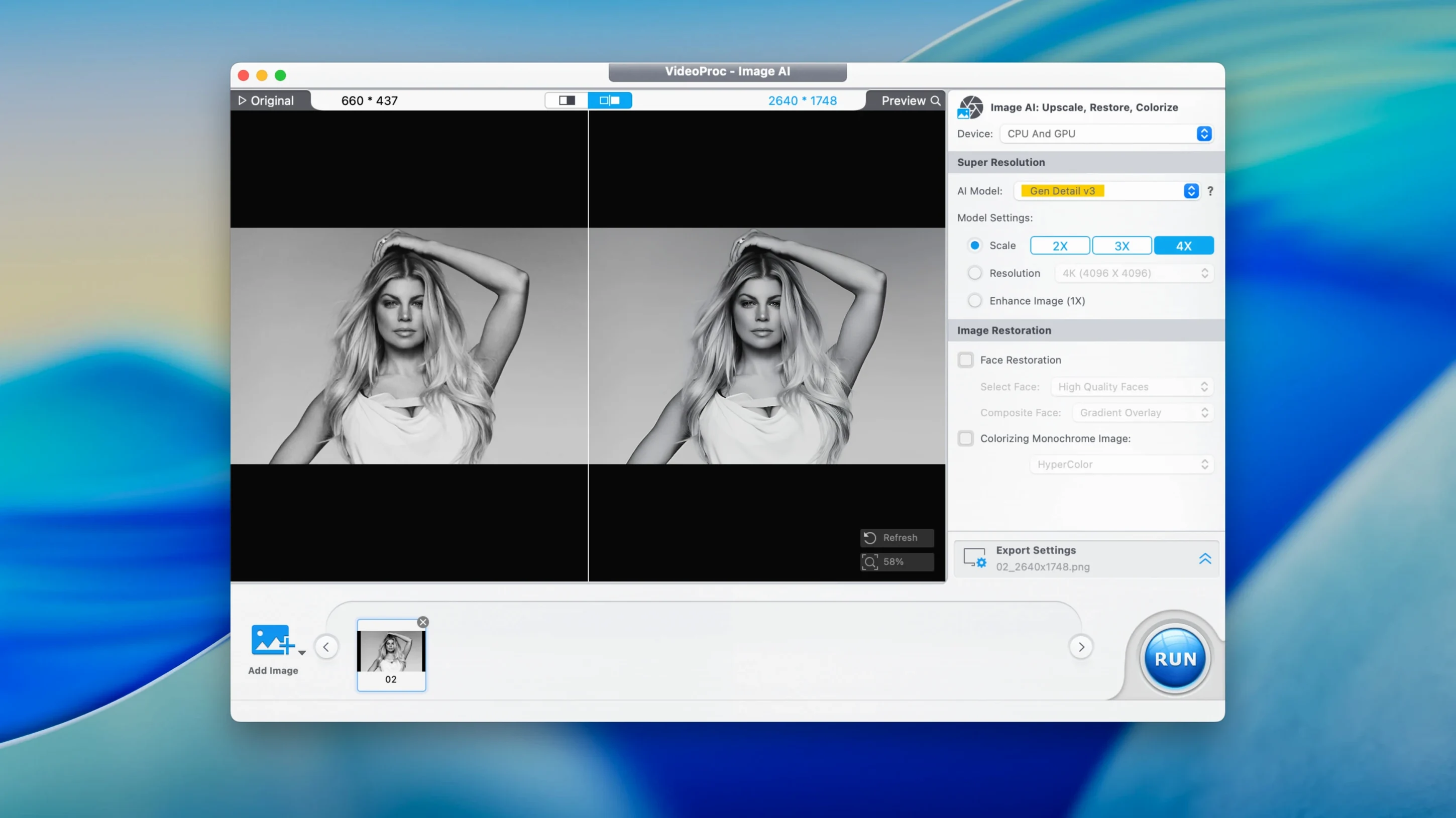
Before you grab VideoProc Converter AI, the first thing to know is which Macs it runs on. The app works on both ARM (Apple Silicon) and x86 64-bit Intel Macs, so whether you are on an M-series chip or an older Intel machine, you are covered. It needs macOS 10.15 or later — Catalina and everything after that. Version 8.12 also adds support for macOS 27, so it is ready for the latest releases.
VideoProc Converter AI handles 4K, 8K, HDR, HEVC, ProRes, MP4, MOV, MKV and AVI. That covers most of what you might throw at it from a modern camera or an archive. It also supports AI upscaling to 4K or 8K, which is handy for old footage or lower-resolution clips.
Beyond conversion, the app includes video compression, screen recording, and stabilisation. You can add subtitles, watermarks, and effects, and optimise output for Instagram, YouTube, or TikTok. The AI side lets you improve old recordings like VHS or DV material, which is a nice bonus if you are digitising family tapes.
The current release adds iPhone 18 support, reduces the installer size, and improves Downloader performance. It also includes support for macOS 27, so it is up to date with the latest system.
VideoProc Converter AI has a few features tucked away that do not get much attention but save time once you know they are there. The audio section, for instance, lets you adjust volume, bitrate and sampling rate directly, which is useful when you are pulling a soundtrack from a video and need it to sit right in a project without a separate audio editor. The same panel handles audio extraction, so you can grab the track from a clip and convert it to MP3, AAC or FLAC in one pass.
Another one is the device-specific presets. Rather than guessing output settings, you can pick a target like iPhone, iPad, Apple TV, Sony or GoPro, and the app sets the resolution and format for you. That is handy when you are sending a finished video to a client who plays everything on an iPad and you do not want to faff with export specs. The compression tool is worth a mention too — it can shrink a file by up to 90% without wrecking the quality, which is a lifesaver when you are emailing a rough cut or uploading to a platform with file size limits.
Say you are a wedding photographer who also shoots short highlight reels on a mirrorless camera. You come back from a Saturday wedding with a mix of 4K clips, some slow-motion footage at 60 fps, and a handful of old VHS tapes the couple dug out for the reception. You need to get a polished video together quickly. VideoProc Converter AI handles the lot. You can trim the 4K clips to the best moments, merge them into a sequence, and slow down the 60 fps footage to half speed for a dreamy effect without quality loss. The AI denoising cleans up the VHS captures, and the stabilisation smooths out the handheld shots from the dance floor. By the time you export, the file is compressed enough to upload to the couple's shared album without taking an hour.
Here is a straightforward way to process a folder of video files from start to finish. Open VideoProc Converter AI and go to the Video Converter module. Drag in your clips — the app handles batch imports, so you can drop a whole folder at once. Select all the clips in the list and choose an output format from the panel on the right; MP4 with H.264 encoding is a safe bet for broad compatibility. If you need smaller files, tick the compression option and slide the quality bar to a level that balances size and clarity. For each clip, you can trim the start and end points by setting in and out markers, or split a long file into several shorter ones. Once everything is set, hit the Run button and the app processes them in sequence. A tip: if you are sending the results to a social platform, use the optimisation presets for Instagram or YouTube before you start — they adjust resolution and bitrate automatically, so you do not have to guess.
When you first open VideoProc Converter AI, a few tweaks make the experience smoother. The hardware acceleration setting is worth checking — the app uses Metal, Intel Quick Sync and Apple Silicon acceleration by default, but you can confirm it is enabled in the preferences so every encode and decode uses the GPU where possible. If you plan to download videos from YouTube, Vimeo or TikTok regularly, head to the Downloader section and set a default output folder and format before your first grab; that saves you picking options each time. For screen recording, the app can capture your Mac screen with voice commentary, so if you are making tutorials or walkthroughs, set the audio input to your external mic in the recording settings before you start. None of these are dealbreakers, but they cut out the small faff that adds up across a busy week.
Yes, it runs on both ARM (Apple Silicon) and x86 64-bit Intel Macs, as long as you are on macOS 10.15 or later.
It supports 4K, 8K, HDR, HEVC, ProRes, MP4, MOV, MKV, and AVI, plus AI upscaling to 4K or 8K.
Tip: if Gatekeeper blocks the app, the Terminal step lets it run without changing your security settings permanently.
Sign in or create your account to leave a comment.
No notes from photographers yet. If you have used this on a real folder, say which camera and which Mac.