Get it for my Mac (479 MB)
 VideoProc Converter AI
8.13
VideoProc Converter AI
8.13

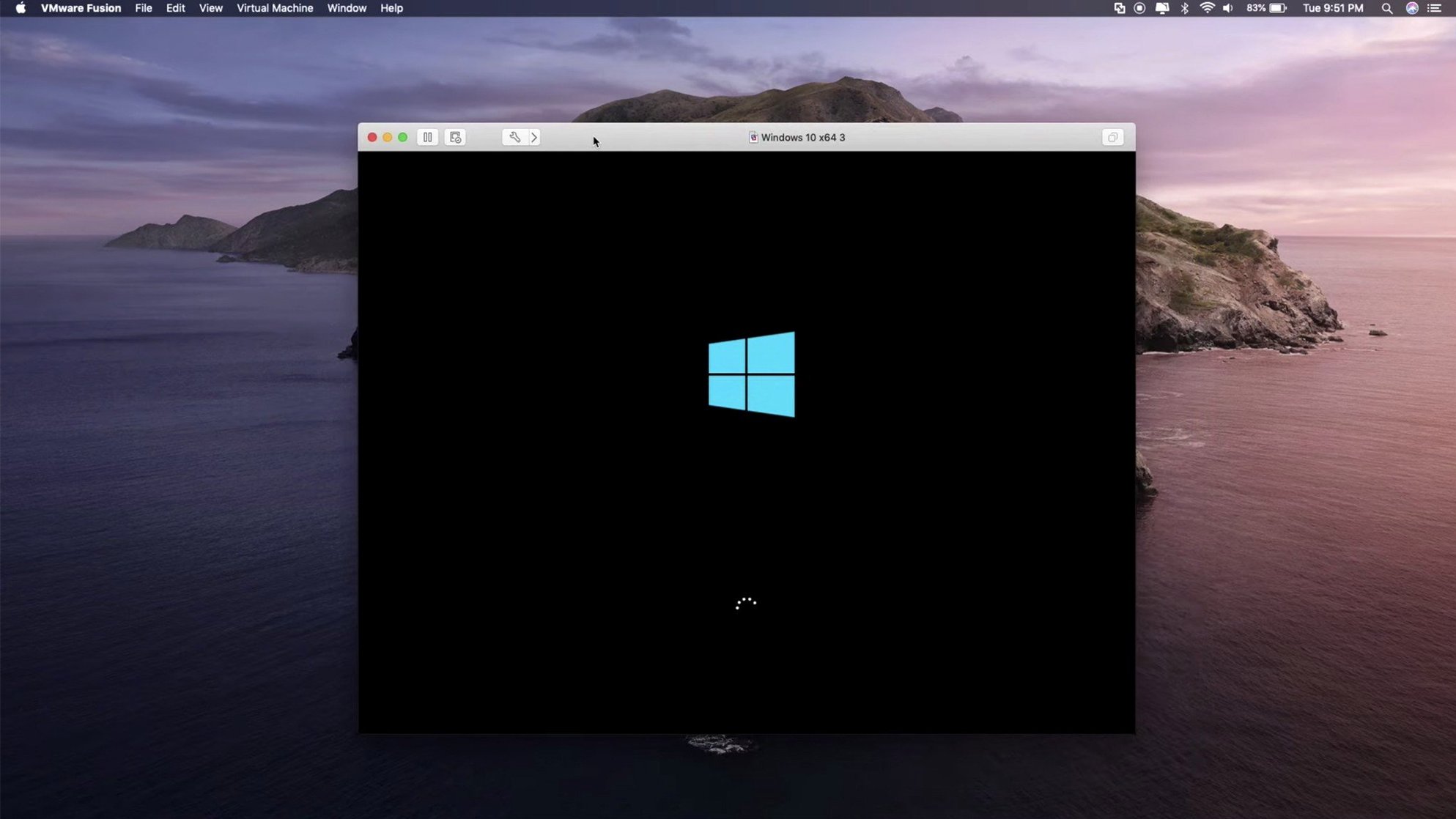
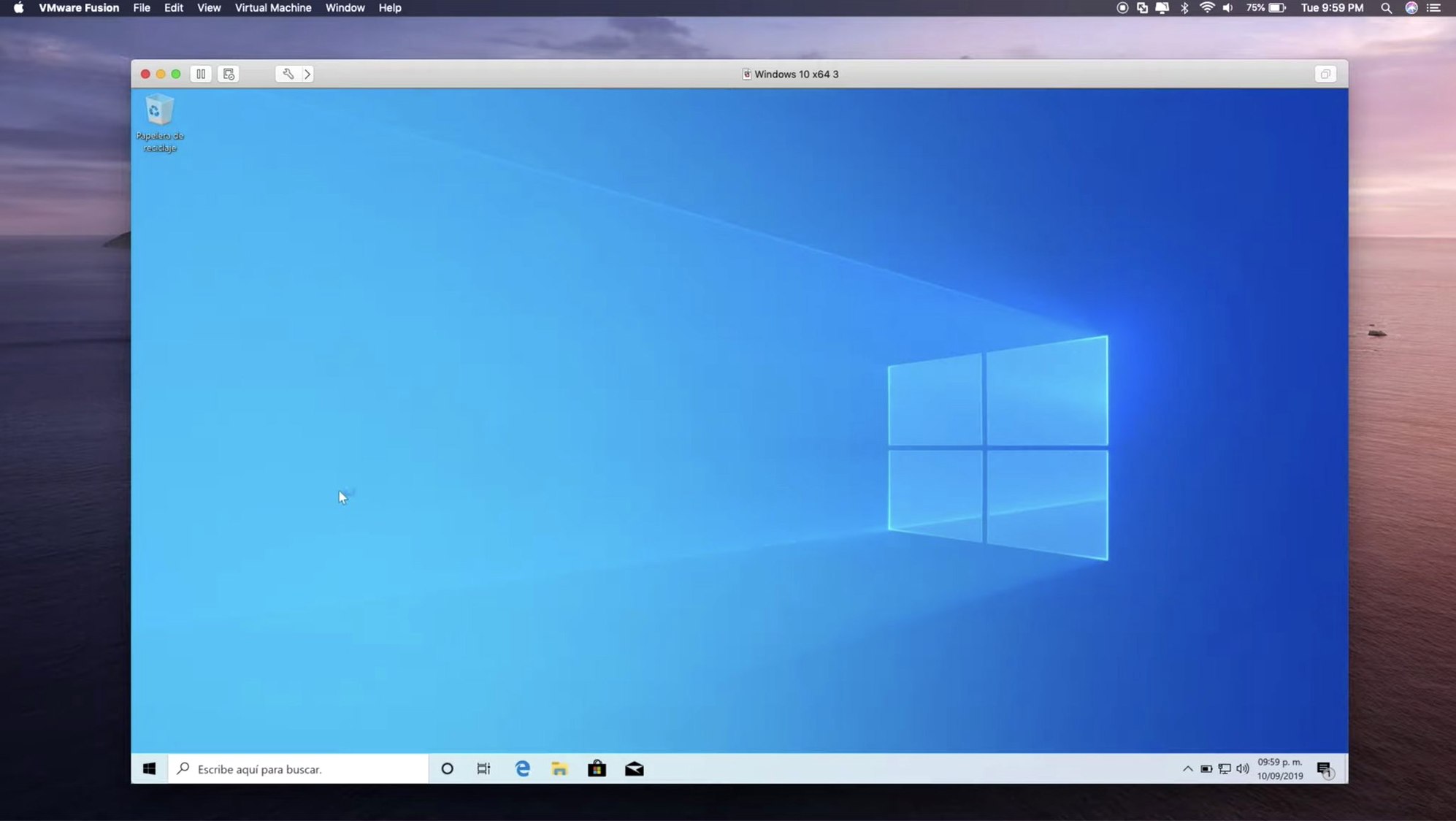
You need Windows on your Mac for a specific app, or perhaps you want to spin up a Linux server to test a deployment workflow without leaving your desk. VMware Fusion Pro handles that — it virtualises Windows, Linux, and other operating systems on both Apple Silicon and Intel 64-bit Macs, so long as you’re on macOS 13 or later. The current 26H1 release adds guest OS support for Ubuntu 26.04 LTS, Fedora 43, Fedora 44, SUSE Linux Enterprise 16, openSUSE 16.0, and FreeBSD 15.0. It also adds creation timestamps and last power-on time for virtual machines, aiding in management of multiple VMs during a hectic week.
On the hardware side, Fusion Pro supports DirectX 11 acceleration in Windows 10 VMs, USB 3.1 devices, and OCI containers through the command line. You can configure local Kubernetes clusters or remotely connect to ARM-based ESX hosts. The interface is in English, and the installer works on both architectures — no separate builds to track down.
For a working photographer, this isn’t the first tool you open. But when you need a reliable Windows environment for client software or a test server for a gallery site, it’s the one that gets the job done without fuss.
Fusion Pro plays well with the rest of your Mac setup. You can drag files between your Mac desktop and a Windows VM using the standard macOS drag-and-drop gesture — no extra configuration needed. Copy text from a Windows app and paste it into a Mac document, or the other way around, as long as you have VMware Tools installed inside the guest operating system. That shared clipboard works for most common formats, which saves you from emailing files to yourself or fumbling with USB sticks.
The Unity view mode (available on Intel Macs) lets Windows applications appear directly on your Mac desktop, running alongside your native Mac apps. You get a single dock, a single menu bar, and no separate Windows desktop to switch between. On Apple Silicon Macs, the full-screen and windowed modes still give you a clean way to keep Windows apps visible while you work in Lightroom or Photoshop on the Mac side.
If you use the command line regularly, Fusion Pro supports OCI containers through its CLI. That means you can pull a container image, run it, and test a web service without leaving Terminal. For developers working with Kubernetes, the local cluster support lets you spin up a multi-node environment on your Mac for testing before you push anything to production. It is not a replacement for a full CI pipeline, but it is enough for local smoke tests and debugging.
The timestamps added in the 26H1 release — creation date and last power-on time — show up in the Virtual Machine Library. When you have half a dozen VMs for different projects, those timestamps help you spot which one you used last week and which one has been sitting idle since last year. You can archive or delete the stale ones without guessing.
Once you have the installer running and the activation instructions followed, the first task is to create a virtual machine. Fusion Pro will offer to download an operating system for you — Windows 10 or 11, various Linux distros, or macOS (on Apple Silicon hardware). If you already have an ISO file, you can point the wizard at it directly. Pick a name that means something to you: "Win10 for client software" rather than "Windows 10 x64" helps later when you have several VMs.
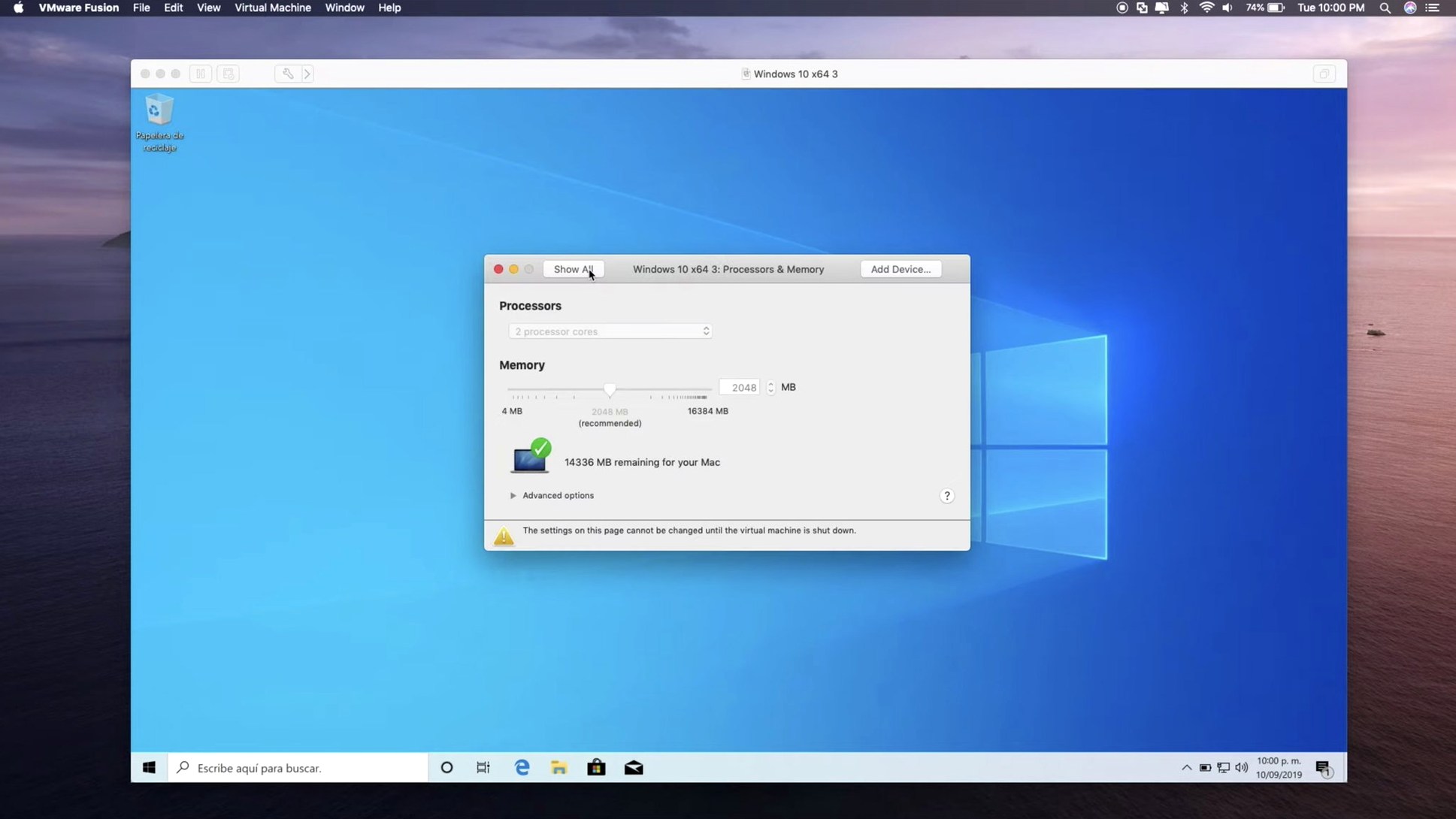
Allocate resources carefully. If you give a VM all your Mac's memory, the host OS slows down noticeably. A good starting point is 4 GB of RAM and two CPU cores for a Windows 10 VM. You can adjust these settings later in the VM's configuration panel if the guest feels sluggish or if you find your Mac struggling.
Install VMware Tools inside the guest OS as soon as the OS finishes installing. VMware Tools provides the drivers for better graphics performance, improved mouse integration, and the shared clipboard. The installer is usually a menu item inside Fusion Pro's Virtual Machine menu. Without it, the VM works but feels less polished.
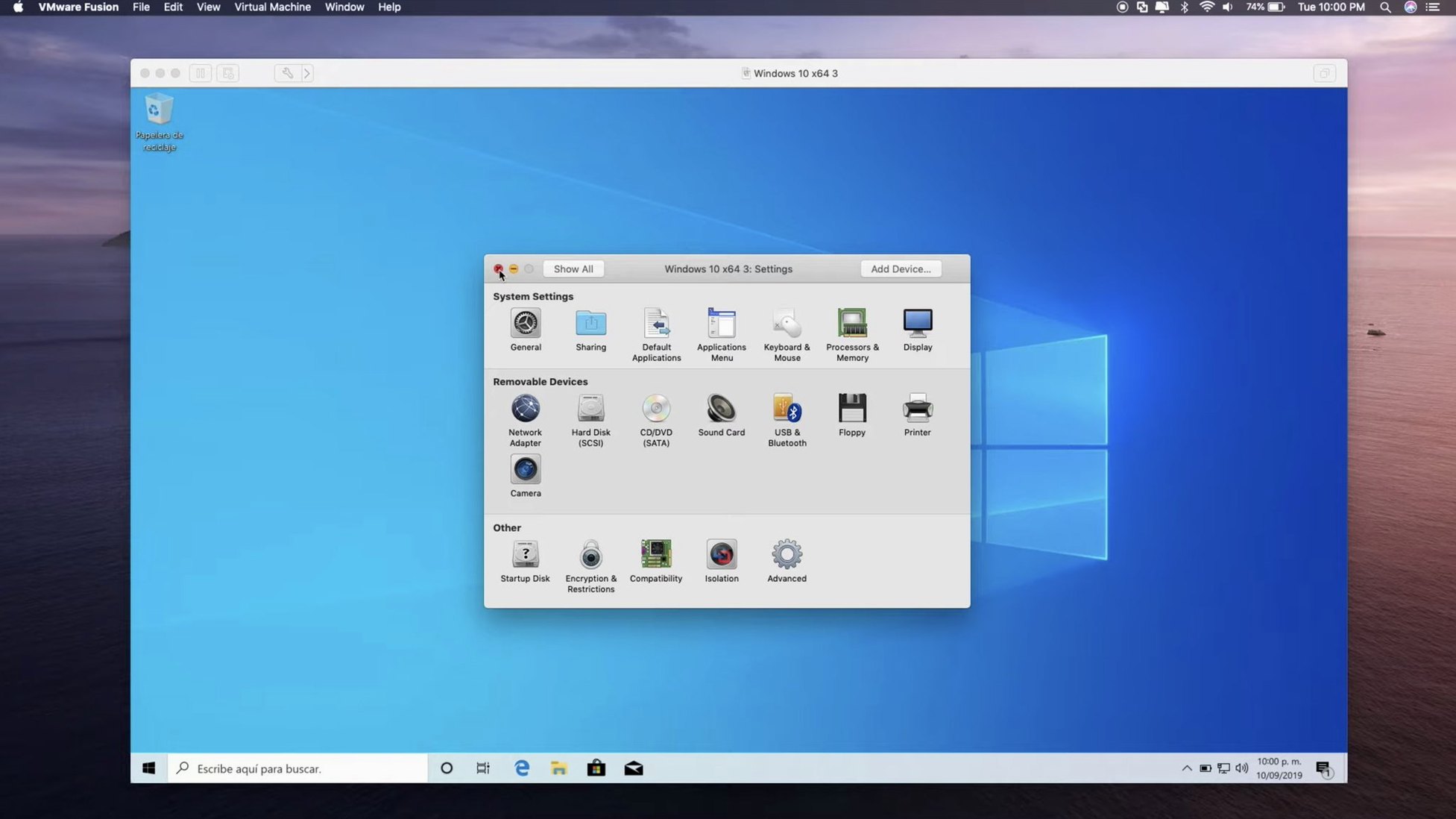
Set up a shared folder between the Mac and the VM early on. This lets you access files from either system without copying them back and forth. In the VM settings, add a folder from your Mac and choose whether the VM can write to it or only read. For a photographer, making your main images folder accessible to the VM means you can run Windows-only software on your photos without duplicating your library.
Fusion Pro can suspend a virtual machine instead of shutting it down. Suspending saves the exact state — open windows, running processes, everything — and restores it next time you power on. It is faster than a full boot and useful when you need to switch between projects quickly. The suspend and resume actions are in the Virtual Machine menu.
The Virtual Machine Library shows all your VMs in one window. You can start, stop, or configure any of them from there. The timestamps added in 26H1 make it easier to see at a glance which VMs are current. Right-clicking a VM in the library gives you quick access to its settings, snapshots, and the option to open its location in the Finder.
Snapshots let you save a point-in-time copy of a VM's disk and memory state. If you are about to install new software or apply a system update inside the guest, taking a snapshot first means you can revert to the clean state in seconds if something goes wrong. Snapshots are stored per VM and visible in the Snapshot Manager, accessible from the Virtual Machine menu.
The USB 3.1 support means you can plug a camera, a card reader, or an external drive into your Mac and connect it to the guest OS. Fusion Pro will ask whether you want the device to attach to the Mac or to the VM. For a tethered shooting workflow in a Windows-only application, this is the connection you need.
If you run multiple VMs at the same time, the Virtual Machine Library shows their status — running, suspended, or powered off — in a single list. You can start a Linux server VM in the background while keeping a Windows VM in the foreground for interactive work.
Parallels Desktop is the closest competitor for everyday Mac users. It offers a similar feature set: Windows VMs on Apple Silicon and Intel Macs, DirectX support, USB passthrough, and shared folders. Parallels tends to put more emphasis on integration features like Coherence mode (which is similar to Unity view) and automatic resource management. Fusion Pro gives you more control over VM configuration and supports a wider range of guest operating systems out of the box. For users who manage several VMs or need specific Linux distros for testing, Fusion Pro's guest OS list for 26H1 includes Ubuntu 26.04 LTS, Fedora 43, Fedora 44, SUSE Linux Enterprise 16, openSUSE 16.0, and FreeBSD 15.0 — more than you usually get in Parallels without manual setup.
UTM is another option, especially on Apple Silicon Macs. It is free and open-source, and it supports a broad range of architectures including ARM, x86 through emulation, and even older systems. UTM is excellent for lightweight or experimental VMs, but it does not offer the same level of DirectX 11 acceleration, USB 3.1 support, or Kubernetes integration that Fusion Pro provides. For running a single Windows app that needs hardware acceleration, Fusion Pro is more reliable. For tinkering with obscure operating systems, UTM might be the better fit.
VirtualBox by Oracle is a long-standing free alternative that runs on Mac, Windows, and Linux. It supports x86 VMs on Intel Macs and has basic USB and shared folder support. On Apple Silicon, VirtualBox is still catching up — its support is experimental and limited. Fusion Pro runs natively on both architectures, which makes it a simpler choice if you use an M-series Mac and need a stable Windows VM today.
The most common mistake is not installing VMware Tools after setting up the guest OS. Without it, the VM runs at lower resolution, the mouse moves awkwardly between host and guest, and the shared clipboard does not work. The installer is straightforward, but it is easy to skip if you are eager to get started.
Another frequent error is allocating too many resources to a VM. Giving a Windows VM 8 GB of RAM and four CPU cores might seem generous, but it leaves the Mac host with little memory for its own processes. The result is a slow Mac and a VM that does not feel much faster. Start with modest allocations and increase them only if the guest feels constrained.
Beginners sometimes forget to take snapshots before making changes inside a VM. Installing a new piece of software, applying a major Windows update, or changing system settings can break the guest. Without a snapshot, the only way to recover is to reinstall the OS from scratch. A snapshot takes seconds to create and saves hours of reinstalling.
Some users try to run a VM from a network drive or an external USB hard drive that is slow. Fusion Pro works best when the VM files are on the Mac's internal SSD. Running from an external drive can cause poor performance and occasional timeouts. If you need to move a VM between machines, copy the entire package to the internal drive before starting it.
Another oversight is not checking whether the guest OS supports the Mac's architecture. On Apple Silicon Macs, Fusion Pro runs ARM versions of Windows and Linux natively. Running x86 operating systems on Apple Silicon requires emulation, which is slower and not always available. Checking the guest OS compatibility before downloading an ISO saves you from a frustrating setup session.
The included activation instructions are clear, and the registration keys are available from the download link. Following that step early on prevents an interruption later.
Sign in or create your account to leave a comment.
No notes from photographers yet. If you have used this on a real folder, say which camera and which Mac.