
 Get it for my Mac (34 MB)





 QuickBooks Mac Plus
23.1.9
- Version
- 5.6.5
- Developer
- Figure 53 LLC
- Interface in
- English
- Licence on file
- K'ed by TNT team
- macOS it runs on
- macOS 11 or later
- Chip support
- Apple Silicon, Intel 64-bit
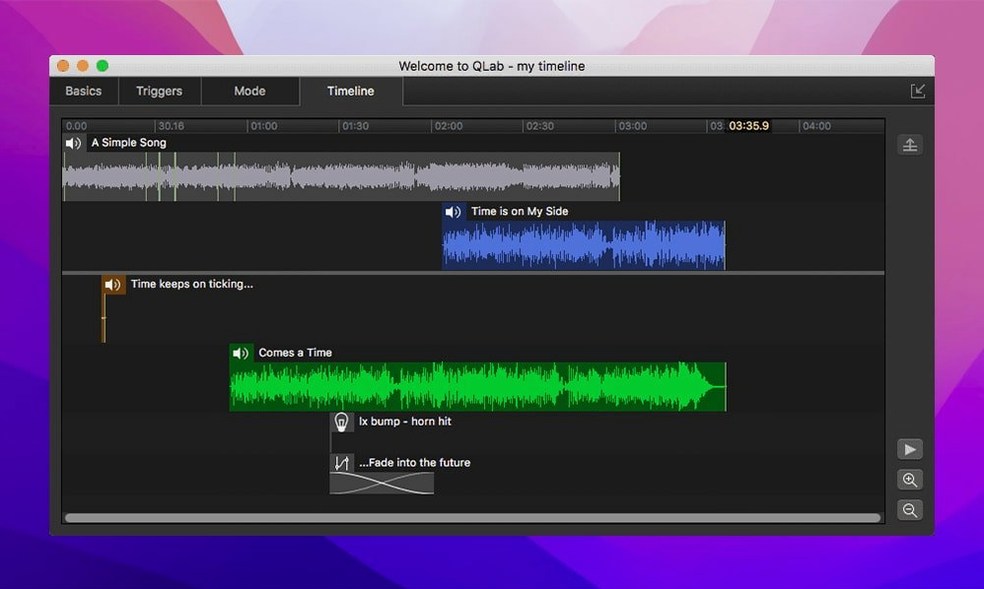
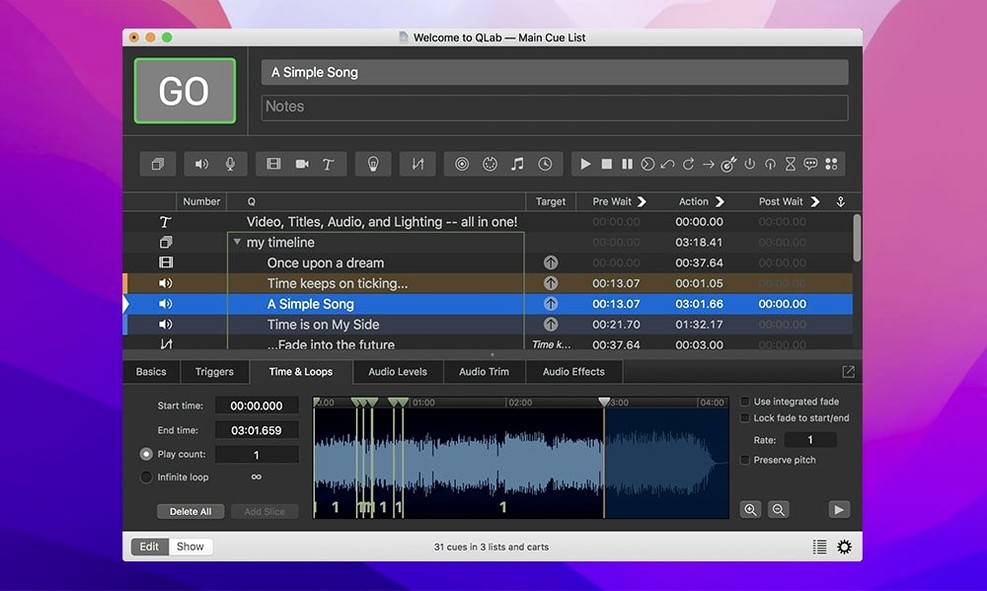
In the edit
QLab serves as a macOS application used to create and execute cues for audio, video, lighting, and show control. The current version, 5.6.3, keeps the same core workflow while adding a couple of practical refinements for lighting and network device setup.
| Detail | Info |
|---|---|
| Developer | Figure 53 LLC |
| Current version | 5.6.3 |
| macOS requirement | macOS 11 or later, Intel and Apple Silicon |
| Interface language | English |
What stayed the same is the solid set of tools you rely on during a show: an integrated audio editor for trimming tracks, adjustable playback speed with pitch control, video effects like reversing and centering on a projector, and Syphon integration for sending video between applications. Your project allows title overlaying, live video input from external devices like Blackmagic hardware, and change reversals while editing. The new version makes the Light Library and Light Definition editors a bit more helpful by colouring rows when an instrument definition is misconfigured, and it updates how workspaces from 5.6.2 and earlier migrate to the built-in network device definition for Right On Cue Services Stage|Tracks. If you are looking to qlab download free, this is the release to pick up.
Setting up cues for a three-scene theatre piece
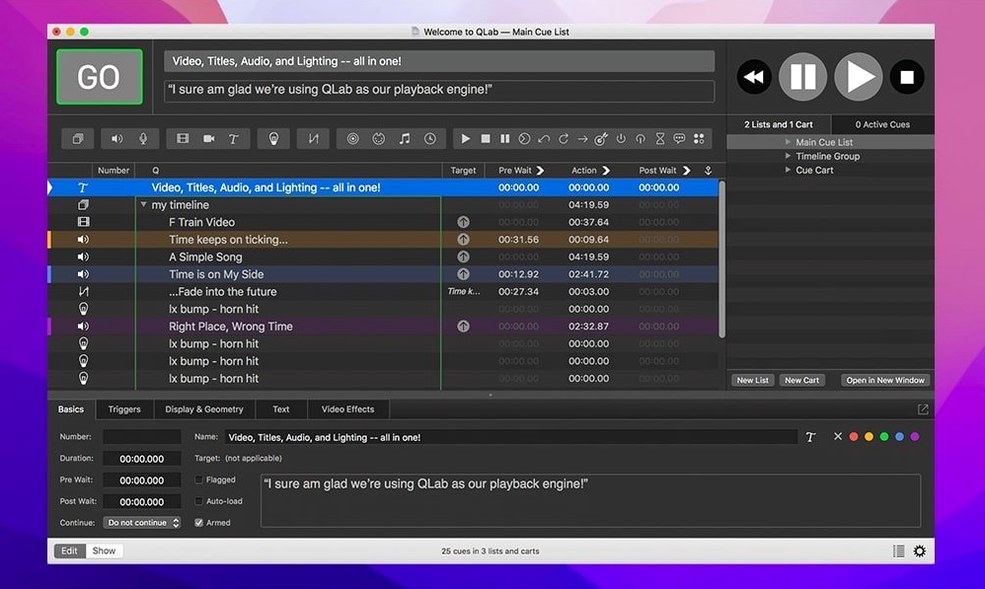
Let me walk you through a typical evening with QLab. Say I am setting up cues for a small theatre piece — three scenes, two projectors, a handful of sound cues, and one lighting moment that needs to hit exactly on a line. The workspace opens to the cue list, which is the heart of the whole thing. I start by creating a new group cue, name it Scene 1, and work inside it so the list stays clean.
Inside that group, I add audio cues first. The integrated audio editor lets me trim the start and end of each track right there, so I do not need to jump out to another app. I set the playback speed for one track that needs a slowed-down voiceover, and the pitch control keeps it from sounding like a chipmunk. Next, I add video cues for the projector. I reverse one clip so it plays backwards for a dream sequence, and I use the centering tool to make sure it fills the screen properly. The keystone correction comes in handy here because the projector is mounted at an angle and I need to square up the image.
Once the cues are in, I assign triggers. Some cues fire on a MIDI note from the lighting desk, others use OSC commands from a tablet running a remote app. I test each trigger a few times, watching the cue list highlight as they fire. The undo feature saves me more than once when I accidentally delete a cue or move a fader I meant to leave alone. After a full run-through, I save the workspace, and the next night I can open it and pick up exactly where I left off.
Forgetting to set the cue target leaves you with silence
If you are new to QLab, a few things trip people up regularly. The most common one is forgetting to set the cue target properly. You add an audio cue, press the big Go button, and nothing happens. Nine times out of ten, the cue is not assigned to the right output or the audio file path has broken because you moved the file after importing it. Always keep your media files in a folder you do not rearrange after linking them.
Another mistake is ignoring the cue list hierarchy. Beginners drop everything at the top level, so a show with fifty cues becomes a scrolling mess. Group cues and cue carts exist for a reason — use them to keep related cues together. It makes editing during tech rehearsal much faster.
People also underestimate how important the audio output configuration is. QLab supports 48 audio outputs and 24 audio inputs, but if you do not assign them in the workspace settings, you are stuck with the default stereo pair. That works for a podcast, but not for a show where different speakers need different channels. Take five minutes to set up your outputs before you start building cues.
Finally, beginners tend to skip testing with the actual hardware. You design everything on a laptop, then plug into the venue system on show day and wonder why the video looks stretched or the audio has a delay. Test with the venue projectors and sound system as early as you can.
Mapping your audio outputs in workspace settings first
When you open a fresh workspace, a few settings make the rest of the session smoother. Start with the audio patch. Open the workspace settings and map your outputs to the channels your sound system expects. If you are running multiple speakers, this is where you tell QLab which output goes to front of house and which goes to the monitors.
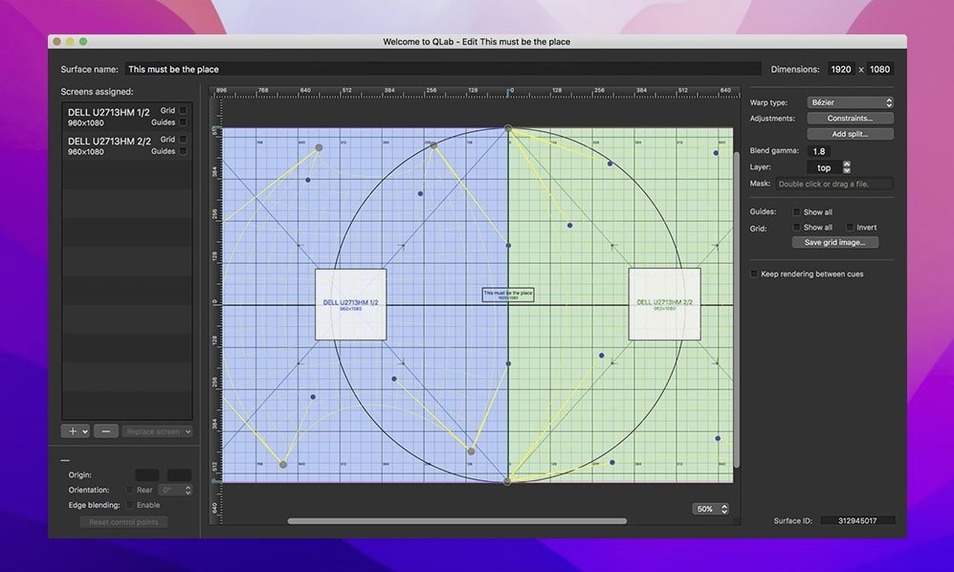
Next, set up your MIDI and OSC controls if you plan to use external triggers. The workspace settings let you define devices and ports, and once they are in, you can assign them to cues without going back to the settings every time. Also, check the video surface settings. If you have more than one display, tell QLab which one is the audience screen and which one is your control interface. That saves you from projecting your cue list onto the stage during a quiet moment.
One more thing: enable undo if it is not already on. It is there in the app, and it works across most changes, so you can experiment without worrying about breaking something. I also recommend setting up a default cue cart layout early on. You can drag common cue types into the cart and access them quickly during a live show when you do not have time to dig through menus.
Syncing a live camera feed with an audio cue
Here is a task I do regularly: bring a live camera feed into QLab, overlay a title, and play a sound cue at the same moment. Start by adding a video input cue. QLab supports live video from external devices, including Blackmagic hardware, so if you have a camera connected, it appears as an input source. Set the cue to use that input and adjust the centering so the feed fills the screen.
Next, add a title overlay cue. You can type the text directly in the cue settings, position it where you want, and set it to appear on top of the video input. I usually put the title in the lower third and fade it in over half a second. Then add an audio cue for the sound that needs to play at the same time. Now you have three separate cues that need to fire together.
Create a group cue and drag all three into it. Set the group cue to fire all its children simultaneously. When you hit Go, the video input starts, the title appears, and the sound plays — all at once. If the timing needs tweaking, you can adjust the delay on individual cues inside the group without changing the group itself. Test it with a full run-through to make sure the title fades in at the right moment relative to the sound, and you are ready for the show.
How a maintenance release changes the Light Library editor
QLab 5.6.3 primarily addresses maintenance, yet it introduces two alterations that influence your lighting workflow. The Light Library and Light Definition editors now colour rows differently when an instrument definition in that row is misconfigured. If you are building a complex lighting patch, a red or yellow row tells you instantly that something is wrong. You do not have to click through each definition to find the issue — the colour does the warning for you.
The Light Patch editor also gained a Broken status for misconfigured instrument definitions. Instead of guessing whether a fixture is set up correctly, you see the word Broken right there in the patch list. That alone saves time during tech rehearsals when you are troubleshooting why a light is not responding.
In the Right On Cue Services Stage|Tracks application, any workspaces made in version 5.6.2 or earlier are now converted automatically to the included network device definition. That means you do not have to manually reconfigure network devices after opening an older workspace. The migration happens in the background, and your cues keep working as expected.
A correction addresses an infrequent failure that might occur while halting video playback. If you run long video cues or loop them during an installation, that fix removes one less thing to worry about during a show. QLab is a professional tool for running live shows, ideal for designers needing reliable playback control.
New this release
Build 5.6.5 is live. The specific fixes and tweaks are detailed on the developer’s official release page, but this update keeps things running smoothly for anyone cueing complex shows from a Mac.
Mac it needs
- macOS 11 or later
- Apple Silicon & Intel 64-bit
Questions I actually get
Does QLab support video effects?
Yes, QLab includes video effects, supports reversing and centering video on a projector, and can use live video input from external devices including Blackmagic hardware.
Can I edit audio inside QLab?
Yes, QLab includes an integrated audio editor for trimming the start and end of audio tracks.
What is new in QLab 5.6.3?
Rows in the Light Library or Light Definition editor now change colour when an instrument definition is misconfigured, and workspaces from 5.6.2 and earlier migrate to the built-in network device definition for Right On Cue Services Stage|Tracks.
Installing on a Mac
QLab Pro 5.6.5 is a 34 MB download that runs on macOS 11 and above, covering both Intel and Apple Silicon Macs. Three steps later you're building cue lists.
- Mount the disk image and launch the Open Gatekeeper friendly app inside.
- When the Terminal window appears, press Enter to handle the Gatekeeper check automatically.
- Drag the QLab icon into your Applications folder and the tool is ready to use.
Notes from photographers
Sign in or create your account to leave a comment.
No notes from photographers yet. If you have used this on a real folder, say which camera and which Mac.