Get it for my Mac (17 MB)
 TouchDesigner
2025.31550
TouchDesigner
2025.31550

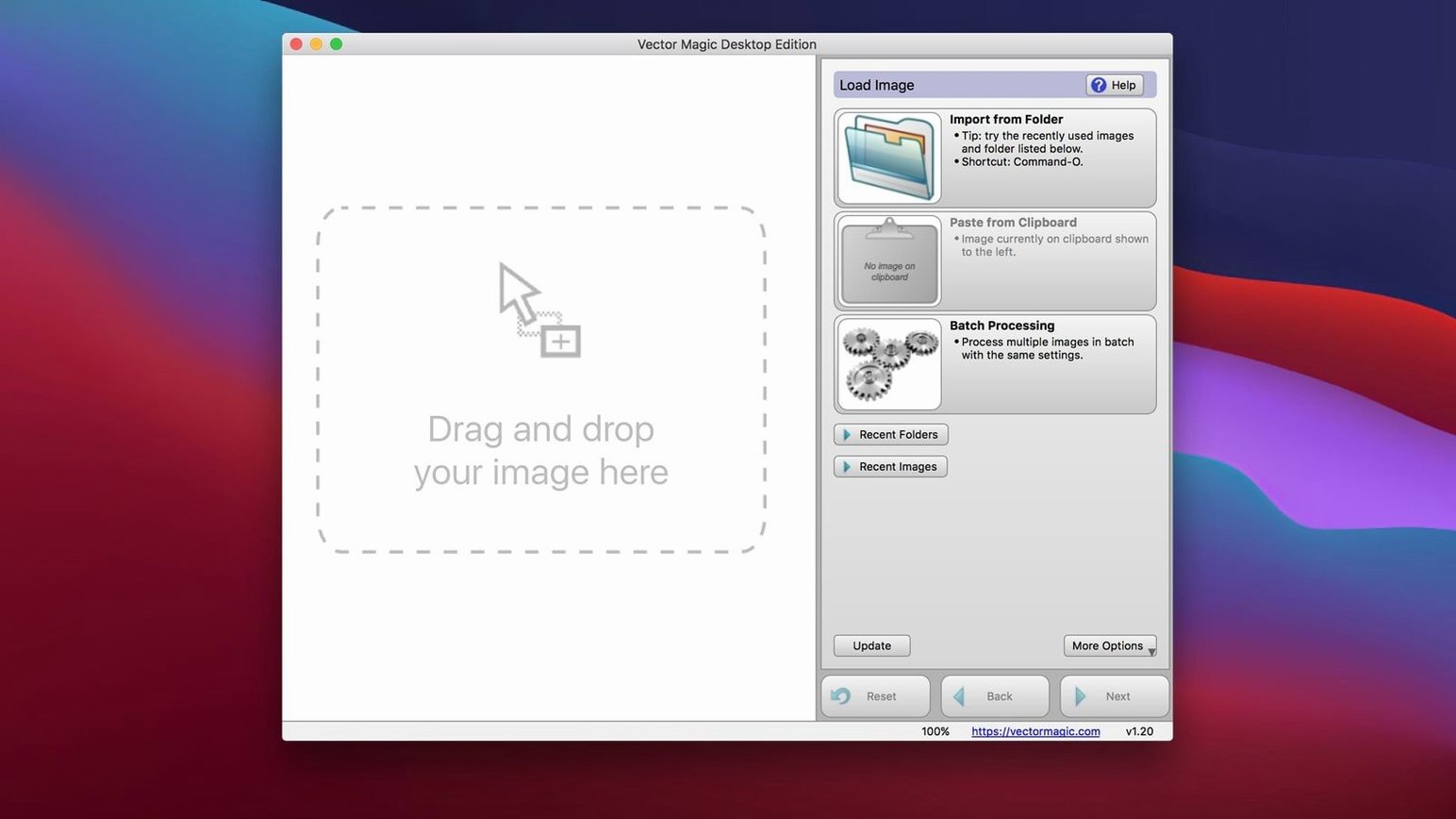
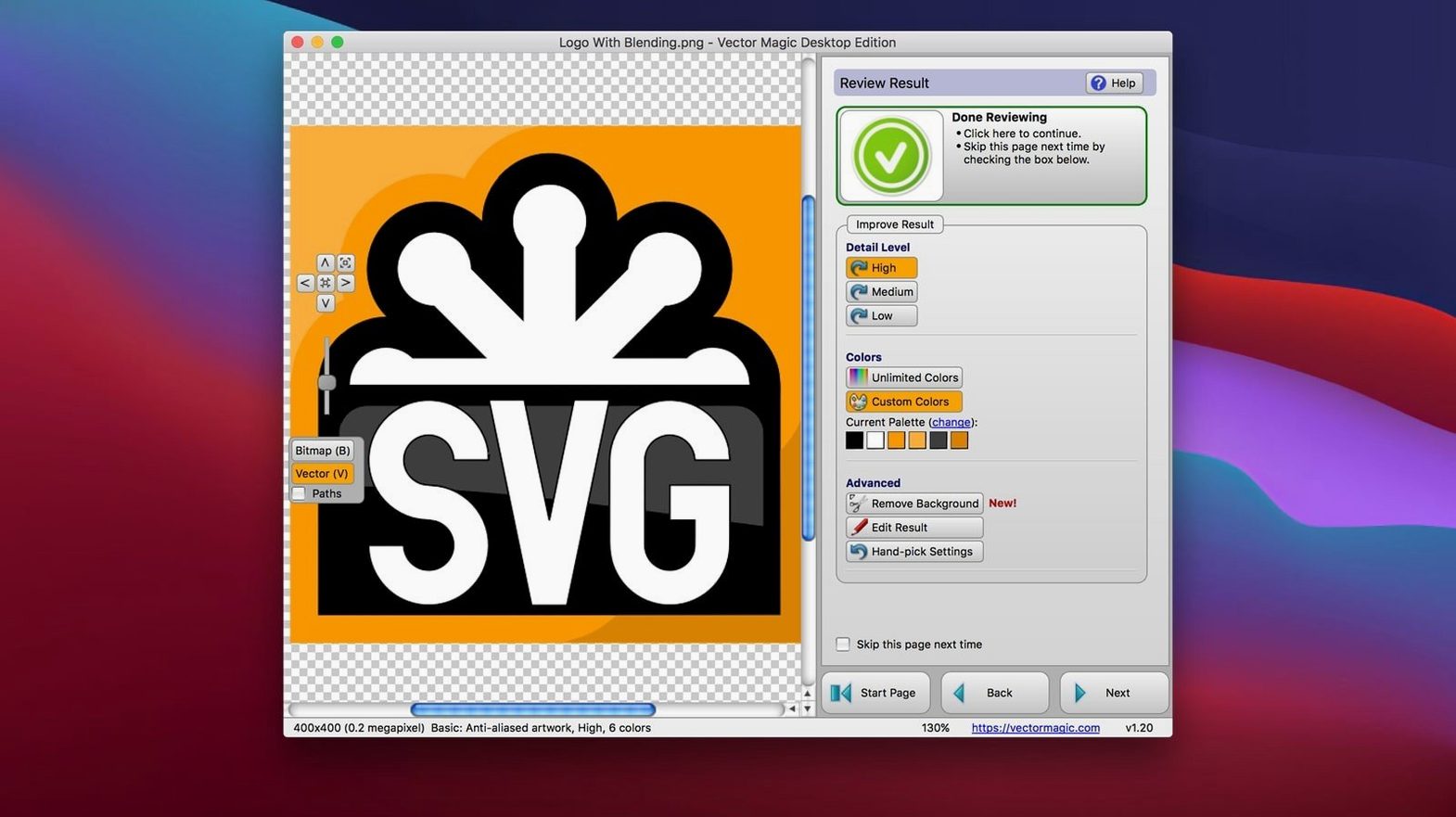
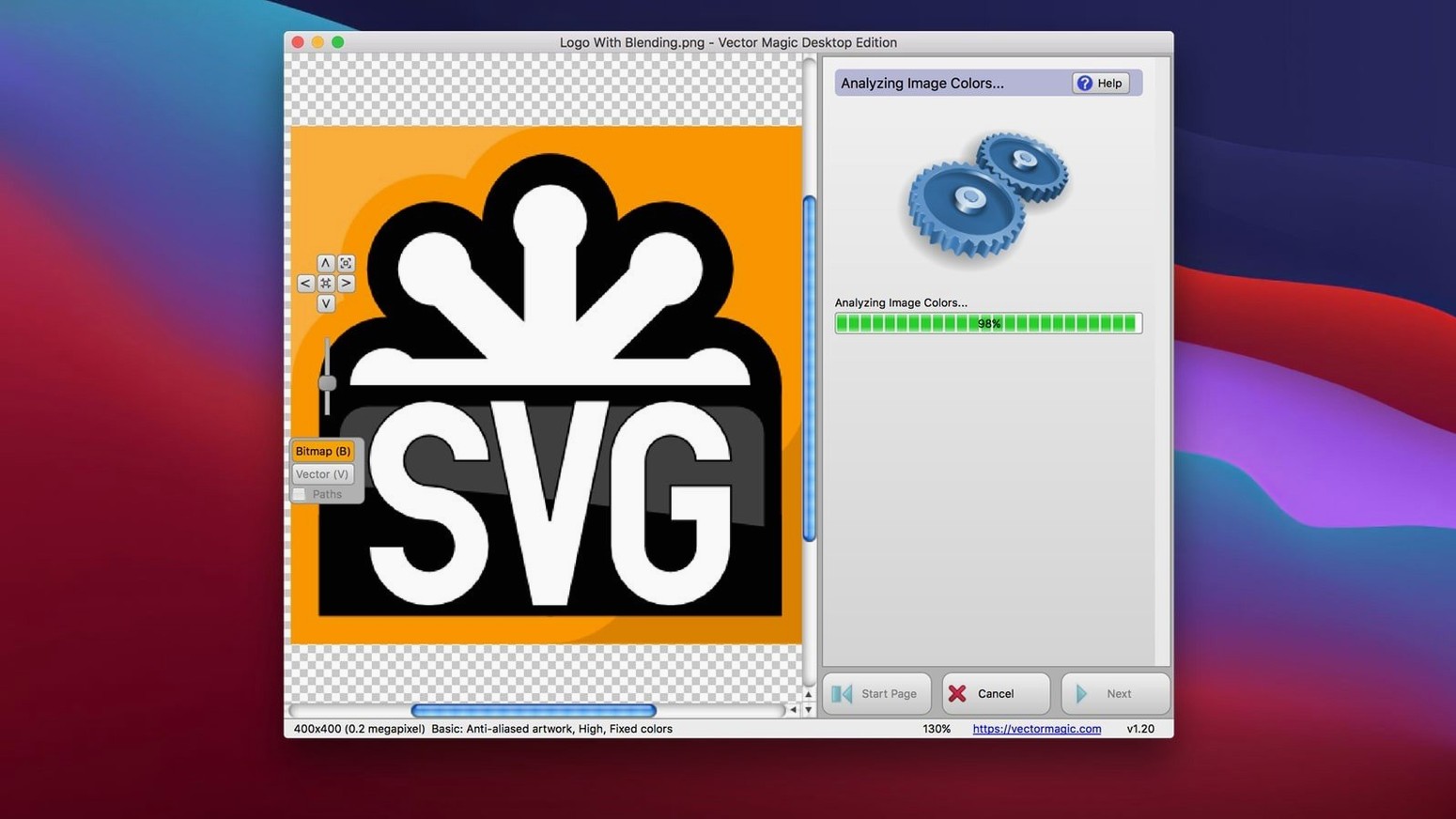
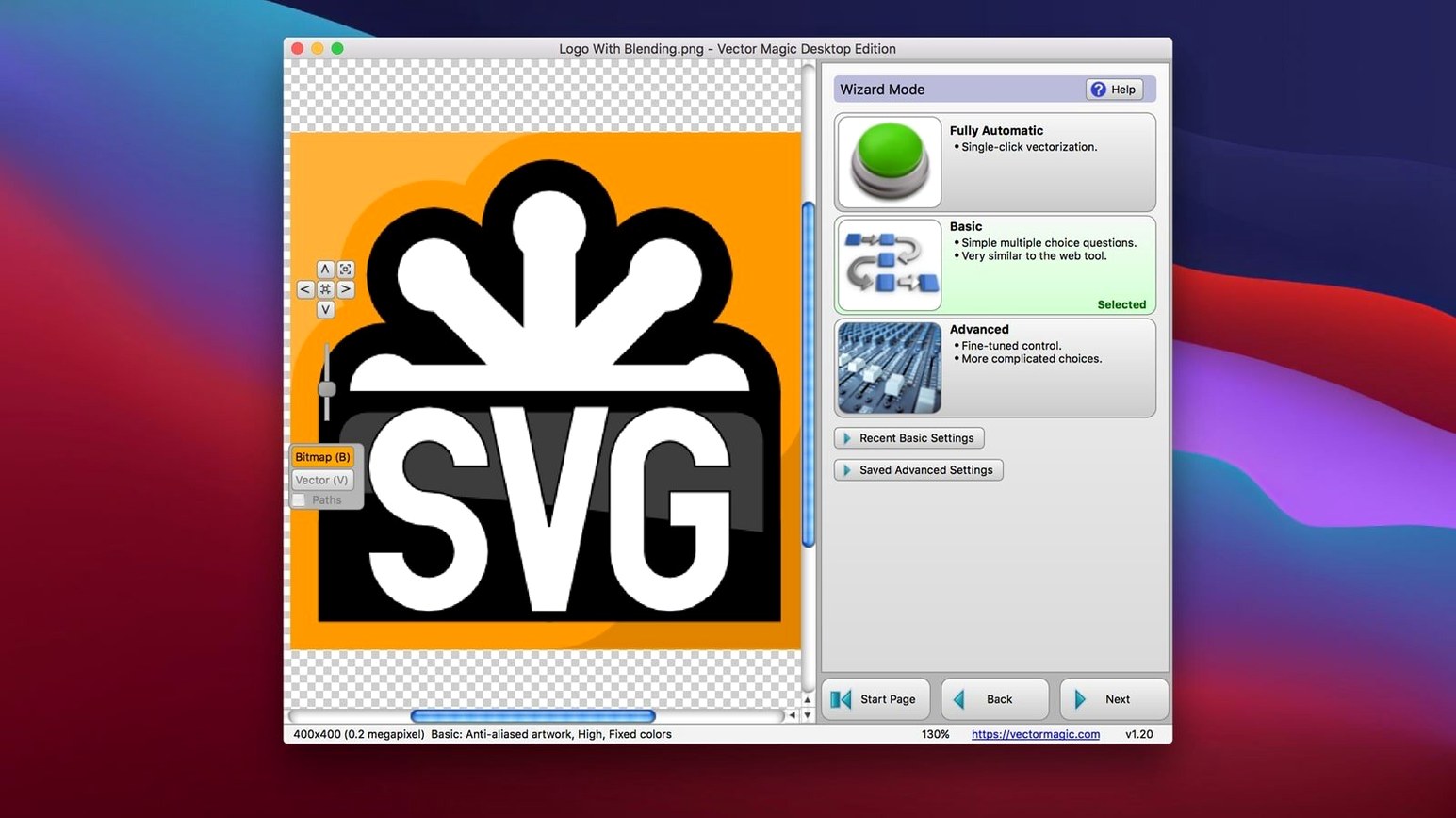
Vector Magic is a desktop application that turns bitmap images into clean vector graphics without an internet connection. For a newcomer, the first thing to try is the automatic vectorization mode: drop in a JPEG or PNG, and the software analyses the image and produces a vector result in seconds. If the automatic pass leaves room for improvement, switch to basic mode for simple shapes or manual mode for full control over edges and detail. The desktop edition works offline, supports very large images up to 10 MB and 10 megapixels, and outputs to EPS, SVG, PDF, AI, DXF, EMF or PNG. Copy and paste works across apps, and the built-in help covers the essentials if you get stuck. It is a 64-bit Intel app, runs on OS X 10.7 and later, and version 1.20 is the one you will find here.
The first thing that trips people up is the file size limit. You drop in a nice high-res photo and Vector Magic tells you it is too big. The maximum is 10 MB and 10 megapixels, so if your image is over either of those, resize it before you start. A quick scale in Preview or your photo editor usually does the trick. The software works best with logos, icons and illustrations anyway, not full photographs, so a smaller file is often all you need.
Another regular snag: the output looks fine on screen but opens as a blank or broken file in Illustrator. That usually means you picked the wrong output format for your workflow. If you are moving the result into Adobe software, stick with AI or EPS. For web work, SVG is the one. PDF is a safe bet if you are sending to a client who does not want to mess with vectors. And if your vector comes out with stray colours or rough edges, you probably forgot to check the transparency setting or left background removal off. Toggle those on before you run the conversion.
People also get stuck when the automatic mode does not give them clean curves. The fix is simple: switch to manual mode. You can tweak individual parameters and see the preview update in real time. It takes a bit longer, but you get the result you actually want.
The most common beginner error is expecting Vector Magic to turn any random photograph into a perfect vector. It is a vectorisation tool, not magic. It does its best work on images with clear edges and solid colours: logos, text, flat graphics. A muddy photo of a cat in dim light is going to come out as a mess of unnecessary nodes. Use it on the right material and you will be happy.
Another mistake is ignoring the preview. People hit the convert button and walk away, then wonder why the result has jagged edges or missing details. The preview is there for a reason. Zoom in, look at the curves, check the corners. If something looks off, adjust the settings before you commit.
Beginners also tend to export in every format at once. Pick the one you need. If you are not sure, SVG is the most portable and works across almost everything. EPS and AI are better if you plan to keep editing in a vector app. DXF is for CAD users only, so skip it unless you know you need it.
And a small but frequent one: dragging in a PSD file and expecting layer support. Vector Magic flattens the image before conversion. If you need to keep layers, convert each one separately and combine them in your vector editor.
Here is how a session looks when you know what you are doing. Say you have a client logo that arrived as a small JPEG, and you need it as a clean vector for a business card.
You open Vector Magic by dragging the JPEG straight into the window. The automatic mode kicks in and shows you a preview. You look at the edges of the logo text and notice a few curves are not quite right. The 'a' looks a bit blocky. So you switch to manual mode.
In manual mode, you adjust the detail slider until the preview shows the curves matching the original. You turn on background removal because the logo sits on a white square that you do not want in the final file. The preview updates as you make changes. You zoom in on the corners, check the node placement, and nudge a couple of settings until it looks right.
Once you are happy, you choose SVG as the output format. You copy the result and paste it into your layout software to check it scales cleanly. It does. You export the SVG file and send it off. The whole thing takes maybe five minutes.
Maria runs a small print shop in east London. She gets customers coming in with business card designs that exist only as low-res JPEGs or screenshots from social media. She used to redraw them by hand in Illustrator, which took ages and annoyed everyone.
Now she keeps Vector Magic on her Mac for exactly this. She drags it into Vector Magic, switches to manual mode, removes the background, and sets the detail to a medium level so the curves stay clean without adding too many nodes. The preview looks good. She exports as EPS, drops it into her print layout, and the logo scales up to business card size without any pixelation. The customer is happy and Maria saved half an hour of tracing work.
Vector Magic converts raster images to clean, scalable vectors, suiting designers who use vector magic crack 1.20 keygen. For her, vectormagic torrent or vector magic mac torrent are just the quickest way to get the desktop edition running on her machine. The important thing is that it works offline and handles the formats her clients throw at her.
It exports to EPS, SVG, PDF, AI, DXF, EMF and PNG.
Yes, the Desktop Edition converts images entirely offline.
Sign in or create your account to leave a comment.
No notes from photographers yet. If you have used this on a real folder, say which camera and which Mac.